A Comprehensive Guide to Detecting and Eliminating Spam Link Injections in WordPress
By WordPress Security Team |
Imagine starting your day by reviewing your WordPress site's analytics, only to notice something unusual. Your traffic has unexpectedly declined, and upon closer inspection, you discover your website has been infiltrated with unwanted links promoting various questionable products and services.
This scenario occurs more frequently than many website owners realize. Numerous WordPress professionals have encountered similar situations where client websites became compromised overnight, transforming into platforms for spam content.
The integrity of an online business can be severely compromised by such incidents, but with proper knowledge and tools, these issues can be resolved effectively. This guide will walk you through the complete process of identifying, removing, and preventing spam link injections on your WordPress site.
We will cover comprehensive detection methods, thorough cleanup procedures, and essential security measures to protect your website moving forward.
Understanding Spam Link Injections and Their Impact
Spam link injections occur when unauthorized individuals gain access to your WordPress installation and insert unwanted hyperlinks into your content. This practice can be compared to digital vandalism, but with more serious consequences than mere visual disruption.
When your website becomes infected, the repercussions extend beyond annoying spam links. Search engine rankings often suffer significantly, resulting in decreased organic traffic and potential loss of business opportunities. Many organizations have experienced substantial revenue declines when search engines temporarily blacklist compromised websites.
One particularly challenging aspect of these attacks is that many injected links remain invisible to regular visitors while being fully detectable by search engine crawlers. These links might be concealed using white text on white backgrounds, hidden within footer sections, or obscured through sophisticated coding techniques.
Comprehending how these security breaches operate represents the initial step toward safeguarding your website. This guide provides detailed instructions for thoroughly cleaning your WordPress installation.
Let's begin the process.
- Step 1. Detecting Spam Links
- Step 2. Removing Spam Links from WordPress
- Step 3. Database Cleanup Using Search & Replace Everything
- Step 4. Cleaning Up Spam Links in WordPress Theme and Plugin Files
- Step 5. Clean Up Critical Files
- Step 6. Securing Your Site After Cleanup
- Regaining Control of Your Website's Security
- Additional WordPress Security Resources
Step 1. Detecting Spam Links
We will guide you through the methodology commonly employed by security professionals to uncover concealed malicious content. Several approaches exist for this purpose, and implementing multiple detection methods ensures comprehensive coverage.
Method 1: Identifying Spam Links Through Google Search Console
Google Search Console serves as a primary defense mechanism for detecting spam links. This complimentary tool from Google enables website administrators to monitor their site's performance within search results.
The platform offers extensive insights and includes robust diagnostic capabilities that help assess your website's standing with Google Search. If you haven't configured this tool yet, numerous tutorials are available from WordPress security experts.
After completing the setup process, follow these specific steps.
Begin by logging into Google Search Console and selecting your website. Next, navigate to the 'Security & Manual Actions' section located in the left sidebar.
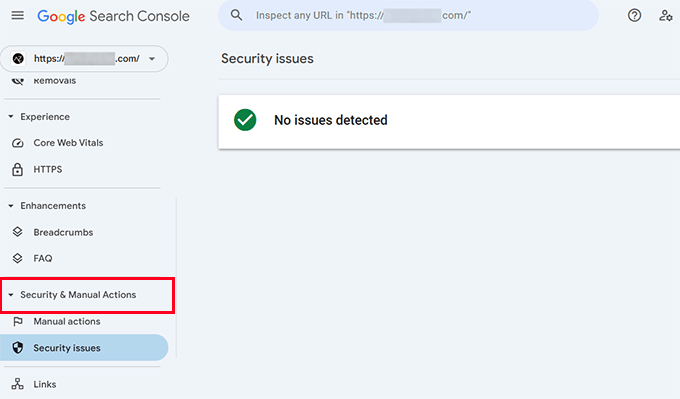
Within this section, examine any notifications regarding "unnatural links" or "spam content."
It's important to recognize that a 'No issues detected' message doesn't necessarily indicate a clean website. Spam links might still be present without triggering Google's detection systems.
Proceed by examining the 'Links' report to identify any unusual patterns.
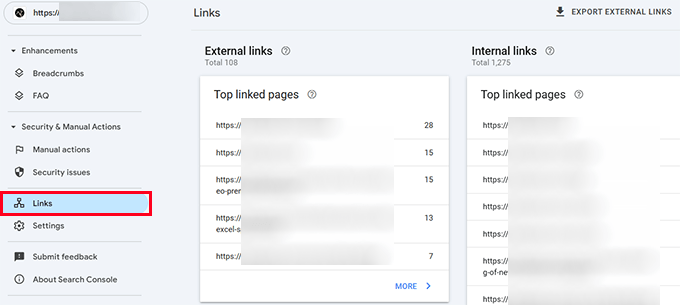
Look for any unfamiliar domains or suspicious anchor text within these reports. Suspicious elements typically originate from domains you don't recognize and cannot verify as legitimate sources.
Method 2. Manual Website Inspection for Spam Links
Individuals attempting to compromise websites employ creative techniques to conceal their activities. Security professionals have discovered spam links hidden within website content using invisible text that only becomes visible when selecting entire page sections.
Common concealment locations include footer areas, within existing content (particularly older posts), widget sections, and template files.
Manual examination of your website's source code can sometimes reveal spam links.
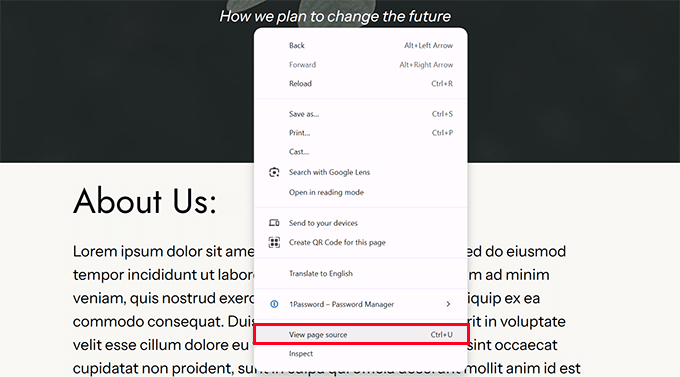
Pay particular attention to any code that appears encoded or disorganized, as this often indicates potential security issues.
Another detection approach involves examining Google's search results for indexed pages from your website.
If your site has been compromised with spam injections, you might encounter search results containing unusual meta descriptions, pages with pharmaceutical-related keywords, or foreign language characters when reviewing these listings.
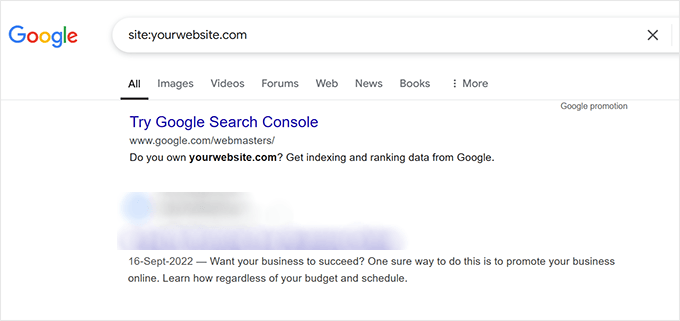
The challenge with manually identifying spam links is that simply removing or deleting them doesn't always resolve the underlying issue. Additionally, this process can be exceptionally time-consuming.
Identifying the malicious code responsible for generating these spam links proves more efficient and effective. The following section addresses this approach.
Method 3. Identifying Malicious Code and Links Using Security Scanners
Security solutions designed for WordPress can automatically scan your website and identify potential problems.
These tools examine your installation for modified core files, suspicious coding patterns, recognized malware signatures, and unauthorized file alterations.
Consider these applications as continuous security monitors, constantly surveying your website for questionable activities. Running comprehensive scans may help uncover hidden access points that unauthorized individuals might have established on your site.
Depending on which WordPress security solution you've implemented, initiate a new scan to search for malicious code.
For instance, if utilizing Wordfence, navigate to Wordfence » Scan and select the 'Start New Scan' option.
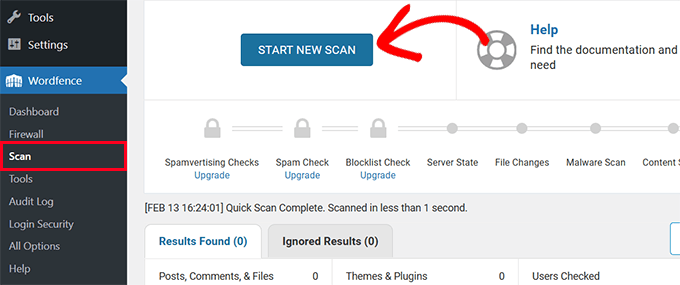
These security applications excel at detecting file modifications and identifying suspicious or malicious code segments.
Upon detection, they typically provide recommended actions to address identified issues.
For more detailed information about this process, consult available resources on scanning WordPress installations for potentially malicious code.
Step 2. Removing Spam Links from WordPress
After identifying spam links or the malicious code generating these links, the subsequent step involves their removal.
If you're using a WordPress security plugin, it may automatically suggest remediation actions to eliminate these links.
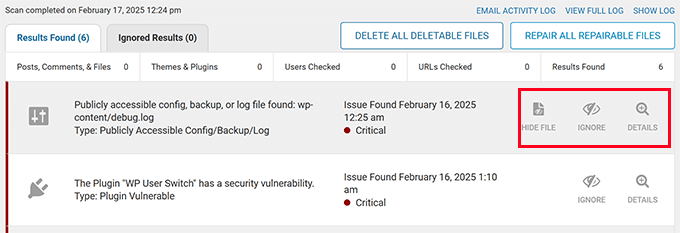
However, sometimes simply deleting identified files doesn't completely resolve the issue, and spam links may continue appearing on your site.
For thorough remediation, you'll need to employ multiple tools and techniques based on how and where malicious code and links have been inserted.
The following steps will examine these tools and their implementation methods.
Step 3.Database Cleanup Using Search & Replace Everything
Now that you've confirmed your website contains spam links, the next phase involves comprehensive cleanup.
You might not have identified every instance of these unwanted spam links. However, if you understand their characteristics, bulk removal becomes more manageable.
This is where Search & Replace Everything