3 Effective Methods to Automate Tax Collection for Stripe Payments in WordPress
Operating an online store often requires collecting sales tax, which depends on various factors including your business location and transaction volume.
Tax regulations differ significantly across countries, states, and local jurisdictions, making accurate tax calculation for products and services a complex undertaking.
Many online merchants face these challenges when selling to customers worldwide.
Fortunately, WordPress offers specialized plugins that streamline tax collection automatically, regardless of your product type.
For instance, some merchants utilize Easy Digital Downloads for software and digital products, while others prefer WooCommerce for physical goods and services.
This guide provides step-by-step instructions for implementing tax collection with Stripe payments in WordPress across common e-commerce scenarios.
The Importance of Tax Collection for Stripe Transactions
For online businesses, tax collection represents both a legal requirement and operational necessity.
Whether selling physical merchandise, digital downloads, or subscription services, proper tax collection at checkout ensures compliance with local, state, and international regulations.
This requirement stems largely from economic nexus rules, which may obligate businesses to collect sales tax in jurisdictions where they achieve certain sales thresholds, even without physical presence.
Non-compliance can result in substantial penalties and damage business credibility, making proper tax collection essential.
Tax transparency also enhances customer experience by eliminating payment surprises during checkout, demonstrating business legitimacy, and simplifying accounting processes.
Let's explore practical methods for implementing tax collection with Stripe payments in WordPress.
Use these quick navigation links to access specific methods:
- Tax Collection for Subscriptions, Services, and Single Products
- Tax Collection for Physical Products
- Tax Collection for Digital Products
- Common Questions About WordPress Tax Collection
Tax Collection for Subscriptions, Services, and Single Products
For businesses offering subscriptions, services, or individual products, payment forms provide an efficient solution for revenue collection with integrated tax calculation.
Many WordPress professionals recommend using a dedicated payment form plugin that offers pre-designed templates, intuitive form builders, and comprehensive security features.
During evaluation, fixed and automatic tax rate capabilities prove particularly valuable. Fixed rates work well for businesses operating in regions with consistent tax regulations, while automatic calculation adjusts rates based on customer location, minimizing errors and administrative overhead.
Begin by installing and activating your chosen payment form plugin through the WordPress dashboard.
After activation, a configuration wizard typically appears. Proceed by selecting the appropriate setup option.

Next, enter your plugin license key, typically available from the plugin provider's website. After entering the key, proceed to activation.

Connect your Stripe account with the payment plugin. Most payment solutions require this connection for functionality.
Select the Stripe connection option and authenticate with your account credentials.
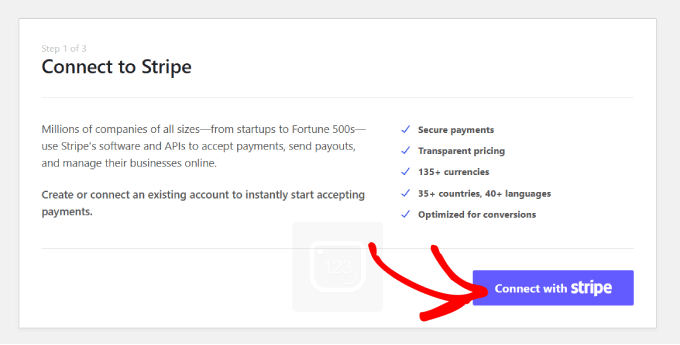
After successful Stripe integration, configure email notifications for payment receipts, upcoming invoices, and transaction alerts. Specify your preferred email address for these communications.
Complete the remaining configuration steps and exit the setup wizard.

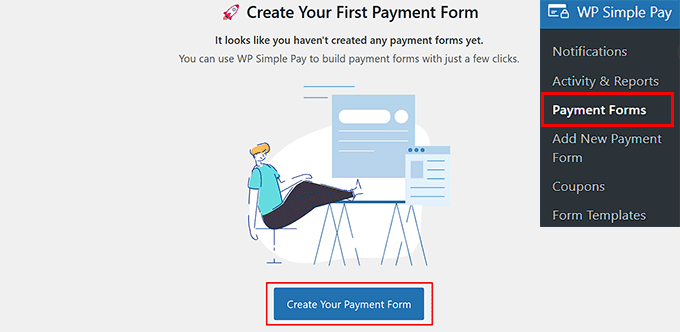
Navigate to the payment forms section in your WordPress dashboard.
Select the option to create a new payment form.
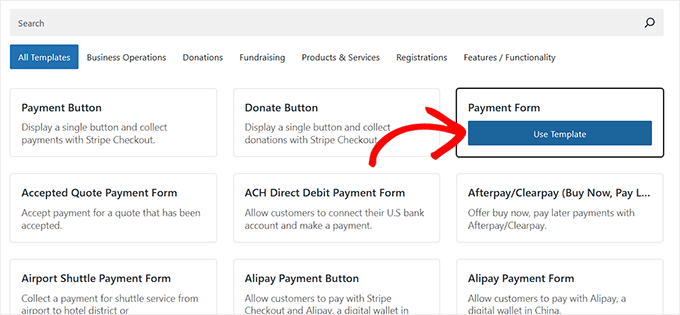
You'll access a template selection screen displaying various pre-designed forms.
Choose an appropriate template by selecting the corresponding option. For demonstration purposes, a basic payment form template works effectively.
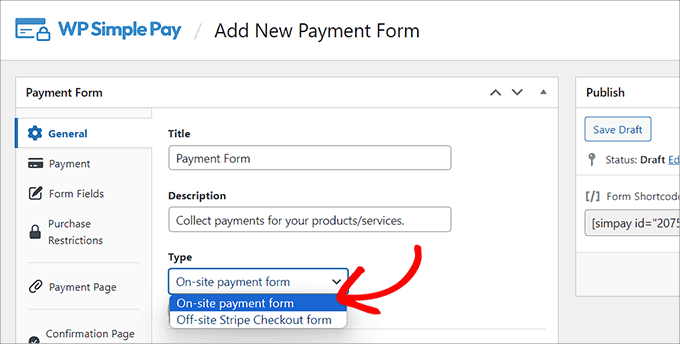
The form builder interface will open, allowing you to add a title and description for your payment form.
Select the on-site payment form option for direct website integration.
Access the form fields section, where you can add new fields through a dropdown menu.
Expand each field's settings to customize its properties, and rearrange fields through drag-and-drop functionality.
Include all necessary fields to collect required customer information. For location-based tax calculation, incorporate address fields to capture customer location data during purchases.
For merchants selling physical goods, WooCommerce provides comprehensive tax management capabilities.
Begin by enabling tax calculations in WooCommerce settings, then configure tax rates based on customer location, product type, or shipping destination.
Many experienced developers recommend implementing automated tax calculation services that integrate directly with WooCommerce, ensuring accurate, up-to-date tax rates without manual maintenance.
Tax Collection for Digital Products
Digital product merchants can utilize specialized e-commerce solutions that offer built-in tax calculation features.
These platforms typically allow configuration of tax rules specific to digital goods, including VAT for European customers or sales tax for specific US states.
Proper setup ensures automatic tax application during checkout based on customer location and product type.
Common Questions About WordPress Tax Collection
Many merchants wonder about tax calculation accuracy, international tax compliance, and integration with accounting systems.
Most modern WordPress e-commerce solutions address these concerns through automated calculation, regular tax rate updates, and reporting features that simplify tax filing and compliance documentation.
Always consult with tax professionals regarding specific regulatory requirements for your business location and customer base.