A Comprehensive Guide to Stress Testing Your WordPress Site
Understanding how to conduct a stress test on your WordPress website is an essential skill for any site owner. This process provides valuable insights into your site's capacity and reliability.
Stress testing builds confidence in your website's ability to handle increased traffic and ensures your online presence remains stable during peak periods. By identifying potential bottlenecks and limitations, you can proactively address issues before they affect your visitors.
The procedure is more accessible than many assume, offering clear results without requiring advanced technical expertise. This guide will walk you through each step systematically, ensuring you gain practical knowledge and actionable insights.
Understanding WordPress Stress Testing
A WordPress stress test evaluates how your website performs under simulated high-traffic conditions. This assessment helps you prepare for traffic spikes and understand how your site manages increased load.
While your hosting plan typically determines traffic capacity limits, stress testing reveals these boundaries and identifies potential issues that might emerge during heavy usage.
For example, sudden traffic surges can overwhelm server resources and cause site crashes. Stress testing also helps identify problematic plugins, themes, custom code, or media files that might fail under pressure.
By conducting these tests, you can resolve issues and adjust misconfigured settings before they impact users. This proactive approach enhances user experience and prepares your site for successful growth.
Conducting a WordPress Website Stress Test
Numerous performance testing tools exist for WordPress sites, including PageSpeed Insights, Pingdom, and GTmetrix. While these tools measure loading speed effectively, they don't simulate high-traffic scenarios.
For stress testing, we'll use Loader.io, a free tool that simulates heavy traffic conditions through various test scenarios.
Create a Free Loader.io Account
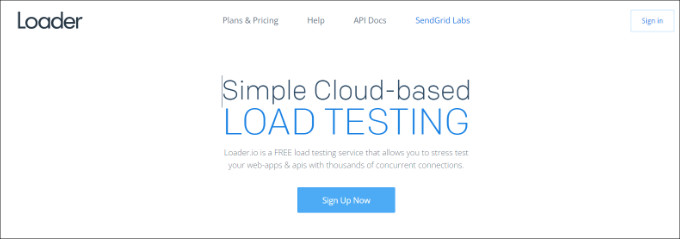
Begin by visiting the Loader.io website and creating a free account. Click the 'Sign Up Now' button to initiate the process.
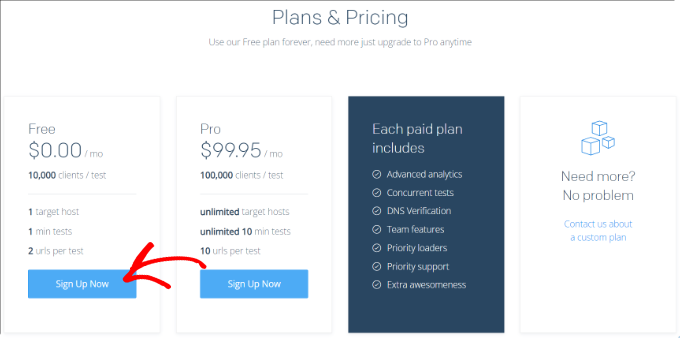
You'll then see various pricing options. Select the 'Free' plan to continue.
Complete the registration form with your company name, email address, and password. Check the reCaptcha box and click 'Sign Up' to create your account.
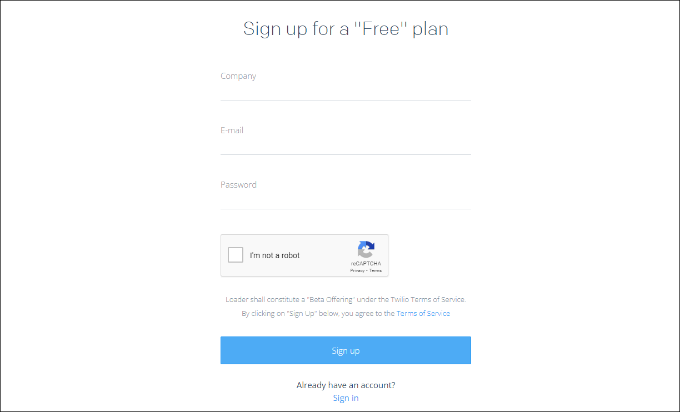
Check your email for a verification message and click the provided link to confirm your account.
Configure Your Target Host
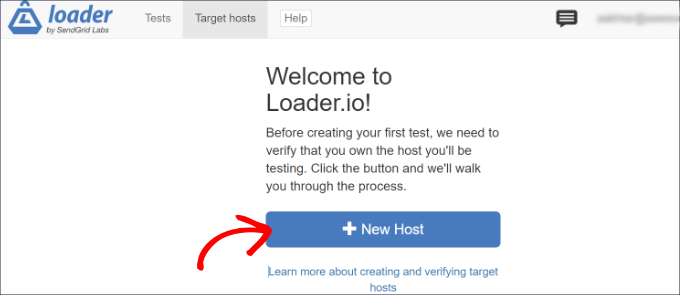
After verification, add a new host by clicking the '+ New Host' button.
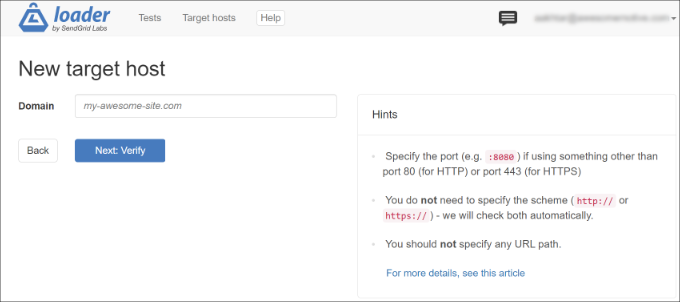
Enter your domain name in the provided field, then click 'Next: Verify' to proceed.
Choose your verification method. For this guide, select 'Verify over HTTP' and download the verification file to your computer.
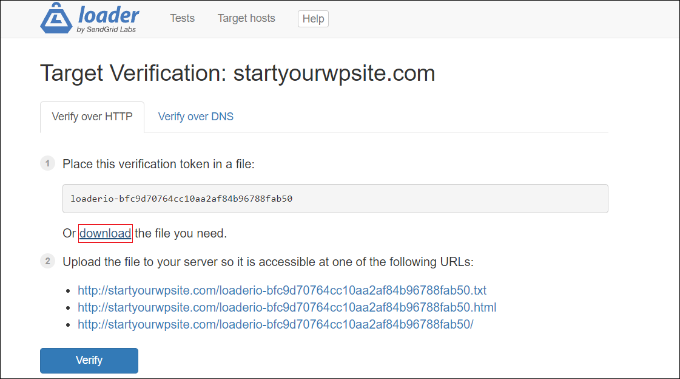
Upload the downloaded file to your website's root directory, typically named public_html. You can use any FTP client for this transfer process.
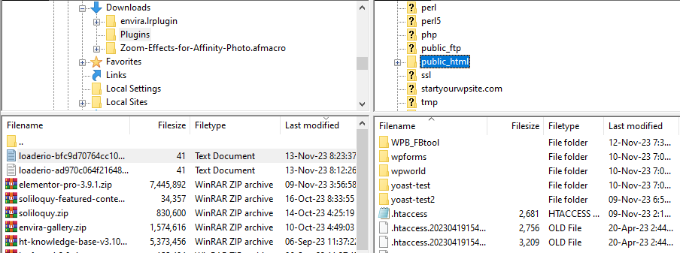
Return to Loader.io and click the 'Verify' button. A success message will confirm your domain verification.
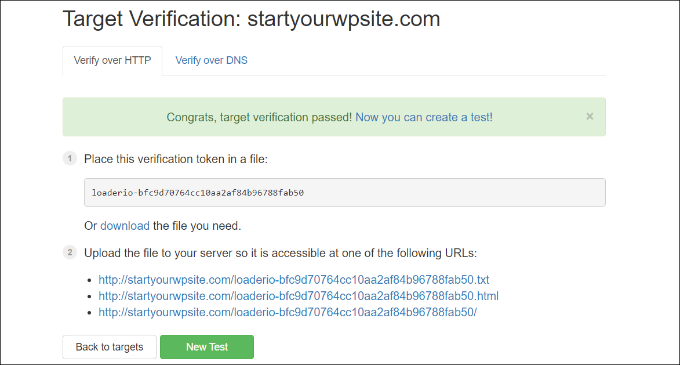
Click 'New Test' to configure your stress test parameters.
Configure Stress Test Parameters
On the configuration screen, begin by naming your test for easy identification.
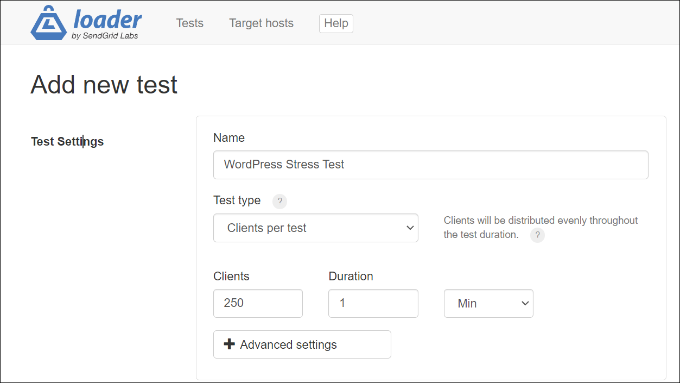
Select your preferred test type from three available options:
- Clients per test– Simulates a specific number of simultaneous visitors over a defined period. Configure both client count and duration.
- Clients per second– Tests your site's response to a specified number of requests per second.
- Maintain client load– Maintains a consistent visitor count throughout the test duration, simulating sustained traffic pressure.
Experienced developers recommend running multiple tests using different scenarios to identify various potential issues. This comprehensive approach reveals how your site responds to different traffic patterns.
Scroll down to review Client Requests settings. For initial testing, default settings typically provide adequate results without requiring adjustments.