How to Fix WordPress Redirects to Spam Sites: A Complete Security Guide
By WordPress Security Team |
Picture this scenario: You attempt to visit your WordPress site only to be unexpectedly redirected to an unfamiliar gambling platform or questionable pharmaceutical advertisement.
This alarming situation indicates your website has likely been compromised by malicious actors.
Many website administrators find this experience both distressing and challenging. However, it's important to remain calm and methodical in your response.
Your website can be restored to proper functionality, and this guide will walk you through each necessary recovery step. Whether your visitors are encountering unwanted redirects or you've received security warnings from search engines, these procedures will help address the issue.
This comprehensive article demonstrates effective methods to prevent WordPress from redirecting users to spam websites.
Understanding WordPress Spam Redirects
Spam redirects occur when attackers inject harmful code into your WordPress installation. This malicious programming then directs visitors to undesirable destinations containing advertisements, phishing attempts, or malware distribution.
Cybercriminals employ various techniques to gain unauthorized access to websites, including:
- Compromised Plugins & Themes: Extensions and design templates obtained from unofficial sources frequently contain malware that causes spam redirects.
- Inadequate Password Security: Attackers can exploit weak administrative credentials to control your site and insert redirect code.
- Unresolved Security Vulnerabilities: Outdated WordPress core files, plugins, or themes provide opportunities for exploitation through known security gaps.
- Concealed Backdoor Access: Even after removing visible malware, attackers sometimes establish hidden entry points for future unauthorized access.
Many website operators remain unaware of security breaches until visitors report problems or search engines issue alerts.
When your site experiences compromise, prompt action becomes essential. Each moment your website redirects to spam destinations potentially results in lost traffic, reputational damage, and search engine penalties. Timely intervention minimizes negative consequences.
Following this understanding, we present a detailed sequential guide for resolving WordPress spam redirect issues. We'll explain each cleanup phase thoroughly, clarifying procedures and their importance.
Preparation: Establish a Backup Restoration Point
Before initiating any repair procedures, ensure you possess a recent website backup. This restoration point provides safety if complications arise during the cleanup process.
Many WordPress professionals recommend utilizing reliable backup solutions that facilitate straightforward website backup and restoration. These tools have proven valuable for maintaining secure backup systems across numerous organizations.
Important Note: Some backup solutions offer free versions with basic functionality, though premium plans typically provide more comprehensive features.
With your website properly prepared for repairs, we can proceed to address spam redirect issues.
Step 1: Conduct Comprehensive Malware Scanning
Consider malware scanning analogous to using specialized detection equipment—it helps identify hidden threats within your site's file structure.
Experience demonstrates that spam redirects often conceal themselves in unexpected locations, making thorough scanning imperative.
Fortunately, several reputable WordPress security plugins exist for conducting website scans.
Here's how to perform an effective malware scan.
First, install a trusted security plugin from the official repository. For demonstration purposes, we'll reference a popular security solution, though similar procedures apply across most security plugins.
Begin by installing your chosen security plugin through the standard WordPress plugin installation process.
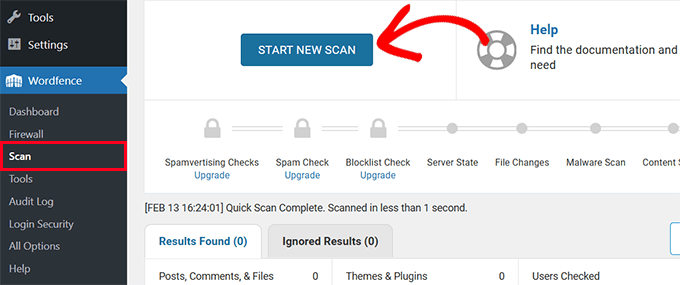
Next, navigate to the plugin's scanning section within your WordPress dashboard and initiate a complete site scan. Completion time varies depending on your website's data volume and file quantity.
When scanning concludes, review the results carefully.
Examine results systematically, paying particular attention to severe and critical issues. Most security plugins allow clicking individual issues for detailed information.
Typically, security plugins provide specific instructions for addressing identified problems.
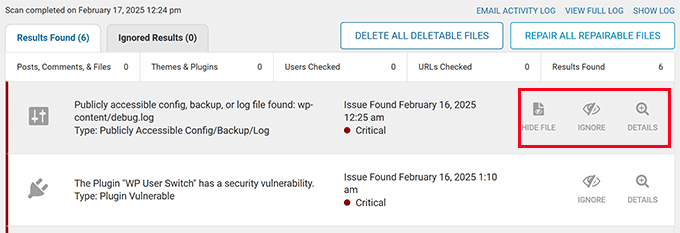
WordPress security scanners effectively detect numerous malware variants and redirect exploits. Hopefully, they will identify code responsible for spam redirects.
Step 2: Identify Suspicious Administrative Accounts
Attackers frequently create hidden administrator accounts to maintain persistent access. These accounts may feature innocuous-seeming usernames or mimic system accounts.
Security incidents vary—some involve single cleverly disguised accounts, while others feature numerous unauthorized administrative users.
Follow these steps to detect and eliminate questionable user accounts.
Access the Users » All Users section within your WordPress administration panel.
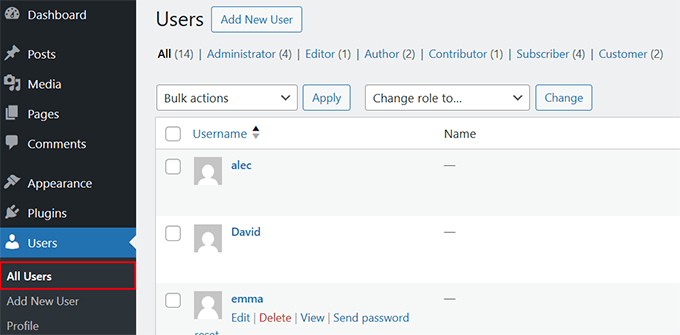
Carefully examine all listed accounts, watching for unfamiliar entries. Suspicious accounts might contain random numerical sequences, unusual usernames, or names resembling system functions.
Proceed to remove any questionable accounts immediately using the deletion function.
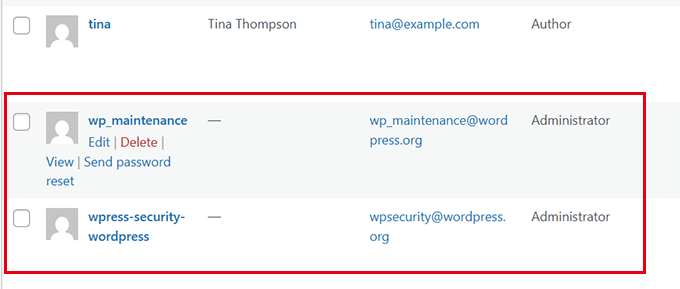
Security Note: Some attackers name accounts after common WordPress functions like "admin_support" or "wp_maintenance." Exercise particular caution with system-appearing usernames.
After reviewing and removing suspicious user accounts, advance to the subsequent step.
Step 3: Restore Compromised WordPress Files
Similar to replacing infected hardware components with clean alternatives, we must restore untainted versions of core WordPress files.
This process won't affect your website content, images, themes, or plugins.
Here's a verified procedure for safe file replacement.
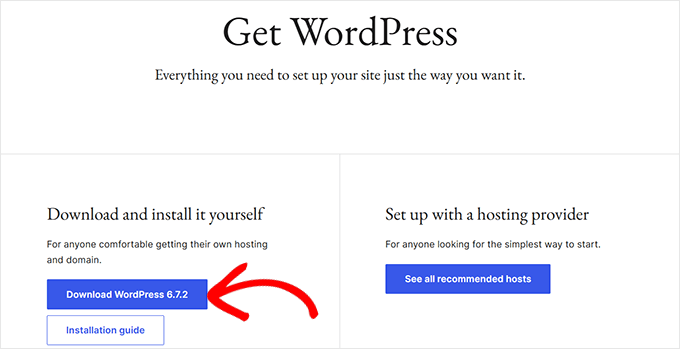
First, obtain a fresh WordPress installation package from the official source and extract the files on your computer.
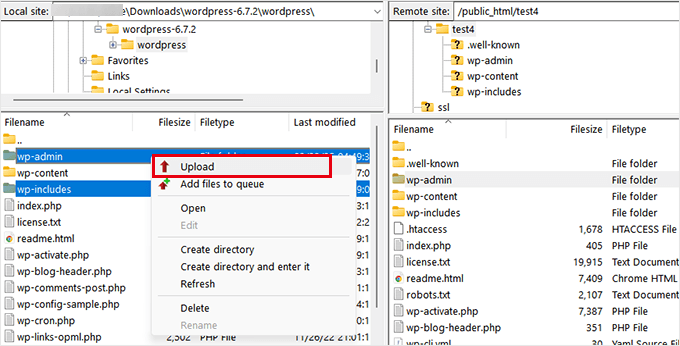
Next, establish connection to your site using FTP software or the File Manager application in your hosting control panel, then navigate to the WordPress root directory.
This directory contains the wp-admin,wp-includes, and wp-content folders.
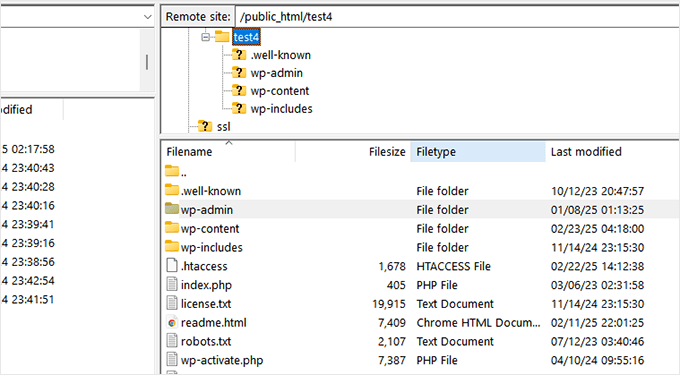
Proceed to delete the existing wp-admin and wp-includes directories.
Following deletion, upload clean versions from your computer's extracted WordPress files.