7 Proven Methods to Regain Access to Your WordPress Dashboard
Experiencing login issues with WordPress can be a frustrating situation for website owners. Being unable to access your dashboard can halt your workflow and create significant challenges.
Fortunately, numerous solutions exist to overcome these access barriers. Through various technical approaches, you can restore your administrative privileges and resume managing your website effectively.
Common Scenarios Requiring WordPress Access Recovery
Several situations can prevent standard login procedures from working correctly. Understanding these scenarios helps identify the appropriate solution.
Forgotten Credentials: When password recovery emails fail to arrive due to email configuration issues or spam filtering, alternative methods become necessary.
Plugin Compatibility Issues: Security plugins or login-related extensions sometimes conflict with other software, causing unexpected login failures after updates or configuration changes.
Security Breaches: Unauthorized access attempts may result in compromised login credentials, requiring immediate action to restore legitimate administrative control.
Excessive Failed Attempts: Security measures that temporarily block access after multiple incorrect password entries can prevent legitimate users from logging in.
Technical Malfunctions: Theme or plugin updates can occasionally break the login page functionality, making standard authentication methods unavailable.
Custom URL Confusion: Security plugins that modify the default login address can create access issues if the new URL is forgotten or misconfigured.
The following methods provide systematic approaches to resolving these access challenges. You can navigate directly to specific solutions using these sections:
- Method 1: Access Through Direct Login URLs
- Method 2: Password Reset via Email
- Method 3: Database Password Reset
- Method 4: Plugin Management via FTP
- Method 5: New User Creation via phpMyAdmin
- Method 6: Site Restoration from Backup
- Preventing Future Access Issues
- Common Questions About WordPress Access Recovery
Method 1: Access Through Direct Login URLs
When the standard login page becomes inaccessible, attempting alternative WordPress login URLs often provides a straightforward solution.
The platform maintains several default addresses that may work even when customized login pages experience issues:
www.example.com/wp-admin/www.example.com/wp-login.phpwww.example.com/admin/www.example.com/login/
Remember to substitute 'example.com' with your actual domain name when testing these addresses.
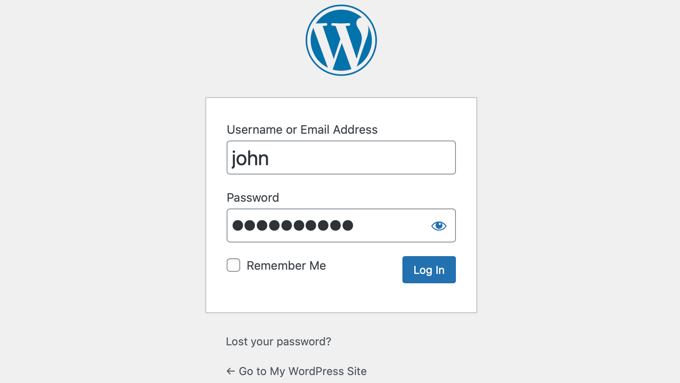
Entering any of these URLs in your browser should display the WordPress authentication interface.
If your browser maintains an active WordPress session, visiting the wp-admin/ address might directly redirect you to the dashboard without requiring credential entry.
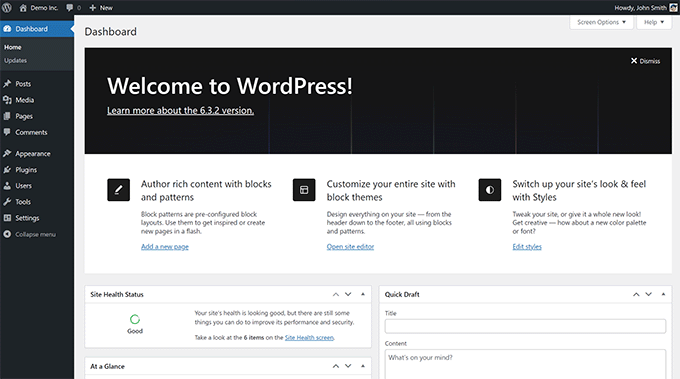
When standard URLs prove ineffective, attempting a redirect parameter might force the login page to appear:
www.example.com/wp-admin/?redirect_to=yourwebsite.com/wp-admin/
If these approaches remain unsuccessful, proceed to alternative recovery methods.
Method 2: Password Reset via Email
WordPress includes built-in functionality for password recovery through email verification. This method typically represents the most convenient approach when credentials are forgotten.
Navigate to your WordPress login page (https://example.com/wp-login.php) and select the 'Lost your password?' option.
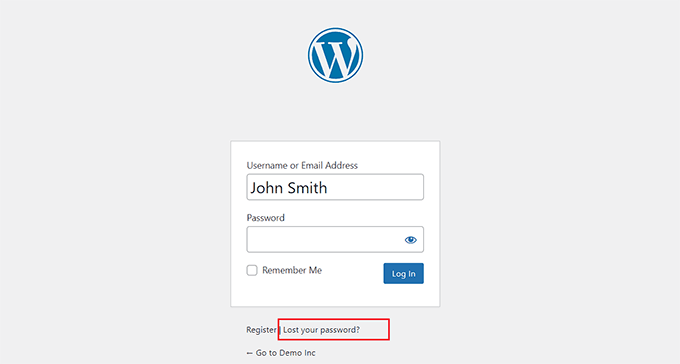
Enter your username or registered email address, then click the password reset button. The system will send a secure link to your email for creating a new password.
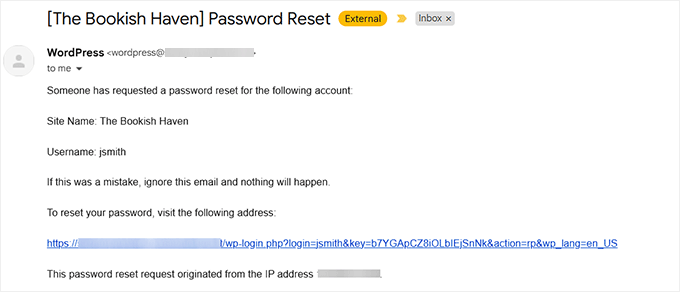
If the email doesn't appear in your primary inbox, check spam or junk folders. Some hosting configurations or email security settings may intercept WordPress notifications. When email-based recovery fails, manual database intervention becomes necessary.
Method 3: Database Password Reset
When email password recovery mechanisms malfunction, direct database modification provides an effective alternative. This approach requires access to your hosting control panel.
While demonstration examples may reference specific hosting interfaces, the general process remains consistent across providers. Access your hosting dashboard and locate database management tools.
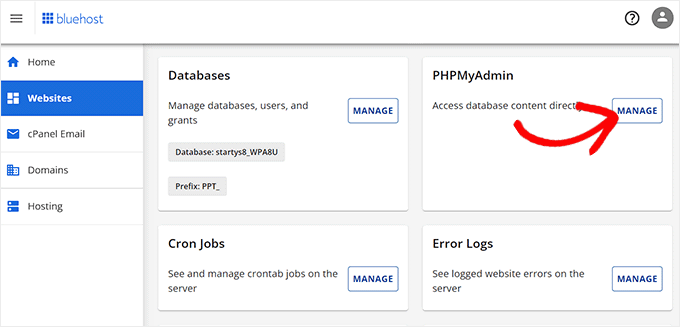
phpMyAdmin serves as a database administration tool for managing website information storage. After launching this interface, select your WordPress database from the navigation panel.
Identify the users table within your database structure. This table typically follows naming conventions like wp_users, though the prefix may vary depending on initial configuration.
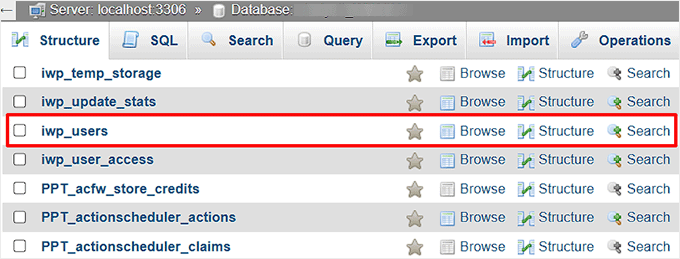
The users table displays all registered accounts on your WordPress installation. Locate the appropriate username and select the edit function adjacent to that entry.
Remove the existing encrypted password value and insert your new authentication credentials. The system will automatically encrypt plain text entries during the update process.