
4 Effective Methods to Manage Archive Pages in WordPress
Many WordPress users encounter challenges with automatically generated archive pages. These pages can create duplicate content that negatively impacts search engine rankings, requiring strategic management to maintain optimal site performance.
The positive aspect is that addressing this common issue doesn't require advanced technical skills. Numerous website owners have successfully implemented various approaches, and we'll guide you through proven techniques that deliver results.
Whether you're just starting with WordPress or have some coding experience, you'll discover straightforward solutions to handle archive pages while protecting your site's search visibility.
Understanding Archive Page Management
Have you observed pages on your WordPress site that organize older content by month, category, or tag? These are archive pages that WordPress generates automatically.
Archive pages systematically group your published content, which can assist visitors in navigating your website's historical material.
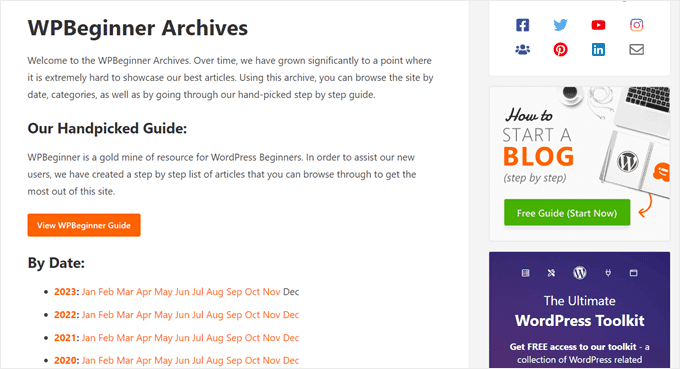
However, there are situations where managing or removing archive pages becomes necessary.
For instance, these pages can produce what search engine optimization professionals refer to as 'thin' or 'duplicate' content. Since archive pages typically display brief excerpts rather than complete articles, they can generate numerous pages with similar, low-value material.
Search engines prioritize indexing your original, comprehensive content, and excessive similar archive pages can dilute your website's SEO effectiveness.
Each archive page type utilizes distinct URLs that may present overlapping content based on specific filters. This can inadvertently create multiple addresses with similar material.
Alternatively, you might have a category that receives minimal use or no longer aligns with your content strategy. Managing the corresponding archive page can streamline your website's organization.
Before implementing changes to these pages, consider that some visitors utilize archive pages to discover and bookmark older content that interests them. Removing these pages could make it challenging for these users to locate that material again.
From a search engine optimization perspective, improperly handling archive pages can create broken links. This can frustrate visitors who encounter these non-functional pages and potentially harm your website's search rankings.
While WordPress doesn't provide direct options to delete archive pages, several effective approaches exist for managing them.
This comprehensive guide will demonstrate how to handle archive pages without compromising your WordPress site's search engine performance. You can use these quick links to navigate to your preferred approach:
- Noindex Archive Pages Using SEO Plugin
- Method 2: Noindex Specific Author or Date Archives With Code
- Redirect Archive Pages to Prevent Broken Links
- Remove Archive Pages With a Plugin (For Non-Blog Sites)
- Alternative: Create Custom Archive Pages
- Frequently Asked Questions About Archive Page Management
- Additional Resources
Let's examine these methods to enhance your website's functionality.
Method 1: Noindex Archive Pages Using SEO Plugin
The initial approach represents what many SEO professionals recommend most frequently. Rather than completely eliminating archive pages, it's generally preferable to noindex them from search engines. This allows visitors to still access these pages on your website while preventing search engines from considering them in rankings.
A Google representative previously addressed this topic during a question and answer session, stating:
You can remove the content of old things if you want to, [or] you can move them to an archive section. You can make those old pages noindex so that people can still go there when they're visiting your website.
Search Advocate at Google
The simplest method to noindex archive pages involves using a WordPress SEO plugin. This approach requires no coding knowledge, making it accessible for beginners.
Additionally, you gain access to various other SEO features including content optimization tools, audit checklists, and schema markup support.
First, you'll need to install an SEO plugin. Both premium and free versions typically include the necessary features for managing archive page indexing.
For detailed installation guidance, consult standard WordPress plugin installation documentation.
Option 1: Noindex Multiple Archive Pages
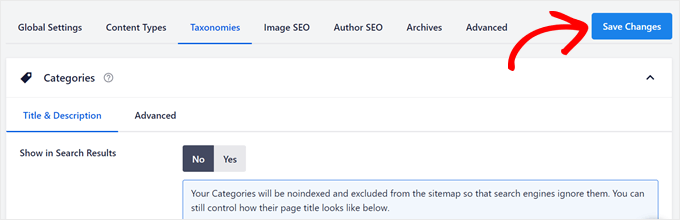
For this option, navigate to your SEO plugin's search appearance settings. Then, access the 'Taxonomies' section.
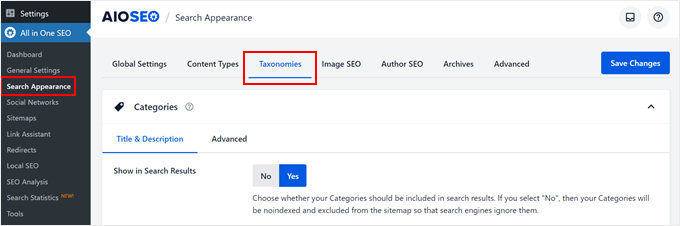
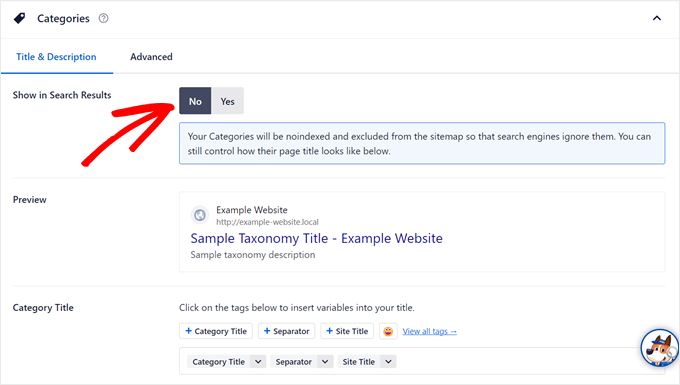
In the 'Categories' section, select 'No' in the 'Show in Search Results' setting.
You should then see a notification indicating that your categories will be noindexed and excluded from sitemaps, preventing search engines from indexing them. You can still customize how their page titles appear.
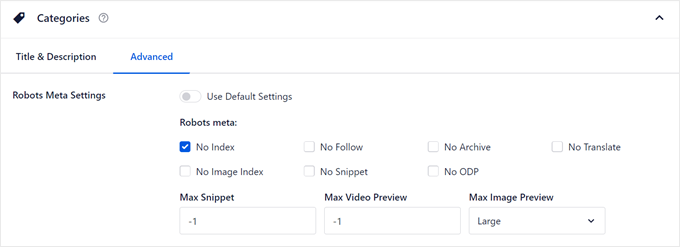
If you switch to the 'Advanced' tab, you'll notice that default settings have been modified.
The 'No Index' checkbox should be selected in the 'Robots Meta' settings.
You can then scroll down to apply noindex settings to your tag archive pages and other custom taxonomies.
Once completed, select 'Save Changes' in the upper left corner.
To noindex date and author archive pages, navigate to the 'Archives' section.
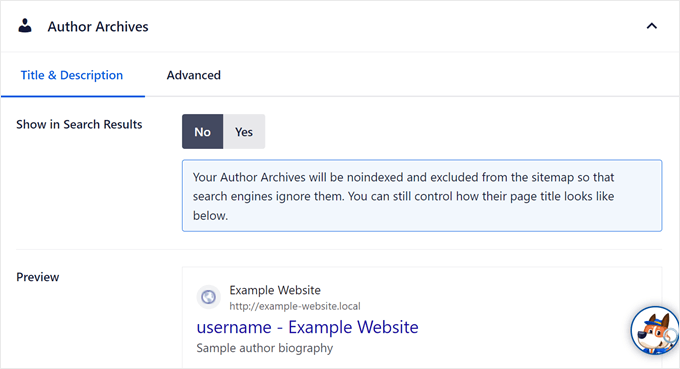
You'll find options to noindex both author and date archive pages.
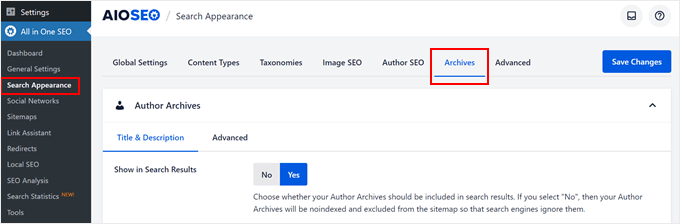
Similar to previous steps, select 'No' in the 'Show Search Results' setting and repeat this process for date archive pages below.
After completing these adjustments, select the 'Save Changes' button at the top.
Option 2: Noindex Specific Archive Pages (Taxonomies Only)
This option allows you to noindex only particular archive pages. For example, you might have a single outdated category page that you would like to manage specifically.


