Implementing Search Functionality on WordPress Archive Pages: A Practical Guide
Many WordPress site owners have discovered that visitors often struggle to find specific content when browsing archive pages. These pages, which organize posts by category, date, or other criteria, can become overwhelming as content accumulates over time.
The challenge isn't with archives themselves, but rather with how users interact with them. Visitors typically want to quickly locate relevant posts without scrolling through extensive lists.
After exploring various approaches, many experienced developers have found that implementing enhanced search capabilities significantly improves user experience. Advanced search solutions allow visitors to filter content directly from archive pages, making navigation more efficient.
This guide provides a systematic approach to adding search functionality to archive pages, helping visitors find content more quickly and increasing engagement.
The Importance of Search on Archive Pages
Incorporating search functionality on archive pages enables visitors to locate specific content efficiently. Rather than navigating through extensive lists, users can enter keywords to immediately access relevant posts.
WordPress automatically generates archive pages that categorize content by various criteria, including:
- Primary blog pages
- Category-specific pages
- Tag-based collections
- Date-organized archives
Adding search capabilities to these pages enhances user engagement and improves content discoverability.
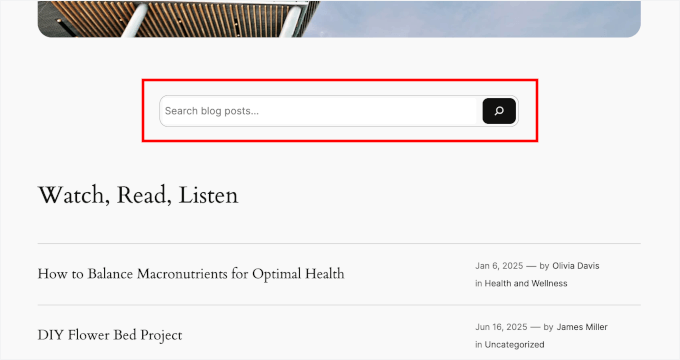
Search functionality encourages visitors to explore additional content, whether recent publications or older material that remains relevant.
Without search options, archive pages can appear cluttered and overwhelming, potentially causing valuable content to be overlooked.
For websites with substantial content libraries or diverse topics, implementing search functionality becomes essential for optimal user experience.
This approach benefits various types of WordPress sites, including:
- Educational platforms featuring tutorials and instructional content
- Culinary websites with extensive recipe collections organized by category
- Lifestyle and travel blogs containing personal narratives and destination guides
- Technology publications offering updates, reviews, and technical advice
- News-oriented sites with regular publication schedules
The following sections outline the process for adding search functionality to archive pages.
This guide covers the following implementation steps:
- Step 1: Configure Search Enhancement Tools
- Step 2: Customize Search Parameters
- Step 3: Prioritize Content Relevance
- Step 4: Implement Search on Archive Pages
- Step 5: Evaluate and Refine Search Performance
- Additional Enhancement: Category-Based Search
- Common Questions About Archive Page Search
- Further Reading: WordPress Search Optimization
Step 1: Configure Search Enhancement Tools
For those preferring minimal plugin usage, proceed directly to step 4, which explains how to incorporate search blocks using WordPress's native functionality.
It's important to recognize that WordPress's default search capabilities have limitations, primarily scanning basic post content and sometimes delivering suboptimal results.
Many WordPress professionals recommend implementing enhanced search solutions that improve algorithmic performance in multiple ways. These tools can expand search parameters to include various content types, custom post formats, and document content.
Numerous development teams have successfully implemented these enhanced search solutions across various projects.
To begin, select an appropriate search enhancement solution based on your specific requirements.
After obtaining the necessary tools, access your administrative account, download the required files, and locate your access credentials.
These credentials are typically available within your account management section. Keep this information accessible for subsequent steps.
Navigate to the plugin management section within your WordPress administration panel. Select the option to upload new components.
On the following screen, choose the file selection option and identify the previously downloaded package.
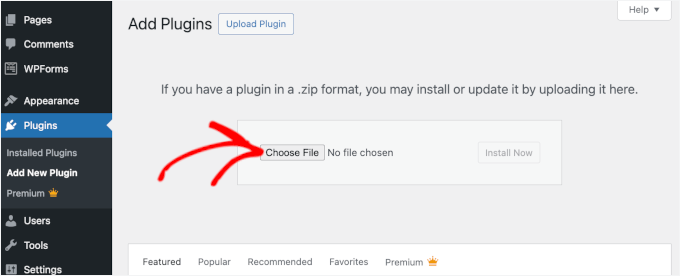
Proceed with installation and activation once the appropriate options appear.
Following activation, access the configuration settings through the appropriate administrative menu.
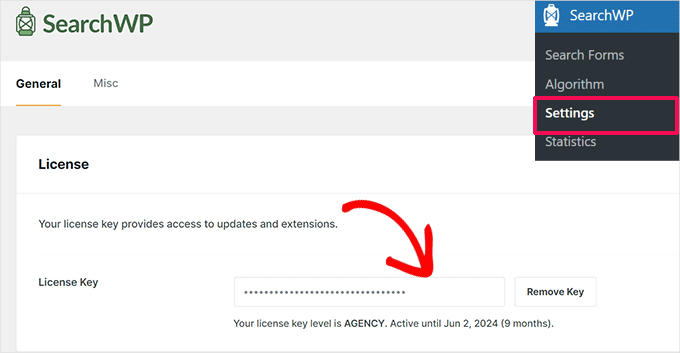
Enter your access credentials in the designated field.
Step 2: Customize Search Parameters
After configuring basic settings, the next phase involves refining search parameters specifically for archive page functionality.
Access the algorithm configuration section within your administrative dashboard and select the option to create new parameters.
Locate the content source configuration option and proceed to adjust settings.
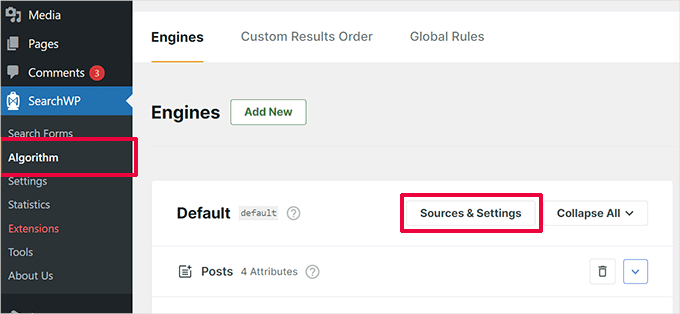
This section determines which content types should appear in search results.
Options typically include standard posts, pages, media files, and additional content formats.
Since WordPress displays blog posts on archive pages by default, ensure the post content option remains selected to maintain searchability.
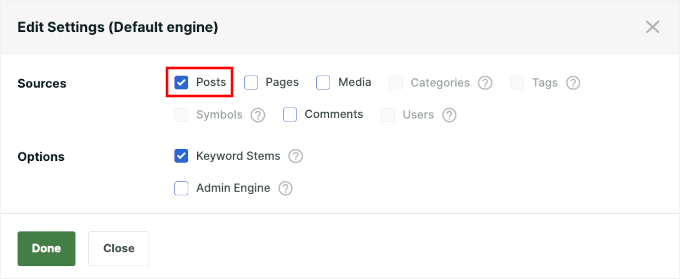
Consider which additional elements should be incorporated based on your specific content structure and user needs.