Create AI-Enhanced Calculation Tools for WordPress Without Coding
When users visit your website, they often seek specific solutions. Providing an interactive tool that delivers customized outcomes immediately can significantly enhance their experience. This is precisely what dynamic calculators accomplish, and constructing them is more straightforward than many assume.
For instance, basic financial calculators frequently become the most visited pages on numerous finance-related sites, often outperforming other content in lead generation. With advancements in artificial intelligence, creating these tools no longer demands advanced mathematical knowledge or programming skills.
This guide demonstrates how to develop sophisticated AI-driven calculators for WordPress using intuitive form templates. Whether you require a service cost estimator, event budget calculator, or any specialized calculation tool, the following steps will guide you through the entire process.
Benefits of Integrating AI-Powered Calculators on Your WordPress Site
Interactive calculators serve as effective lead generation instruments. They transform passive visitors into active participants, increasing engagement duration and encouraging contact information exchange for personalized results.
Historically, developing these tools required complex mathematical formulas and custom programming. Artificial intelligence simplifies this process by handling the computational complexity automatically.
Here are key advantages of AI-enhanced calculators:
| AI Capability | Practical Advantage |
|---|---|
| No Mathematical or Coding Expertise Needed | Describe your calculation requirements in everyday language, and AI generates the necessary formulas. |
| Customized Recommendations | Beyond numerical outputs, AI can analyze inputs to provide personalized suggestions similar to human consultation. |
| Manages Complex Scenarios | AI processes ambiguous or incomplete inputs while maintaining accuracy and delivering helpful outcomes instantly. |
Whether you need quotation tools or mortgage calculators, AI streamlines the setup process while ensuring reliability.
Many established form plugins incorporate AI functionality built on proven technology, offering robust support and trusted by numerous WordPress installations.
Ready to begin? Let's explore the most accessible implementation methods:
- Method 1: Implementing AI-Assisted Calculations with WPForms (Simpler Approach)
- Method 2: Utilizing Formidable Forms for Sophisticated AI Logic
- Additional Strategies to Maximize Your AI Calculators
- Privacy and Legal Considerations for Online Calculators
- Common Questions About AI-Powered Calculators
- Next Steps for Lead Generation Enhancement
Method 1: Implementing AI-Assisted Calculations with WPForms (Simpler Approach)
WPForms excels for calculators requiring straightforward arithmetic and conditional logic. This method works particularly well for price estimators, event budgeting, and shipping calculators where you multiply values, add costs based on selections, or apply discount rules.
The plugin's AI-powered formula generator makes this approach exceptionally user-friendly. Instead of learning complex formula syntax, you describe your calculation needs in plain English, and AI converts this into appropriate formulas.
Step 1: Install WPForms and Required Addons
Begin by installing and activating WPForms Pro. If you need assistance, consult standard WordPress plugin installation documentation.
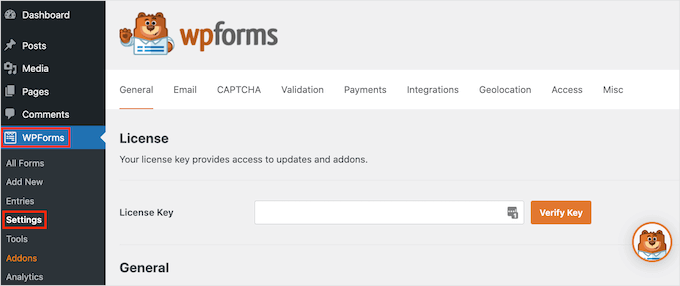
After activation, navigate to WPForms » Settings. Enter your license key in the designated field, which you can locate in your account dashboard or purchase confirmation email.
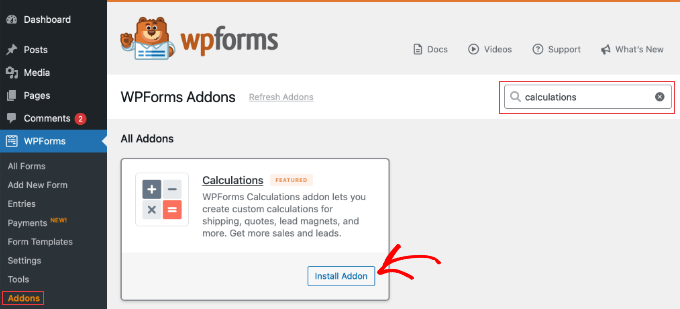
Next, enable the calculations functionality. Visit WPForms » Addons, search for 'Calculations,' and select 'Install Addon.'
This feature is included with Pro subscriptions, requiring no additional purchases.
Step 2: Generate the Calculator Using AI
Navigate to WPForms » Add New Form in your WordPress administration panel.
First, assign a descriptive name to your calculator at the screen's top section.
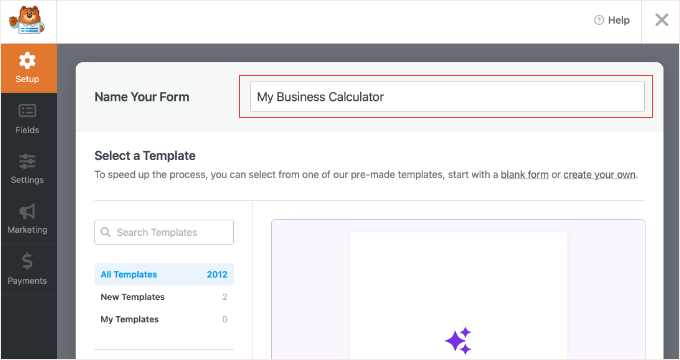
To create a calculator using artificial intelligence, locate the template labeled 'Generate With AI.'
Select the 'Generate Form' option to proceed.
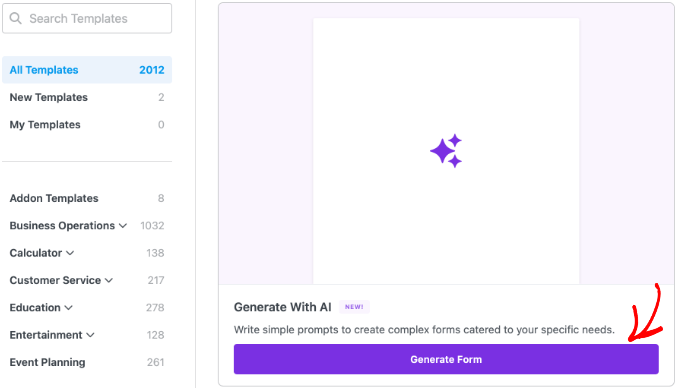
You might encounter a prompt requesting installation of recommended addons. Choose 'Yes, Install' to ensure all necessary components are activated.
In the chat interface, provide detailed specifications for your calculator. Greater specificity yields more accurate mathematical configurations.
For example:
"Develop a wedding expense estimator. Include a numerical field for guest count (multiplied by $50 per person), a selection menu for venue category (Hotel option adds $1000), and a checkbox for additional services (DJ selection adds $500). Incorporate a final Total field."
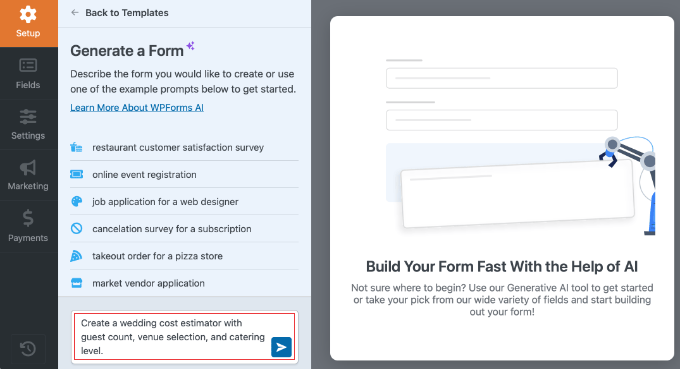
Generate the form by selecting the blue arrow button. WPForms will automatically construct the fields and create corresponding mathematical formulas.
Here is a sample form generated using the example prompt above.
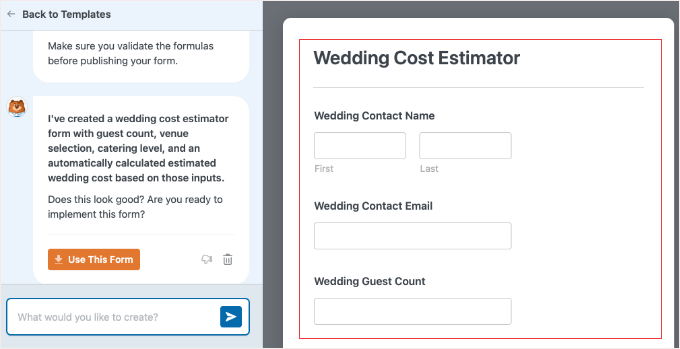
If satisfied with the form, select the orange 'Use This Form' button. Alternatively, enter a different prompt to refine the form further.
Step 3: Review and Customize the Formula
Since AI has already generated the mathematical logic, verification is the primary requirement.
Scroll to the 'Total' field and select it to access settings. Switch to the 'Advanced' tab. You should find 'Enable Calculations' activated, with formula code already populated in the designated area.
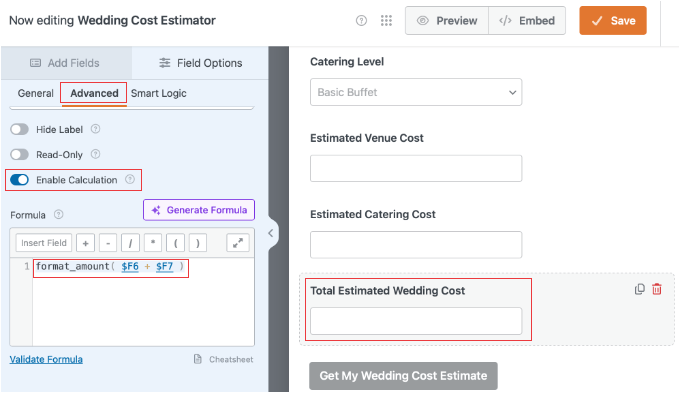
If the formula appears correct, no further adjustments are necessary.
To modify the logic, simply select the 'Generate Formula' option.
For example, to incorporate a tax rate omitted from the original prompt, instruct the AI: 'Modify the current formula to include 10% tax on the final result.' The system will instantly rewrite the code accordingly.
Step 4: Preview and Embed
Before publishing, select the 'Preview' option at the form builder's top section. This opens your calculator in a new tab where you can test functionality with actual values.