A Beginner's Guide to SSL Certificate Renewal for WordPress Sites
When an SSL certificate expires, visitors to your website will encounter browser warnings indicating potential security risks. This negatively impacts user trust and can harm your search engine visibility.
Maintaining a current SSL certificate is essential for any website owner. Fortunately, the renewal process is straightforward, and many WordPress experts have simplified the procedure for beginners.
This guide provides clear, step-by-step instructions for renewing your SSL certificate, ensuring your website remains secure and accessible.
Understanding SSL Certificates and the Importance of Renewal
An SSL certificate serves as a digital verification for your website, establishing encrypted connections between your server and visitors' browsers. This encryption protects sensitive information like login details and payment data from interception.
SSL certificates typically have expiration periods ranging from 90 days to two years, depending on your certificate authority and certificate type. Failure to renew before expiration triggers security warnings in web browsers.
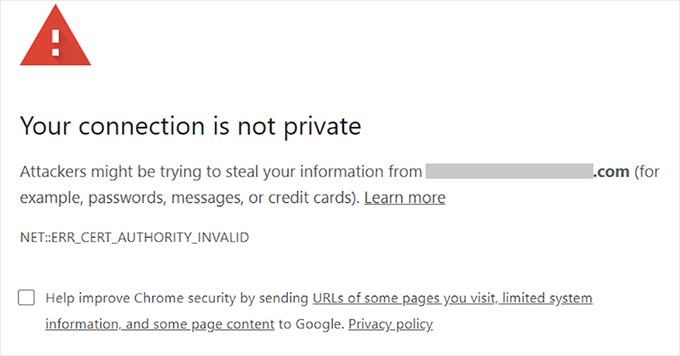
These warnings deter visitors, potentially reducing website traffic and damaging your site's reputation. Additionally, search engines prioritize secure HTTPS sites, making SSL renewal crucial for maintaining search rankings.
Regular SSL certificate renewal ensures continuous protection for your website and maintains visitor confidence. Below are two practical methods for renewing certificates on WordPress sites:
Method 1: Automatic SSL Renewal Through Hosting Provider
Most WordPress hosting companies include SSL certificates with their hosting packages. These certificates often renew automatically, with providers sending email notifications before expiration.
You can also initiate manual renewal through your hosting control panel. For example, many hosting providers feature a renewal section where you can manage SSL certificates.
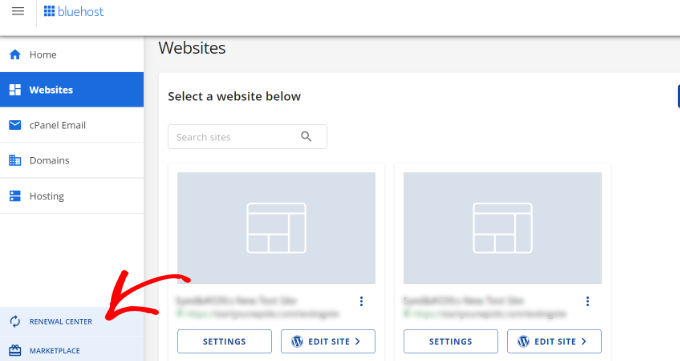
Navigate to this section and select your website's SSL certificate. Then click the renewal button to proceed with the process.
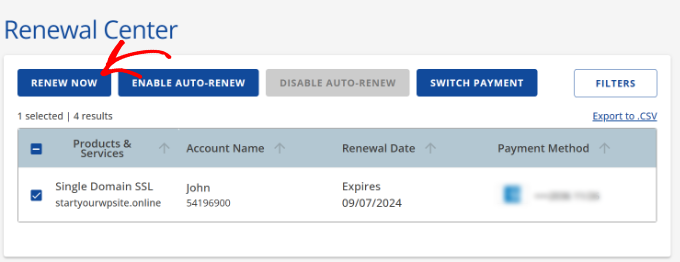
Complete the checkout process to renew your certificate. Many providers offer options to extend renewal periods or enable automatic renewal for future cycles.
Method 2: Manual SSL Certificate Renewal
Manual SSL renewal involves generating new certificates before expiration. While specific steps vary by provider, the general process remains consistent across most hosting environments.
Step 1: Creating a Certificate Signing Request (CSR)
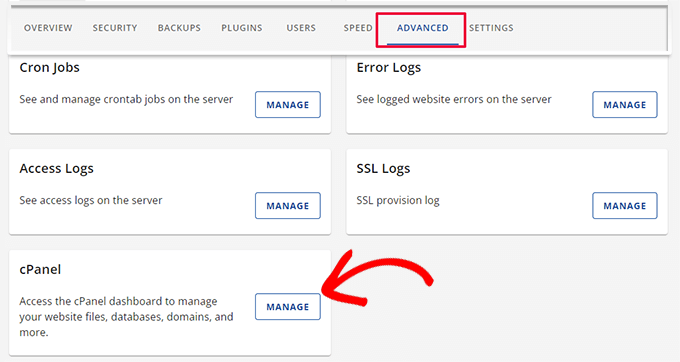
Begin by logging into your hosting account. Access your website settings, then locate the advanced management section.
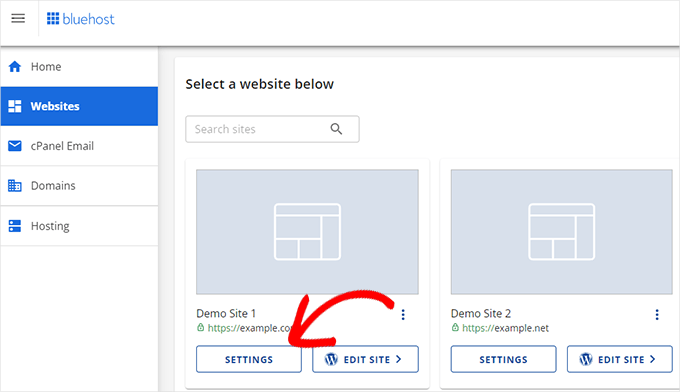
Switch to the advanced tab and find the control panel section. This interface manages various server settings including SSL certificates.
Click the management button to access the control panel interface.
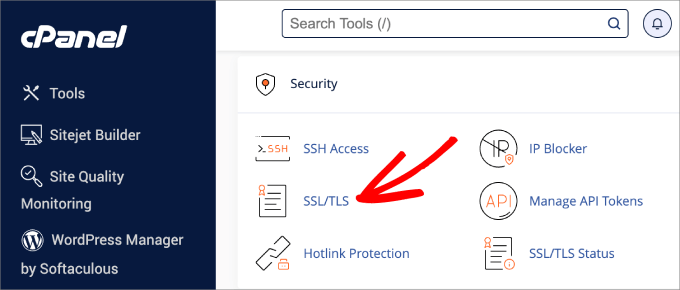
Within the control panel, navigate to the security section. Look for SSL/TLS management options and select this feature.
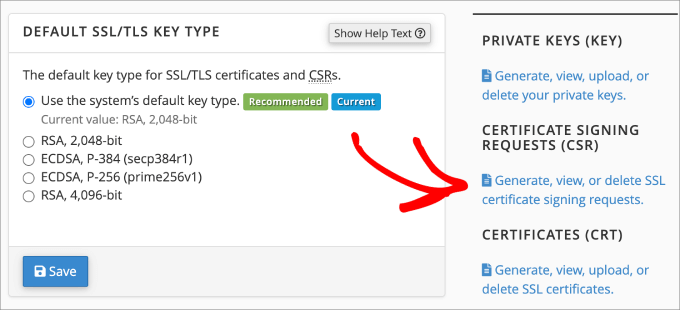
On the following screen, locate and click the Certificate Signing Request (CSR) link. A CSR is a cryptographic file containing your website's identification information, submitted to certificate authorities for verification.
Complete the required fields including:
- Domain name
- Geographic location details
- Organization information
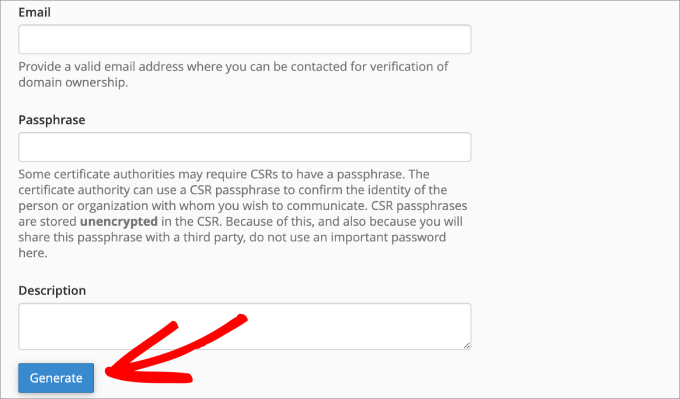
- Contact email for verification
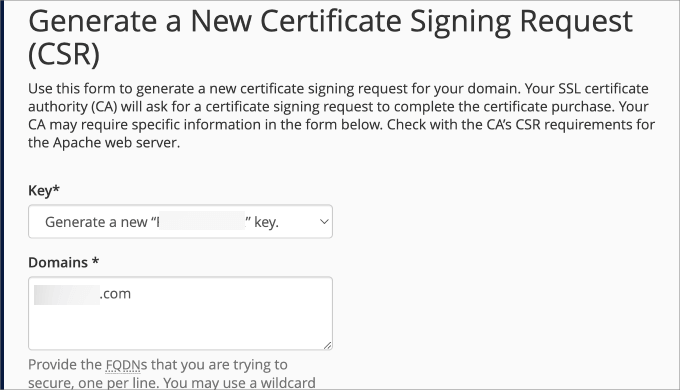
You may optionally include a passphrase for additional security. Once all information is entered, click the generate button.
The system will display a confirmation message indicating successful CSR generation. Below this message, you'll find the encrypted CSR code containing your website's verification data.
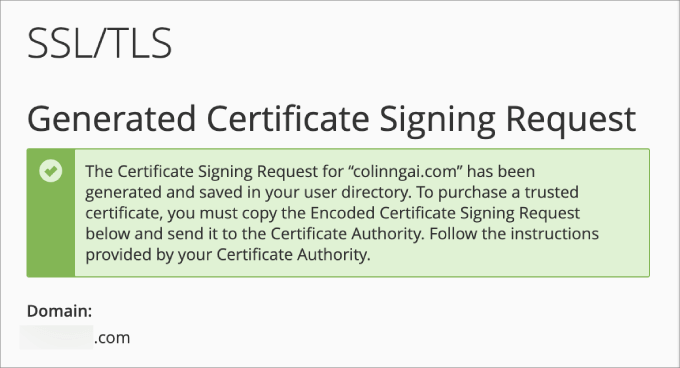
Copy and save this code securely, as you'll need to submit it to your certificate authority for SSL certificate issuance.