A Comprehensive Guide to Migrating Your Website from Webflow to WordPress
Many website owners are considering a transition from Webflow to WordPress due to cost considerations and a desire for greater flexibility. While the migration process requires careful planning, the benefits of moving to WordPress often justify the effort. This platform offers extensive customization capabilities through its vast ecosystem of themes and plugins, all without requiring coding expertise. Most importantly, WordPress provides complete ownership and control over your website.
This guide presents a systematic approach to transferring your content from Webflow to WordPress. We'll walk through each phase of the migration to ensure a smooth transition with minimal disruption to your online presence.
Below is an overview of the complete migration workflow you'll follow:
- Reasons for Migrating from Webflow to WordPress
- Step 1: Select WordPress Hosting
- Step 2: Select a WordPress Theme
- Step 3: Export Webflow Content
- Step 4: Export Blog Content
- Step 5: Recreate Pages in WordPress
- Step 6: Import Blog Posts
- Step 7: Transfer Images
- Step 8: Update Domain Settings
- Step 9: Configure Permalinks
- Step 10: Add Essential Plugins
- Additional Learning Resources
Reasons for Migrating from Webflow to WordPress
Webflow attracts users with its visual design interface and streamlined website creation process. However, many discover limitations as their needs evolve, including restricted customization options, limited third-party integrations, and pricing structures that may become costly over time.
WordPress presents a compelling alternative, powering a significant percentage of websites globally, including numerous established organizations. Several key advantages distinguish WordPress from Webflow:
- Cost Efficiency: WordPress itself is free and open-source, with numerous affordable hosting solutions available. This model allows for predictable budgeting and cost control.
- Customization Flexibility: The platform supports visual page builders alongside thousands of themes and over fifty thousand plugins, providing nearly unlimited design and functionality options.
- Integration Capabilities: As the dominant website platform, WordPress offers compatibility with most marketing, e-commerce, and business tools through dedicated integrations.
- Scalability: Hosting resources can be adjusted according to your website's growth, ensuring you only pay for what you actually need.
Transitioning to WordPress typically results in enhanced control, reduced long-term costs, and simplified website management. The following steps will guide you through the technical migration process.
Step 1: Select WordPress Hosting
The migration begins with selecting a reliable WordPress hosting provider. Quality hosting ensures optimal website performance and can accommodate increasing traffic levels.
Many experienced developers recommend starting with hosting providers that specialize in WordPress, as they often include automatic installation and optimized server configurations. Pricing typically varies based on features and resource allocation.
When evaluating hosting options, consider providers known for strong performance and customer support. The registration process generally involves selecting a plan, providing account information, and completing payment.
After purchasing hosting, you'll typically receive login credentials via email. Most WordPress-optimized hosts automatically install the software, allowing you to access your WordPress dashboard directly from the hosting control panel.
If your chosen host doesn't include automatic installation, numerous detailed installation tutorials are available online. Once WordPress is operational, you can proceed to select a visual theme for your website.
Step 2: Select a WordPress Theme
With WordPress installed, the next phase involves choosing a theme that determines your website's visual presentation. The WordPress theme directory contains thousands of free and premium options.
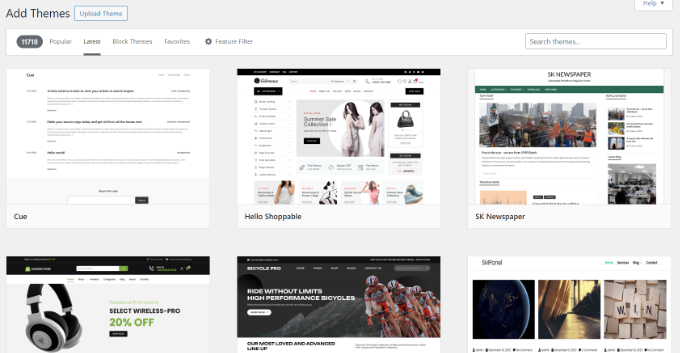
For those new to WordPress, selecting from the extensive theme collection can be challenging. Industry professionals often recommend starting with clean, minimalist designs that prioritize user experience and professional appearance.
Remember that theme selection isn't permanent—WordPress allows you to change themes at any time. Later in this guide, we'll explore using page builders that provide additional design control beyond theme limitations.
With your theme selected, you can begin exporting content from your Webflow account for transfer to WordPress.
Step 3: Export Webflow Content
Webflow permits export of certain content types, though not all website elements can be transferred directly. Available export options typically include:
- Site Export containing HTML, CSS, JavaScript, and media files (available on specific plan tiers)
- CMS component exports, including blog post content
Exporting Website Structure
While Webflow pages cannot be imported directly into WordPress, you may want to preserve your existing site structure before migration. Users on appropriate Webflow plan tiers can utilize the Code Export feature to download their website files locally.
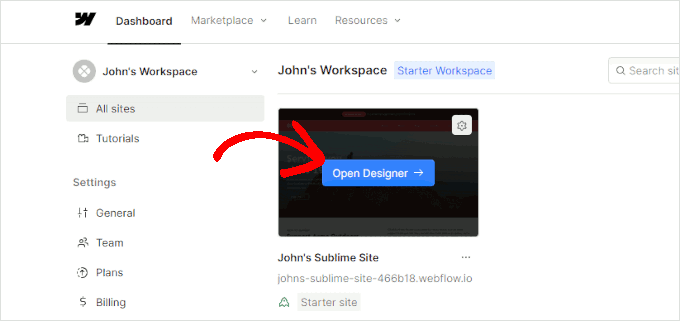
Access your Webflow account and launch the Designer interface.
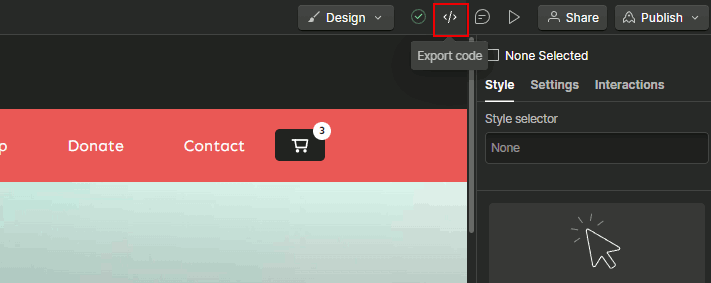
Within the Designer interface, navigate to the top-right section and select the 'Export code' option.