A Step-by-Step Guide to Converting Figma Designs into WordPress Websites
Many WordPress professionals utilize Figma as a cloud-based design platform for crafting engaging user interfaces. This tool enables rapid prototyping of concepts and facilitates real-time collaboration among team members.
Transforming these visual designs into functional WordPress sites can significantly enhance user engagement. However, the conversion process may present certain technical challenges for beginners.
Numerous experienced developers rely on Figma for creating comprehensive website graphics, from individual page elements to complete site layouts. Through extensive practice, they've identified both advantages and limitations when applying this approach to WordPress development.
This comprehensive tutorial will walk you through the complete process of converting Figma designs to WordPress, providing clear, actionable steps.
Benefits of Converting Figma Designs to WordPress
Figma provides powerful capabilities for designing attractive website layouts, including animation effects, prototyping features, vector editing tools, and numerous other creative options.
For WordPress site owners, utilizing this platform for layout creation enables multiple designers and developers to collaborate simultaneously on the same Figma document. This collaborative approach streamlines workflows and minimizes communication delays.
Additionally, you can develop interactive website mockups to evaluate user navigation patterns and gather feedback before initiating the development phase.
The platform's sophisticated tools—including grids, guides, layering systems, and auto-layout features—allow for the creation of visually compelling pages and templates such as:
- Landing pages
- Homepages, blog pages, or product pages
- Complete website themes
- Mobile-responsive layouts
- Dashboard interfaces and user panels
- Email templates and newsletter designs
It's important to note that Figma doesn't offer native WordPress integration, necessitating the use of conversion tools. The following sections detail the complete process for designing in Figma and converting those designs to WordPress.
- Step 1: Establish a Figma Account
- Step 2: Create Page Designs in Figma
- Step 3: Convert Figma Designs to WordPress
- Alternative Approach: Professional Conversion Services
- Additional Method: Website Builders for Visual Design
- Common Questions About Figma to WordPress Conversion
Step 1: Establish a Figma Account
To begin designing with Figma, you must first create an account on their platform.
Navigate to the Figma website and select the 'Get started for free' option located in the upper right corner of the screen.
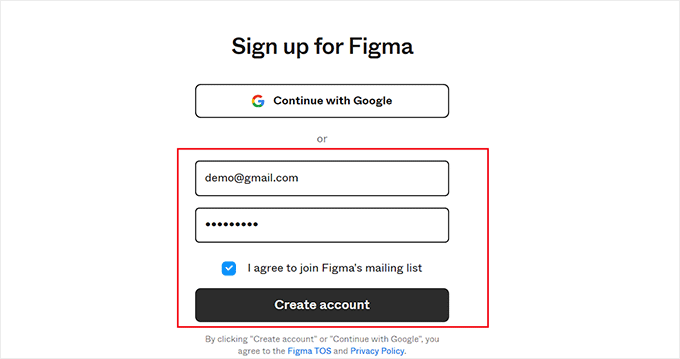
This action opens a new browser tab where you'll need to enter your email address and create a password.
After providing this information, click the 'Create Account' button.
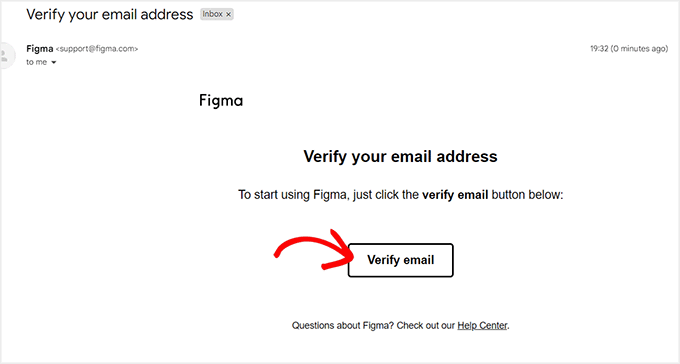
Upon registration, you'll receive a verification email.
Access this email from your inbox and select the 'Verify email' button to confirm your account.
You'll then be redirected to the Figma platform, where you'll be prompted to provide your name.
Following this, you'll need to indicate how you plan to utilize the tool and proceed by clicking the 'Continue' button at the bottom of the screen.
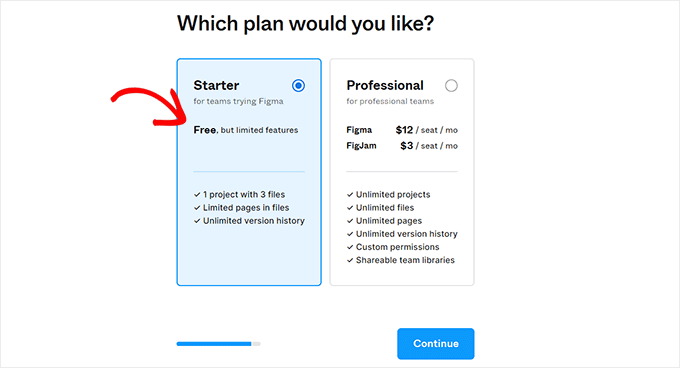
The platform will then present various pricing options. You can opt for the 'Starter' plan, which is available at no cost, and then select 'Continue' to proceed.
Step 2: Create Page Designs in Figma
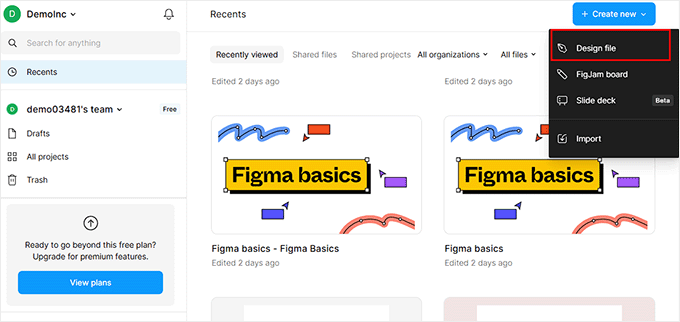
You'll now be directed to your Figma dashboard.
From this interface, access the '+ Create New' dropdown menu in the upper right corner. Then, choose the 'Design File' option to initiate a new Figma design project.
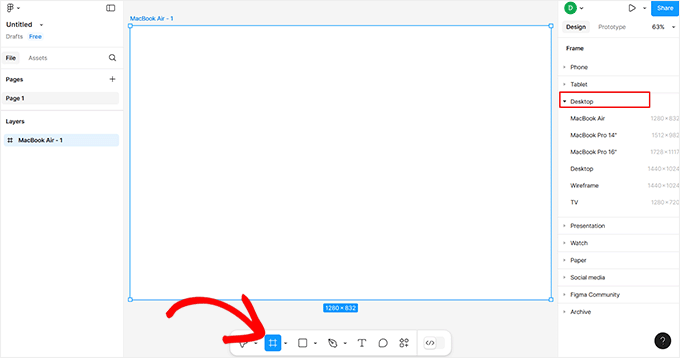
The Figma design interface will now appear on your screen. From the toolbar at the bottom, select the 'Frame' option.
This action displays a collection of design frames in the right-hand column, where you should choose the 'Desktop' option. Alternative frame sizes are available if they better suit your design requirements.
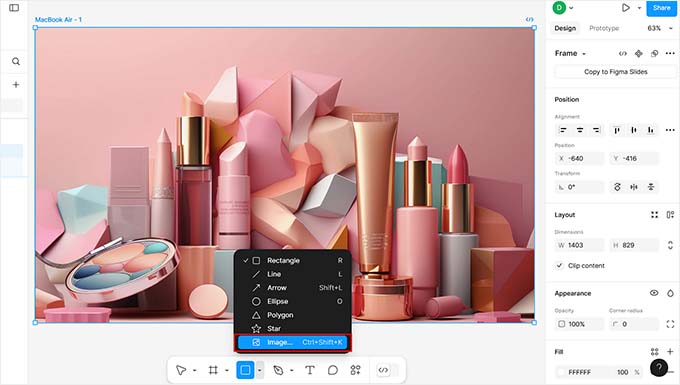
Next, incorporate images into your design canvas by selecting the square icon at the bottom and choosing the 'Place image/video' function.
This opens your computer's file browser, allowing you to upload images or videos of your preference.
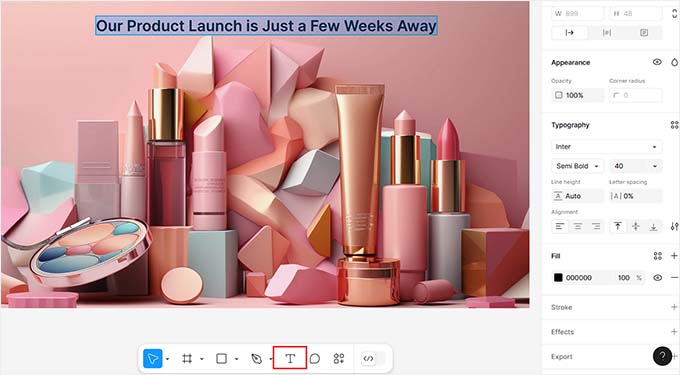
You can also add textual content by selecting the 'T' icon from the toolbar.
After adding text, you can modify its size, alignment, font selection, and spacing using the settings panel in the right column.
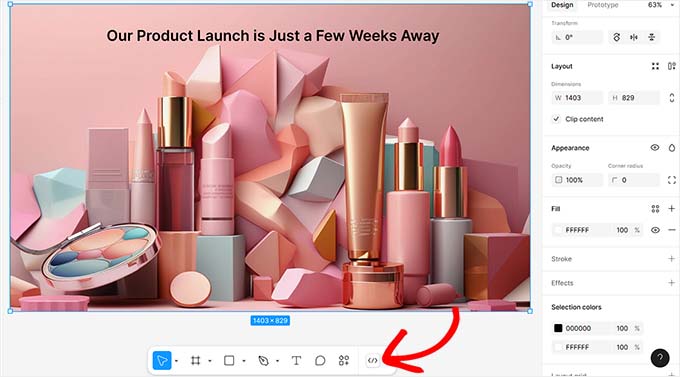
The platform offers additional creative tools including 'Pen' and 'Pencil' functions at the bottom, feedback collection features, layer and page creation options, background color adjustments, and numerous other design capabilities.
Developers wishing to incorporate CSS code into their designs can activate 'Dev Mode' using the toggle switch at the bottom. Note that this functionality requires the Professional Plan subscription.
Step 3: Convert Figma Designs to WordPress
Once your Figma design meets your satisfaction, you can proceed to integrate it with WordPress. This conversion utilizes the Figma to WordPress Block plugin.
This plugin is integrated within Figma itself, meaning no additional installation is required on your WordPress site.
To initiate the conversion process, first select the page you've created by clicking on its frame. This selection is necessary for the plugin to properly identify and convert your design elements.
Next, click the 'Actions' button in the toolbar to open a prompt window. Switch to the 'Plugins & Widgets' section within this window, then locate and select the 'Figma to WordPress Block' plugin.
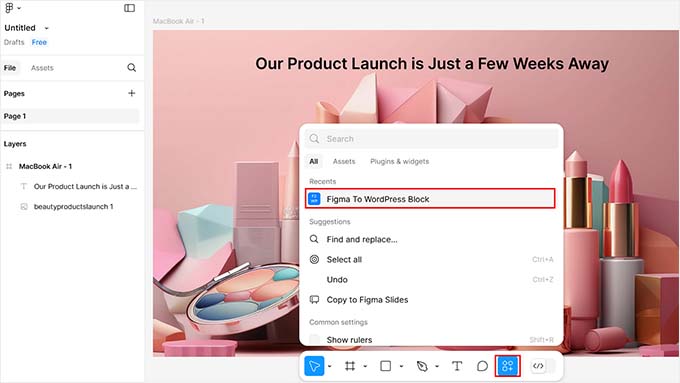
This action opens a new popup window on your screen.
Within this window, click the 'Convert to WordPress' button to commence the conversion process.


