A Step-by-Step Guide to Setting Up Recurring Events in WordPress
Establishing recurring events on your WordPress website offers an efficient method to automate scheduling and save valuable time. This approach eliminates the need to manually recreate events, allowing you to set them once and have them repeat automatically according to your specified schedule.
WordPress does not include built-in functionality for managing recurring events, which necessitates the use of a dedicated calendar plugin. With numerous options available, selecting the most suitable plugin for your specific needs can be challenging.
After evaluating several popular calendar solutions, many WordPress experts recommend Sugar Calendar for its balance of simplicity and robust features. This tutorial will walk you through the process of creating and displaying recurring events on your WordPress site.
Benefits of Implementing Recurring Events in WordPress
Whether managing a community center website, church calendar, fitness studio schedule, or business events page, implementing automated recurring event management can significantly enhance operational efficiency.
Automating event scheduling reduces administrative workload, freeing up time for other business development activities. This efficiency allows you to focus on growth rather than repetitive data entry tasks.
Scheduling events at regular intervals also provides visitors with a more reliable and consistent experience. For instance, a weekly theater performance can be scheduled once and automatically appear on the calendar each week, ensuring patrons always have accurate information.
Displaying recurring events helps maintain an organized calendar that visitors can easily navigate. You only need to create the event once, and it will automatically populate across your calendar according to your recurrence settings.
Furthermore, promoting recurring events effectively can help build audience loyalty and encourage repeat attendance. Consistent event promotion also establishes a reliable online presence across various platforms.
This guide will cover the following essential steps:
- Establishing an Events Calendar in WordPress
- Configuring Recurring Event Settings
Establishing an Events Calendar in WordPress
The most straightforward approach to adding calendar functionality and creating recurring events involves using Sugar Calendar. This plugin provides extensive customization options, supports multiple calendars, and offers Google Calendar synchronization capabilities.
This tutorial utilizes the Pro version of Sugar Calendar, which includes specific features for managing recurring events. Begin by installing and activating the plugin on your WordPress site.
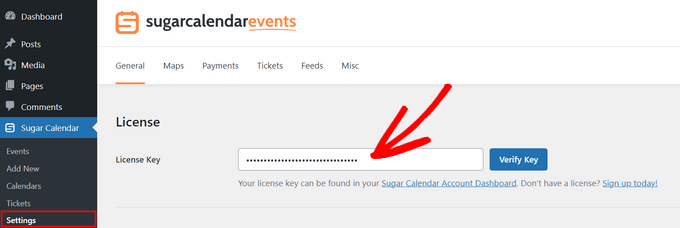
After activation, navigate to Calendar » Settings from your WordPress dashboard to enter your license key, which can be obtained from your account area. Click the 'Verify Key' button to complete the activation process.
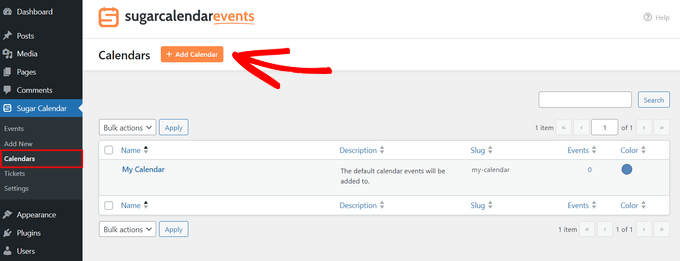
While Sugar Calendar creates a default calendar, you may want to establish a separate calendar specifically for recurring events. To create a new calendar, go to Sugar Calendar » Calendars and click the '+ Add Calendar' button.
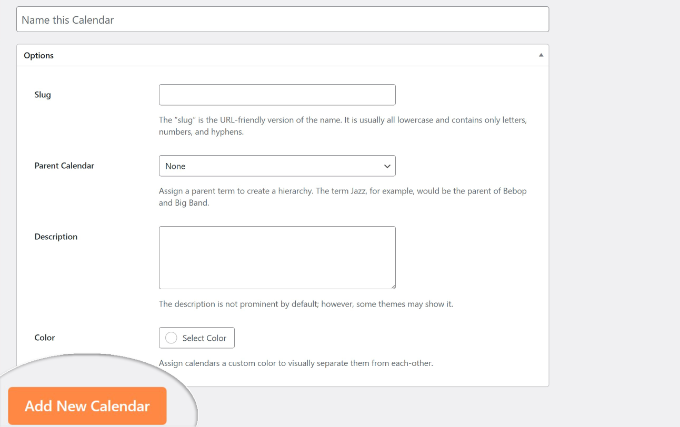
On the configuration screen, provide your calendar details including name, slug, description, parent calendar selection, and color scheme. After completing these fields, click the 'Add New Calendar' button to save your settings.
Configuring Recurring Event Settings
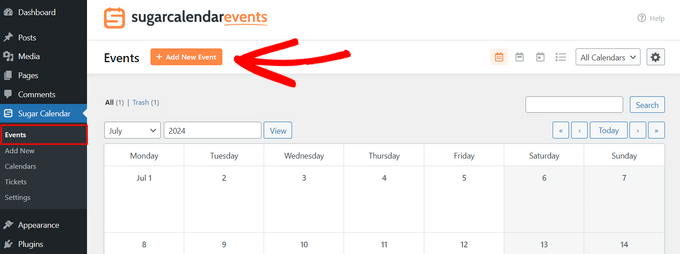
With your calendar established, you can now create recurring events. Navigate to Sugar Calendar » Events and click the '+ Add New Event' button.
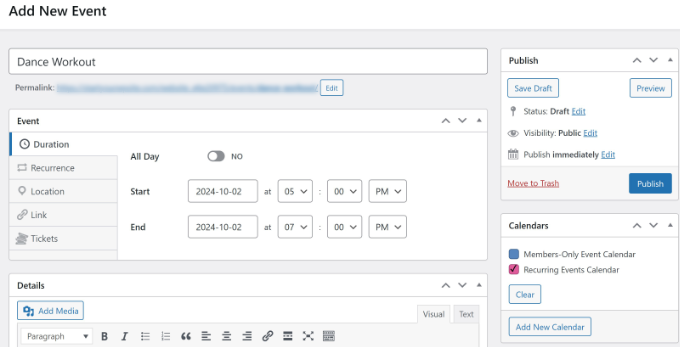
Begin by entering your event name, then configure the event details under the 'Duration' tab. Set the start and end dates and times, and provide any relevant event information in the 'Details' section.
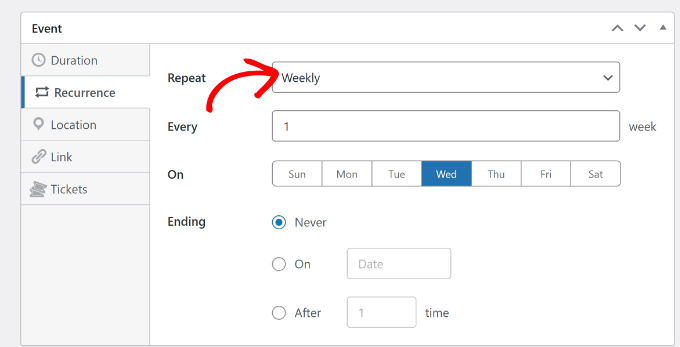
Switch to the 'Recurrence' tab to configure repetition settings. By default, the 'Repeat' option is set to 'Never,' but you can modify this by selecting your preferred recurrence pattern: daily, weekly, monthly, or yearly. You can also specify how many times the event should repeat, which days it should occur on, and when the recurrence should end.
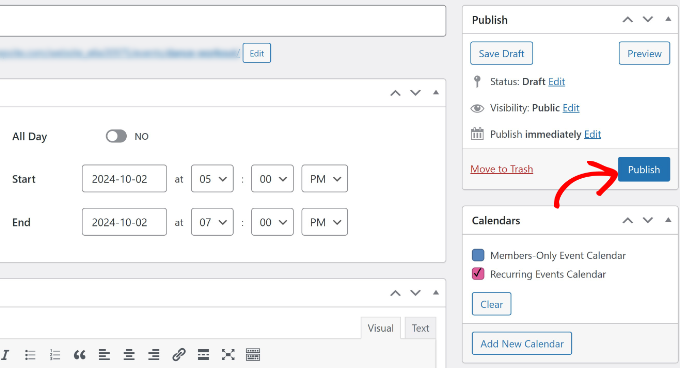
Additional options include adding event locations, links, and ticket configurations for paid events. After completing all event details, select your target calendar from the right panel and click the 'Publish' button.
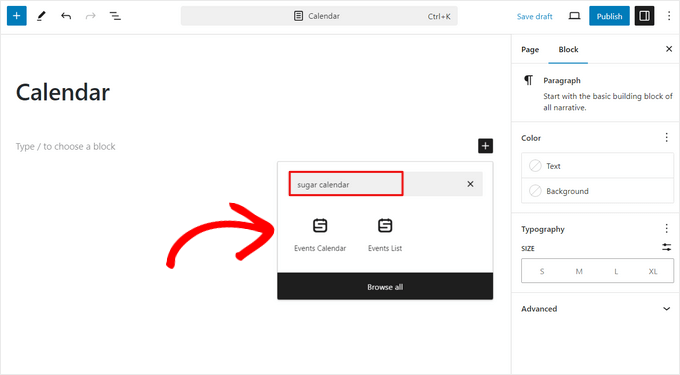
To display your calendar on your website, edit or create a new post or page. In the content editor, click the '+' icon and add the 'Events Calendar' block. Your calendar will appear in the editor, allowing you to preview its appearance before publishing or updating your page.
Visit your website to view the fully functional recurring events calendar displaying all scheduled events according to your configured recurrence patterns.


