Automating Image Alt Text Generation in WordPress with AI Tools
Image alternative text plays a crucial role in website accessibility and search engine optimization. Manually adding descriptive text to every image within a WordPress site can become a significant time investment, particularly for websites with extensive media libraries containing hundreds or thousands of images.
Fortunately, artificial intelligence now offers solutions to automate this process. AI-powered tools can analyze image content and generate appropriate descriptive text, enhancing both accessibility for users and SEO performance for the site.
This guide provides a step-by-step walkthrough for implementing automatic image alt text generation in WordPress using AI technology.
Advantages of AI-Powered Alt Text Generation
Creating alternative text for each website image often feels like a repetitive, ongoing chore. Even when utilizing general AI writing assistants, the process typically involves manual copying and pasting of generated content.
Research indicates that a majority of screen reader users find alt text highly beneficial for their browsing experience. Automating this task with artificial intelligence delivers this value consistently without requiring constant manual intervention.
Implementing AI for alt text creation offers several key benefits:
- Time Efficiency– Eliminates the need to manually write descriptions for individual images. AI can produce accurate text in seconds, allowing you to focus on other important website management tasks.
- SEO Enhancement– AI-generated descriptions often include relevant keywords and context that search engines favor, potentially improving image rankings in search results.
- Accessibility Improvement– Automated alt text makes websites more inclusive by providing meaningful descriptions for users who rely on assistive technologies.
- Scalability– AI systems can process large volumes of images in bulk, making optimization feasible for sites with extensive media collections.
- Consistency Maintenance– AI follows consistent patterns, ensuring uniform description quality and style across all website images.
By leveraging AI tools for alt text generation, website owners can simultaneously improve accessibility, search visibility, and operational efficiency. While automation handles the bulk of the work, a brief human review of generated text is recommended to ensure accuracy and relevance before final publication.
Let's explore practical methods for implementing AI-powered alt text generation.
Method 1: Implementing a Premium AI Alt Text Solution
This approach is ideal for users seeking high-quality alt text generation and willing to invest in a specialized premium plugin. One such service supports over 130 languages and typically offers a trial period for initial testing.
Following the trial, subscription plans usually begin at affordable rates, making this a viable option for media-intensive websites. Here's how to configure this solution.
Step 1: Create a Service Account
Begin by visiting the service provider's website and locating the option to start a free trial. You'll need to provide basic registration information including your email address, name, and a password to establish your account.
Step 2: Generate and Secure Your API Key
After successful registration, you'll access your account dashboard. Navigate to the account management section and select the API keys tab. Click the option to create a new API key.
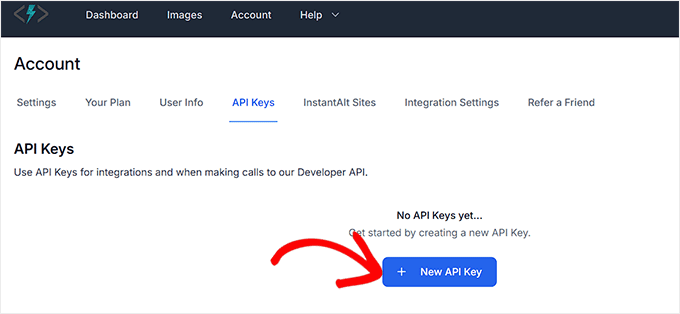
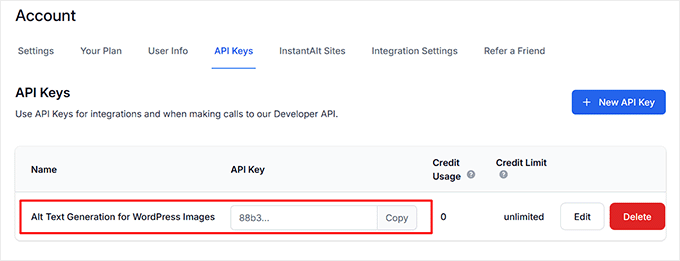
Assign a descriptive name to your key for future reference and confirm creation. The system will generate your unique API key. Use the copy function and store this key securely for the next configuration step.
Step 3: Install and Configure the WordPress Plugin
Next, install and activate the corresponding free connector plugin within your WordPress dashboard. If you need assistance with plugin installation, consult general WordPress documentation.
After activation, locate the plugin's settings section within your WordPress admin area. Paste your API key into the designated field. This section typically allows configuration of preferred language and writing style preferences.
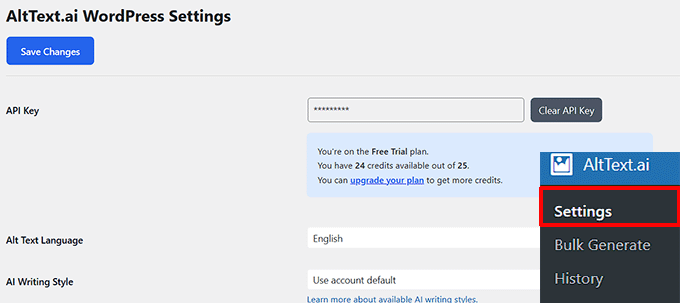
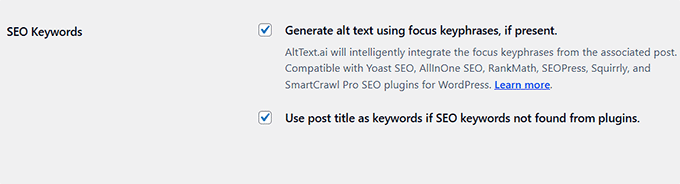
Enable options for automatic alt text generation on new uploads. Many plugins also offer generation of titles, captions, and descriptions. For SEO integration, you can typically enable inclusion of focus keyphrases from your SEO plugin within generated alt text. Save all configuration changes when complete.
Step 4: Generate Text for Individual Images
To create alt text for existing media library images, navigate to the Media Library section. Select any image, and within the attachment details panel, locate and click the button to update alt text using AI.
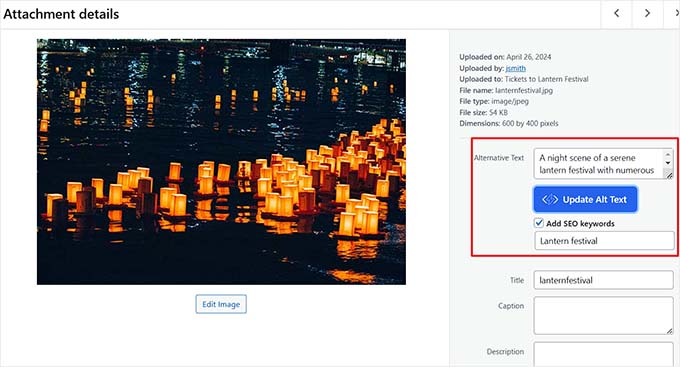
With automatic generation enabled, newly uploaded images will receive alt text immediately. You can review and modify this text within the block editor's settings panel by selecting the image block.
Step 5: Process Images in Bulk
For maximum efficiency, access the bulk generation feature within the plugin's menu. Here you can select to generate alt text for all images currently lacking descriptions. Options typically exist to overwrite existing alt text if you wish to replace all descriptions with AI-generated versions.
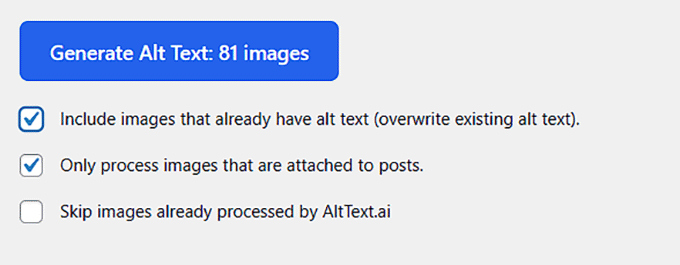
Initiate the generation process. Completion time varies based on your media library size, ranging from moments to several minutes. A success notification typically appears when the process finishes.

Method 2: Utilizing Free AI Plugins for Media Attributes
For users preferring no-cost solutions, several free WordPress plugins leverage AI to generate image metadata. These tools typically create alt text, titles, and captions by analyzing image content directly within your media library.
Step 1: Install a Free AI Media Plugin
Search your WordPress plugin repository for AI-powered media attribute generators. Install and activate your chosen plugin following standard WordPress procedures.
Step 2: Configure Generation Settings
After activation, access the plugin's settings page. Configure which attributes you want automatically generated—typically alt text, titles, and captions. Some plugins allow specification of language and style preferences.
Step 3: Generate Attributes from Media Library
Navigate to your Media Library where you'll typically find new options for bulk generation. Select images and use the plugin's interface to generate missing attributes. Review generated text for accuracy before applying changes.
Enhancing AI-Generated Alt Text for SEO
While AI generates descriptive text, further optimization can improve SEO performance. Consider these additional practices:
- Incorporate relevant keywords naturally within descriptions
- Ensure descriptions accurately reflect image content and context
- Maintain concise, clear language appropriate for screen readers
- Review generated text for any inaccuracies before publication
Common Questions About AI Alt Text Generation
How accurate is AI-generated alt text?
Modern AI systems demonstrate high accuracy for common image types but may require human verification for complex or abstract images.
Does AI alt text generation affect website performance?
Properly configured solutions typically have minimal performance impact, especially when processing occurs during upload or in scheduled batches.
Can AI handle specialized or technical images?
Accuracy varies by subject matter. Technical, medical, or highly specialized images may require manual review and editing.
Implementing Best Practices
Successful implementation combines AI efficiency with human oversight. Establish a workflow that leverages automation for bulk processing while maintaining quality control through periodic reviews. Many experienced developers recommend starting with a subset of images to evaluate output quality before processing entire media libraries.


