Integrating Affirm Payment Options into Your WordPress Site: Two Practical Approaches
By Editorial Team |
Incorporating Affirm as a payment method on your WordPress platform can significantly enhance the shopping experience for your customers. This service enables buyers to divide their purchases into smaller, more convenient installments, which many find preferable to conventional credit card transactions.
Numerous WordPress professionals and e-commerce businesses have observed that providing diverse payment alternatives can lead to improved conversion rates and higher overall revenue. Offering flexible payment solutions often reduces cart abandonment and encourages larger purchases.
This comprehensive tutorial will guide you through the process of enabling Affirm payments on your WordPress website using two distinct methods.
Understanding Affirm and Its Benefits for WordPress Sites
Affirm operates as a prominent buy now, pay later (BNPL) platform that allows customers to acquire products immediately while spreading payments across multiple installments over time.
The system provides various payment structures to accommodate different purchasing needs. A frequently selected option is the 'Pay in 4' plan, which divides the total amount into four equal, interest-free payments scheduled every two weeks.
For more substantial transactions, customers may opt for monthly installment plans, though these arrangements sometimes include interest charges.
By implementing Affirm payments, you make your offerings more accessible, particularly for higher-value items. A significant advantage for merchants is receiving complete payment upfront while Affirm manages the collection process. This arrangement transfers the risk of customer non-payment to Affirm, providing you with financial security.
With these considerations in mind, we will demonstrate how to effectively integrate Affirm payment capabilities into your WordPress environment.
We will explore two straightforward approaches, and you can use the following navigation links to proceed directly to your preferred method:
- Approach 1: Implementing Affirm Payments Using WP Simple Pay (Recommended Solution)
- Approach 2: Enabling Affirm Payments for WooCommerce Using the Official Plugin (Free Option)
- Additional Options for Configuring Installment Payments in WordPress
- Common Questions Regarding Affirm Integration in WordPress
Let's begin the process of enhancing customer convenience and potentially increasing your sales figures.
Approach 1: Implementing Affirm Payments Using WP Simple Pay (Recommended Solution)
This method is particularly suitable if you wish to incorporate an Affirm payment form directly on your website. It represents an excellent choice for sites not utilizing WooCommerce. Additionally, this approach supports donation collection, membership fee processing, content access charges, and payment handling for various business services.
The most efficient way to accept Affirm payments through customized forms involves utilizing the WP Simple Pay plugin.
This solution stands as a leading Stripe integration tool for WordPress, enabling you to process online payments without requiring a full shopping cart implementation.
The plugin features an intuitive form builder, secure transaction processing, recurring payment functionality, and comprehensive support for Affirm payment acceptance.
Configuring WP Simple Pay
To commence, install and activate the WP Simple Pay plugin on your WordPress installation.
Following activation, a configuration wizard will automatically appear. Proceed by selecting the 'Let's Get Started' button.

This action will advance you to the subsequent step, where you must input the plugin's license key.
You can locate this information within your account on the WP Simple Pay official website. After entering the key, select the 'Activate and Continue' button.

The system will now prompt you to connect your Stripe account with WP Simple Pay. Stripe serves as a widely adopted payment gateway that facilitates online payment acceptance.
Select the 'Connect with Stripe' button to proceed with the integration.
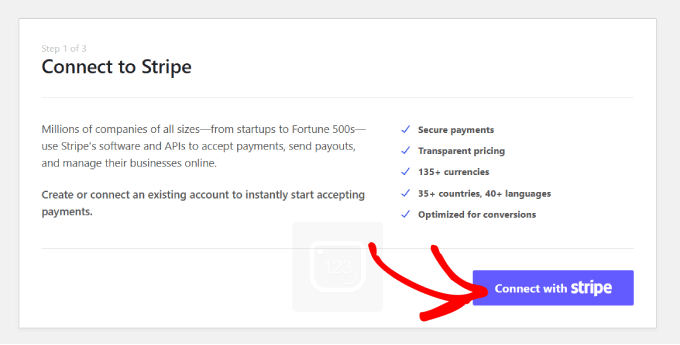
After this step, you will need to log into your existing Stripe account to establish the connection with WP Simple Pay. If you haven't created a Stripe account yet, you can register for one through the Stripe website.
Once you successfully link Stripe with the plugin, the setup wizard will request email configuration settings.
Here, you can enable notifications for payment receipts, upcoming invoices, and payment confirmations, while specifying the recipient email addresses.
When satisfied with your selections, choose the 'Save and Continue' button.

You may now exit the configuration wizard as we proceed to create a payment form for your website.
Developing Your Affirm Payment Form
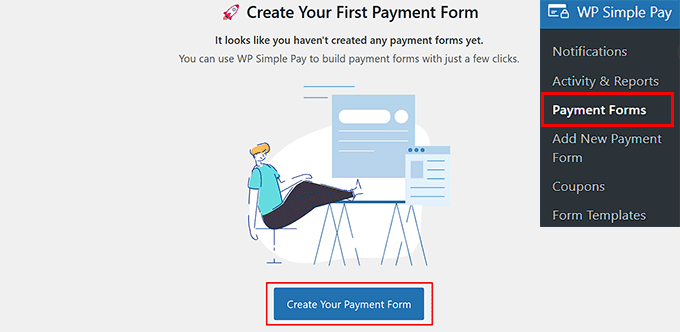
To accomplish this, navigate to the WP Simple Pay » Payment Forms section within your WordPress administration panel and select the 'Create Your Payment Form' button.
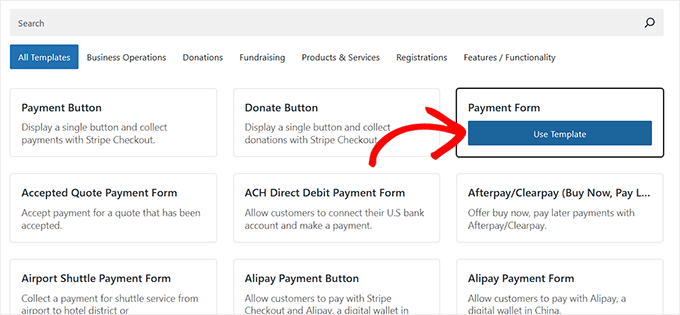
This action will open the template selection screen, where you can choose from the plugin's pre-designed templates by clicking the 'Use Template' button beneath your preferred option.
For demonstration purposes, we will utilize the 'Payment Form' template.
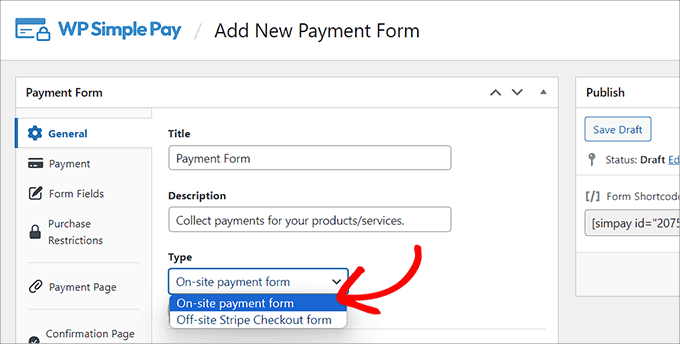
This will direct you to the 'Add New Payment Form' interface, where you can begin by assigning a title and description to your form.
Following that, select 'On-site payment form' as your form type.
After completing these steps, switch to the 'Payment' tab located in the left-hand column.
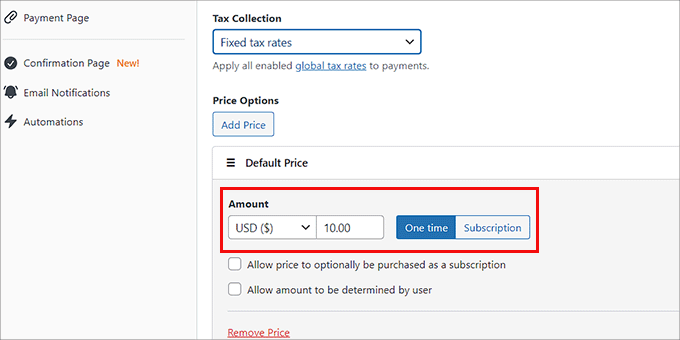
Within this section, you can specify your preferred tax collection rates using the dropdown menu under the 'Tax Collection' option.
Subsequently, you can establish the default price for the service or product associated with your payment form.