Integrating Amazon Multi-Channel Fulfillment with Your WooCommerce Store
Many e-commerce entrepreneurs who operate WooCommerce stores encounter a common challenge. While they enjoy managing their own online shops, they struggle to provide the rapid, dependable shipping that modern consumers have come to expect from major retailers.
Amazon Multi-Channel Fulfillment (MCF) presents a solution to this dilemma. This service enables you to utilize Amazon's extensive fulfillment network to process orders from your WooCommerce platform. You can offer delivery speeds comparable to Amazon Prime while maintaining complete ownership of your customer relationships and brand identity.
After extensive research and practical testing, I've identified the most effective methods for connecting Amazon FBA with WooCommerce. This comprehensive guide will walk you through the most reliable configuration, allowing you to provide accelerated shipping without relinquishing control of your business operations.
Benefits of Connecting Amazon MCF to Your WooCommerce Platform
Integrating Amazon Multi-Channel Fulfillment with your WooCommerce store enables you to provide fast, reliable shipping to customers while automating your fulfillment workflow. This approach allows you to match the delivery performance of large retailers without compromising your brand autonomy.
Consider these additional advantages of connecting Amazon FBA to your WooCommerce store:
- Reduced fulfillment workload: You eliminate time-consuming tasks like packaging items, printing shipping labels, and visiting postal facilities. Amazon manages all fulfillment operations on your behalf.
- Enhanced customer satisfaction: Quick delivery and consistent service often result in improved reviews and increased customer retention.
- Increased business development time: When Amazon handles shipping logistics, you can redirect your focus toward product enhancement, marketing initiatives, or other growth activities.
- Maintained business control: Although Amazon processes deliveries, customers complete purchases through your WooCommerce site. You retain full authority over branding, pricing strategies, and customer relationships.
If you've been seeking methods to improve shipping speed without sacrificing control over your store operations, this integration may provide the solution you need.
Common Questions About Amazon FBA Integration
Here are answers to frequently asked questions about connecting Amazon FBA with WooCommerce:
What Distinguishes Amazon FBA from Amazon MCF?
Fulfillment by Amazon (FBA) refers to Amazon's comprehensive service for storing, packaging, and shipping products sold through Amazon's marketplace. Multi-Channel Fulfillment (MCF) utilizes this same infrastructure to fulfill orders originating from external sales channels, including WooCommerce stores.
Can I use Amazon FBA for only specific WooCommerce products?
Yes, you maintain complete control on a per-product basis.
To activate fulfillment for a particular item, simply select the 'Fulfill with Amazon FBA' option within that product's settings in your WooCommerce administration panel, as demonstrated in Step 5 below.
Is a Professional Amazon Seller account required for WooCommerce integration?
Yes, you must maintain a Professional Amazon Seller Central account to utilize Multi-Channel Fulfillment and connect it with WooCommerce. Individual seller accounts do not support API integrations for this purpose.
Will WooCommerce automatically synchronize inventory levels from Amazon?
Yes, when inventory synchronization is enabled in your plugin configuration, WooCommerce stock levels will automatically update based on your Amazon FBA inventory. This helps prevent overselling products that are out of stock.
Does Amazon manage returns for WooCommerce orders?
Amazon provides return handling services for MCF orders, but availability depends on your fulfillment settings and geographic region. You must enable return management in your Amazon Seller Central account and review Amazon's return policies for non-Amazon sales channels.
What are the shipping costs for Amazon MCF orders?
Amazon charges fulfillment fees for every order processed through MCF. These fees depend on product dimensions, weight, and selected shipping speed (Standard, Expedited, or Priority). Review current Amazon MCF pricing on their official website to understand costs for your specific products.
Let's proceed through the step-by-step process for connecting Amazon MCF to your WooCommerce store:
- Step 1: Configure Your Amazon MCF Account
- Step 2: Create FBA Product Listings for Your WooCommerce Products
- Step 3: Transfer Inventory to Amazon Using "Send to Amazon"
- Step 4: Connect WooCommerce to Amazon FBA Using a Plugin
- Step 5: Activate Amazon FBA for Individual WooCommerce Products
- Additional Recommendation: Enhance Customer Satisfaction with Shipping Discounts
Step 1: Configure Your Amazon MCF Account
Before integrating Amazon with your WooCommerce store, ensure your Amazon FBA account is properly established.
First, you need a Professional Seller account on Amazon. If you don't currently have one, visit sellercentral.amazon.com to register.
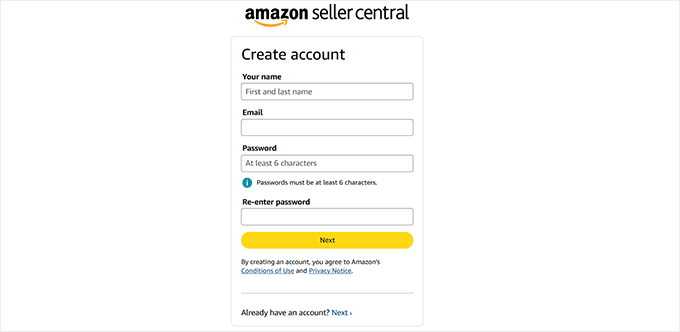
After entering your email address and creating a password, Amazon will send a verification code to confirm your email validity.
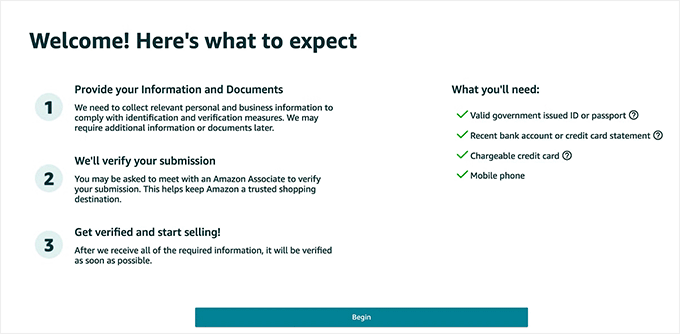
Once you enter the correct verification code, Amazon will advance to the next screen and outline the remaining steps to complete your account setup.
Prepare the following documents in advance:
- A valid government-issued identification document (such as a passport or driver's license)
- A recent bank account or credit card statement
- A chargeable credit card
- Your mobile phone
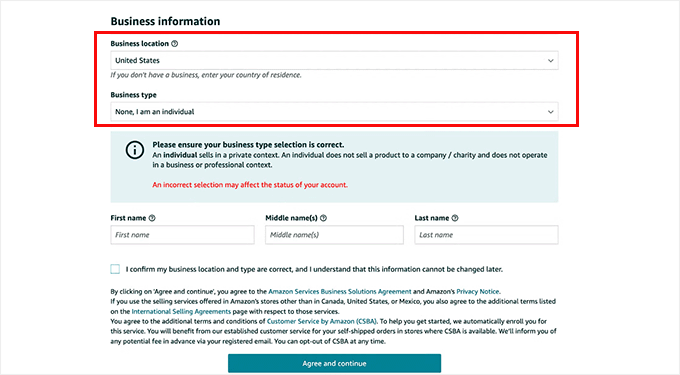
Amazon will then request your business location and business type information.
Select the country where your business operates, as Amazon will verify this information during the approval process.
For business type, choose from available options including State-owned business, Publicly-owned business, Privately-owned business, Charity, or 'None, I am an individual.'
If you haven't formally registered your business, select the final option. You'll also need to provide your full name and click 'Agree and continue.'
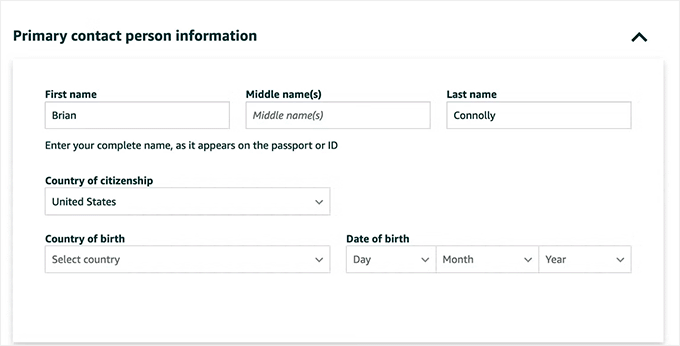
The subsequent step requires personal information, including identification details (either passport number or driver's license number).
Following this, you'll verify your mobile phone number by entering a PIN code that Amazon delivers via text message or phone call.
After correctly entering the verification code, your phone number will be confirmed. When all information appears accurate, click 'Next' to proceed.
Next, you'll provide billing information, including a valid credit card and bank account number.
Amazon requires this information to process monthly service fees and deposit sales proceeds into your account.
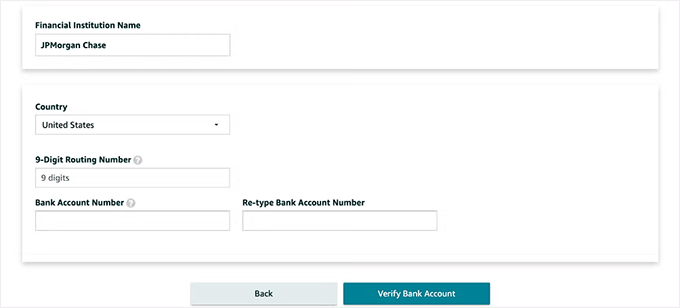
Once your billing information is verified, you'll answer several questions about your products and Amazon store. This section requires minimal deliberation.
You'll be prompted to name your Amazon store (this can be modified later) and respond to product-related inquiries, such as:
- Do your products have UPC codes?
- Do you hold any diversity certifications?
- Are you the manufacturer or brand owner for your products?