Restoring the Missing Theme File Editor in WordPress: A Comprehensive Guide
Many WordPress administrators have discovered that the built-in theme file editor is not the most secure or efficient method for modifying theme files. Direct editing can potentially compromise site stability and lead to unintended consequences.
Nevertheless, numerous users appreciate the convenience of this tool for implementing quick adjustments. Recently, there has been growing concern among WordPress administrators who cannot locate the theme file editor within their dashboard interface.
This guide will clarify why the theme file editor might not appear in its expected location and provide methods to restore its functionality. Additionally, we will explore safer alternatives for modifying theme files without jeopardizing website security.
This article covers the following essential topics:
- Understanding the Disappearance of the Theme File Editor
- Locating the Theme File Editor in Contemporary Block Themes
- Addressing a Disabled Theme File Editor
- The Risks of Direct Theme File Modification
- Additional Recommendations
Understanding the Disappearance of the Theme File Editor
Many WordPress users experience confusion when the theme file editor is not visible in its traditional location. The functionality has not been eliminated but has been relocated within the administrative interface.
When utilizing modern block themes, selecting the Editor option under the Appearance menu typically launches the site editor rather than the conventional theme file editor.
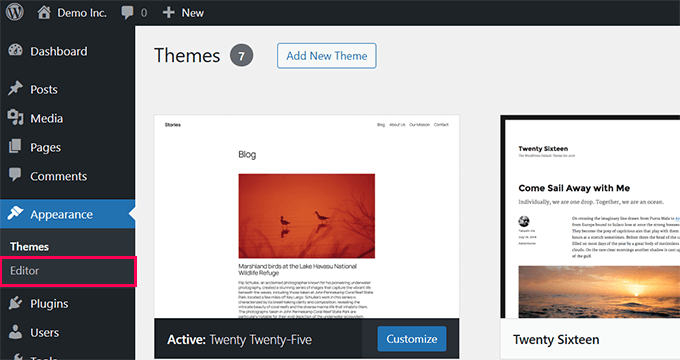
The WordPress development team determined that having two distinct menu items labeled similarly but serving different purposes could create confusion. Consequently, they repositioned the theme file editor under the Tools menu to improve administrative clarity.
In certain situations, the theme file editor may be completely absent from the administrative interface. This typically occurs when security measures implemented through plugins or configuration files have deliberately disabled the functionality.
These protective measures are often established to prevent accidental modifications or to safeguard against potential security vulnerabilities. Understanding the underlying cause of the missing editor simplifies the resolution process.
Locating the Theme File Editor in Contemporary Block Themes
Many users transitioning to modern block themes notice significant changes in the WordPress administrative navigation. Block themes extensively utilize the block editor for various functions, from page construction to site-wide styling adjustments.
While offering substantial flexibility, these themes can sometimes obscure familiar features like the theme file editor. When using a block theme, the theme file editor is no longer accessible through the Appearance menu.
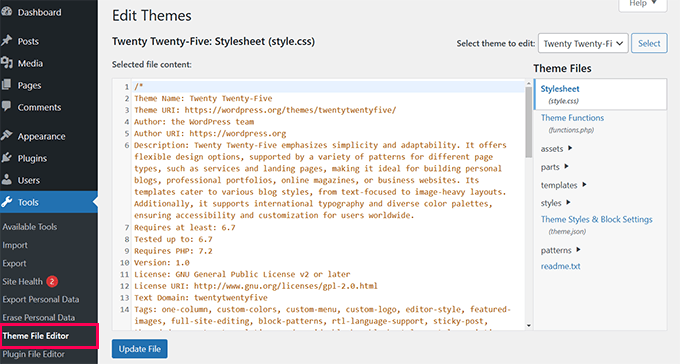
WordPress has relocated this functionality to the Tools menu to align with the organizational structure of block themes. To access it, navigate to your WordPress administrative dashboard and select Tools » Theme File Editor from the sidebar menu.
Once accessed, the editor interface will resemble its appearance in traditional themes. Experienced developers recommend creating a complete website backup before implementing any modifications as a precautionary measure.
If the editor remains unavailable in the Tools menu, additional factors may be responsible for its absence. The following section addresses these scenarios and provides corresponding solutions.
Addressing a Disabled Theme File Editor
Occasionally, the theme file editor may be intentionally disabled through security plugins or manual configuration adjustments. This practice is commonly implemented to protect websites from accidental modifications or potential security threats.
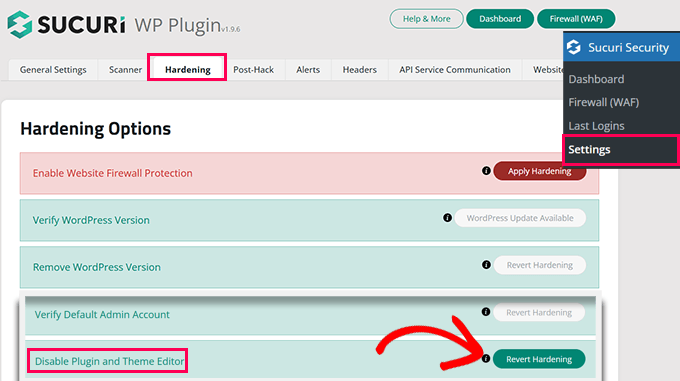
When utilizing security solutions like Sucuri, navigate to the Sucuri Security » Settings section within your WordPress administrative dashboard. Access the 'Hardening' tab and locate the option labeled 'Disable Plugin and Theme Editor.'
If this setting is enabled, deactivate it by selecting the 'Revert Hardening' button. Refresh your WordPress administrative interface to verify whether the theme file editor has been restored.
If the theme file editor remains unavailable, the wp-config.php file may require examination. Access your website files through an FTP client or your hosting provider's file management system.
Open the wp-config.php file using a text editor and search for this specific line:
define('DISALLOW_FILE_EDIT', true);If this line exists, either remove it entirely or modify the value from true to false. Save your changes and upload the updated file to your server. Refresh your WordPress administrative dashboard to confirm whether the editor functionality has been reinstated.
The Risks of Direct Theme File Modification
While the theme file editor offers convenience, direct modification of theme files carries significant risks. Minor coding errors can result in critical website malfunctions, potentially rendering your site inaccessible.
Additionally, modifications made directly to theme files will be overwritten during theme updates. This can necessitate time-consuming reimplementation of customizations. Security considerations are equally important, as an enabled editor could provide unauthorized access to website files if administrative credentials are compromised.
For these reasons, many WordPress experts recommend utilizing specialized plugins for managing custom code implementations. These solutions allow administrators to implement and manage code modifications without directly altering theme or plugin files.
Such plugins typically provide error handling mechanisms that automatically disable problematic code segments. They often include comprehensive libraries of useful code snippets and facilitate organized management of custom CSS implementations.
To implement this approach, install and activate a reputable code management plugin. Once activated, navigate to the plugin's administrative interface to create custom code segments or select from existing snippet libraries.
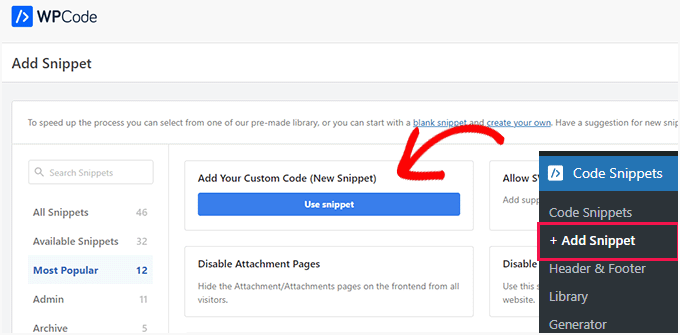
This methodology enhances website security, maintains organizational structure, and simplifies management processes. It represents a safer alternative to direct file editing while preserving customization capabilities.


