Step-by-Step Guide to Setting Up Peer-to-Peer Fundraising on WordPress
For nonprofit organizations, maintaining a steady stream of donations can be challenging. Peer-to-peer fundraising offers a solution by enabling dedicated supporters to create their own fundraising campaigns on your behalf.
While this approach can significantly expand your reach, implementing the technical aspects may seem daunting without development experience.
Many WordPress experts recommend using dedicated fundraising plugins to simplify this process. These tools allow organizations to manage campaigns and accept donations directly from their WordPress dashboard.
This guide will walk you through the complete process of establishing peer-to-peer fundraising capabilities on your WordPress site.
Benefits of Implementing Peer-to-Peer Fundraising
Nonprofit organizations can leverage WordPress to allow supporters to launch individual fundraising campaigns. This strategy encourages community members to raise funds for your cause while spreading awareness within their personal networks.
Supporters can establish dedicated fundraising pages on your website, significantly broadening your organization's visibility and potential donor base.
Consider an environmental conservation nonprofit focused on protecting endangered species. Through peer-to-peer fundraising, individual supporters might create campaigns for specific animals, such as mountain gorillas or sea turtles, directing funds toward particular conservation efforts.
This approach increases engagement, encourages social media sharing, and attracts new supporters who may connect with specific aspects of your mission.
Essential Requirements for WordPress Peer-to-Peer Fundraising
To implement peer-to-peer fundraising on WordPress, you will need:
- A web hosting account
- A domain name
- A WordPress installation
- A nonprofit-appropriate theme
- A dedicated donation plugin
If you haven't established a WordPress site yet, begin by securing web hosting and registering a domain name. Web hosting provides the server space for your website, while the domain serves as your online address.
While WordPress software is free, you'll incur costs for hosting and domain registration. Domain names typically range from $10-15 annually, while hosting plans generally start around $8 monthly.
After selecting a hosting provider and installing WordPress, choose a theme suitable for nonprofit organizations. Many experienced developers recommend lightweight, customizable themes that work well with fundraising plugins.

Once your basic website structure is complete, proceed with configuring peer-to-peer fundraising functionality.
Implementing Peer-to-Peer Fundraising on WordPress
Now you're ready to establish your peer-to-peer fundraising system.
Specialized fundraising plugins simplify this process significantly. These tools typically feature intuitive interfaces, spam protection, and extensions that enable peer-to-peer and crowdfunding campaigns.
Begin by installing and activating a core fundraising plugin. Many solutions offer free versions that provide basic functionality.
Note that peer-to-peer capabilities often require premium plugin versions or specific addons.
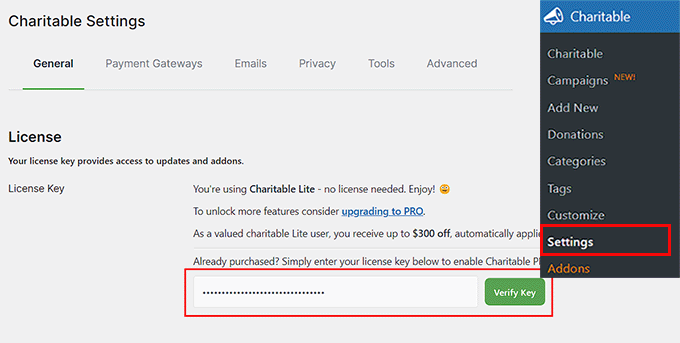
After activation, navigate to the plugin's settings section in your WordPress dashboard to enter your license key if using a premium version.
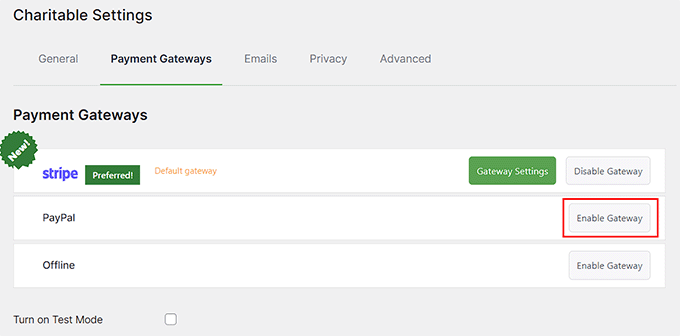
Next, access the payment gateway settings. Most fundraising plugins support popular payment processors like Stripe and PayPal.
Enable your preferred payment methods by selecting the appropriate options.
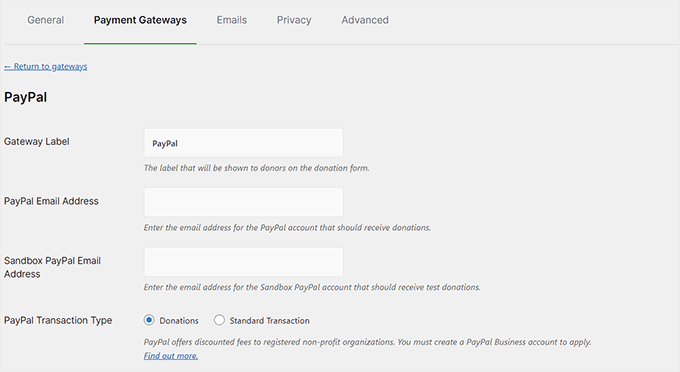
You'll then need to configure gateway-specific details such as labels, email addresses, and API credentials.
Save your payment gateway settings once configured.
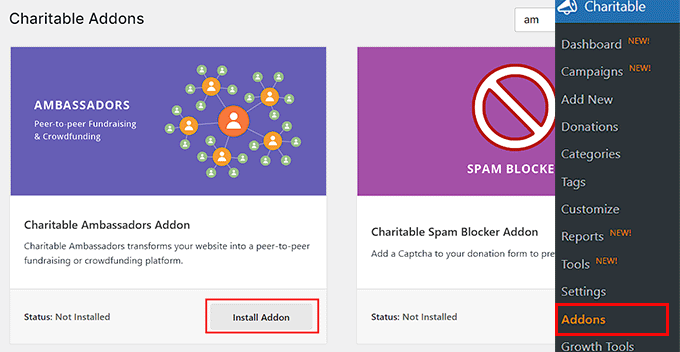
Navigate to the addons section of your fundraising plugin and locate the peer-to-peer or ambassadors extension.
Install and activate this addon to enable supporter campaign creation functionality.
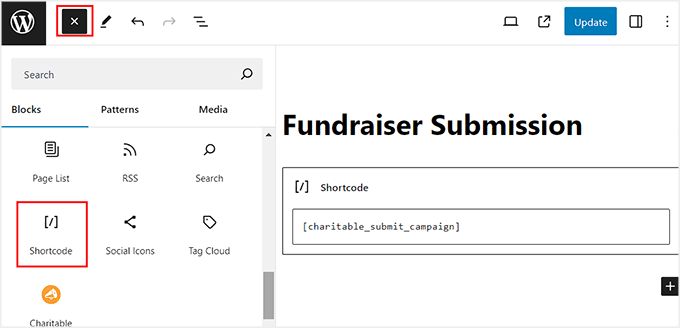
Create a new page using the block editor with a clear title like "Start Your Fundraiser" or "Create Campaign." This page will serve as the entry point for supporters wishing to launch fundraising campaigns.
Add a shortcode block to this page and insert the campaign submission shortcode provided by your plugin. Publish the page once configured.
[charitable_submit_campaign]
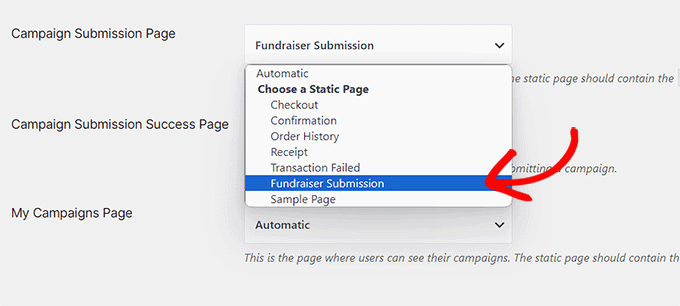
Return to your fundraising plugin settings and locate the pages section.
Select your newly created campaign submission page from the dropdown menu and save your changes.
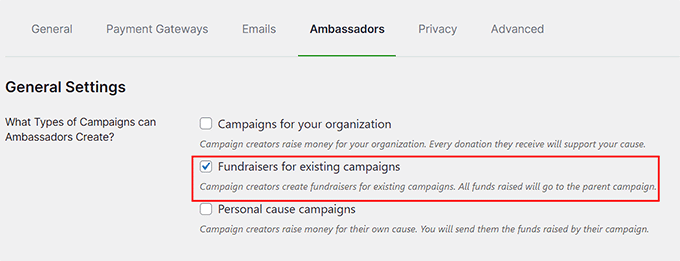
Access the ambassadors or peer-to-peer settings tab within your plugin configuration.
Select the option for "Fundraisers for existing campaigns" as your campaign type.
You'll find an option requiring account creation before campaign submission. Enabling this feature is generally recommended, as committed supporters typically appreciate having accounts to monitor their campaign progress and manage their fundraising efforts effectively.



