Two Effective Methods to Enable iDEAL Payments on Your WordPress Site
For businesses targeting customers in the Netherlands, integrating iDEAL at checkout is a fundamental requirement rather than an optional feature.
Many experienced developers have observed that adding iDEAL significantly boosts conversion rates among Dutch shoppers when expanding into European markets.
This guide presents two practical approaches for implementing iDEAL payments within WordPress, designed to minimize technical complexity while maintaining a smooth user experience.
Whether you operate a WooCommerce store or another type of website, you can select the method that aligns best with your technical setup and business requirements.
Why Implement iDEAL Payments in WordPress?
For any organization selling products or services to Dutch consumers, supporting iDEAL is essential. This payment system dominates the Netherlands market, enabling direct bank transfers without requiring credit cards.
Key advantages of integrating iDEAL include:
- Enhanced Credibility: Since most major Dutch financial institutions support iDEAL, offering it demonstrates your commitment to serving local customers effectively.
- Improved Security: Customers complete transactions through their own banking platforms, eliminating the need to share sensitive financial details with external websites.
- Immediate Verification: Unlike conventional bank transfers, iDEAL provides instant payment confirmation, allowing for prompt order processing.
- Cost Efficiency: Transaction fees for iDEAL are typically competitive and often lower than credit card processing costs.
Below are two methods for implementing iDEAL payments. Use these navigation links to jump directly to your preferred approach:
Method 1: Build an iDEAL Payment Form in WordPress
This approach enables you to accept iDEAL payments for various purposes—including donations, service fees, memberships, or individual products—without establishing a complete e-commerce store.
Many WordPress professionals recommend using a dedicated payment form plugin for this purpose. These tools typically feature intuitive builders, robust spam prevention, and straightforward integration with multiple payment processors.
Several popular plugins include preconfigured templates specifically for iDEAL payments, significantly simplifying the setup process.
Step 1: Install and Activate Your Chosen Payment Plugin
Begin by installing and activating your selected payment form plugin through the WordPress admin interface.
Step 2: Complete the Initial Configuration Wizard
After activation, a setup wizard typically appears. Proceed by clicking the initial configuration button.

The following screen usually requests your plugin license key, which you can obtain from the provider's website. Enter this information and proceed with activation.

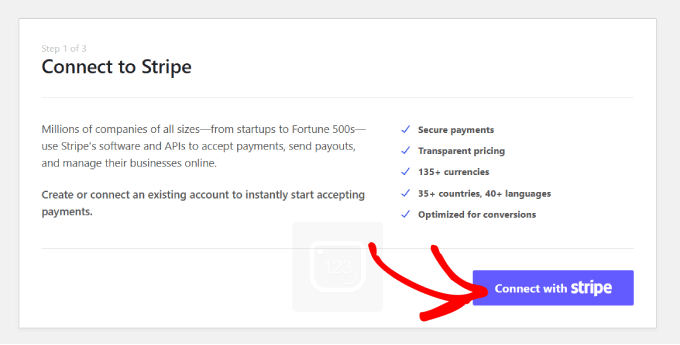
Next, connect your Stripe account, which processes iDEAL transactions. Click the appropriate button to link an existing Stripe account or create a new one.
Configure your email notification preferences for payment receipts and upcoming invoices, then save your settings to complete the wizard.

Step 3: Generate a Payment Form
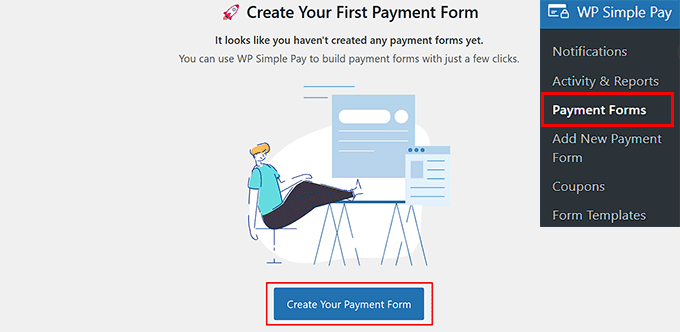
Navigate to your plugin's payment forms section within the WordPress dashboard and select the option to create a new form.
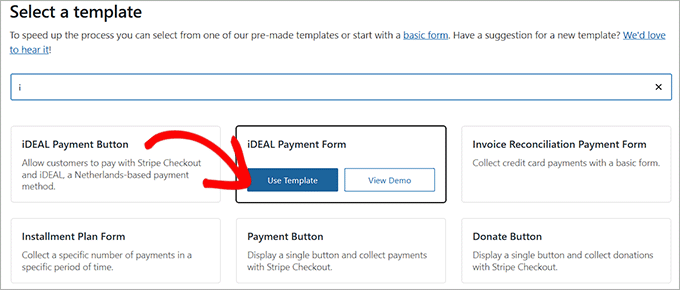
You'll typically encounter a template selection screen. Locate and choose the iDEAL payment form template.
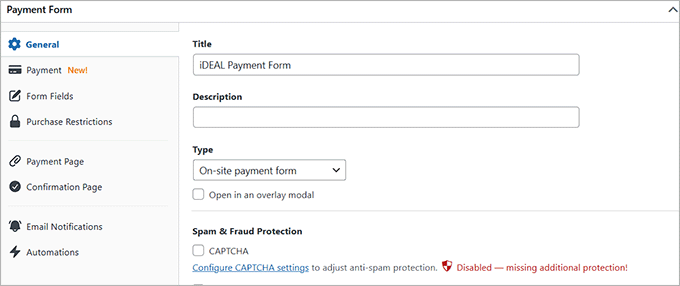
This action opens the form editor. Within the general settings tab, you can modify the form title and description, and select the on-site payment form option.
Step 4: Select iDEAL as a Payment Method
Switch to the payment settings tab in the editor's sidebar. Configure your tax collection preferences under the appropriate section.
Next, establish pricing for your product or service. For subscription-based offerings, choose the subscription option and add different pricing tiers as needed.
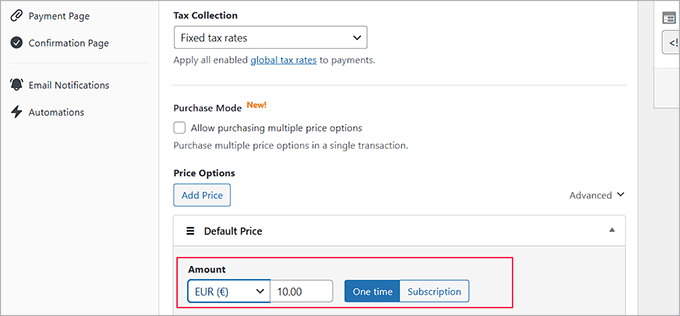
Important Note: You must set the currency to Euro (EUR) in this section. If you retain USD as the currency, the iDEAL payment option will not display on your form.
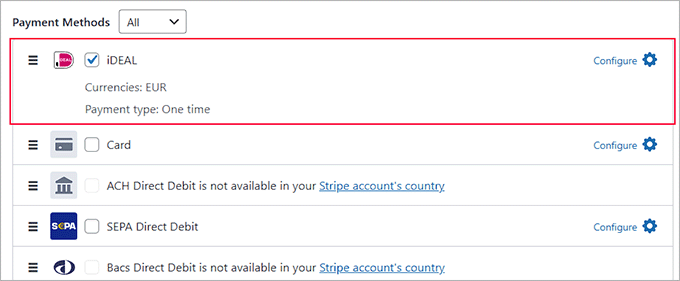
Scroll to the payment methods section and select the option to display all available methods. iDEAL should already appear as a selected option, though you can also enable additional payment methods according to your requirements.