
Two Effective Methods to Implement a Shared Gmail Inbox for Your WordPress Website
Establishing a shared email inbox can significantly enhance your team's ability to manage communications for your WordPress site efficiently.
A shared inbox allows multiple team members to view and respond to emails from a centralized location, ensuring that no message goes unanswered and improving overall response coordination.
Fortunately, implementing this functionality is straightforward using either a dedicated WordPress plugin or Google's own tools. This guide will walk you through two practical approaches to set up a shared Gmail inbox for your WordPress website.
The Benefits of a Shared Email Inbox for WordPress
When operating a business website, a shared professional email inbox becomes essential for managing daily communications effectively.
Many WordPress experts utilize shared inboxes to handle high volumes of messages, including partnership inquiries and affiliate communications. This approach ensures team alignment and facilitates timely responses to all correspondence.
Numerous successful online businesses employ shared business email inboxes to consolidate customer questions and support requests, enabling faster response times and better customer service management.
Does Gmail Provide Native Shared Inbox Functionality?
Gmail does not include a built-in shared inbox feature. While technically possible to create a new Gmail account and distribute the login credentials, this approach presents significant security concerns.
Sharing passwords increases vulnerability to unauthorized access and makes it difficult to track individual account activity. Additionally, this method grants all team members access to every email, potentially exposing sensitive information unnecessarily.
Google Groups offers an alternative for creating a shared inbox. While this solution is free and relatively quick to implement, it lacks the advanced features necessary for optimizing team communication and improving email response efficiency.
For these reasons, this tutorial presents two superior solutions for establishing a shared Gmail inbox for your WordPress site. Use the following links to navigate directly to your preferred method:
- Method 1: Create a Shared Gmail Inbox Within WordPress Using a Plugin
- Method 2: Create a Shared Gmail Inbox Using Google Groups (Free)
- Bonus Tip: Enhance WordPress Email Deliverability
Method 1: Create a Shared Gmail Inbox Within WordPress Using a Plugin
For creating a shared inbox directly within your WordPress dashboard, specialized help desk plugins provide comprehensive solutions. These tools enable you to connect your WordPress site with Gmail, establish a shared email inbox, and invite team members to collaborate within the platform.
Step 1: Configure the Help Desk Plugin
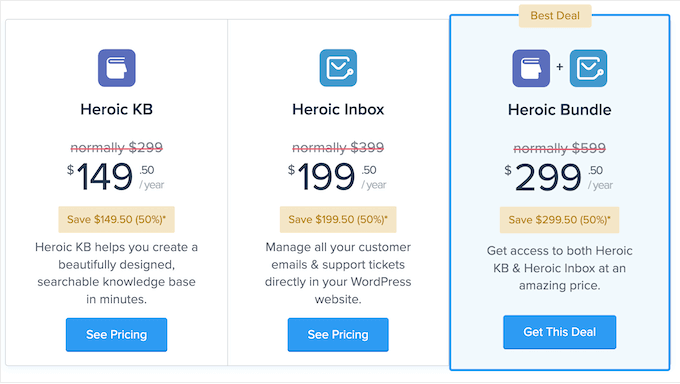
Begin by selecting and purchasing a suitable help desk plugin from a reputable provider. After completing your purchase, you should receive account details, download links, and license information via email.
Download the plugin using the provided link, then navigate to your WordPress admin area to install it. If you need installation guidance, consult standard WordPress plugin installation documentation.
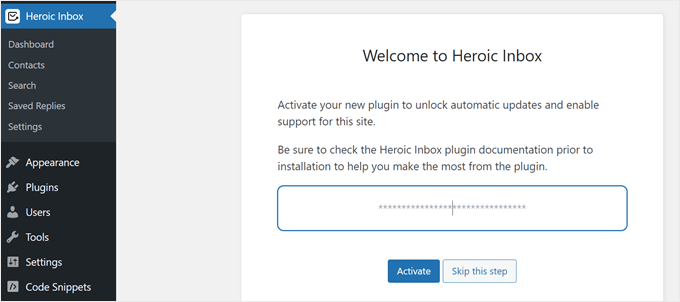
Once activated, you'll be prompted to enter your license key. Input the key and activate it to proceed with setup.
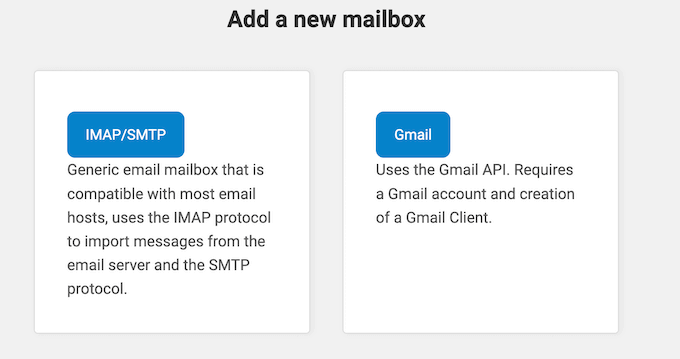
The plugin will present options for adding an email inbox, typically including generic and Gmail-specific configurations. Select the Gmail option to continue.
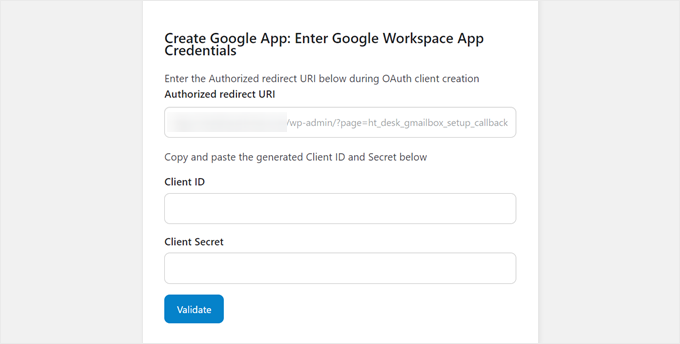
Next, you'll encounter a screen requesting Google Workspace application credentials. The plugin will provide an Authorized Redirect URI that must be entered when creating your Google Workspace application. This URI serves as a secure endpoint for authentication responses from Google's authorization server.
Step 2: Establish a Google Workspace Application
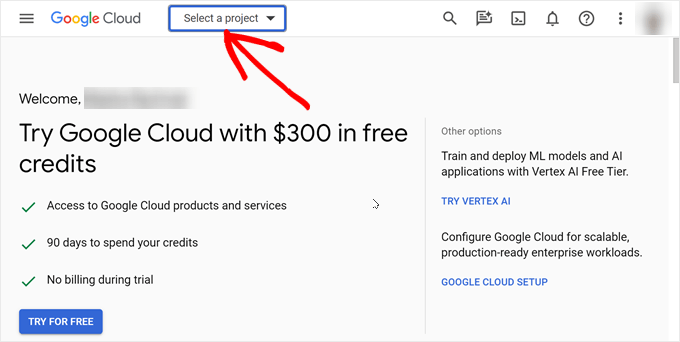
Navigate to the Google Cloud Console website and sign in with your Google Workspace account credentials. Once logged in, locate and click the 'Select a project' menu in the top-left section of the interface.
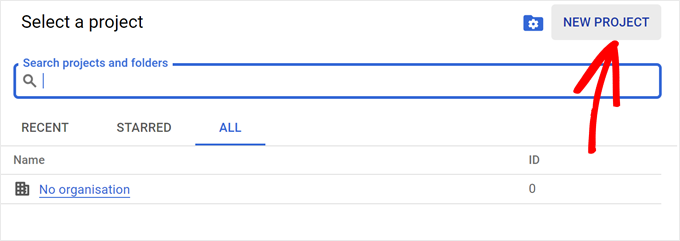
A dialog window will appear prompting project selection. Since you're creating a new application specifically for your help desk plugin, choose 'New Project' in the window's upper-right corner.
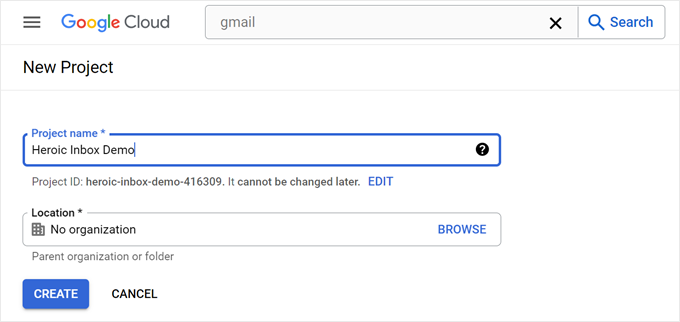
Assign a descriptive name to your project for easy identification, such as 'WordPress Help Desk Integration.' Select a storage location within Google Cloud, typically choosing 'No organization' for simplicity, then click 'Create.'
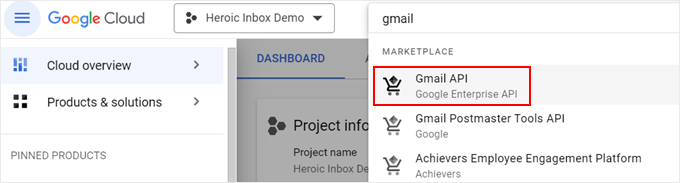
Proceed to the search functionality and locate 'Gmail API.' Select this Google API once identified.
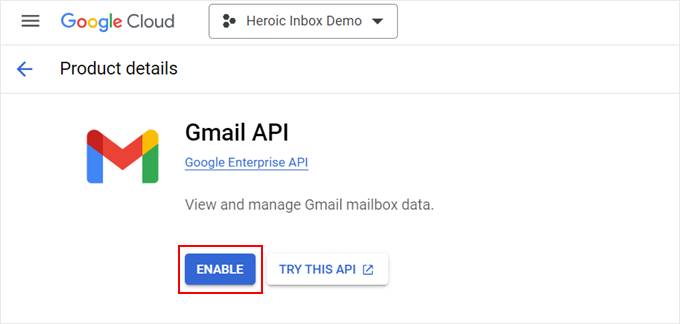
On the subsequent page, click 'Enable' to activate the Gmail API. This authorization permits Gmail to send and receive emails on behalf of your WordPress plugin.
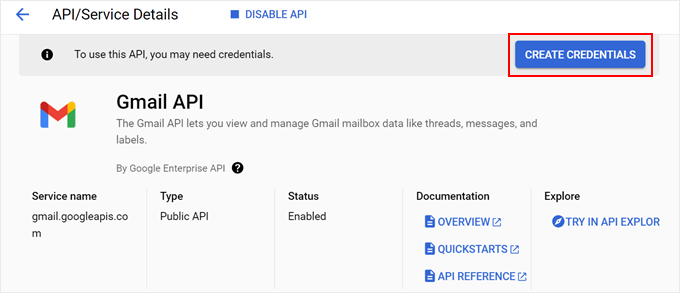
With the Gmail API enabled, you must now establish the connection with your help desk plugin. Click the 'Create Credentials' button to proceed.
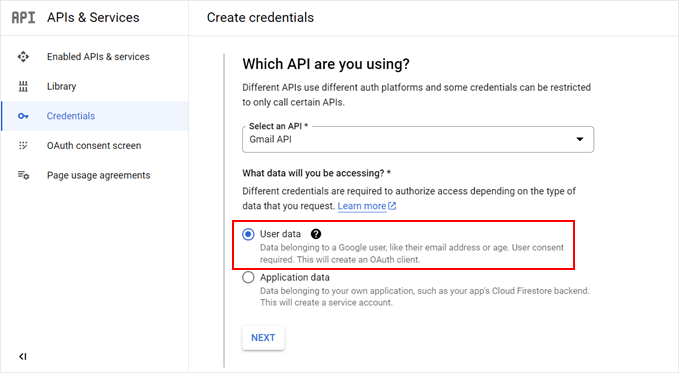
Select 'Gmail API' as your API type. For data access, choose 'User data' before clicking 'Next.'
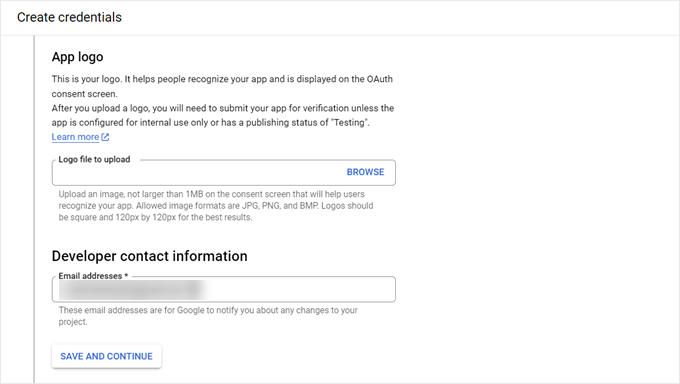
Optionally upload a logo for your Google consent screen and provide developer contact information, typically using your email address. Complete this step by selecting 'Save and Continue.'
The following section concerns permission scopes, which are generally optional to configure. Most help desk plugins recommend maintaining default settings for this section.


