Two Simple Methods for Embedding Spotify Content in WordPress
By Author |
Remember the days when sharing music online required uploading MP3 files and managing bulky audio players? Fortunately, modern streaming platforms have simplified this process significantly. Spotify, as a leading music service, provides straightforward embedding capabilities that integrate seamlessly with WordPress.
For WordPress users who appreciate music, finding reliable methods to incorporate Spotify content can enhance any website. Whether you're reviewing music, producing podcasts, or simply sharing favorite playlists, you can embed audio content without any coding knowledge.
This guide presents two straightforward approaches for embedding Spotify content within WordPress. These methods work effectively for sharing individual tracks, complete albums, podcast episodes, or curated playlists.
Benefits of Embedding Spotify in WordPress
Musicians and podcast creators can effectively promote their work by embedding Spotify content directly on their websites. This approach allows you to feature songs, albums, or episodes where your audience already engages with your content, rather than redirecting them to external platforms.
Even if you're not sharing original content, Spotify embeds can increase visitor engagement. Music critics can embed tracks they're analyzing, while bloggers can establish atmosphere with carefully selected playlists.
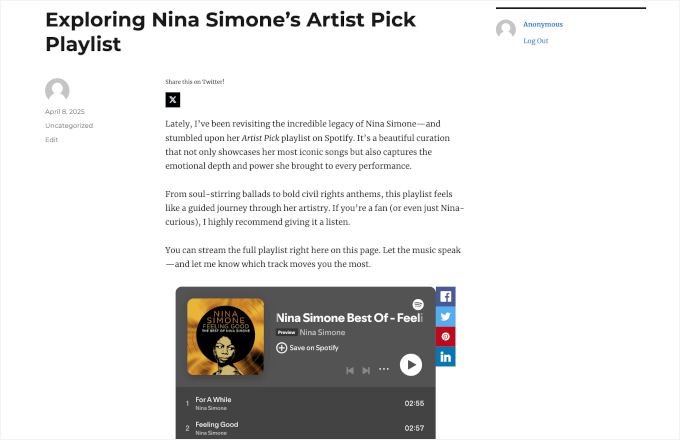
Spotify supports embedding various content types:
- Individual tracks– Ideal for promoting specific songs or highlighting musical works.
- Complete albums– Excellent for showcasing full releases, particularly useful for artists and music reviewers.
- Curated playlists– Share personalized collections or establish thematic musical atmospheres.
- Podcast episodes– Perfect for podcast hosts wanting to feature episodes on their websites.
- Artist profiles– Highlight your Spotify artist page or feature other artists you support.
The most convenient aspect is that Spotify provides simple embed links that work directly with WordPress.
Methods for Embedding Spotify in WordPress
WordPress simplifies Spotify embedding through its native functionality. You can paste a Spotify link directly into the content editor, and WordPress automatically converts it into an embedded player within a dedicated block.
This guide covers two practical methods for embedding Spotify content:
- Method 1: Using WordPress' Native Spotify Block (No Additional Plugins Required)
- Method 2: Using the EmbedPress Plugin (Enhanced Customization Options)
Both approaches enable embedding of songs, albums, playlists, podcasts, or artist profiles without requiring any coding expertise.
Method 1: Using WordPress' Native Spotify Block (No Additional Plugins Required)
This approach represents the simplest method, requiring only the addition of a block within the WordPress editor. It's particularly effective for incorporating tracks, playlists, or podcast episodes directly into posts or pages without installing additional plugins.
Step 1: Locate the Spotify Content Link
Begin by obtaining the Spotify content link. Access the Spotify web player or desktop application (login is optional) to locate your desired content.
From the main interface, utilize the search function to find specific content by song title, album name, or artist. For demonstration purposes, we searched for an artist profile.
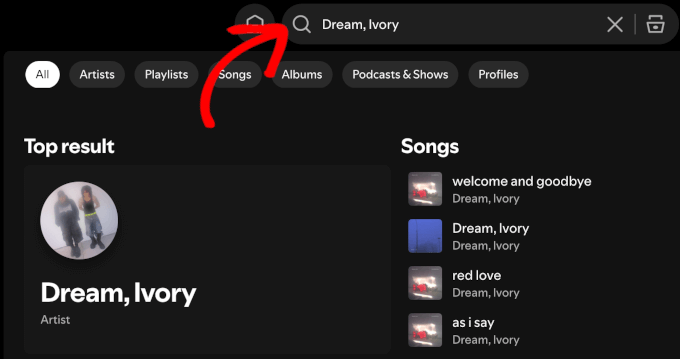
Select the appropriate search result when it appears. On the artist profile page, click the three-dot menu adjacent to the Follow button.
Navigate to the Share option and select Copy link to artist.

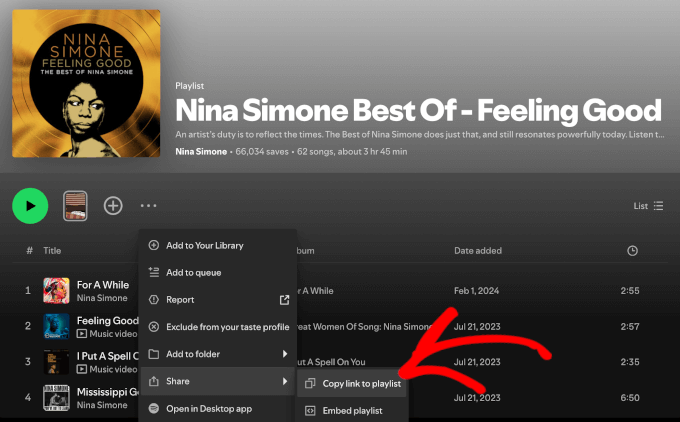
For embedding individual tracks, click the three-dot menu associated with a specific track. Hover over Share and select Copy Song Link.

To embed complete albums, navigate to the Discography section on the artist page. Click the desired album to open it.

Locate the three-dot menu beneath the album title and click it. From the Share options, select Copy Album Link.
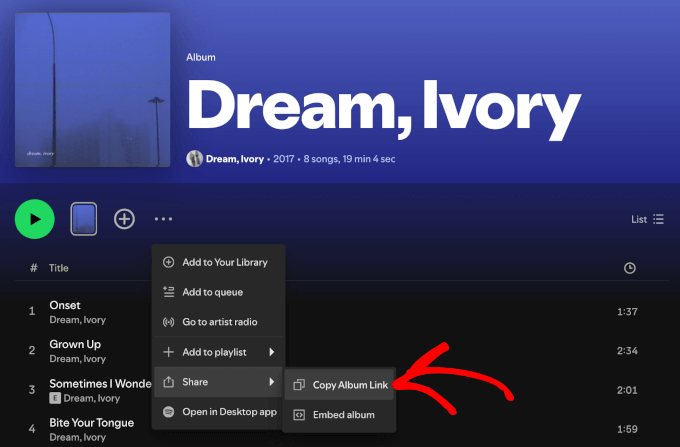
The process remains consistent for playlists and podcasts. Ensure you're selecting the appropriate three-dot menu based on whether you're viewing a song, album, playlist, show, or artist profile.
Step 2: Embed the Content in WordPress
Now integrate the link into your WordPress website. Spotify content can be embedded within any post or page. This demonstration uses the WordPress block editor within a blog post.
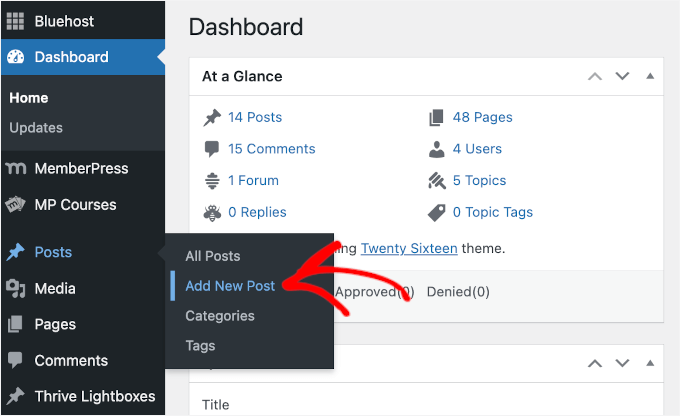
From your WordPress dashboard, navigate to Posts and select Add New Post, or edit an existing post where you want the Spotify player to appear.
You can paste the Spotify link directly into the editor. Alternatively, you can add the dedicated Spotify block. Click the plus button to add a block and search for Spotify. Select the Spotify block when it appears.
Within the block, paste your copied Spotify link. WordPress will automatically generate the embedded player. You can preview the player and adjust its positioning within your content.
Method 2: Using the EmbedPress Plugin (Enhanced Customization Options)
This method provides greater flexibility through a dedicated embedding plugin. The EmbedPress plugin supports numerous platforms beyond Spotify and offers additional customization features.
Step 1: Install the EmbedPress Plugin
Access your WordPress dashboard and navigate to Plugins. Select Add New Plugin and search for EmbedPress. Install and activate the plugin.
Step 2: Copy the Spotify Content URL
Follow the same process described in Method 1 to obtain your desired Spotify content link from the Spotify platform.
Step 3: Add the Spotify URL Using the EmbedPress Block
Create or edit a post/page where you want to embed the content. Add a new block and search for EmbedPress. Select the EmbedPress block and paste your Spotify URL into the designated field.
The plugin will generate the embedded player with additional customization options available in the block settings, including alignment, dimensions, and display preferences.
Both methods provide effective solutions for incorporating Spotify content into WordPress websites. The native block method offers simplicity without additional installations, while the plugin approach provides extended customization capabilities for users requiring more control over their embedded media.


