11 Proven Methods to Reduce DOM Size and Improve WordPress Performance
By Editorial Team |
The 'Avoid an excessive DOM size' alert in WordPress indicates that your webpage contains too many HTML elements, which can significantly slow down its performance.
The most effective solutions involve implementing performance optimization plugins, improving how images and galleries load, and selecting streamlined themes or page builders.
This warning commonly appears in Google Lighthouse and similar speed testing tools, and while it may sound technical, the underlying principle is straightforward: your website consists of numerous components, and an excessive number can overwhelm browser processing capabilities.
Many WordPress experts have successfully optimized high-traffic websites to address this specific challenge and have assisted numerous users in enhancing their site speed.
This article presents 11 expert-recommended techniques to resolve DOM size issues and boost your WordPress site's overall performance.
Understanding the 'Avoid an Excessive DOM Size' Warning
The 'Avoid an excessive DOM size' warning emerges in performance testing tools like Google PageSpeed Insights when a webpage contains an excessive number of HTML elements that browsers must process.
DOM represents Document Object Model, a hierarchical structure that maps all objects on your webpage. Each component—whether a heading, paragraph, image, or button—functions as a 'node' within this structure.
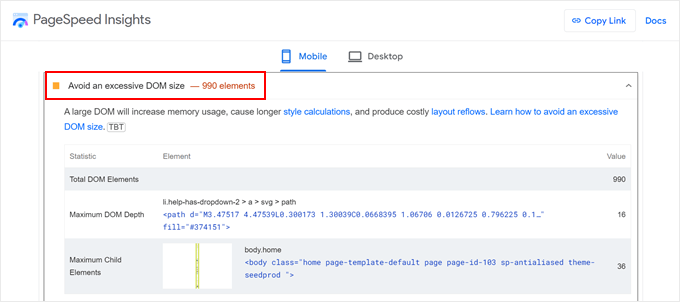
The cumulative count of these nodes determines the DOM size. When this number grows excessively large, browsers require additional time and computational resources to render the page, potentially slowing your website.
Performance Impacts of Excessive DOM Size
An oversized DOM negatively influences WordPress website performance through several mechanisms. Every element added to a page—from textual content and images to forms and navigation menus—increases the DOM node count.
This complexity produces the following effects:
- Delayed Page Rendering: Browsers must parse the complete DOM structure before displaying page content. A larger structure requires more processing time, delaying when visitors can view your content.
- Increased Memory Consumption: Complex DOM structures demand greater memory and processing capacity from user devices, with particularly noticeable effects on mobile phones.
- Diminished User Experience: These performance limitations result in slower loading times, potentially frustrating visitors and causing them to abandon your site before content loads.
- SEO Consequences: Search engines like Google incorporate page speed as a ranking factor. Slow-loading pages can adversely affect search visibility and reduce conversion rates.
DOM Element Thresholds for Google
Testing tools such as Google Lighthouse evaluate DOM size against three specific criteria rather than a single numerical threshold:
- Total DOM Nodes: A warning triggers when total HTML elements (nodes) exceed 1,500, representing the most frequent cause of this alert.
- Maximum DOM Depth: A warning activates when elements nest too deeply within each other, with Lighthouse flagging pages where nesting exceeds 32 levels.
- Maximum Child Elements: A warning occurs when a single parent element contains more than 60 direct child elements, commonly observed with poorly constructed mega menus or galleries.
Pages featuring multiple sliders, intricate layouts with numerous nested sections, or abundant embedded items more frequently surpass these limits. However, resolving this issue doesn't require compromising design quality.
The following comprehensive guide presents 11 established methods to reduce DOM size and enhance WordPress performance:
- Implement a WordPress Speed Optimization Plugin
- Evaluate Your Theme and Plugins
- Select an Optimized Page Builder
- Optimize Images and Video Content
- Configure Lazy Loading
- Paginate Extensive Comments or Content
- Minify CSS and JavaScript Files
- Minimize Render-Blocking JavaScript and CSS
- Activate WordPress Caching
- Utilize a Content Delivery Network
- Optimize Your WordPress Database
Use the navigation links above to explore specific optimization techniques.
1. Implement a WordPress Speed Optimization Plugin
The initial recommendation involves installing a robust WordPress speed optimization plugin. These tools manage technical optimizations necessary for accelerating website performance.
This approach allows you to concentrate on content creation and management while the plugin operates in the background.
Many experienced developers utilize performance plugins to handle caching, file optimization, and lazy loading implementation.
While primarily recognized as caching solutions, many performance plugins include features that address problems associated with large DOM structures, including file optimization, lazy loading, and JavaScript deferral.
These features will be detailed later in this article.
2. Evaluate Your Theme and Plugins
While WordPress themes and plugins enhance functionality and design, they can also contribute to excessive DOM size.
Poorly coded themes and plugins may introduce unnecessary HTML elements, inflating your page structure. Similarly, plugins and themes containing unused features might still load their code, increasing DOM complexity.
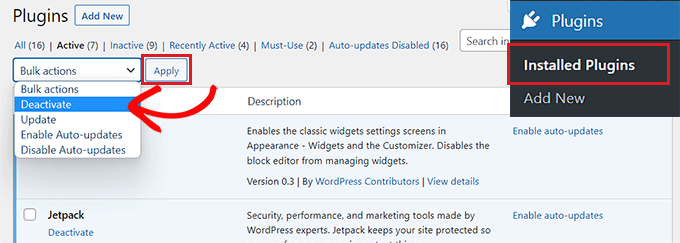
To identify whether specific plugins or themes cause the issue, deactivate plugins individually or temporarily switch to a default WordPress theme. After each modification, conduct speed tests to determine if DOM size warnings disappear.
To prevent this problem, consistently select themes and plugins from reputable sources such as official directories or established developers, as these typically maintain stricter coding standards.
3. Select an Optimized Page Builder
Page builders excel at creating custom layouts without coding, but some contribute to excessive DOM size. They frequently wrap content in additional HTML elements to control styling and layout.
For instance, a poorly optimized page builder might encase a single button within multiple nested <div> containers for alignment and styling purposes. Each container adds another node to the DOM, rapidly increasing the total count.
If you suspect your page builder causes the issue, test by deactivating it on a staging site and rechecking DOM size. Built-in tools like the Full Site Editor offer alternatives but may lack design flexibility.
For optimal balance between flexibility and performance, consider speed-optimized page builders that consistently outperform other popular options in testing scenarios.
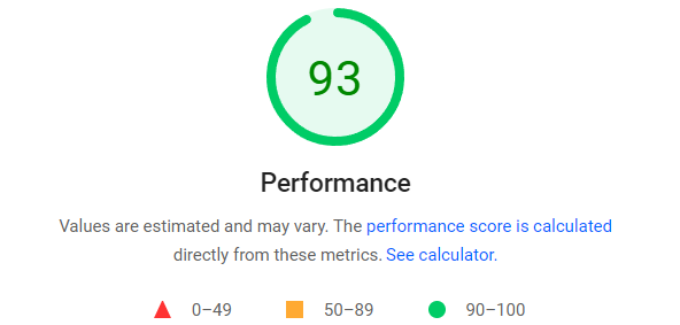
Numerous established brands utilize performance-optimized page builders for their website development needs.
4. Optimize Images and Video Content
Understanding how images relate to DOM size requires clarification. Image file size (measured in KB or MB) doesn't affect DOM node count. An <img> tag represents a single node regardless of image file dimensions.
However, image display methods can increase DOM size. Some themes and gallery plugins wrap each image in multiple <div> containers for styling, lightboxes, or captions. These additional wrapper elements—not the images themselves—contribute to DOM count.
While image compression remains crucial for page speed optimization, selecting gallery plugins that generate clean code is equally important. Specialized plugins can assist with both image compression and lazy loading implementation.
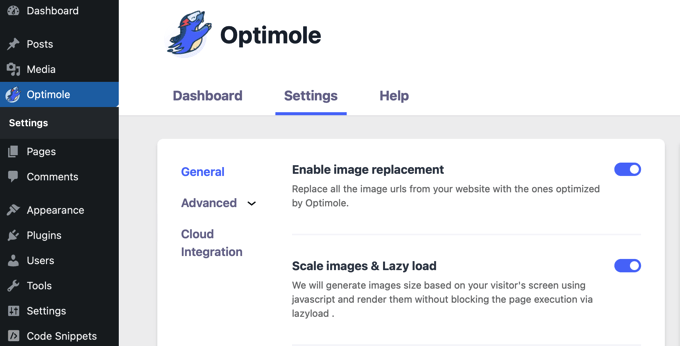
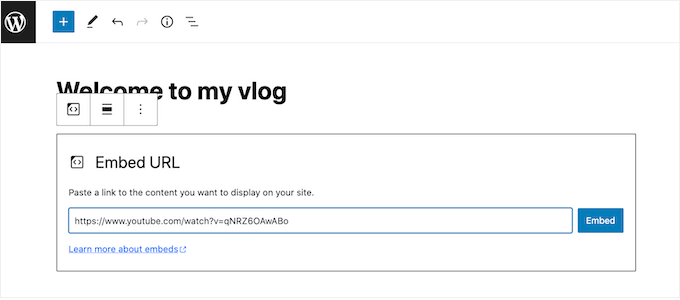
For video content, avoid direct WordPress uploads. Instead, host videos on dedicated platforms like YouTube or Vimeo and embed them. This approach reduces server load and maintains cleaner DOM structures.