2 Effective Methods to Monitor Search Analytics in WordPress
By Editorial Team |
Do you create content for your website but remain uncertain about what your visitors truly seek? This is a frequent challenge for WordPress site administrators. You invest effort into content creation, yet determining its effectiveness can be difficult.
Search analytics provides a solution to this problem.
By analyzing what users search for, which content receives the most attention, and identifying opportunities for improvement, you can develop material that genuinely resonates with your audience. This approach typically leads to enhanced engagement and more favorable outcomes.
The implementation process for WordPress search analytics is more straightforward than many anticipate.
This guide presents two practical approaches for establishing search analytics. Upon completion, you will possess the necessary insights to develop content that meets your visitors' needs.
Understanding Search Analytics in WordPress
Search analytics in WordPress involves monitoring user search behavior both within your website and through external search engines to better comprehend visitor interests and actions. This process helps you understand how users discover your content, what they seek after arriving on your site, and where user experience enhancements might be beneficial.
This guide addresses two primary categories of search analytics:internal search analytics and external search analytics.
1. Internal Search Analytics
This category reveals what visitors search for while navigating your website. These insights can help identify content deficiencies and improve service to your audience.
Examples of internal search analytics include:
- Search Terms: Observe specific queries users enter in your search functionality. Are they seeking particular products, articles, or answers to common inquiries?
- Search Frequency: Monitor how often specific search terms are used to identify popular keywords among your audience.
- Search Refinement Rate: Track how frequently visitors modify their search queries. Elevated refinement rates may indicate that search results are not adequately meeting user needs.
2. External Search Analytics
This category provides information about how users locate your site through search engines such as Google. These insights are valuable because they reveal what people search for outside your website, enabling you to optimize content for improved search engine rankings.
Key metrics for external search analytics include:
- Top Performing Pages: Identify which pages attract the most organic traffic. Are your product pages or blog posts receiving expected attention?
- Organic Search Keywords: Determine which keywords direct visitors to your site from search engines. Are users finding your blog posts, product pages, or landing pages?
- Ranking Position: Monitor how your keywords perform in search engine results. Are your target keywords improving their ranking positions over time?
Combined, internal and external search analytics offer a comprehensive perspective on audience behavior—from on-site searches to initial discovery methods.
With these insights, you can identify content gaps, refine your SEO approach, and strategically increase website traffic.
The Importance of Tracking Search Analytics
Monitoring search analytics provides clear visibility into visitor interactions with your WordPress site and their discovery methods. The primary benefit is user experience enhancement. Understanding common search terms on your site allows you to improve navigation and content accessibility.
Additional reasons to track search analytics include:
- Understanding User Intent: By monitoring on-site searches, you can comprehend visitor needs and expectations, enabling you to provide appropriate content or products.
- Content Strategy Optimization: Identify content deficiencies or discover new topics to address, allowing you to focus efforts on material that resonates with your audience.
- SEO Enhancement: Recognizing which keywords attract visitors from search engines enables you to refine your SEO strategy, optimizing for those terms to increase traffic.
- Engagement Improvement: Meeting visitor needs with relevant content and efficient search functionality increases the likelihood of extended visits, deeper exploration, and return visits.
Continuous monitoring of search trends helps measure the impact of content updates and SEO efforts, allowing for strategy adjustments as needed.
The following sections demonstrate how to access both internal and external search analytics in WordPress.
This tutorial covers the following topics:
- Method 1: Accessing Internal Search Analytics in WordPress
- Method 2: Accessing External Search Analytics in WordPress
- Professional Recommendations for Utilizing Search Analytics
- Frequently Asked Questions About WordPress Search Analytics
- Additional WordPress Analytics Resources
Let's begin.
Method 1: Accessing Internal Search Analytics in WordPress
To gain valuable insights into visitor search behavior on your site, this method utilizing a search optimization plugin provides an effective solution.
Many WordPress professionals consider this search enhancement plugin among the most effective solutions available, with straightforward implementation.
Experienced developers have observed significant improvements in search functionality using this approach. Users can locate desired content more efficiently, resulting in smoother experiences and increased engagement.
Step 1: Install and Activate the Search Plugin
Begin by installing and activating the search plugin. Visit the plugin website and select the download option.
After completing this step, navigate to the 'Downloads' section in your plugin account.
Select the download option to save the plugin file to your computer.
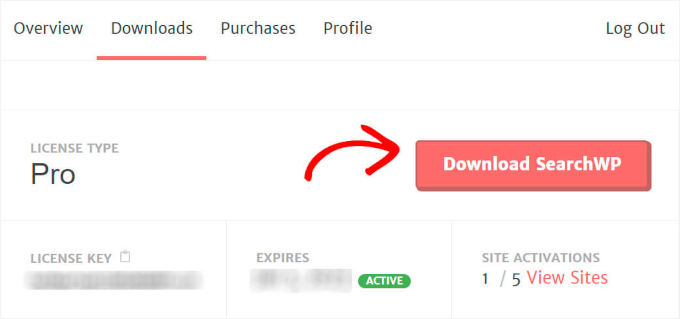
While the plugin downloads, copy your license key for activation purposes.
Proceed to your WordPress administration area and upload the plugin zip file.
If you require guidance on plugin installation, consult standard WordPress documentation for step-by-step instructions.
After installation and activation, enter your license key.
Navigate to the plugin settings section, locate the license key field, paste your key, and activate it.
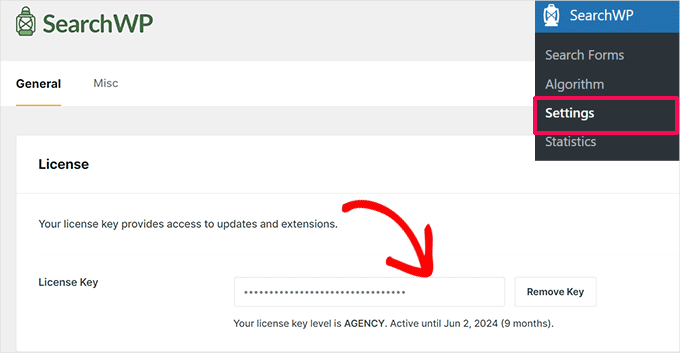
With the search plugin operational, proceed to the next step.
Step 2: Install and Activate the Analytics Extension
While the search plugin collects basic search data by default, the analytics extension provides advanced insights into visitor search behavior.
Access the extensions section from your WordPress administration area. Select the installation option for the analytics extension.
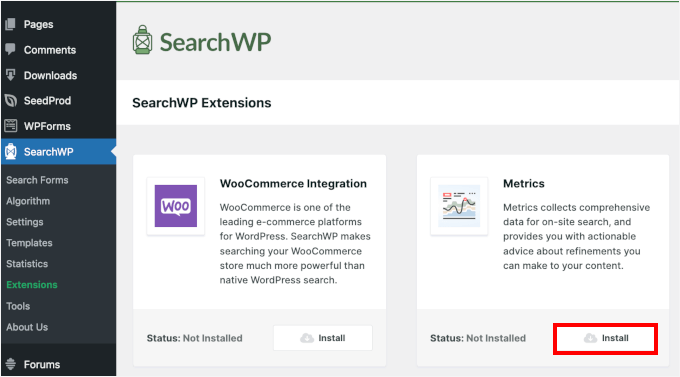
This initiates the installation and activation process for the analytics extension.
Step 3: Review Your Site Search Data
After activating the analytics extension, examine the search analytics data.
Navigate to the analytics section within your plugin interface.
Here you will find all search data collected from site visitors. Initially, no data will appear since you recently installed the plugin. However, all subsequent searches on your site will be recorded here.
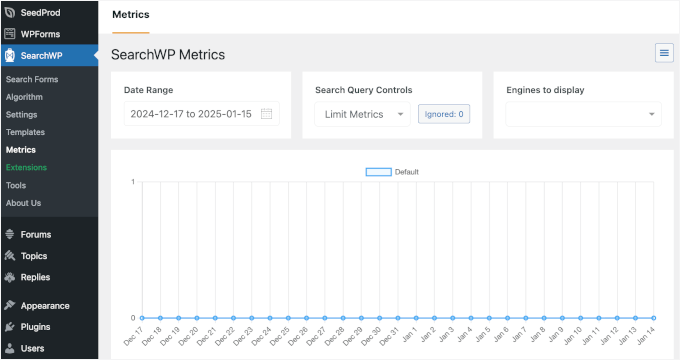
You can test the functionality by performing a search on your live website.
Return to the analytics section to verify if your search query appears in real time.
Your search term should now be displayed in the analytics interface.


