3 Effective Methods to Add a Floating Contact Form to Your WordPress Site
By WordPress Experts |
Have you ever considered that visitors might want to contact you but struggle to find the right way?
When a contact form is buried on a single page, it's easy for potential customers to overlook it. This can result in missed inquiries, lost feedback, and abandoned purchases, ultimately harming user experience and business opportunities.
A practical solution is implementing a floating contact form that remains visible as users navigate your site. This approach allows visitors to reach out at any moment without searching through pages.
This method enhances engagement and builds credibility without being disruptive. The best part is that you can implement it without any coding knowledge, using plugins that require just a few clicks to configure.
This guide presents three straightforward approaches to integrate a floating contact form into your WordPress website.
Understanding Floating Contact Forms and Their Advantages
A floating contact form remains fixed on the screen, typically appearing in a corner or side panel as users browse your WordPress site. It usually displays as a compact button or icon that expands into a complete form when clicked or hovered over.
Here are key benefits of incorporating a floating contact form:
- Enhanced Accessibility. Since the form stays in position, visitors can access it from any page at any time.
- Minimal Disruption. Unlike intrusive popups, floating forms maintain visibility without interrupting the browsing experience.
- Persistent Call to Action. The constant presence gently encourages user interaction, potentially increasing conversion rates.
Website owners can utilize floating contact forms for various purposes including customer support, sales inquiries, and feedback collection.
By enabling instant assistance during browsing, allowing questions without page navigation, and facilitating feedback submission at any moment, you create a smoother and more satisfying user experience.
WordPress offers multiple straightforward methods to implement floating contact forms. The following sections detail three simple approaches:
- Method 1: Creating a Floating Contact Form Using a Feedback Plugin (Simplest Approach)
- Method 2: Creating a Floating Contact Form Using a Form Builder and Popup Plugin (Maximum Customization)
- Method 3: Creating a Floating Contact Form Using a Free Plugin (Cost-Effective Solution)
- Alternative Approach: Implementing a Website Chatbot
- Frequently Asked Questions About Floating Contact Forms
- Further Reading on WordPress Forms
Let's begin exploring these methods.
Method 1: Creating a Floating Contact Form Using a Feedback Plugin
This method is ideal for creating straightforward floating contact forms with basic customization capabilities.
Many WordPress experts recommend using specialized feedback plugins that enable creation of customizable feedback forms, floating contact forms, and survey popups. These tools typically include pre-designed templates and question sets suitable for website feedback and eCommerce surveys.
By implementing such solutions, you can enhance your website based on actual user input, improve customer satisfaction, and address issues promptly.
Begin by installing and activating your chosen feedback plugin. If you're unfamiliar with plugin installation, consult general WordPress documentation on plugin management.
Once activated, you can create your first survey form.
From your WordPress dashboard, navigate to the plugin's menu, typically found under Feedback » Surveys » Create New.
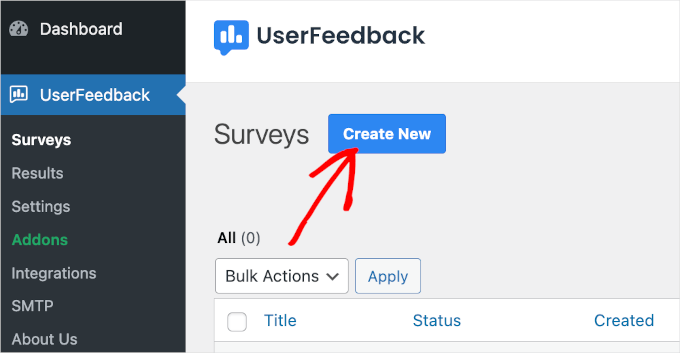
This will lead you to the setup section.
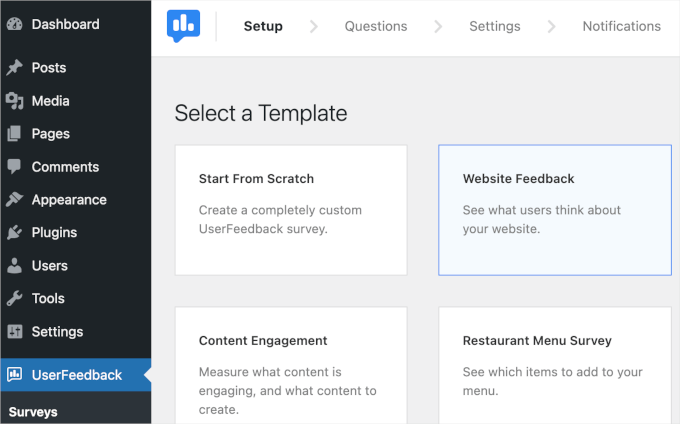
Most plugins offer the option to start with a blank canvas or use pre-configured templates. For this demonstration, we'll select a 'Website Feedback' template.
Simply click on your chosen template to proceed.
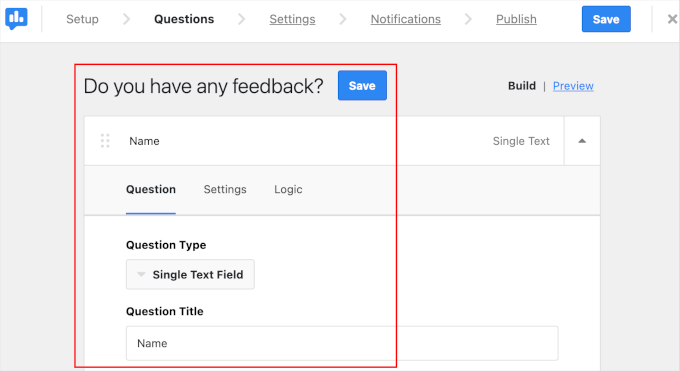
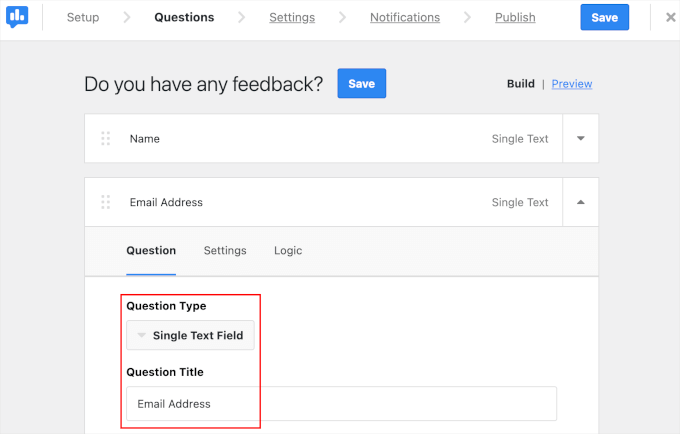
Next, customize the text content. In this example, we're changing the default label to 'Do you have any feedback?'
Then, access the 'Question Type' dropdown to select how visitors will respond. We'll choose 'Single Text Field' for this demonstration.
Afterward, modify the question to read 'Name'.
Now, add another field for email addresses.
Scroll down slightly and click the 'Add Question' button.
Configure this question type and title following the same process as the previous step.
Proceed to configure the form's settings.
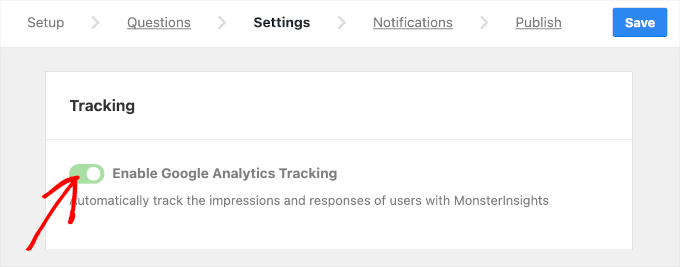
In the 'Settings' tab, you can enable tracking for form views and responses using analytics integration if supported by your plugin.
Toggle the appropriate setting to activate this feature if available.
Continue scrolling to configure targeting and behavior settings.
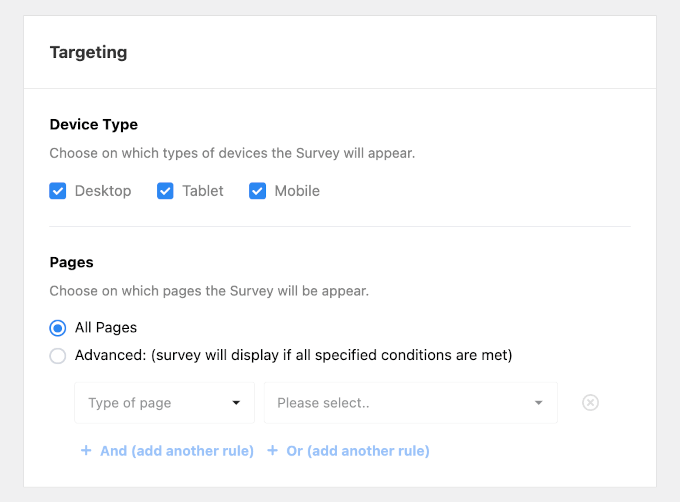
In the 'Targeting' section, select device types and specific pages where your survey form should appear.
Device options typically include desktop, tablet, and mobile. For maximum accessibility, select all three.
Then, choose which pages should display the floating form. Selecting 'All Pages' ensures visitors can access your form throughout your website.
Next, configure the form's behavior parameters:
- Display Timing. Determine when your form appears on pages.
- Display Frequency. Define how often the form shows to visitors.
- Form Duration. Specify how long the form remains visible on designated pages.
For reference, consider these settings: 'Display Timing: Immediately,' 'Display Frequency: Continuously until form completion,' and 'Form Duration: Indefinitely.'


