
A Step-by-Step Guide to Building HIPAA-Compliant Forms in WordPress
Healthcare professionals managing WordPress websites often wonder whether their contact forms meet HIPAA compliance standards. This concern is justified, as even minor violations can lead to substantial penalties and damage patient confidence.
The challenge lies in the fact that standard WordPress form plugins typically lack the specialized security features required for healthcare data protection. While suitable for general business purposes, these tools often fall short of the rigorous standards established by HIPAA regulations.
Many WordPress experts have evaluated numerous form plugins and identified their limitations regarding privacy compliance. This experience provides valuable insight into which solutions genuinely support healthcare requirements.
This comprehensive tutorial will demonstrate how to implement HIPAA-compliant forms within WordPress, enabling you to safeguard patient information while maintaining user-friendly interfaces.
Important Notice
This content provides educational information only and should not be interpreted as legal counsel. Always consult qualified legal professionals regarding compliance matters.
The Importance of HIPAA-Compliant WordPress Forms
Healthcare websites utilizing WordPress must ensure their contact forms comply with HIPAA regulations. These forms frequently collect sensitive patient information, including medical histories, insurance details, and appointment scheduling requests.
The Health Insurance Portability and Accountability Act (HIPAA) represents United States legislation designed to protect individuals' private medical data. This law mandates that healthcare providers, telehealth services, and any WordPress platform handling patient information implement appropriate security measures.
Implementing HIPAA-compliant forms helps organizations satisfy legal obligations while fostering patient trust. Individuals feel more comfortable sharing health information when they know it receives proper protection. Non-compliance can result in significant financial penalties and other serious consequences.
With these considerations in mind, this guide will walk through the process of creating HIPAA-compliant forms in WordPress. Below is an outline of the topics covered:
- Creating HIPAA-Compliant Forms in WordPress
- Additional Recommendation: Implementing Secure Forms in WordPress
- Common Questions About HIPAA-Compliant WordPress Forms
- Additional Resources for WordPress Form Implementation
Let's begin the implementation process.
Creating HIPAA-Compliant Forms in WordPress
Developing HIPAA-compliant forms in WordPress presents specific challenges. Most conventional form plugins fail to meet HIPAA standards because they typically store submission data within the WordPress database, which lacks sufficient security for sensitive patient information.
These plugins often also miss essential features like end-to-end encryption and Business Associate Agreement (BAA) support. A BAA constitutes a legally required contract ensuring service providers also commit to protecting patient data according to HIPAA guidelines.
Fortunately, specialized plugins exist that address healthcare compliance requirements. For this demonstration, we'll utilize HIPAAtizer. After extensive evaluation, this solution emerges as a comprehensive free option with security features specifically designed for HIPAA compliance.
HIPAAtizer operates by processing and storing all form submissions on its dedicated secure servers rather than within your WordPress database. This separation represents a fundamental component of HIPAA-compliant data handling.
Installing and Configuring a HIPAA-Compliant WordPress Form Plugin
Begin by establishing a HIPAAtizer account. Visit the HIPAAtizer website and select the 'Sign up for free' option.
The registration screen presents two account types. A sandbox account provides a testing environment for experimentation without affecting actual data. For production use, select the 'Covered Entity Account' option.

Next, HIPAAtizer requests email registration. Enter your email address in the provided field and click 'Continue.'
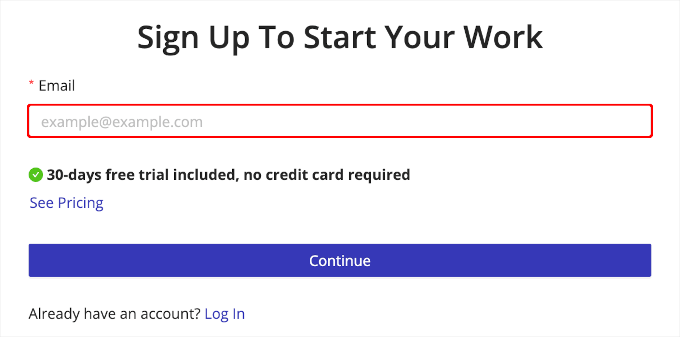
Complete the remaining prompts to finalize your account setup. Following successful registration, install the HIPAAtizer WordPress plugin. If you require assistance with plugin installation, numerous online tutorials provide detailed guidance.
After activation, connect the WordPress plugin to your HIPAAtizer account. Navigate to the 'HIPAAtizer' section within your WordPress dashboard's left-hand menu.
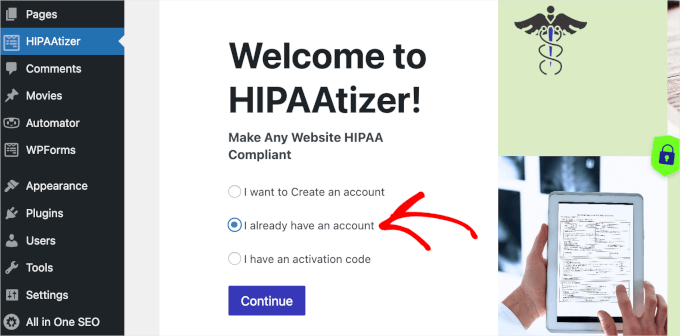
Within the connection interface, select 'I already have an account' and proceed. HIPAAtizer will display a login form where you can enter your credentials and continue.

Once connected, you'll redirect to the HIPAAtizer control panel, which provides access to all forms created through the plugin.
Constructing a HIPAA-Compliant Form Using the Plugin
You're now prepared to create your initial HIPAA-compliant form. Begin by navigating to HIPAAtizer » Create Form from your WordPress administration area.
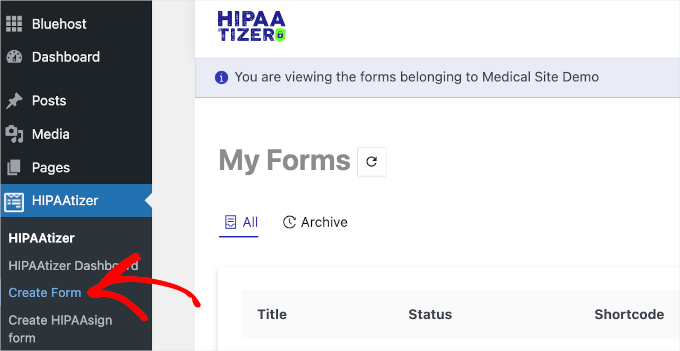
A new browser tab will open since HIPAAtizer utilizes its external form builder outside the WordPress admin interface. This tab displays form creation options.
Typically, using templates represents the recommended approach. However, accessing HIPAAtizer templates requires installing their desktop application, which some users might find time-consuming.

For a streamlined process, choose 'Start from Scratch' and proceed. This approach proves simpler than it might appear, and the following guidance will walk you through each step.
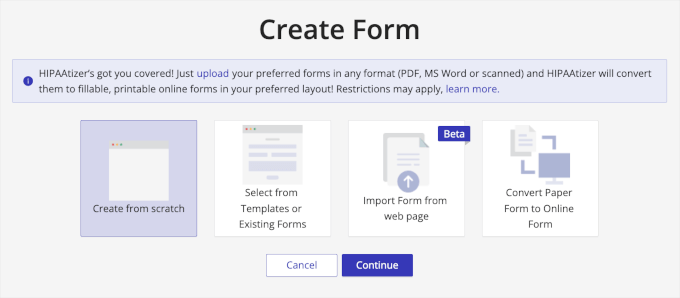
HIPAAtizer employs a drag-and-drop editor that simplifies form construction, even when starting without templates. The interface presents customization options on the left side with a live preview on the right.


