4 Effective Methods to Remove or Hide Blocks in WordPress
Maintaining a clean and organized content editing interface can significantly improve your workflow efficiency. Many WordPress users find that removing or hiding unnecessary blocks from the editor helps them focus better and work more productively.
Streamlining the block menu by eliminating rarely used elements creates a more intuitive editing experience. Numerous experienced developers customize their Gutenberg editor environments to match their specific content creation needs.
This guide provides comprehensive instructions for managing blocks within WordPress, offering multiple approaches depending on your requirements.
Understanding When to Remove, Hide, or Delete WordPress Blocks
WordPress's block editor includes numerous content elements that may not be relevant to every website. For example, the Verse block designed for poetry and lyrics might be unnecessary for business, technology, or e-commerce sites.
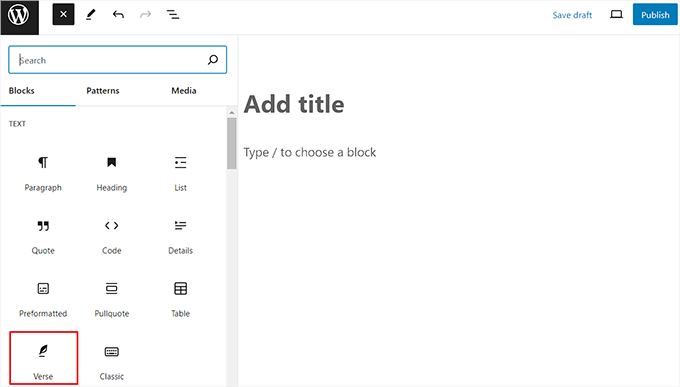
You have several options for managing these blocks. You can permanently remove them from the editor interface, temporarily hide them while preserving their functionality, or simply delete specific block instances from individual posts.
Block hiding is particularly useful when you want to maintain access to certain blocks for occasional use while keeping your primary editing interface clean. This approach differs from deleting content blocks within posts, which removes specific content without affecting the block's availability in the editor.
The following methods provide different approaches to block management. Choose the technique that best matches your specific needs:
- Method 1: Delete Individual Blocks from Content
- Method 2: Temporarily Hide Blocks from the Editor
- Method 3: Remove Core Blocks Permanently
- Method 4: Remove Plugin-Specific Blocks
Method 1: Delete Individual Blocks from Content
This approach removes specific blocks from your posts or pages without affecting their availability in the block menu. It's ideal for cleaning up content or correcting mistakes.
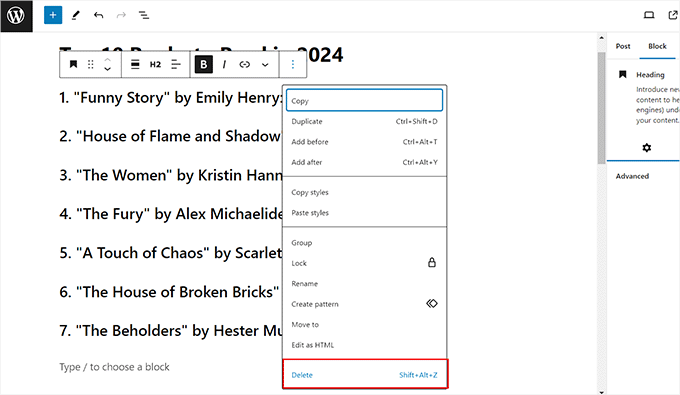
Begin by selecting the block you wish to remove by clicking on it within the editor. Then, click the three-dot menu icon in the block toolbar and choose the 'Delete' option from the dropdown menu.
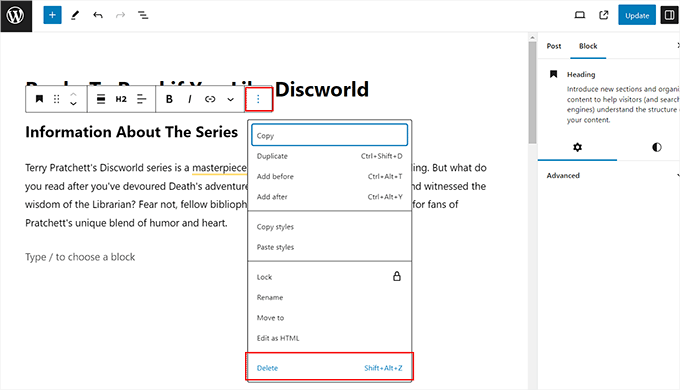
For removing multiple blocks simultaneously, select all desired blocks by dragging your cursor across them. Then access the three-dot menu and select 'Delete' to remove all selected blocks at once.
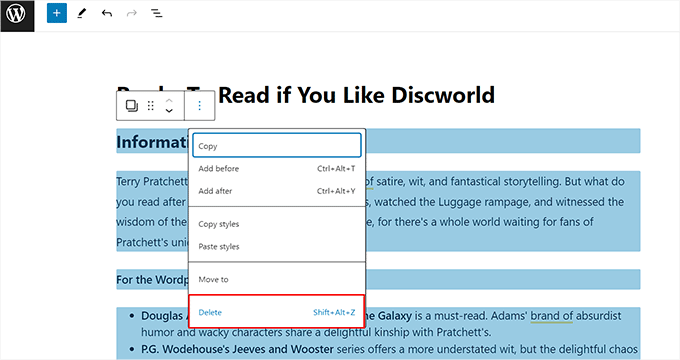
Keyboard shortcuts provide an alternative method: use Shift + Alt + Z on Windows/Linux or Control + Option + Z on macOS to delete selected blocks quickly.
Method 2: Temporarily Hide Blocks from the Editor
This method conceals blocks from the editor interface while preserving their functionality, allowing you to restore them when needed.
Access the block editor and click the three-dot icon in the top-right corner. Select 'Preferences' from the dropdown menu to open the configuration panel.
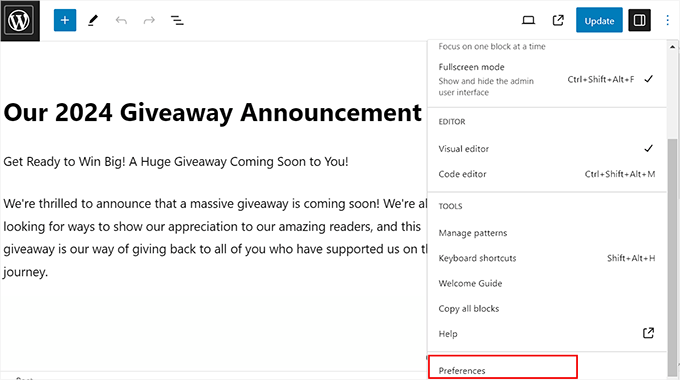
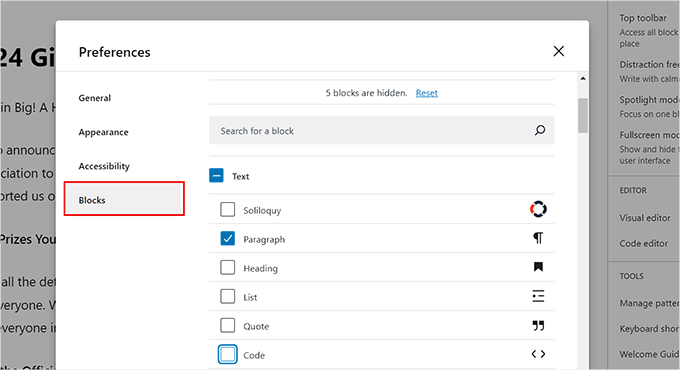
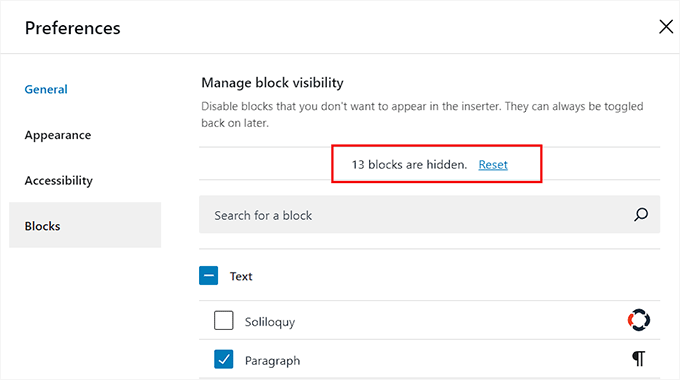
Navigate to the 'Blocks' tab within the preferences panel. Uncheck the boxes next to any blocks you wish to hide from the editor interface. This applies to both core WordPress blocks and plugin-added blocks.
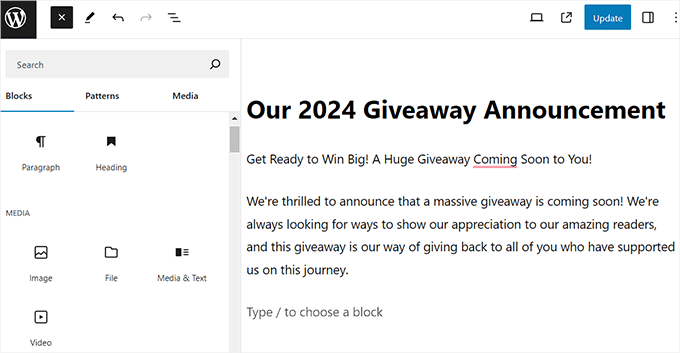
Close the preferences panel and click the '+' button to open the block menu. You'll notice the selected blocks are no longer visible.
To restore hidden blocks, return to the preferences panel and click the 'Reset' link in the Blocks tab. Note that this restores all hidden blocks simultaneously rather than individually.
If you need more granular control over block visibility, consider the following method.
Method 3: Remove Core Blocks Permanently
This advanced technique uses an allowlist approach to permanently remove default blocks from the WordPress editor. You specify exactly which blocks should remain accessible, creating a highly controlled editing environment.
Implementing this method requires adding custom PHP code to your WordPress installation. Many developers recommend using a dedicated code management plugin for this purpose, as direct modifications to theme files can cause issues during updates.
After installing your preferred code management plugin, create a new snippet and add code that defines your allowed blocks. This approach is particularly useful for creating streamlined editing interfaces for specific content types or user roles.


