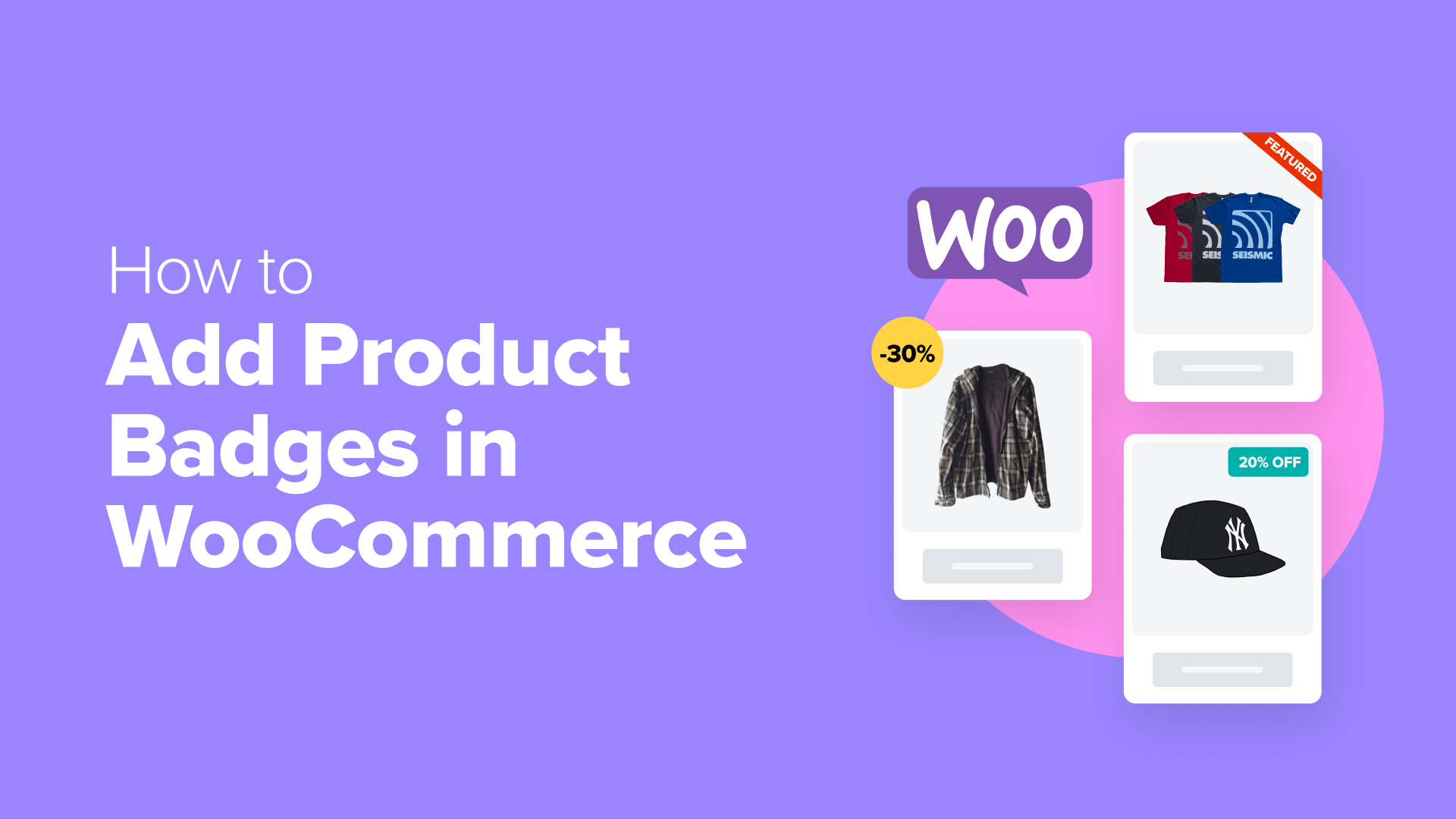
A Comprehensive Guide to Implementing Custom Product Badges in WooCommerce
Effective online stores share a common characteristic: they simplify the process for customers to identify premium products.
However, a significant challenge arises when products appear visually similar. How can shoppers distinguish between sale items, new arrivals, or recommended selections? The solution lies in implementing product badges.
These compact visual indicators immediately convey unique product attributes. A "New" badge can stimulate interest, while a "50% Off" label encourages prompt decision-making.
Based on observations from numerous e-commerce implementations, product badges represent minor adjustments that yield substantial improvements in customer engagement and conversion rates.
After evaluating multiple approaches, two reliable methods have been identified that accommodate both novice users and experienced developers. This guide explores these straightforward implementation strategies.
Understanding WooCommerce Product Badges
Have you observed the compact "Sale" or "New" indicators displayed on products during online shopping experiences?
These elements are product badges, serving as valuable tools for highlighting specific items within digital storefronts.
Consider them as digital markers that direct customer attention toward significant product information, including promotional offers, recent additions, or time-limited opportunities.
Store operators frequently employ product badges in innovative ways to emphasize special promotions, showcase popular items, or indicate limited inventory availability.
WooCommerce includes a basic sale badge feature that automatically activates when product prices are reduced.
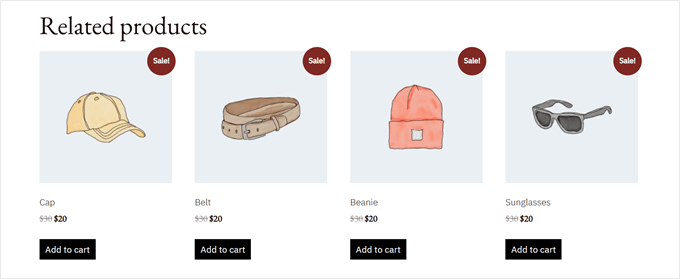
While the native WooCommerce sale badge functions adequately for basic requirements, its capabilities remain limited regarding customization options.
Users cannot easily modify badge appearance, introduce new badge categories, or precisely control placement on product imagery.
Custom product badges enable greater expression of brand identity. More importantly, tailored badges can more effectively highlight special products, potentially increasing sales performance.
This guide presents two established methods for implementing and customizing product badges within WooCommerce. Both approaches provide comprehensive control over visual presentation and functionality.
Quick navigation links are provided below for direct access to preferred methods:
- Method 1: Utilize YITH WooCommerce Badge Management (Enhanced Customization)
- Method 2: Implement Custom Code (Cost-Free and Straightforward)
- Additional WooCommerce Recommendations and Techniques
- Common Inquiries Regarding WooCommerce Product Badges
Method 1: Utilize YITH WooCommerce Badge Management (Enhanced Customization)
Begin with a recommended solution for incorporating custom product badges into WooCommerce stores.
The YITH WooCommerce Badge Management plugin simplifies the process of adding and customizing product badges within online retail environments.
Numerous developers have tested various YITH extensions over time, including those for subscription management and product video integration, consistently demonstrating reliable performance.
Need to display seasonal badges during holiday periods? Or perhaps show calculated customer savings? This plugin accommodates these requirements. Users can schedule badge visibility for specific timeframes and configure automatic removal.
Implementation can commence with either the complimentary or premium plugin version. The free edition suits basic text or image badge applications.
This demonstration utilizes the premium version, though most procedures apply to both editions. Note that certain advanced features, including automatic discount percentage display, require premium access.
To begin, acquire the plugin from the developer's website.
Following purchase, access your account portal, navigate to the licensing section, and select the download option to obtain the installation file.
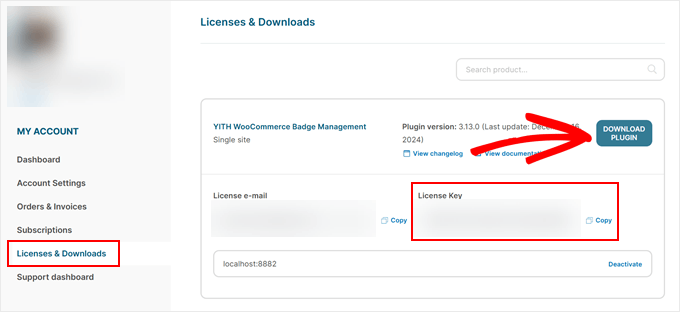
Important reminder: maintain access to this page post-download, as the displayed license key will be required.
Proceed to the WordPress administration panel and install the plugin. Comprehensive installation guides for WordPress plugins are available through various educational resources.
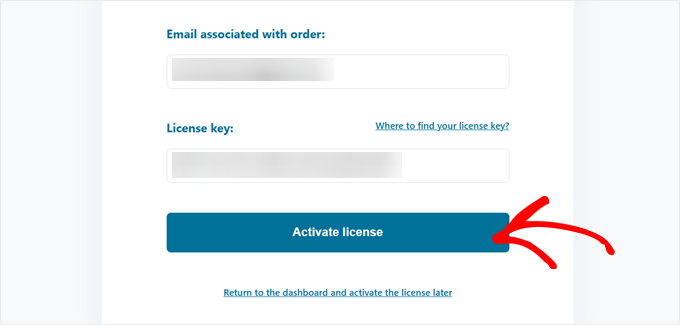
Upon activation, a configuration screen will request YITH account credentials and license information. Transfer these details from the developer website and select the license activation option.
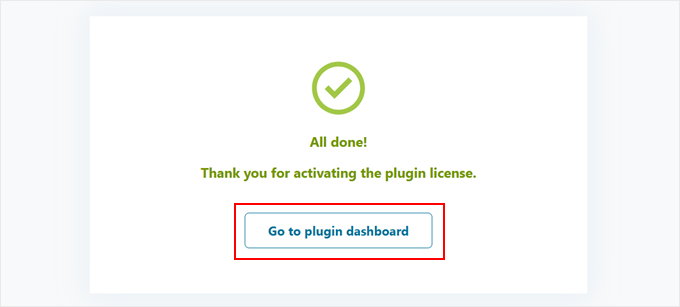
Once license activation confirmation appears, configuration is complete.
Select the dashboard navigation option to commence creating initial custom badges.
Step 1: Disable Default WooCommerce Sale Badge
Initially, deactivate the integrated WooCommerce sale badge to prevent visual conflict with custom product badges.
This process involves straightforward configuration. Access the WordPress administration panel and select YITH followed by Badge Management. Navigate to the General Settings section.
Locate the option labeled "Hide WooCommerce 'On sale' badge" and enable this setting.
Under the related configuration for hiding the sale badge, choose "All products" to ensure default badges remain hidden throughout the store.
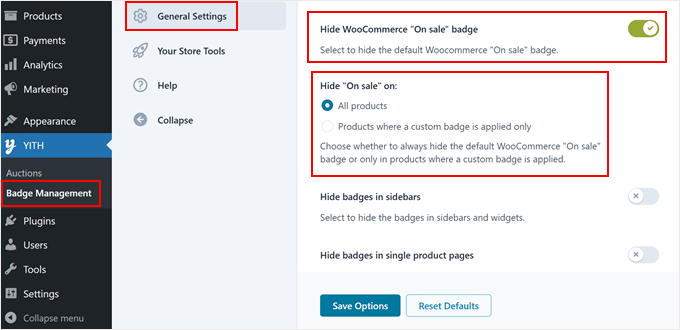
Additional configuration options may be observed during this process. Users can configure custom badge visibility in specific locations, including sidebars or individual product pages.
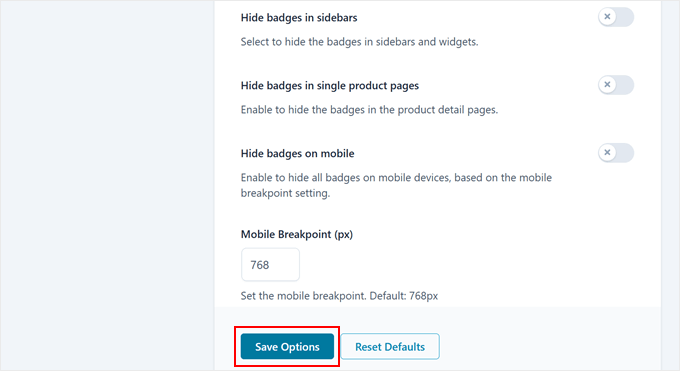
This functionality supports maintaining clean, organized store presentation. For instance, if mobile interfaces appear cluttered, badge display can be disabled for those views.
Remember to select the Save Options button upon completing configuration adjustments.
Step 2: Develop Custom Badge
Proceed to create the initial custom product badge for WooCommerce.
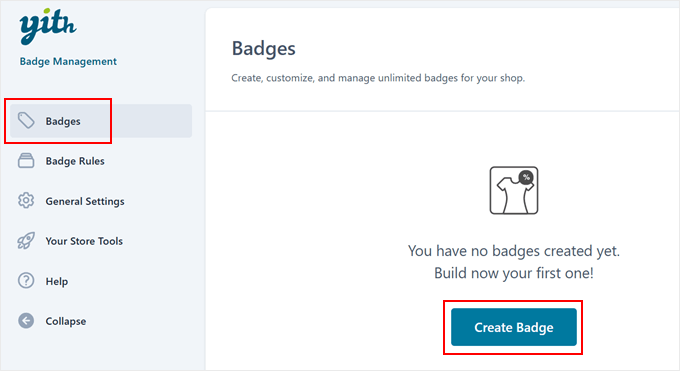
Navigate to the Badges section and select the Create Badge option to initiate the process.
The plugin provides four distinct badge categories: text-based badges, image badges, CSS-styled badges, and advanced badges for promotional products.
Each category enables unique product highlighting approaches. For indicating "New Arrival" or "Eco-Friendly" products, the first three options function effectively.
Important recommendation: when creating discount badges, utilize the advanced option, which automatically updates according to product pricing modifications.