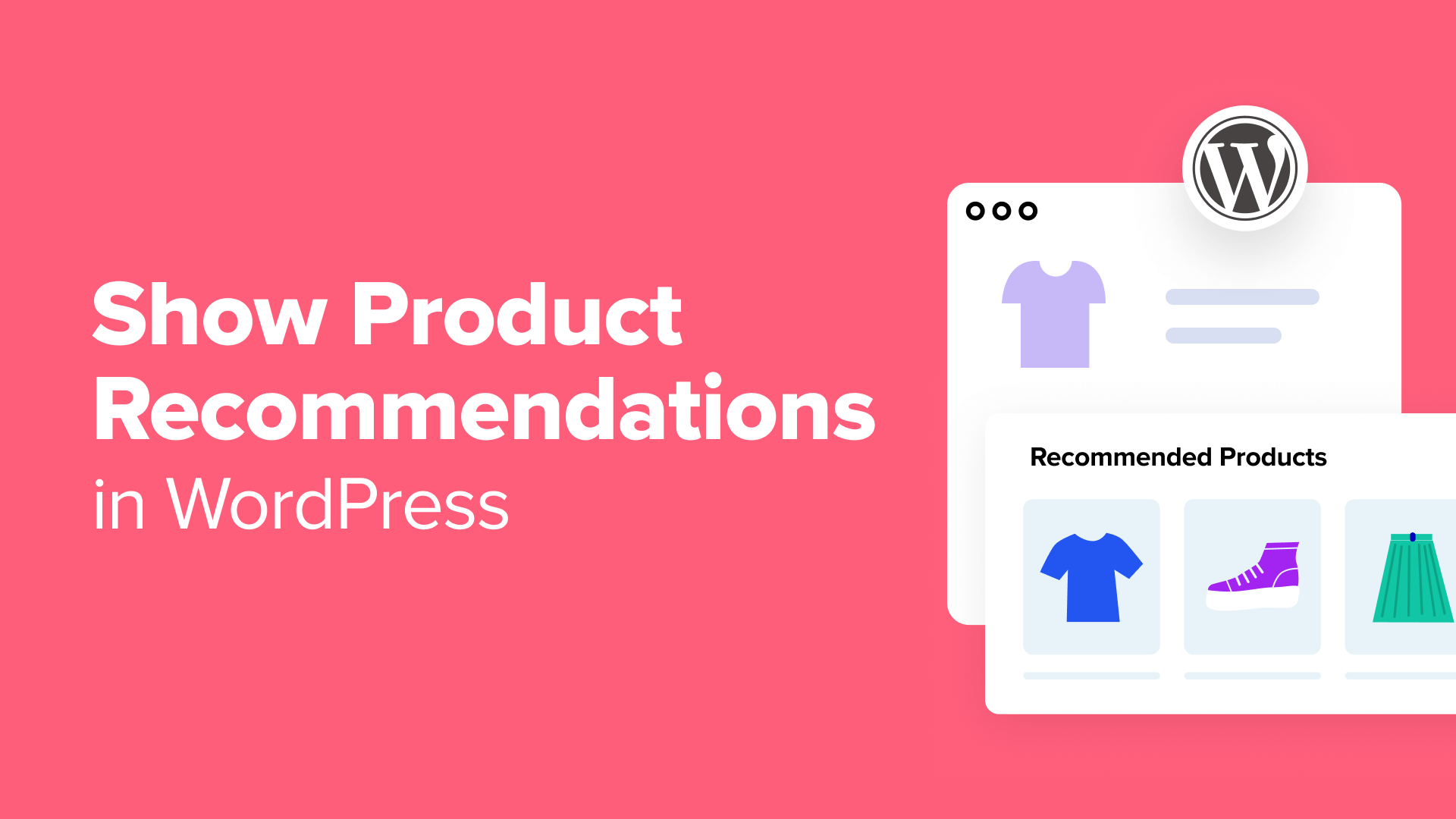
7 Effective Methods to Display Product Recommendations in WordPress
Product recommendations have become an essential component for successful e-commerce stores built on WordPress. Many experienced developers have observed how strategic suggestions can guide customers toward items they might otherwise overlook through standard browsing or search functions.
Successful online retailers frequently implement systems that recommend complementary products, upgraded versions, or frequently purchased combinations to enhance sales performance. This strategy proves effective because it genuinely assists shoppers while simultaneously increasing store revenue. When implemented thoughtfully, recommendations feel like helpful guidance rather than aggressive sales tactics.
The encouraging news is that integrating effective product recommendation systems into your WordPress site is more straightforward than many store owners anticipate. After evaluating numerous approaches, we've compiled seven practical methods that deliver tangible results for businesses across various scales.
The Value of Product Recommendations in WordPress
For any online store, displaying product recommendations on cart or checkout pages can significantly increase average order values. By suggesting relevant items, you help customers discover products that match their interests, creating a more satisfying shopping experience.
For example, if a customer purchases a hat from your clothing store, you might recommend sunglasses since both items provide sun protection and are commonly purchased together. You can present these recommendations through various formats including slide-in carts, order bumps, upsell offers, or cross-sell products. Automated post-purchase emails containing recommendations can further boost sales performance.
With that foundation established, let's explore practical approaches for displaying product recommendations in WordPress. This tutorial covers multiple methods, so you can select the approach that best fits your needs:
- Method 1: Display Product Recommendations on Product Pages
- Method 2: Display Product Recommendations on Cart Pages
- Method 3: Display Product Recommendations as Sliding Carts
- Method 4: Display Product Recommendations as Order Bumps
- Method 5: Offer Post-Purchase Recommendations Via Email
- Method 6: Display Product Recommendations in Popups
- Method 7: Display Product Recommendations for Digital Products
- Bonus: Properly Configure E-commerce Tracking in WordPress
- Frequently Asked Questions About Product Recommendations
Method 1: Display Product Recommendations on Product Pages
This method suits store owners who want to show relevant recommendations directly on individual product pages. WooCommerce includes a built-in upsell feature that enables this functionality.
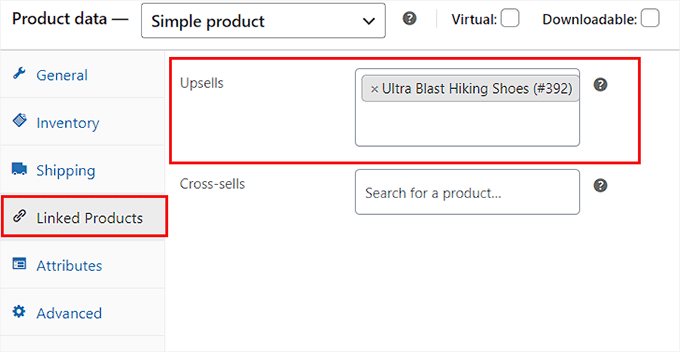
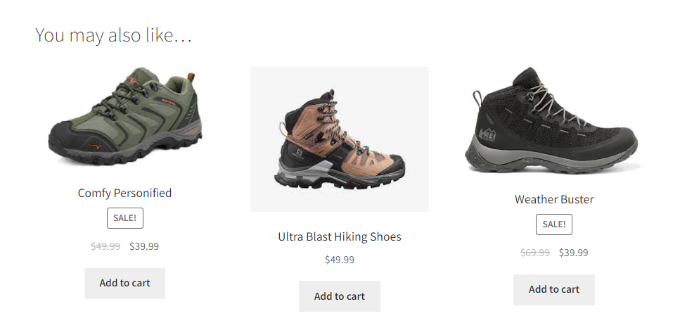
You can utilize this feature to recommend premium versions of the product customers are currently viewing. These manually selected items typically appear on product pages in sections labeled "You may also like" or similar headings.
Using a Plugin for Enhanced Recommendation Flexibility
For greater control over where and how recommendations appear, consider using specialized e-commerce plugins. Many include complementary product features that provide flexibility to display relevant suggestions not only on product pages but also on cart and checkout pages.
These plugins often function as comprehensive upsell and cross-sell solutions, enabling you to suggest premium product versions or display items that complement what customers are viewing.
To begin, install and activate your chosen plugin. Once activated, navigate to the plugin's modules section and locate the complementary products feature.
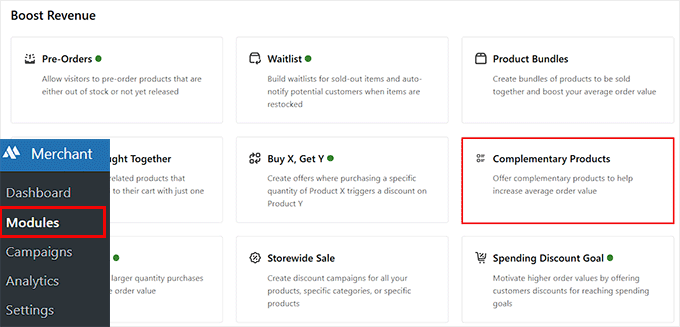
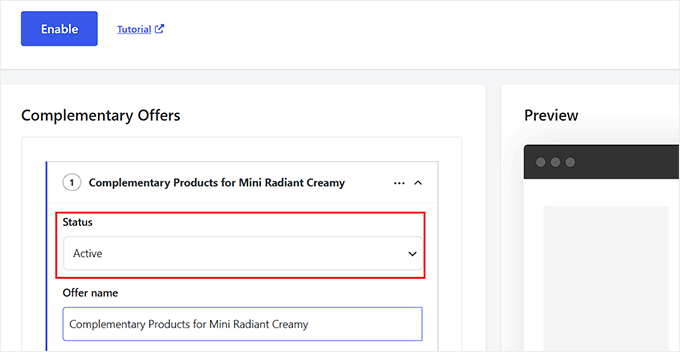
On the configuration screen, click the enable button to activate the module. Next, create a campaign—this powers the complementary products section on your site. Remember that each campaign typically corresponds to one complementary products section, so different product groups may require separate campaigns.
Start by setting the campaign status to active and provide a descriptive name for easy identification later.
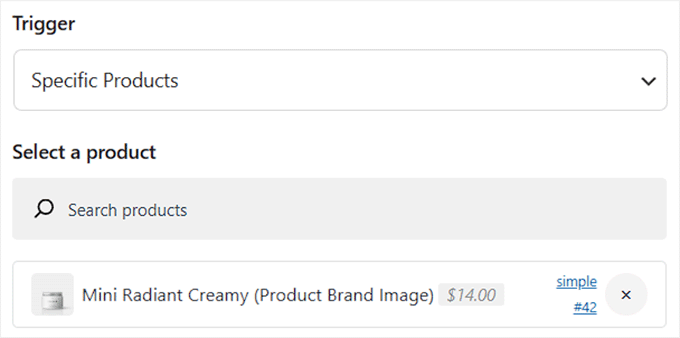
Now configure the trigger settings:
- Selecting All Products will display your complementary products section across all product pages
- Choosing Specific Products allows you to target particular items or product groups. Search for and select the products where you want this campaign to appear
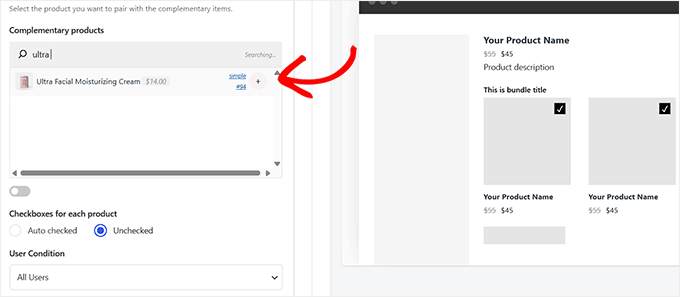
Next, navigate to the Complementary Products area and search for items to recommend. These might include accessories, related tools, or any products that pair effectively with your main offerings.
After configuring these settings, you'll typically see a live preview showing how your complementary products section will appear on your site.
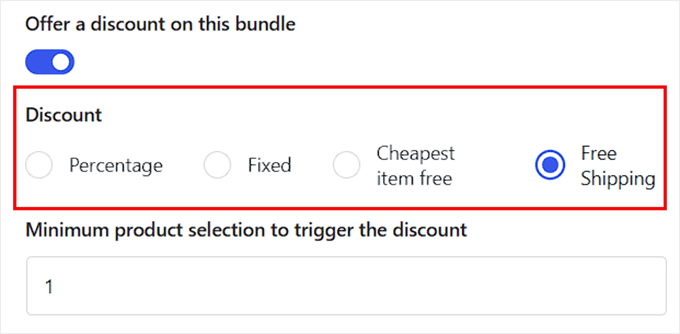
To provide additional incentive for shoppers, consider enabling discount options for complementary item bundles. This typically reveals additional settings where you can select discount types when customers add recommended items to their carts. Common options include:
- Percentage discounts
- Fixed amount reductions
- Free cheapest item
- Free shipping offers
You can also establish minimum item requirements for discount eligibility. For instance, setting this to 1 means the deal applies when customers select at least one recommended item, though you can increase this threshold if needed.
Finally, locate the Product Single Page section, set its status to active, and choose where you want the complementary section to appear. You can typically position it before or after the add-to-cart button, or in other strategic locations on your product pages.