A Beginner's Guide to Repairing WordPress .htaccess File Issues
By Editorial Team |
WordPress errors can be particularly confusing when they originate from invisible sources. The .htaccess file operates in the background, hidden by default, yet it governs critical website functions including redirects, permalink structures, and access permissions.
Many website owners encounter puzzling problems such as malfunctioning links, empty pages, or login difficulties. Frequently, these issues trace back to minor errors within this configuration file.
Since locating and modifying this file isn't always straightforward, beginners may feel overwhelmed. Fortunately, resolving .htaccess problems doesn't require advanced technical skills.
This guide will walk you through locating your .htaccess file, addressing common problems, and restoring your WordPress site to proper functionality.
Here's a brief summary of what this guide covers. Use the links below to navigate directly to specific sections:
- Understanding the .htaccess File
- Identifying a Corrupted .htaccess File
- Accessing and Repairing the .htaccess File
- Common .htaccess Issues and Solutions
- Frequently Asked Questions About .htaccess
- Further Resources for .htaccess Management
Understanding the .htaccess File
The .htaccess file is a hidden configuration file that directs how your server processes requests for your WordPress site. Imagine it as an invisible traffic manager that orchestrates link routing, visitor access, and security protocols behind the scenes.
This file enables clean, readable URLs for your content pages. Rather than displaying lengthy numerical strings, visitors see user-friendly addresses like yourdomain.com/contact-us.
Additionally, the file provides security measures by blocking specific IP addresses or restricting folder access. Many performance plugins utilize it to implement caching mechanisms that accelerate website loading times.
Numerous WordPress professionals have observed situations where slight modifications to this file resulted in broken links or plugin malfunctions. Understanding its function and learning how to correct errors can prevent such complications.
Next, we'll explore how to determine whether your .htaccess file might be causing website problems.
Identifying a Corrupted .htaccess File
The .htaccess file can become corrupted unexpectedly, often due to plugin conflicts, editing mistakes, or server irregularities.
Here are several common indicators that suggest a damaged or missing .htaccess file:
- Malfunctioning links: Visitors encounter 404 error pages or unusual messages instead of your intended content when clicking links.
- Blank white screen: Your website displays an empty page without error messages or visible content.
- Plugin irregularities: Some plugins depend on proper .htaccess configuration. Corruption may cause missing features or display problems.
If you notice any of these symptoms, don't be concerned. The following section provides step-by-step instructions for accessing and safely correcting the .htaccess file.
Accessing and Repairing the .htaccess File
The .htaccess file resides in your WordPress installation's root directory. You can access it through various methods depending on your technical comfort level.
Options include using your hosting provider's cPanel File Manager, connecting via FTP client software, or employing a dedicated WordPress plugin.
1. Using File Manager or FTP Client
When you cannot access your WordPress dashboard, File Manager or FTP provides the most reliable approach to reach your .htaccess file.
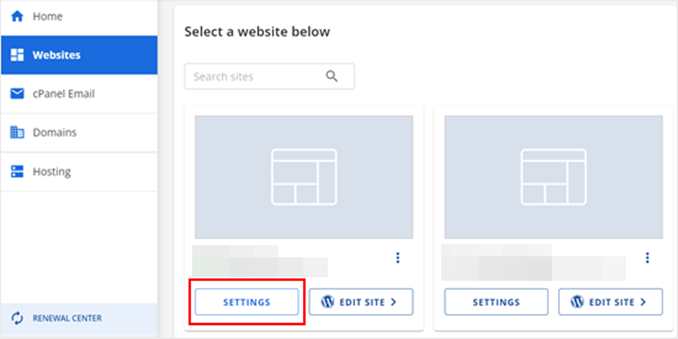
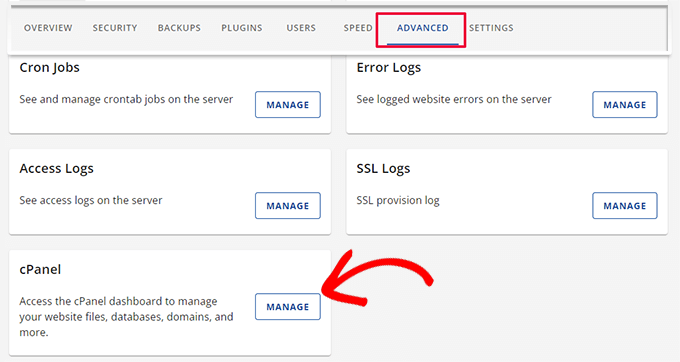
Begin by logging into your hosting control panel. Many hosting providers offer an 'Advanced' section where you can launch cPanel.
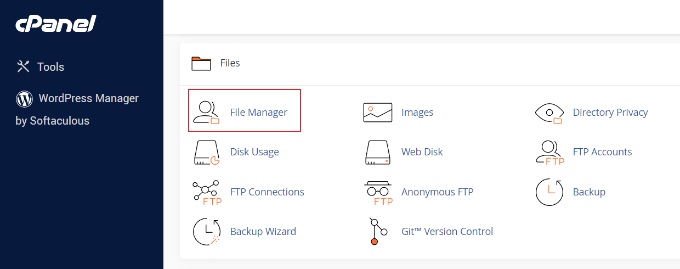
Within cPanel, navigate to the 'Files' section.
Then, open the 'File Manager' application.
Inside File Manager, access the public_html folder where the .htaccess file is typically located.
If the file isn't visible, you may need to adjust settings to display hidden files.
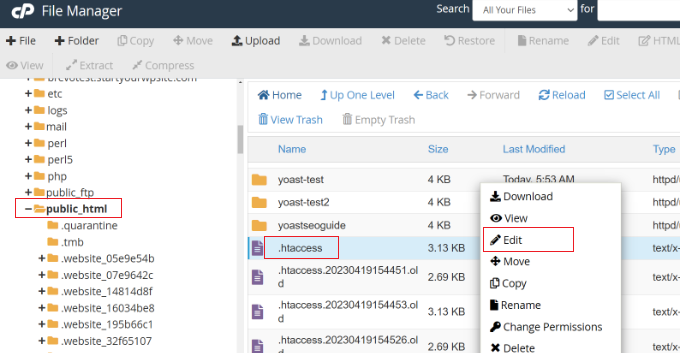
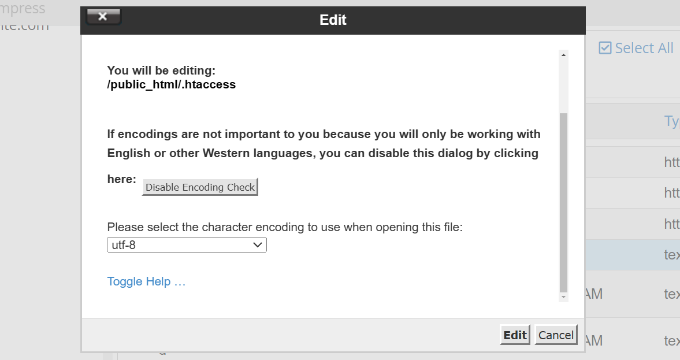
Right-click the file and select 'Edit'. A warning message will appear recommending backup creation.
Click 'Edit' again to open the editing interface.
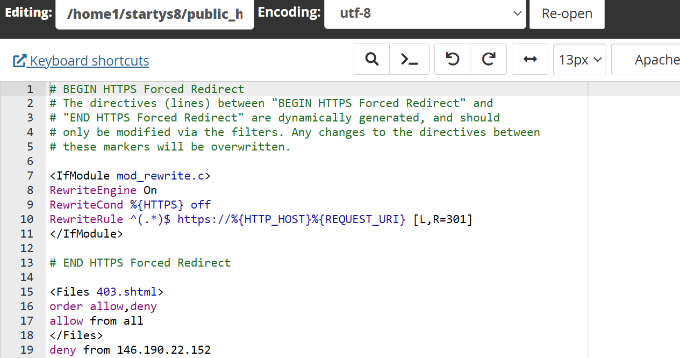
Examine the file contents carefully. Look for typographical errors, unusual characters, or conflicting directives from plugins.
Make necessary corrections and select 'Save'.
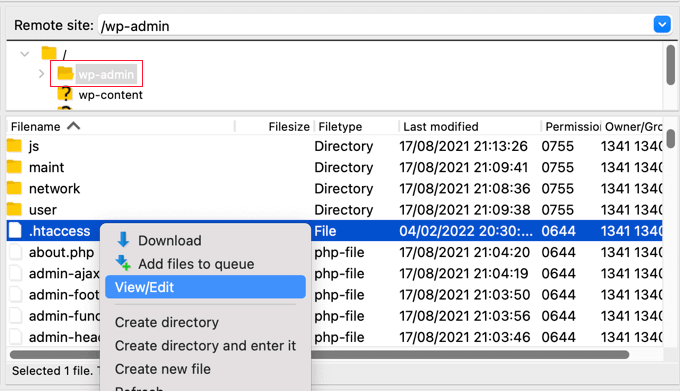
Alternatively, you can use FTP software like FileZilla, which many experienced developers utilize for website management.
Connect to your server, locate the .htaccess file in the root directory, and choose 'View/Edit'.
If you're unfamiliar with FTP, numerous comprehensive tutorials explain how to implement it with WordPress.
Edit the file using a basic text editor, then upload the corrected version to your server via FTP.
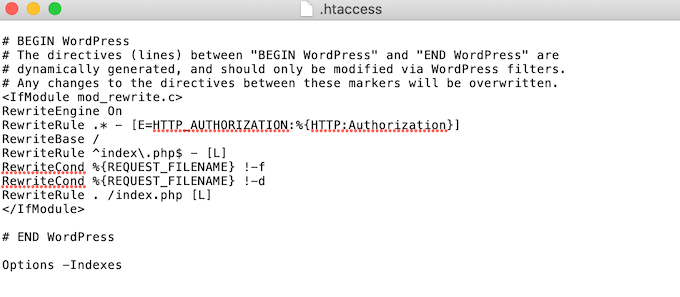
2. Using a WordPress Plugin
If you can access your WordPress dashboard, the simplest approach involves using a dedicated plugin. Many SEO and security plugins include functionality for managing redirects, meta tags, and .htaccess configurations.
To begin, install and activate your chosen plugin. Most plugins provide a setup wizard with clear instructions for initial configuration.
Detailed setup guides are typically available within plugin documentation or through online WordPress resources.
Navigate to your plugin's tools section to access .htaccess management features.


