Resolving WordPress Navigation Menu Overlap with Admin Toolbar
By WordPress Experts |
Many WordPress administrators encounter a frustrating situation where their site's navigation menu becomes partially hidden beneath the admin toolbar. This display problem frequently occurs after installing new themes or activating specific plugins that alter front-end styling.
The issue is surprisingly common across various WordPress installations. Numerous themes fail to properly accommodate the vertical space occupied by the admin bar, which appears automatically for logged-in users. This oversight can cause navigation elements to shift out of alignment.
This comprehensive guide presents multiple approaches to correct the navigation menu overlap problem. Whether you prefer a straightforward non-technical solution or a precise CSS adjustment, you'll discover an effective method suitable for your technical comfort level.
Understanding WordPress Admin Bar and Navigation Menu Conflicts
When your WordPress navigation menu appears hidden or overlapping with the administrative toolbar, you're likely experiencing a common CSS positioning issue.
Experienced developers note this problem typically arises when a theme's stylesheet doesn't properly calculate the height occupied by the admin bar. The resulting CSS conflicts can obscure portions of your website header, including primary navigation elements.
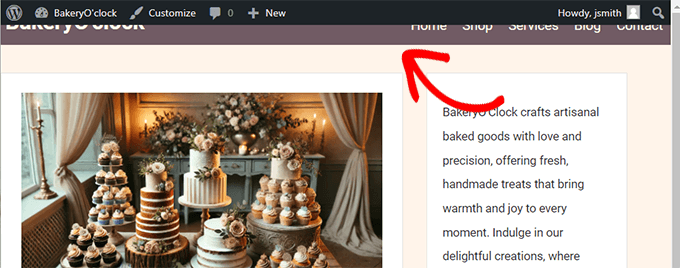
You might observe that certain menu items become difficult to select or that the entire navigation area appears partially covered during site visits. This visual glitch can significantly impact user experience and website functionality.
Several common factors contribute to this display problem:
- Theme Compatibility Issues: Some themes contain CSS that doesn't account for the admin toolbar's dimensions, resulting in improper menu positioning.
- Plugin Interference: Plugins that modify front-end presentation may inadvertently cause navigation elements to overlap with the admin bar. This includes extensions that create mega menus or add header banners.
- Custom Styling Conflicts: Additional CSS rules applied to your site might interfere with proper menu display and positioning.
This overlapping issue can hinder site navigation and create usability challenges. Fortunately, multiple resolution methods exist, beginning with simple approaches that require no coding knowledge.
Below is an overview of the solutions we'll explore. You can proceed directly to the method that matches your technical expertise:
- Method 1: Disable Admin Bar Through User Profile Settings
- Method 2: Implement Custom CSS Adjustments
- Method 3: Identify and Resolve Plugin Conflicts
- Additional WordPress Administration Resources
Method 1: Disable Admin Bar Through User Profile Settings
This approach provides the simplest resolution for users uncomfortable with code modification. It's particularly suitable for beginners or those without theme editing permissions.
Rather than adjusting layout elements, this method removes the admin bar from view entirely, eliminating the overlap concern.


