A Complete Guide to Integrating Bancontact Payment Processing in WordPress
For businesses targeting customers in Belgium, offering Bancontact as a payment option is essential rather than optional. This payment method enjoys widespread recognition and trust among Belgian consumers.
When shoppers don't see their preferred payment method available, they often abandon their purchases entirely. Many WordPress site owners have successfully increased their conversion rates by implementing localized payment solutions. The inclusion of Bancontact frequently determines whether a transaction completes or ends in cart abandonment.
Bancontact's integration with local banking institutions provides customers with familiarity and confidence, leading to higher completion rates for merchants.
This tutorial presents two straightforward approaches to enable Bancontact payments on WordPress websites, requiring no specialized technical knowledge.
The Importance of Bancontact Integration for WordPress Sites
Websites seeking to attract customers from Belgium and surrounding areas should prioritize Bancontact payment integration.
Several compelling reasons support implementing this payment method:
- Enhanced Customer Experience: Bancontact enables real-time payments directly from bank accounts, accessible through physical cards or mobile applications.
- Improved Security Measures: The system supports contactless transactions and incorporates two-factor authentication, providing protection for both buyers and sellers.
- Cost Efficiency: Transaction fees are typically lower than standard credit card processing costs, making it an economical choice for businesses.
The following sections detail two methods for implementing Bancontact payments. Use these navigation links to proceed directly to your preferred approach:
- Method 1: Implementing Bancontact Payment Forms in WordPress
- Method 2: Configuring Bancontact as a WooCommerce Payment Option
- Common Questions About Bancontact Integration
Method 1: Implementing Bancontact Payment Forms in WordPress
This approach suits websites that need to accept Bancontact payments without establishing a complete e-commerce store. It works particularly well for donation collection, service payments, or professional invoicing.
Many WordPress professionals recommend using a specialized payment form plugin for this purpose. These tools typically offer user-friendly interfaces, spam protection features, and compatibility with multiple payment processors.
Step 1: Install and Configure Your Payment Plugin
Begin by installing and activating your chosen payment form plugin. The standard WordPress plugin installation process applies here.
Step 2: Establish Payment Gateway Connection
After activation, most payment plugins will launch a setup wizard. Follow the initial configuration prompts to begin.

The setup process typically requires entering your plugin license key, which you can obtain from the plugin provider's website.

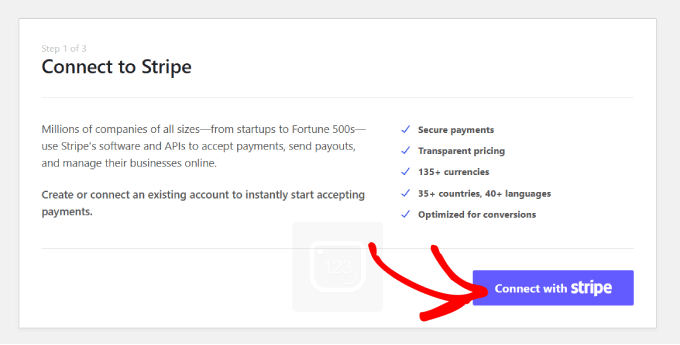
Next, connect your plugin to a payment processing service. Many plugins integrate with popular payment gateways to facilitate online transactions.
Click the connection button to link your website with your payment processor account.
After establishing the payment gateway connection, configure your email notification settings. Most plugins allow you to enable notifications for payment receipts, upcoming invoices, and transaction alerts.

Enter the email address where you want to receive these notifications, then save your configuration. Complete any remaining setup steps according to your preferences.
Step 3: Create a Bancontact Payment Form
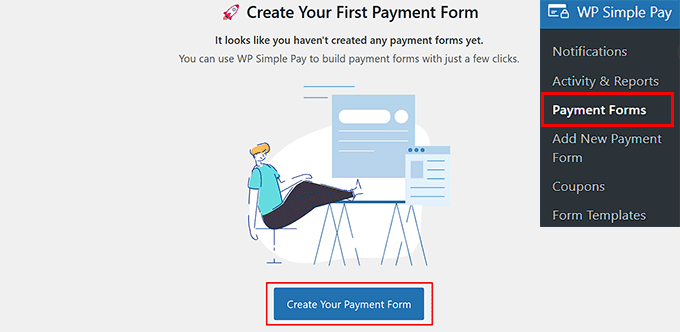
Navigate to your payment plugin's form management section and select the option to create a new payment form.
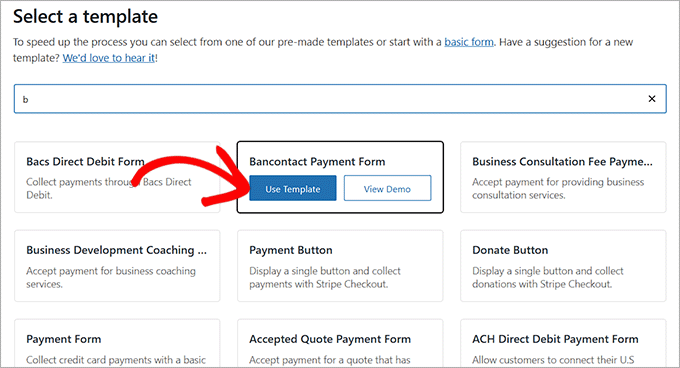
The template selection screen will display various pre-designed form templates. Locate and select the Bancontact payment form template.
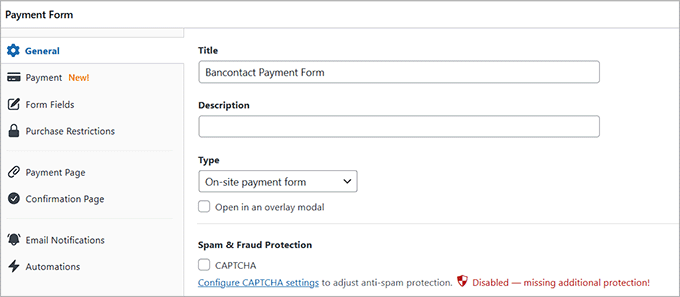
You'll then access the form configuration page where you can customize the form title and description. Select the on-site payment form option and enable spam protection if available.
Step 4: Configure Pricing and Currency
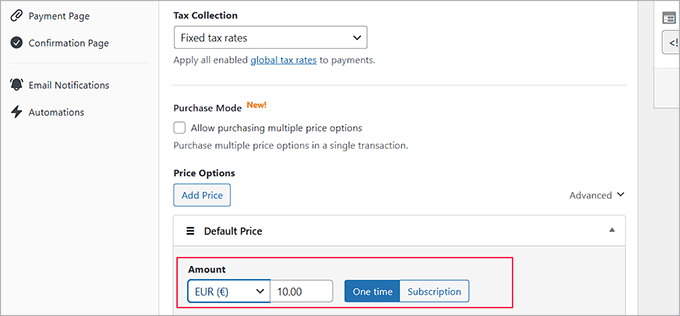
Navigate to the payment settings tab and configure your tax collection preferences. Set the price for your product or service, and if offering subscription services, select the subscription option and create multiple pricing tiers as needed.
Step 5: Add Bancontact to the Payment Methods
Scroll to the payment methods section and select the option to display all available payment methods. The Bancontact option should already be selected. You can also enable additional payment methods according to your requirements.


