A Comprehensive Guide to Backing Up WordPress to Amazon S3
Maintaining a reliable backup strategy is a fundamental practice for successful WordPress site management. Many experienced developers have found that storing backups on Amazon S3 provides a robust, cost-effective solution independent of your hosting provider.
Amazon S3 offers a secure and scalable destination for your website data, integrating smoothly with leading WordPress backup tools. This guide will walk you through the process of configuring WordPress backups to Amazon S3, covering both free and premium methods that have proven effective for safeguarding your site.
Advantages of Using Amazon S3 for WordPress Backups
Amazon S3 stands out as an excellent storage solution for WordPress backups due to its reliability, security features, and flexible pricing. Here are the key benefits:
- Enterprise-Grade Reliability: Consistently manages large backup files, making it suitable for business-critical websites where backup failures are not an option.
- Enhanced Security Measures: Utilizes Identity and Access Management (IAM) for precise access control and automatically encrypts backup files.
- Generous Free Tier: Includes 5 GB of storage along with 2,000 PUT and 20,000 GET requests monthly during the first year, sufficient for multiple small site backups at no initial cost.
- Flexible Pricing Structure: Allows you to store recent backups for quick retrieval while moving older backups to more economical storage classes.
- Plugin Compatibility: Integrates seamlessly with popular WordPress backup plugins including Duplicator and UpdraftPlus.
These features ensure your WordPress backups remain secure, accessible, and manageable. The following sections detail how to configure your Amazon S3 account and connect it to your WordPress site.
- Initial Configuration: Setting Up Your Amazon S3 Account
- Method 1: Using Duplicator for WordPress Backups to S3 (Highly Customizable)
- Method 2: Using UpdraftPlus for WordPress Backups to S3 (Free Plugin)
Initial Configuration: Setting Up Your Amazon S3 Account
Properly configuring your Amazon S3 storage is essential before establishing WordPress backups. This section guides you through creating a storage bucket and implementing security policies.
Step 1: Create an Amazon S3 Storage Bucket
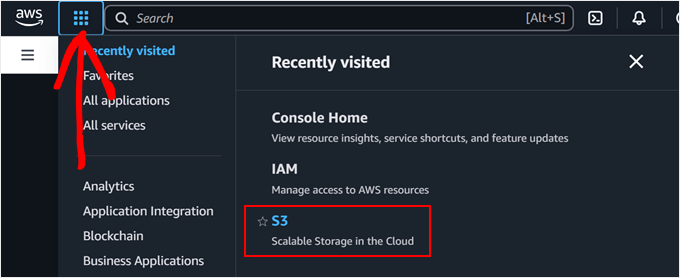
Begin by logging into your Amazon Web Services (AWS) account. Click the menu icon in the top-left corner and select 'S3' from the services list.
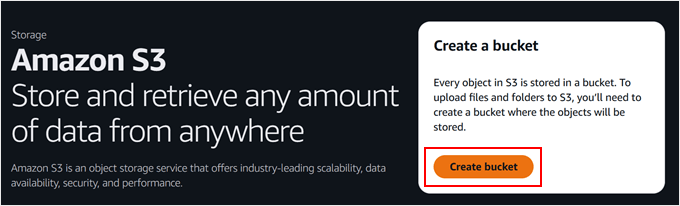
On the S3 dashboard, locate and click the 'Create bucket' button. An S3 bucket functions as a container for your files—think of it as a dedicated folder that will house all your WordPress backup data.
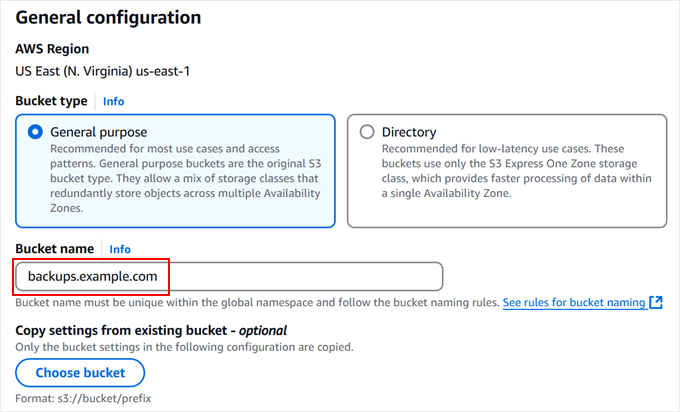
Select 'General purpose' as your bucket type. Choose a unique name for your bucket; using your domain name (e.g.,backups.yourwebsite.com) helps maintain organization.
Note the selected 'AWS Region' (such as 'US East N. Virginia'), as you may need to specify this region within your WordPress plugin configuration later. You can retain the default settings for remaining options.
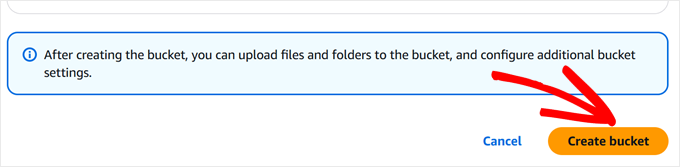
Scroll to the bottom of the page and click 'Create bucket.' Your new storage space will be ready within moments.
Step 2: Establish a Security Policy
Next, create a security policy to govern access to your backup files. This policy defines specific permissions for managing your backup data.
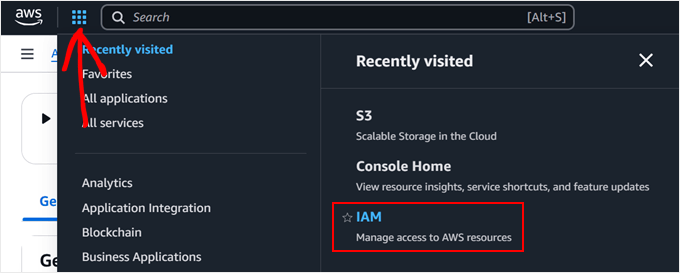
Return to the AWS menu and select 'IAM' to access the security management interface.
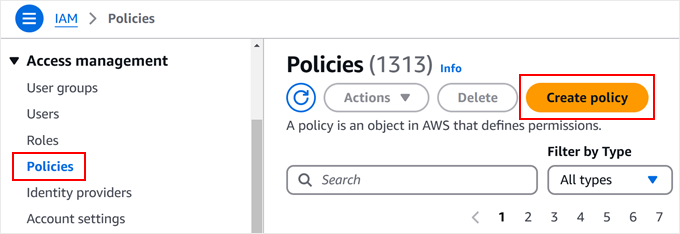
Navigate to the 'Policies' section and click 'Create policy.' This is where you'll define permissions for your backup operations.
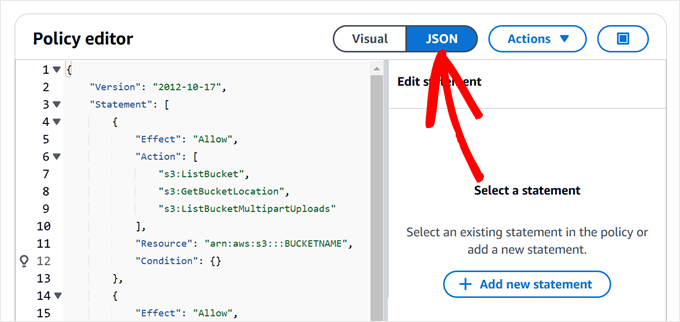
In the policy editor, select the 'JSON' tab to input security rules. Copy and paste the following policy code into the editor, replacing 'BUCKETNAME' with your actual bucket name:
{ "Version": "2012-10-17", "Statement": [ { "Effect": "Allow", "Action": [ "s3:ListBucket", "s3:GetBucketLocation", "s3:ListBucketMultipartUploads" ], "Resource": "arn:aws:s3:::BUCKETNAME", "Condition": {} }, { "Effect": "Allow", "Action": [ "s3:AbortMultipartUpload", "s3:DeleteObject", "s3:DeleteObjectVersion", "s3:GetObject", "s3:GetObjectAcl", "s3:GetObjectVersion", "s3:GetObjectVersionAcl", "s3:PutObject", "s3:PutObjectAcl" ], "Resource": "arn:aws:s3:::BUCKETNAME/*", "Condition": {} }, { "Effect": "Allow", "Action": "s3:ListAllMyBuckets", "Resource": "*", "Condition": {} } ] }This JSON configuration enables your backup plugin to list files within your bucket and perform essential operations like adding, retrieving, and deleting backup files while restricting other actions to maintain account security.
Scroll down and click 'Next.' Provide a descriptive name for your policy, such as WordPress-Backup-Policy,Duplicator-Backup-Policy, or UpdraftPlus-Backup-Policy. Choose a name that clearly identifies its purpose. This policy will function effectively with either WordPress backup plugin discussed in subsequent sections.


