Complete Guide to Backing Up WordPress Sites to Amazon S3 Storage
Maintaining reliable backups is a fundamental practice for successful WordPress site management. Many experienced developers have found that establishing a robust backup system significantly reduces risks associated with data loss and website downtime.
Amazon S3 has emerged as a preferred backup destination among WordPress professionals due to its reliability, cost-effectiveness, and independence from hosting providers. This cloud storage solution offers an additional security layer for website data while integrating seamlessly with popular backup tools.
This comprehensive guide will walk you through the process of configuring WordPress backups to Amazon S3. We'll explore both free and premium methods that effectively protect your website content and database.
Advantages of Using Amazon S3 for WordPress Backups
Amazon S3 provides several compelling benefits for WordPress backup and restoration workflows:
- Enterprise-Grade Reliability: Consistently handles large backup files, making it suitable for business websites that require dependable backup solutions.
- Enhanced Security Features: Includes Identity and Access Management (IAM) for precise access control and automatic encryption of backup files.
- Free Tier Availability: Offers 5 GB of storage plus 2,000 PUT and 20,000 GET requests monthly during the first year, sufficient for multiple small website backups at no initial cost.
- Flexible Pricing Structure: Allows storage of recent backups for quick access while enabling movement of older backups to more economical storage classes.
- Plugin Compatibility: Integrates smoothly with widely-used WordPress backup plugins including Duplicator and UpdraftPlus.
These advantages ensure your WordPress backups remain secure, accessible, and manageable. Let's examine the practical steps for sending WordPress backups to Amazon S3. Use the following quick links to navigate to relevant sections:
- Initial Configuration: Setting Up Your Amazon S3 Account
- Method 1: Utilizing Duplicator for S3 Backups (Enhanced Customization)
- Method 2: Employing UpdraftPlus for S3 Backups (Free Solution)
Initial Configuration: Setting Up Your Amazon S3 Account
Proper configuration of your storage space is essential before initiating WordPress backups to Amazon S3.
Step 1: Establish an Amazon S3 Bucket
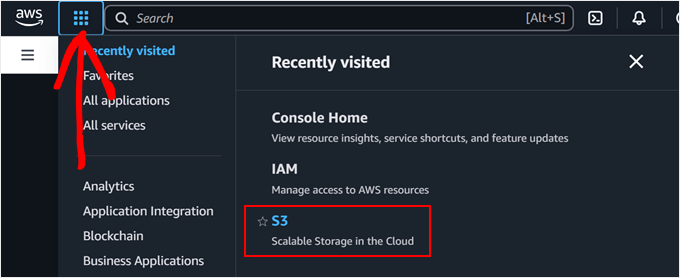
Begin by logging into your Amazon Web Services (AWS) account. Click the menu button located in the top left corner and select 'S3' from the available options.
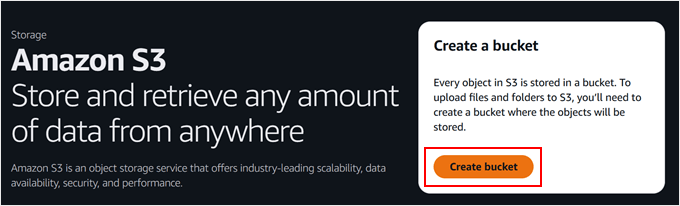
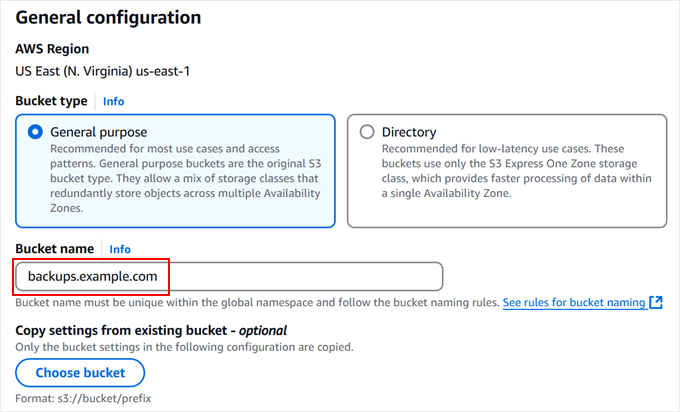
On the S3 dashboard, locate and click the 'Create bucket' button. An Amazon S3 bucket functions as a container for your files—essentially a specialized folder that will store all WordPress backup data.
Select 'General purpose' as your bucket type. Choose a distinctive name for your bucket—many developers recommend incorporating your domain name (for example,backups.yourdomain.com) to maintain uniqueness.
Note the selected AWS Region (such as 'US East N. Virginia'), as you may need to specify this same region within your WordPress plugin configuration later.
You can maintain default settings for remaining configuration options.
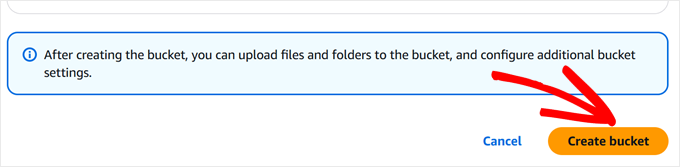
Scroll to the bottom of the page and click 'Create bucket.' Your new storage container will be ready within moments.
Step 2: Configure Security Policies
Next, establish security policies to govern access to your backup files. These policies define rules controlling permissible actions with your backup data.
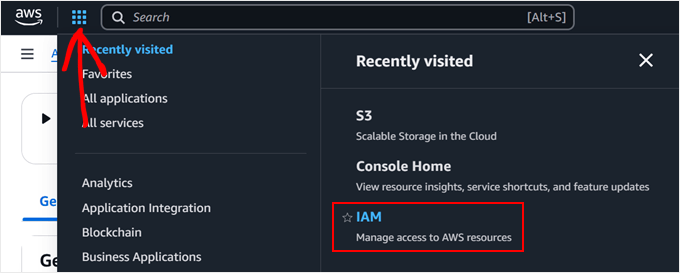
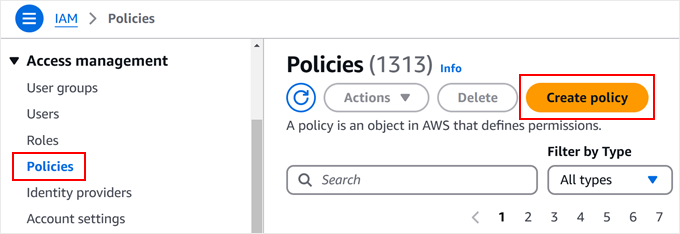
Return to the menu and select 'IAM' to access AWS security management. Navigate to the 'Policies' section from this interface.
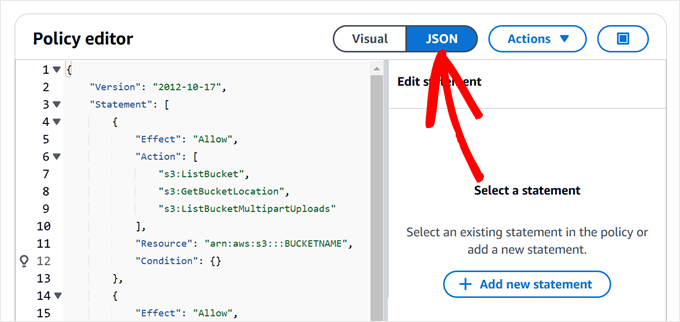
Click 'Create policy' to establish backup permissions. When the policy editor appears, select the 'JSON' tab to input security rules.
Insert the following permission code into the editor. This JSON configuration specifies exactly what actions your backup plugin can perform:
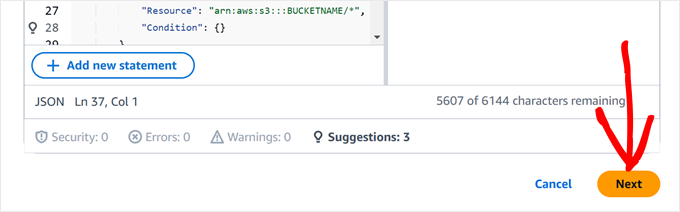
{ "Version": "2012-10-17", "Statement": [ { "Effect": "Allow", "Action": [ "s3:ListBucket", "s3:GetBucketLocation", "s3:ListBucketMultipartUploads" ], "Resource": "arn:aws:s3:::BUCKETNAME", "Condition": {} }, { "Effect": "Allow", "Action": [ "s3:AbortMultipartUpload", "s3:DeleteObject", "s3:DeleteObjectVersion", "s3:GetObject", "s3:GetObjectAcl", "s3:GetObjectVersion", "s3:GetObjectVersionAcl", "s3:PutObject", "s3:PutObjectAcl" ], "Resource": "arn:aws:s3:::BUCKETNAME/*", "Condition": {} }, { "Effect": "Allow", "Action": "s3:ListAllMyBuckets", "Resource": "*", "Condition": {} } ] }This configuration enables your backup plugin to list files within your backup bucket while permitting addition, retrieval, and deletion of backup files. It restricts the plugin from performing other actions, maintaining account security.
Scroll down the page and click 'Next.' Assign a descriptive name to your policy, such as WordPress-Backup-Policy,Duplicator-Backup-Policy, or UpdraftPlus-Backup-Policy. Choose a name that clearly identifies the policy's purpose. This configuration works effectively with either WordPress backup plugin discussed in subsequent sections.