A Comprehensive Guide to Creating Documentation for Your WordPress Site
By WordPress Experts |
Developing comprehensive documentation for your WordPress website is crucial for effectively supporting and guiding your audience. Well-structured documentation helps users understand how to utilize your products or services, resulting in an improved overall experience.
Many experienced WordPress developers have created numerous websites featuring plugins, courses, and digital products, consistently implementing detailed documentation to assist users. This typically includes installation procedures, feature explanations, add-on information, and troubleshooting resources designed to simplify problem resolution.
This approach has proven effective in enabling users to independently resolve issues while building confidence in products through clearly organized, accessible information.
Whether you operate a product-based business, membership platform, or educational website, implementing documentation is highly recommended.
This guide will demonstrate how to add documentation to WordPress through a straightforward, step-by-step process that requires no coding expertise.
The Importance of WordPress Documentation
Documentation consists of content that explains how to use your products or services, covering features, updates, extensions, and related information.
WordPress documentation can encompass tutorials, instructional guides, frequently asked questions, knowledge bases, and technical API documentation.
For instance, if you operate a digital music store, documentation might explain download procedures, license renewal processes, or playlist creation methods.
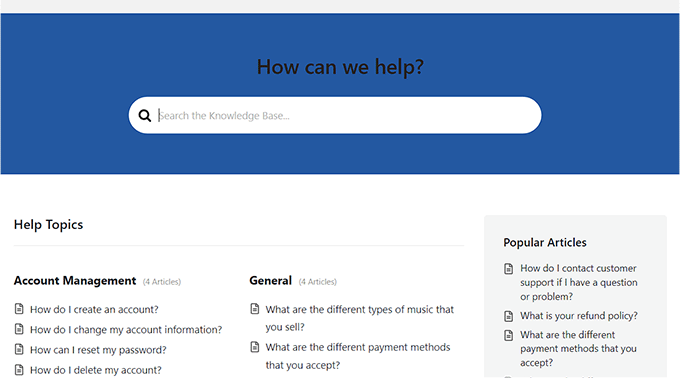
Implementing documentation enhances user experience by helping customers discover product features, identify problem causes, and implement solutions independently. This can significantly reduce support requests.
Documentation also benefits search engine optimization by providing additional content for search engines to index and display in search results.
Now let's explore the practical steps for adding documentation to your WordPress site.
Implementing Documentation in WordPress
You can efficiently add documentation using the Heroic KB plugin, a popular knowledge base solution for WordPress.
This plugin enables you to create a searchable knowledge base integrated with your existing website. It includes AJAX search functionality, drag-and-drop content organization, article attachments, and additional features.
The tool also provides built-in analytics and user feedback collection to help improve your documentation over time.
An AI Assistant feature allows integration of a custom chatbot trained specifically on your knowledge base content, delivering accurate, personalized responses to customer inquiries.
Step 1: Configure General Settings
Begin by installing and activating the Heroic KB plugin. For installation guidance, consult standard WordPress plugin installation procedures.
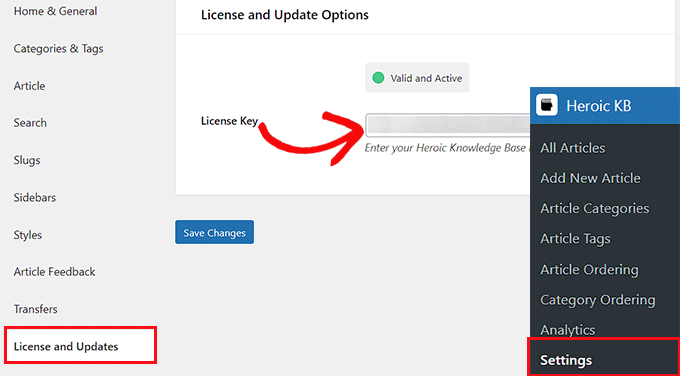
After activation, navigate to Heroic KB » Settings from the WordPress admin sidebar and select the 'License and Updates' tab.
Enter your plugin license key here and click 'Save Changes.' This information is typically available from your account on the plugin provider's website.
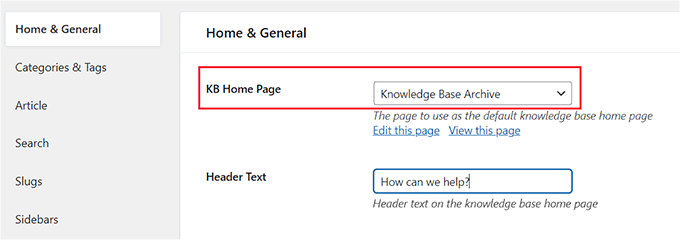
With the license key added, switch to the 'Home & General' tab. Select your documentation home page from the 'KB Home Page' dropdown menu.
Choosing 'Knowledge Base Archive' creates a new documentation page at yoursite.com/knowledge-base.
Alternatively, select an existing page from the dropdown to host your documentation there.
Next, enter header text to display at the top of your documentation page.
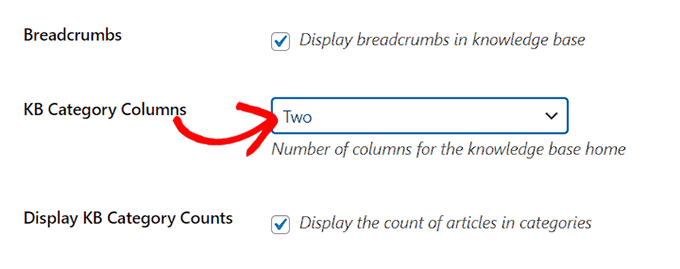
Enable the 'Breadcrumbs' option to activate this navigation feature.
Breadcrumbs provide navigation assistance by showing users their path through your documentation, typically displayed as: Home » Category » Article Title.
Select the number of category columns to display on your documentation page from the appropriate dropdown.
Enable 'Display KB Category Counts' to show article quantities for each category.
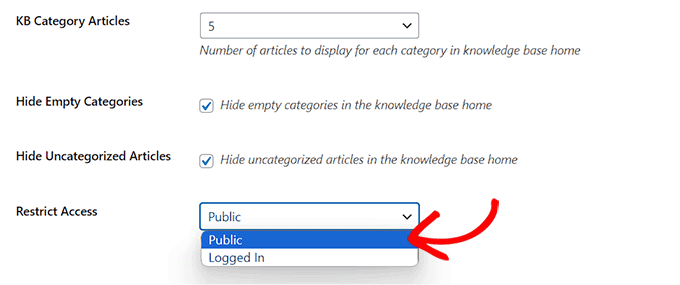
Choose how many articles to display under each category on the documentation home page using the 'KB Category Article' dropdown.
Select 'Hide Empty Categories' and 'Hide Uncategorized Articles' to prevent display of empty categories or unclassified articles.
Restrict documentation access to logged-in users only using the 'Restrict Access' dropdown if desired.
Click 'Save Changes' to apply your settings.
Step 2: Configure Categories, Tags, and Article Settings
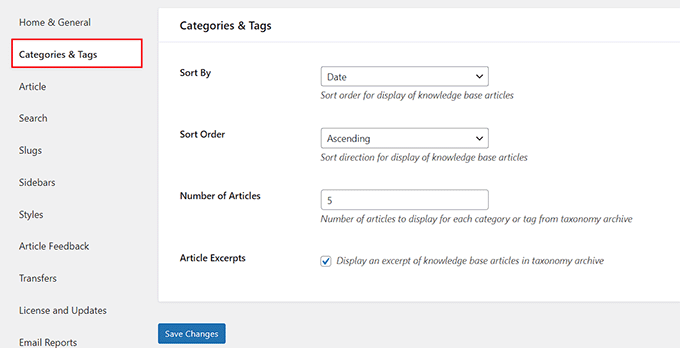
Navigate to the 'Categories & Tags' tab to configure sorting methods and article display quantities for each taxonomy.
Enable 'Article Excerpt' to display article summaries under each taxonomy archive in your documentation.
Save changes and proceed to the 'Article' tab.