Step-by-Step Guide to Creating Documentation in WordPress
By WordPress Experts |
Developing comprehensive documentation for your WordPress website is crucial for effectively supporting and guiding your audience. Well-structured documentation helps users understand how to utilize your offerings, resulting in improved satisfaction and reduced confusion.
Many experienced WordPress developers have found that creating detailed documentation for their products and services significantly enhances user experience. This typically includes installation procedures, feature explanations, and troubleshooting resources that empower users to resolve issues independently.
This approach not only decreases support requests but also builds credibility, as users appreciate having organized information readily available. Whether you operate an e-commerce store, membership platform, or educational website, implementing documentation can benefit your online presence.
This guide will demonstrate how to add documentation to your WordPress site through a straightforward, code-free process that anyone can follow.
Benefits of WordPress Documentation
Documentation refers to instructional content that explains how to use your website's features, products, or services. This can encompass tutorials, guides, frequently asked questions, knowledge bases, and technical references.
For instance, if you operate a digital product store, documentation might explain download procedures, license management, or feature utilization.
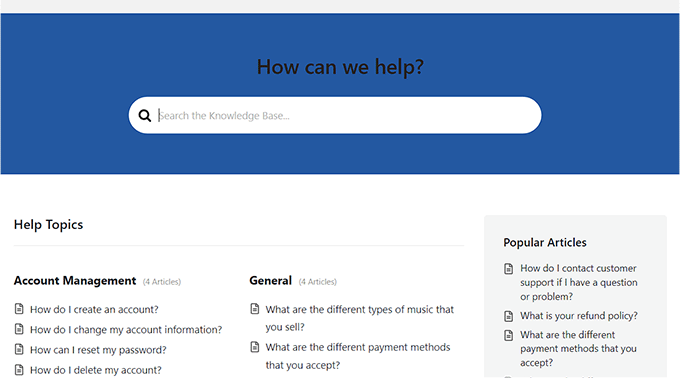
Implementing documentation improves user experience by helping visitors discover features, troubleshoot problems, and find solutions independently. This often reduces support inquiries and enhances customer satisfaction.
Additionally, documentation can positively impact search engine optimization by providing valuable content that search engines can index and display in search results.
Creating Documentation in WordPress
The Heroic KB plugin provides an efficient method for adding documentation to WordPress. This knowledge base solution includes search functionality, drag-and-drop organization, file attachments, and analytical tools.
The plugin also offers user feedback collection and AI chatbot integration that can be trained using your documentation content.
Step 1: Configure General Settings
Begin by installing and activating the Heroic KB plugin. After activation, navigate to the plugin settings from your WordPress dashboard.
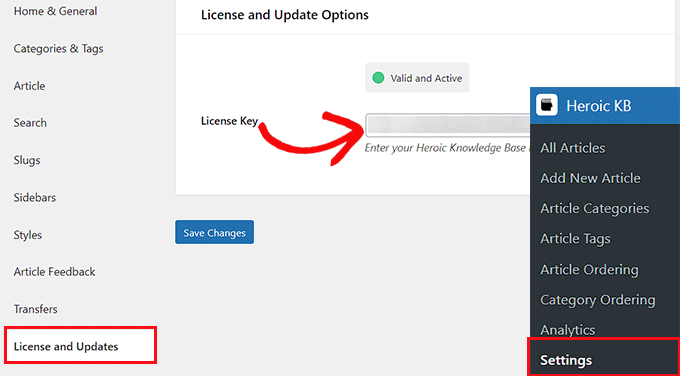
Access the license management section and enter your activation key, then save your changes. This information is typically available from the plugin provider's website.
Proceed to the general settings tab and select your documentation homepage. You can either create a new knowledge base archive page or use an existing page for your documentation.
Next, customize the header text that will appear at the top of your documentation section.
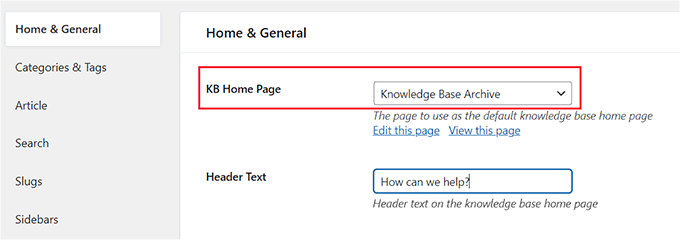
Enable breadcrumb navigation, which helps users track their location within your documentation structure. Configure the number of category columns to display and decide whether to show article counts for each category.
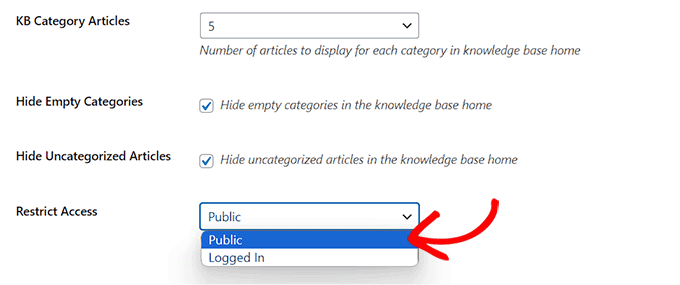
Set the number of articles to display per category on the main documentation page. You may choose to hide empty categories and uncategorized articles for a cleaner presentation.
Optionally, restrict documentation access to registered users only. Complete this step by saving your configuration.
Step 2: Configure Categories, Tags, and Article Settings
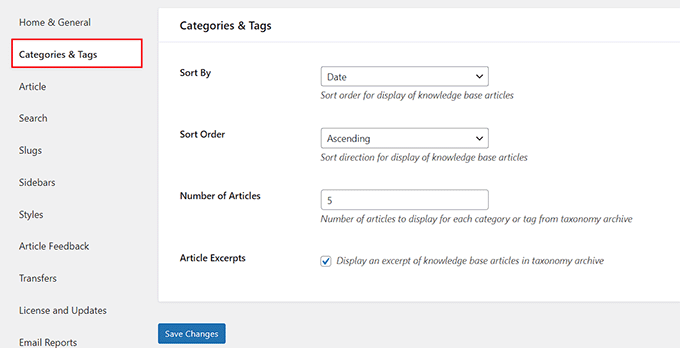
Navigate to the categories and tags configuration section. Here you can determine sorting methods and the number of articles to display for each taxonomy.
Enable article excerpts if you want to show content previews under taxonomy archives. Save these settings before proceeding to article configuration.