Resolving the PHP Missing MySQL Extension Error in WordPress
Many WordPress administrators occasionally encounter the error message stating that their PHP installation appears to be missing the MySQL extension required by WordPress.
When this error appears, it prevents visitors from accessing your website. Frequent occurrences can significantly impact user experience and site reliability.
Experienced developers have encountered this issue across various WordPress installations over the years. Through troubleshooting, they've identified several effective solutions that typically resolve this database connectivity problem.
This guide will walk you through practical methods to fix the PHP missing MySQL extension error in WordPress.
Understanding the PHP Missing MySQL Extension Error
While building or visiting a WordPress website, you might encounter the error message indicating that your PHP installation lacks the MySQL extension required by WordPress.
This error typically signifies a problem with your site's configuration that prevents WordPress from establishing a connection to its MySQL database.
The PHP missing MySQL extension error commonly appears during WordPress updates or installations, website migrations, server configuration changes, or when switching to operating systems that don't include the MySQL extension by default.
Let's examine the primary causes of this error.
Common Causes of the PHP Missing MySQL Extension Error
Several factors can trigger the PHP missing MySQL extension error.
One frequent cause involves using an outdated WordPress version with newer PHP releases. PHP 7.0 and higher versions deprecated the original MySQL extension. If you're running older WordPress software on PHP 7.0 or above, the system won't locate the MySQL extension, resulting in this error.
Another potential cause is that the MySQL extension is either absent or improperly configured. Even with PHP 5.6 or earlier versions, this error can occur due to outdated MySQL extensions.
Now, let's explore several approaches to resolve the 'your PHP installation appears to be missing the MySQL extension which is required by WordPress' error.
You can navigate directly to any of these solutions:
- Verify Your Current PHP Version
- Update WordPress to the Latest Release
- Confirm MySQL Extension Installation
- Review Your PHP Configuration Settings
Fixing the PHP Missing MySQL Extension Error in WordPress
Now that we understand what triggers this WordPress error, here are practical methods to resolve it.
1. Verify Your Current PHP Version
Begin by checking your website's PHP version. Conflicts between WordPress and PHP versions often cause the PHP missing MySQL extension error.
Navigate to the Tools » Site Health section from your WordPress dashboard. Switch to the 'Info' tab to proceed.
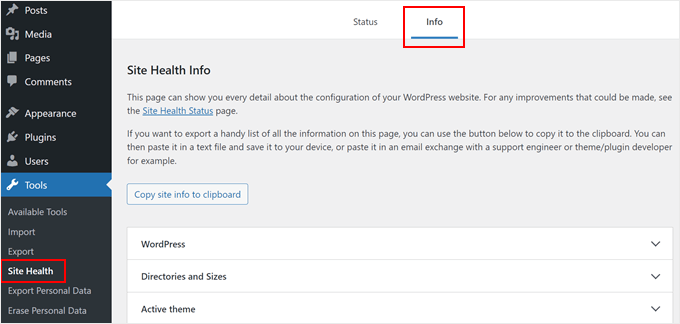
Scroll down to the 'Server' section and expand it to view your server information.
Locate and examine the PHP version details.
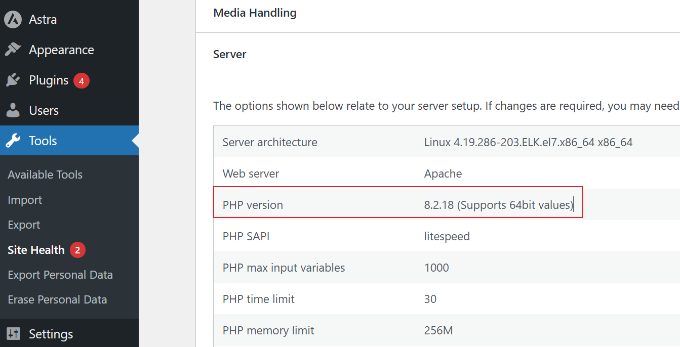
If your PHP version begins with 7 or lower, consider updating it. This adjustment often resolves the PHP missing MySQL extension error by ensuring compatibility with current WordPress versions.
Using PHP 8.0 or newer versions is recommended for enhanced security protection, performance optimization, and vulnerability remediation.
2. Update WordPress to the Latest Release
After verifying your PHP version, check which WordPress version you're running.
If you're using an older WordPress version with current PHP releases, updating WordPress often resolves the PHP missing MySQL extension error.
To check your WordPress version, navigate to Dashboard » Updates from your WordPress admin area. Look for the 'Current version' information.
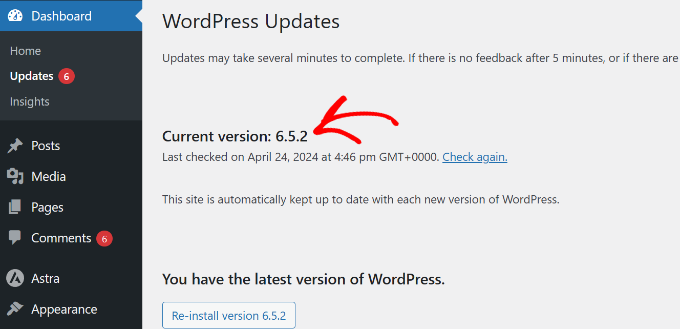
If your WordPress version is 3.9 or earlier, updating it typically fixes the missing MySQL extension error.
WordPress includes a built-in update manager that allows you to update to the latest version with minimal effort.
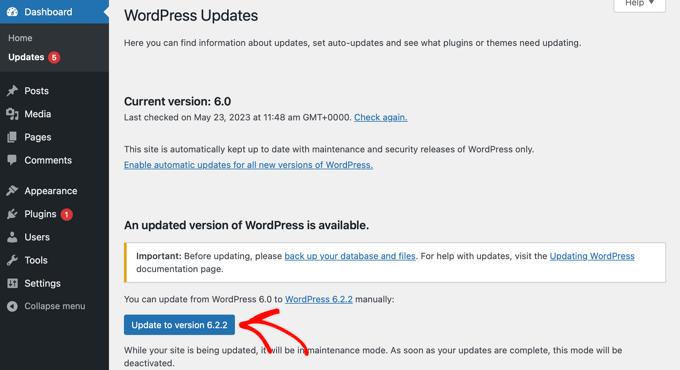
3. Confirm MySQL Extension Installation
If you've updated both PHP and WordPress but still encounter the 'PHP missing MySQL extension' error, verify that the MySQL extension is properly installed.
Navigate to the Tools » Site Health section from your WordPress dashboard and switch to the 'Info' tab.
Proceed to the 'Database' section and expand it.
In the Extension field, look for mysqli or mysql entries.
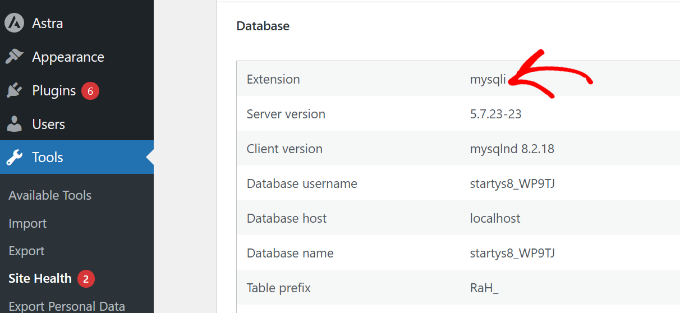
If this field appears blank or missing entirely, the MySQL extension is likely absent from your installation.
The installation process for the MySQL extension varies depending on your WordPress hosting provider. Contact your hosting support team for assistance with installation.
4. Review Your PHP Configuration Settings
Another approach to resolving the PHP missing MySQL extension error involves examining your PHP configuration.
Sometimes, uploading incorrect php.ini files or using improper file paths causes PHP configuration issues and missing MySQL extension errors.
The php.ini file serves as PHP's default configuration file and significantly impacts your site's functionality. Uploading the wrong file typically occurs when using different operating systems, such as uploading a Windows-specific php.ini file to a Linux server.
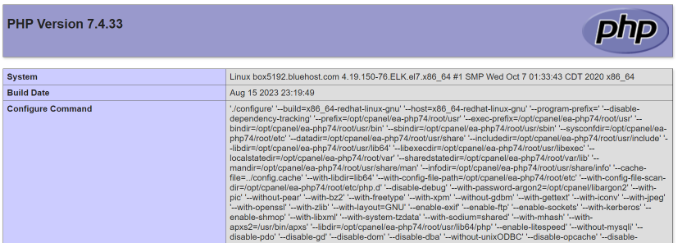
To locate your php.ini file path, create a phpinfo.php file and access it through your browser using this address format:
www.yourdomain.com/phpinfo.php
Replace www.yourdomain.com with your actual domain name.
This will display detailed information about your PHP installation.