A Comprehensive Guide to Creating Super Admin Users in WordPress Multisite Networks
Managing a WordPress multisite network provides extensive control over multiple websites, but this power requires careful administration. Granting Super Admin access to unauthorized individuals could potentially disrupt every site within your network.
Many WordPress experts emphasize the importance of properly configuring user roles in multisite environments. A single oversight might result in loss of access or compromise your entire network configuration.
This guide will demonstrate secure methods for adding Super Admin users to your WordPress multisite installation.
This guide covers the following essential topics:
- Understanding the Super Admin Role in WordPress
- Method 1: Creating New Super Admin Users Through the WordPress Dashboard
- Method 2: Manual Super Admin Creation via File System Access
- Removing Super Admin Users from WordPress Multisite
- Troubleshooting Common Super Admin Configuration Issues
- Security Best Practices for Super Admin Accounts
- Frequently Asked Questions About Super Admins
- Additional WordPress Multisite Management Resources
Understanding the Super Admin Role in WordPress
WordPress includes a comprehensive system of user roles, each with specific permissions for performing various actions on a website. For detailed information about these roles, consult general WordPress documentation on user privileges.
The 'Super Admin' represents a specialized user role available exclusively when the WordPress multisite feature is activated.
The multisite functionality enables administrators to operate multiple independent websites from a single WordPress installation. Each individual site can have designated 'Administrator' accounts with management capabilities limited to that specific website.
In contrast, Super Admin users possess authority over all websites within the WordPress multisite network. These users can install network-wide plugins and themes while managing settings that affect every site simultaneously.
While regular Administrators can only oversee one site at a time, Super Admins can implement changes that impact the entire network. Exercise caution when assigning this role, as Super Admin privileges should only be granted to thoroughly trusted individuals. A single configuration error could potentially affect every website in your network.
Method 1: Creating New Super Admin Users Through the WordPress Dashboard
This approach offers simplicity for administrators who currently have Super Admin access to their WordPress multisite network. If you find yourself locked out of the administrative dashboard, proceed directly to Method 2.
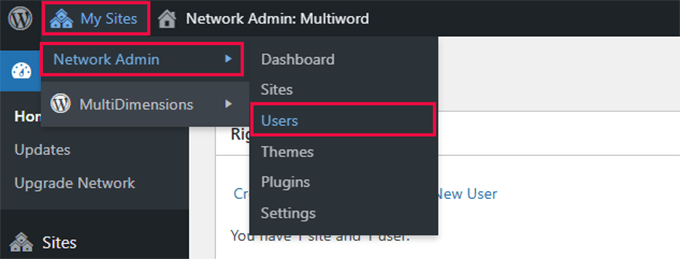
- Access Network Admin Users. Log into your WordPress administrative interface and locate the 'My Sites' menu positioned in the top-left corner of your screen. From this menu, navigate to Network Admin » Users.
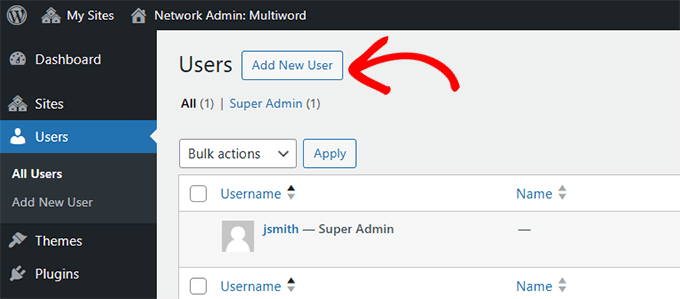
- Create a New User Account. This section displays all users across your network. Click the 'Add New User' button located at the top of the page.
- Provide User Information. Experienced WordPress administrators will notice this interface differs from single-site installations. Here, you can only specify a username and email address without selecting user roles. Enter the appropriate credentials and select 'Add User'.
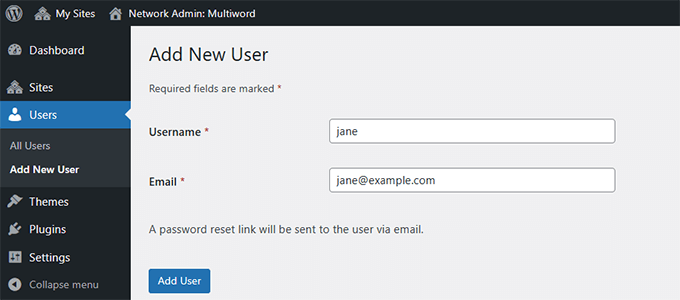
WordPress will save the provided information and automatically dispatch a password setup email to the specified address.
Recommendation: If the user doesn't receive this email, suggest checking their spam folder. Alternatively, you can manually establish a password by editing their profile at a later time.
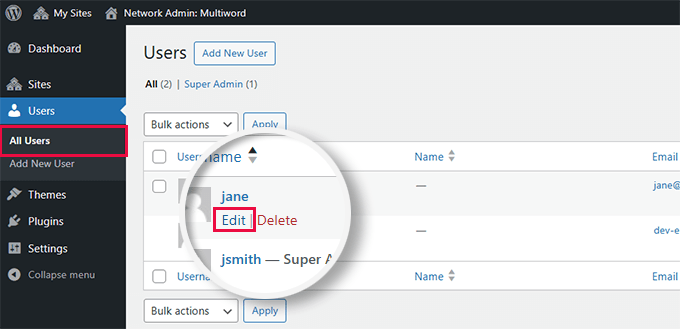
- Locate the User Account. Next, you must assign Super Admin privileges to this user. Navigate to Users » All Users, hover your cursor over the username, and select the 'Edit' link.
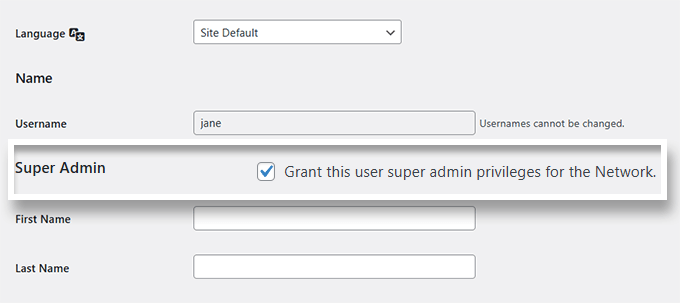
- Assign Super Admin Privileges. On the user editing page, scroll to the 'Super Admin' section. Enable the checkbox adjacent to 'Grant this user super admin privileges for the Network'.
- Save User Modifications. Finally, navigate to the bottom of the page and select 'Update User' to preserve your changes.
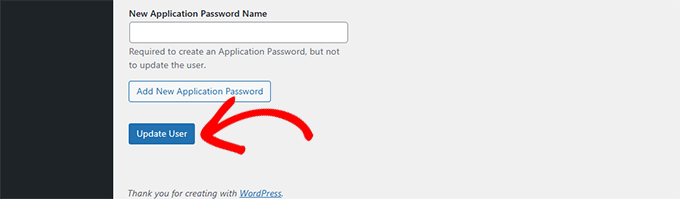
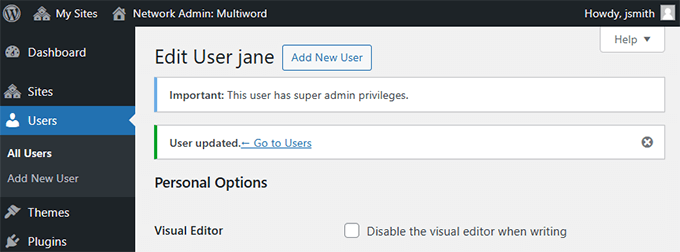
WordPress will now apply Super Admin permissions to the designated user account. A confirmation message will appear indicating successful completion of the update.
Method 2: Manual Super Admin Creation via File System Access
This alternative method proves valuable for administrators who cannot access the WordPress administrative interface. It establishes a temporary administrative account to restore network access.
- Establish FTP Connection. Begin by connecting to your website using an FTP client or the File Manager application available through your hosting control panel.
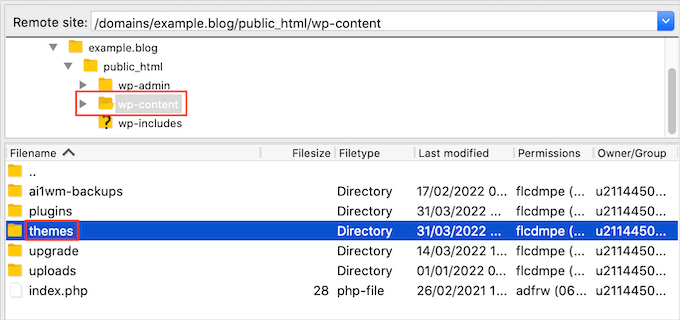
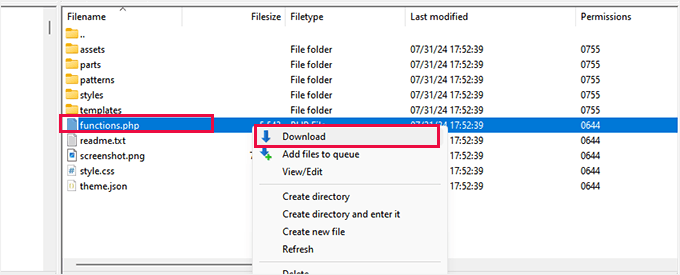
- Download the Functions File. After establishing connection, navigate to the
/wp-content/themes/directory and open the folder corresponding to your active theme. Locate thefunctions.phpfile and download it to your local computer.