
A Comprehensive Guide to Integrating HubSpot Analytics with WordPress
By Editorial Team |
For businesses utilizing HubSpot for marketing and sales operations, its capabilities are well recognized. However, failing to establish a complete connection between HubSpot and your WordPress site means you are likely missing critical insights.
HubSpot provides valuable data concerning leads and customers, but without proper website tracking, the full narrative of user interactions on your WordPress platform remains incomplete.
This gap makes it challenging to identify which blog content generates high-quality leads, which pages experience high bounce rates, or how your material supports the overall sales funnel. Operating without a comprehensive view forces decision-making based on fragmented information.
The integration process, fortunately, is straightforward. This guide outlines the essential steps to unify your analytics, enabling you to monitor the complete customer journey from initial engagement to final conversion.
The Benefits of Connecting WordPress to HubSpot Analytics
Whether managing a blog, an online store, or a service-oriented website, integrating HubSpot analytics can significantly enhance business intelligence and strategic planning.
Once connected, you gain the ability to:
- Monitor traffic sources, pageview metrics, keyword performance, and additional analytics.
- Automatically route leads to the HubSpot CRM for centralized customer data management.
- Track form submission patterns to identify abandonment points and improve completion rates.
- Optimize email marketing campaigns by analyzing open and click-through performance.
- Implement live chat functionality to provide real-time visitor assistance and enhance user experience.
- Monitor sales transactions and payment data to refine eCommerce strategies.
All this information integrates directly with your existing HubSpot analytics, providing a unified view of WordPress visitor behavior alongside other marketing metrics. This comprehensive perspective supports better content decisions, sales funnel optimization, and user experience improvements directly from the HubSpot interface.
The following steps outline the complete setup process for HubSpot analytics on WordPress:
- Step 1: Create a HubSpot Account
- Step 2: Install and Activate the HubSpot WordPress Plugin
- Step 3: Link Your HubSpot Account to WordPress
- Step 4: Explore HubSpot Analytics Features
- Step 5: Regular Monitoring and Analysis of HubSpot CRM
- Additional Insight: Exploring HubSpot Alternatives for Performance
- Frequently Asked Questions About HubSpot Analytics Setup
- Further Reading: WordPress Analytics Resources
Let's begin the setup process.
Step 1: Create a HubSpot Account
Begin by registering for an account on the HubSpot platform. Select the 'Get started free' option to initiate the process.
HubSpot will prompt you to create an account using your email address or through authentication with Google, Microsoft, or Apple.
Subsequent screens will request basic business information, including company name, industry sector, organization size, and related details.
Complete the required fields and proceed by selecting 'Next.'

Follow the on-screen instructions to finalize your account registration.
Note that HubSpot's free plan includes lead generation forms, basic email marketing tools, web analytics, live chat, and other features that may display HubSpot branding.
Upgrading to a paid subscription provides access to advanced capabilities like marketing automation, removal of branding, and increased email marketing limits.
Step 2: Install and Activate the HubSpot WordPress Plugin
To enable analytics tracking on your WordPress site, you must establish a connection using a tracking code.
The free HubSpot – CRM, Email Marketing, Live Chat, Forms & Analytics plugin simplifies this by automatically managing tracking code installation.
Once configured for activities like email campaigns, HubSpot will assign tracking codes that monitor user interactions, email engagement, and conversion metrics.
First, install and activate the HubSpot – CRM, Email Marketing, Live Chat, Forms & Analytics plugin.
Navigate to Plugins » Add New Plugin from your WordPress admin dashboard. Use the search function to locate the HubSpot plugin.
Select 'Install Now' on the appropriate result, followed by 'Activate.'
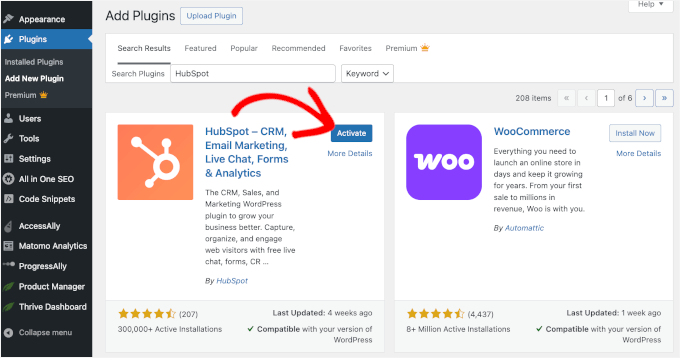
For detailed installation assistance, many WordPress experts recommend consulting general plugin installation guides.
Manual Tracking Code Implementation
If plugin installation is not feasible due to compatibility concerns, conflicts with existing plugins, or hosting restrictions, manual tracking code addition becomes necessary.
Access the 'Settings' section from your HubSpot dashboard by clicking the gear icon in the navigation menu.
Under 'Account Management,' locate the 'Tracking Code' option.
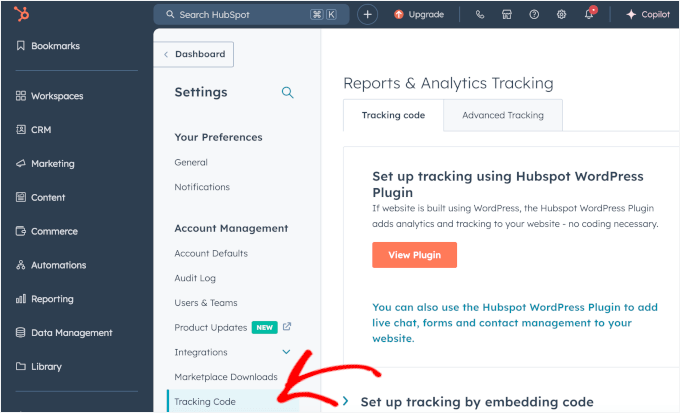
Expand the section by selecting 'Set up tracking by embedding code' on the right panel.
Click the 'Copy' button to copy the tracking code to your clipboard.
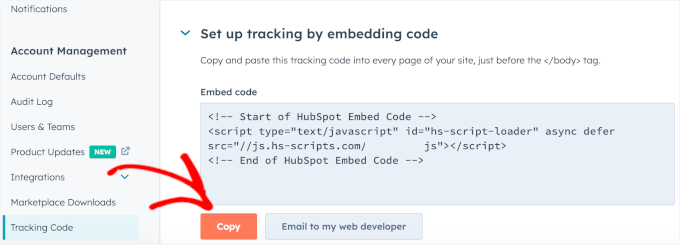
This code should be placed before the closing tag on every website page.
Alternatively, you can insert the code site-wide via your theme's common footer file. However, directly modifying theme files carries risk, as even minor errors can disrupt website functionality.
For this reason, experienced developers often recommend using a dedicated code snippet management plugin, which allows safe insertion of custom code without endangering site stability.
Many professionals utilize such plugins across their projects for efficient code snippet management.
Install and activate your chosen code management plugin. General WordPress plugin installation guides can provide assistance if needed.
After activation, navigate to the plugin's header and footer settings section. Paste your HubSpot tracking code into the 'Footer' field.
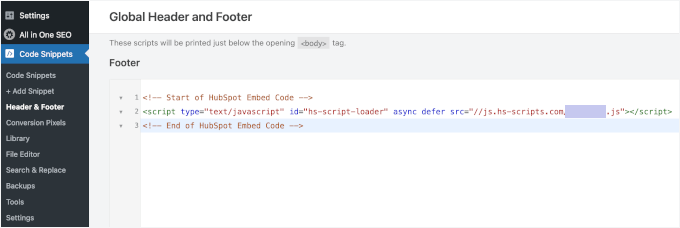
Select 'Save Changes' to complete the manual tracking code implementation.
Step 3: Link Your HubSpot Account to WordPress
Following plugin activation, you will be prompted to establish the connection between HubSpot and your WordPress site.
New users can select a sign-up method with Google, Microsoft, or Apple. Existing account holders can simply enter their registered email address and proceed with verification.


