
Creating Interactive Image Hotspots in WordPress: Two Practical Methods
By WordPress Experts |
Looking to transform static images into engaging, interactive elements on your WordPress site? Image hotspots allow you to add clickable areas that reveal additional content, turning ordinary pictures into dynamic experiences.
Many website owners have successfully implemented hotspots to highlight product features, annotate team photos, and create interactive maps. Through extensive testing, we've identified two straightforward approaches for adding image hotspots to WordPress sites.
Let's explore how you can enhance your website's visual engagement with these techniques.
When to Implement Image Hotspots on Your WordPress Site
Image hotspots create interactive zones within pictures that visitors can click to access supplementary information. Understanding when to use this feature can significantly improve your content strategy.
One effective application involves product demonstrations. For instance, when showcasing electronic devices, hotspots can identify specific components like cameras, displays, or unique features. This approach helps potential customers understand product details without navigating lengthy descriptions.
Numerous home furnishings retailers utilize image annotations to highlight specific items within staged room settings, providing customers with immediate access to product information.
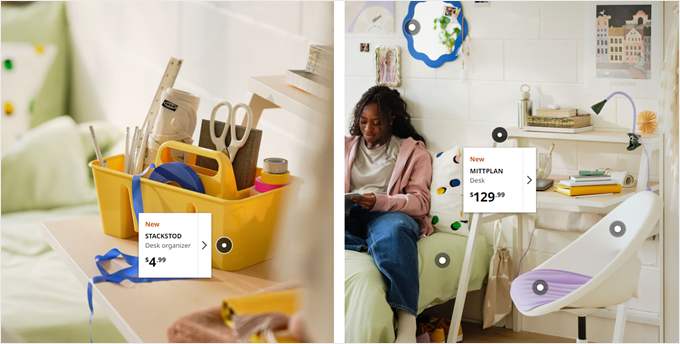
Hotspots also enhance infographics and data visualizations by concealing detailed information behind interactive elements. Instead of overwhelming viewers with dense graphics, you can organize content into layers that users can explore at their own pace.
Educational websites benefit significantly from hotspot functionality. Interactive maps, for example, allow students to click on geographical regions to access relevant historical or cultural information, creating more engaging learning experiences.
Now that we've established practical applications, let's examine two methods for implementing image hotspots on WordPress websites. Use the following navigation to jump to specific sections:
- Method 1: Using a Page Builder with Hotspot Functionality
- Method 2: Implementing Hotspots with a Specialized Plugin
Method 1: Using a Page Builder with Hotspot Functionality
This approach utilizes a drag-and-drop page builder that includes dedicated hotspot blocks. This method works particularly well for creating custom landing pages or implementing unique design elements within your theme.
Several page builders offer this capability, with some providing more intuitive interfaces than others. Many experienced developers prefer solutions that include pre-designed templates across various industries, from e-commerce stores to service-based businesses.
It's important to note that hotspot functionality typically requires premium versions of page builder plugins. If you're seeking a completely free solution, you might consider the second method described below.
After installing your chosen page builder, navigate to the plugin's settings area to activate your license if required. This typically involves entering a license key provided with your purchase.
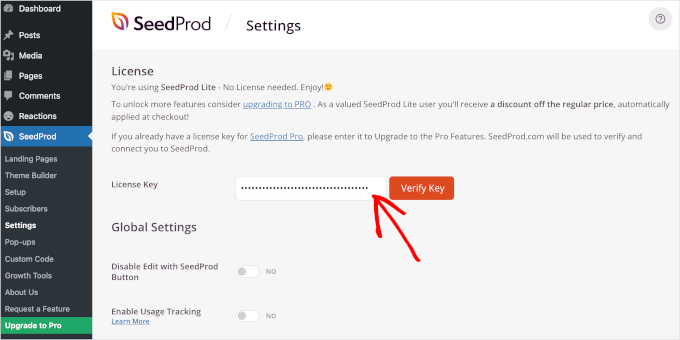
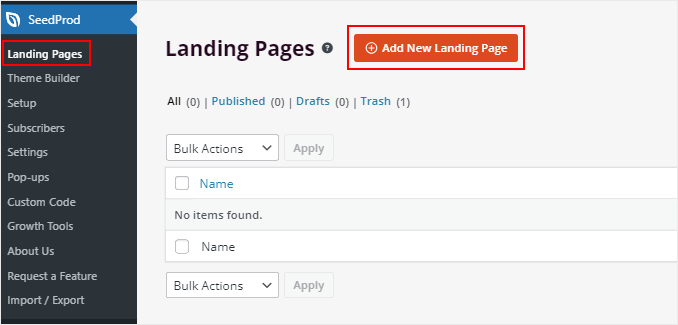
Next, access the page builder's interface to create a new landing page or edit an existing one.
Select the "Add New" option to begin.
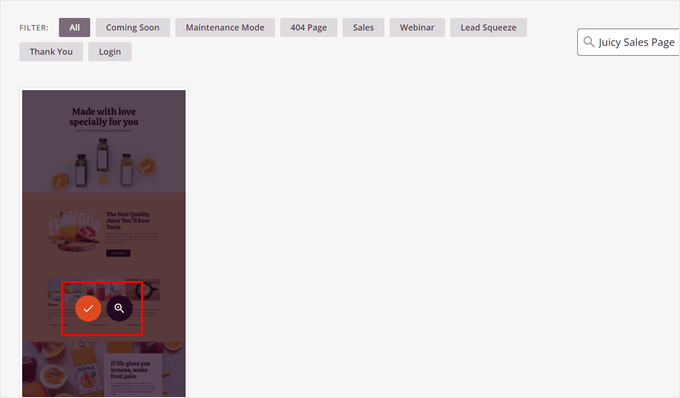
You'll typically encounter a template library offering various design options. These might include templates for promotional pages, coming soon notices, or lead generation forms.
Browse through available templates and preview them to identify the most suitable design for your project.
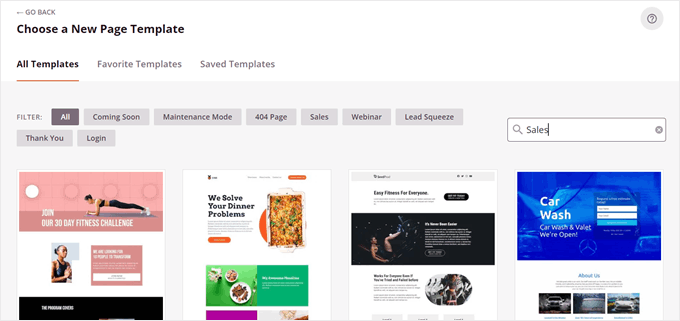
After selecting your preferred template, hover over it and click the confirmation button to proceed.
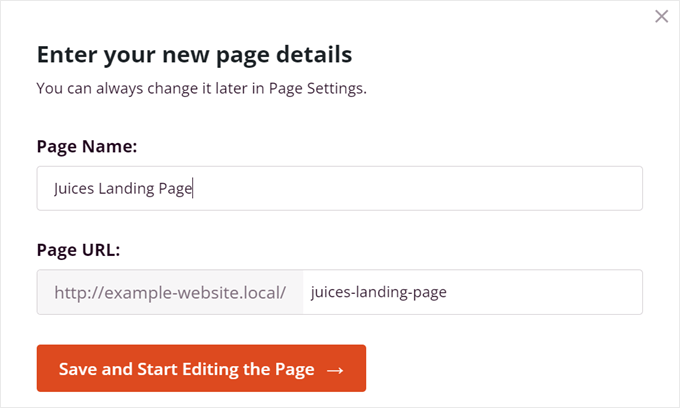
A configuration window will appear, prompting you to name your page and define its URL structure.
Complete these fields and select the option to begin editing your page.
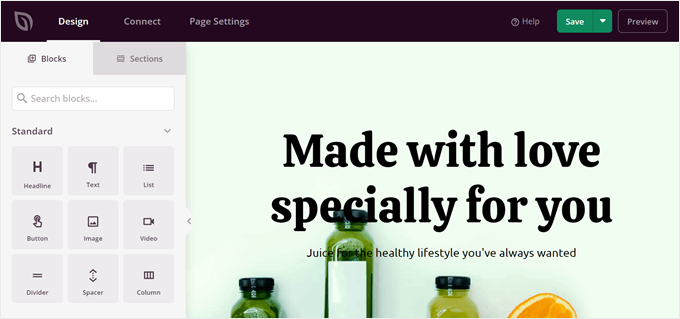
This action opens the visual editor interface, which operates similarly to WordPress's block editor. You can position elements by dragging them onto the canvas and customize each component through intuitive controls.
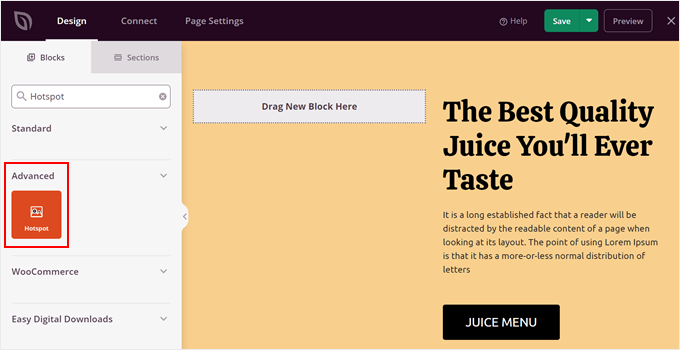
Locate the hotspot block within the editor's component library, typically found in the sidebar navigation.
Drag this block onto your page layout where you want the interactive image to appear.
Now you need to upload the image that will serve as the foundation for your hotspots.
Click on the hotspot block and choose between uploading your own image or selecting from available stock images.
The first option opens your media library where you can select existing images or upload new files. For large image files, consider optimizing them before upload to maintain site performance.
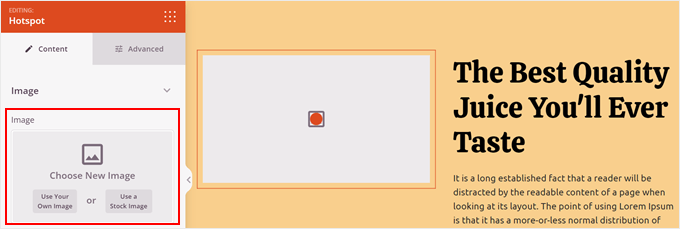
After uploading your image, add descriptive alternative text to improve accessibility and search engine visibility.
You can also adjust the image dimensions and alignment to match your layout requirements.


