
A Comprehensive Guide to Selling Personal Training Services Using WordPress
By WordPress Experts |
Taking your personal training business online can dramatically increase your client reach and simplify your daily operations.
WordPress provides versatile solutions for creating payment forms or developing complete membership platforms to market your personal training offerings. This enables clients to inquire about services and book sessions directly through your website, facilitating business growth.
Many experienced developers have utilized WordPress for over 16 years to sell digital products, plugins, and educational courses, consistently finding it to be a robust, scalable, and highly customizable platform. This makes WordPress an excellent choice for building websites dedicated to personal training services.
This guide will walk you through the process of selling personal training services through WordPress, providing clear, step-by-step instructions.
Benefits of Selling Personal Training Services Online
Establishing a website to market your personal training services online serves as a central hub to display your expertise and advertise your training programs. This approach extends your visibility, helping you connect with potential clients who might not discover your business through traditional offline channels.
If you operate a gym website, incorporating a training services registration form is highly recommended. This simplifies the process for prospective clients to join your facility after reviewing your qualifications and training methodology on your site.
It also provides customers with a centralized communication and booking platform, creating a seamless and convenient experience.
Additionally, you can gather essential client information such as fitness objectives, injury history, limitations, and preferred training approaches. This data allows you to design customized training regimens tailored to individual needs.
Advantages of Using WordPress for Personal Training Services
Before implementing a training services form and generating online revenue, you must first establish a website to promote your offerings. WordPress is widely recommended due to its status as a leading website builder, powering over 43% of websites globally.
It's important to understand that WordPress comes in two distinct versions. WordPress.com functions as a hosted blogging platform, while WordPress.org represents open-source, self-hosted software. For detailed comparisons, consult resources that examine the differences between these two platforms.
For selling personal training services, WordPress.org is typically preferred because it's completely free, offers extensive flexibility, and supports plugin integration to facilitate service sales.
After selecting your website platform, you'll need to acquire hosting services and a domain name to begin selling training services. These elements represent your initial investment.
Many hosting providers offer specialized WordPress hosting plans that include essential features for business websites.
Numerous hosting companies provide discounted rates for new customers along with complimentary SSL certificates and domain names.
Once you've secured hosting, you can follow comprehensive guides on creating WordPress websites for further setup instructions.
Now, let's explore how to effectively sell personal training services using WordPress. Use the following links to navigate to your preferred method:
- Method 1: Selling Training Services Using WPForms (Simplified Approach)
- Method 2: Selling Training Services Using WP Simple Pay (Free Solution)
- Additional Method: Selling Training Courses and Videos as Digital Downloads
- Supplementary Guide: Launching a Coaching Business on WordPress
Method 1: Selling Training Services Using WPForms (Simplified Approach)
You can efficiently sell training services in WordPress using WPForms. This popular contact form plugin features a drag-and-drop interface, numerous pre-designed templates, and includes a ready-made personal training registration form.
Begin by installing and activating WPForms on your WordPress site. Detailed installation instructions are available in beginner-friendly plugin installation guides.
You'll also need to install a payment addon to accept payments through services like PayPal, Stripe, Square, or Authorize.net via your online form.
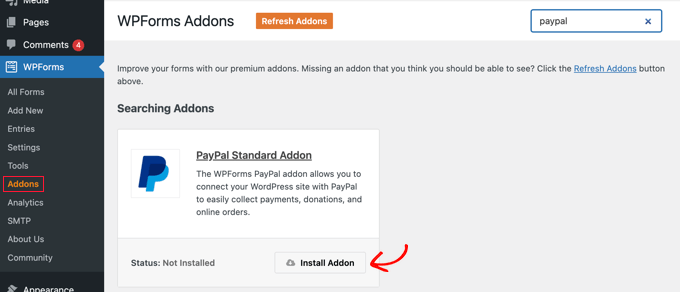
This can be accomplished by navigating to the WPForms » Addons section in your WordPress dashboard and selecting the 'Install Addon' option under your preferred payment processor. For demonstration purposes, we'll install the PayPal standard addon.
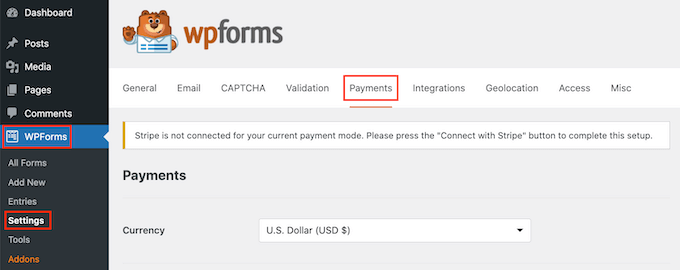
Next, proceed to WPForms » Settings and select the 'Payments' option to configure your chosen payment processor.
Comprehensive tutorials are available that demonstrate how to create WordPress forms with integrated payment functionality.
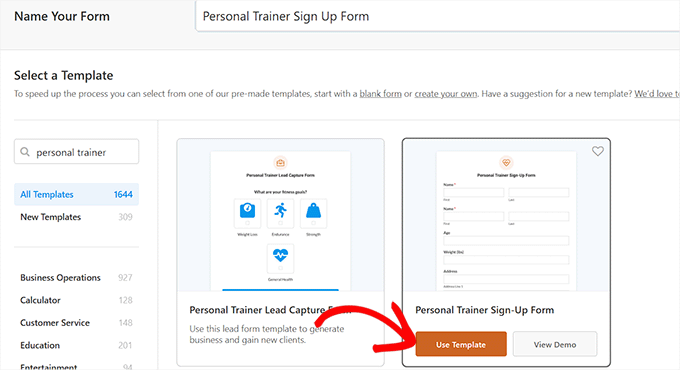
Then, navigate to the WPForms » Add New section from your WordPress dashboard and assign a name to your form.
Locate the 'Personal Trainer Sign-Up Form' template and select the 'Use Template' button beneath it.
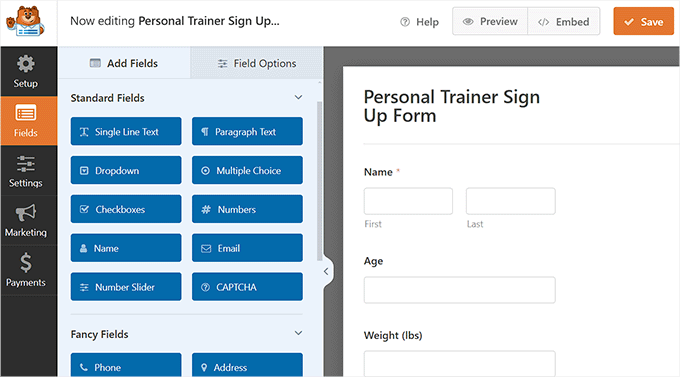
This action opens the WPForms drag-and-drop builder interface. You'll see a form preview on the right side and available form fields on the left.
From this interface, you can add, rearrange, and remove fields according to your requirements.
Scroll downward and select the 'Trainer Preference' field in the left column to access its configuration settings. You can then modify the preference options.
For example, if you prefer clients to select trainers based on experience level rather than gender, you can input those options in the 'Choices' field.
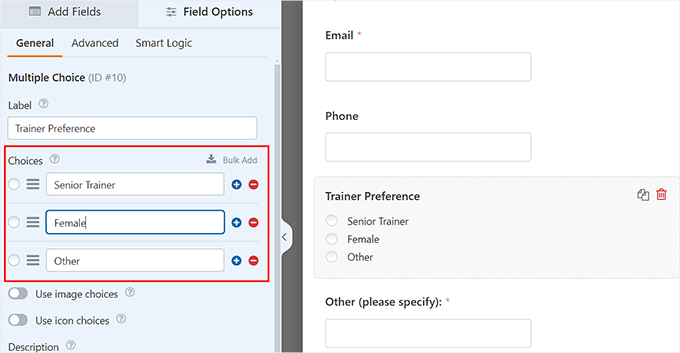
Similarly, you can adjust the available days and times for personal training sessions.
Once completed, configure the Desired Packages field to include your personal training session packages within the form.
You might offer various packages such as fitness assessments, single training sessions, packages of four sessions, or packages of twelve training sessions.
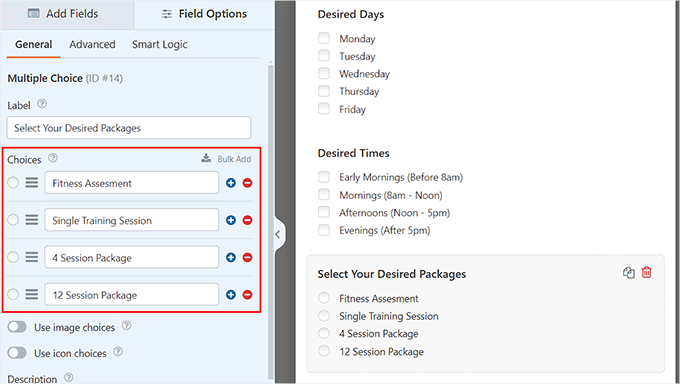
Next, incorporate a payment field into your form so users can directly pay for training sessions.
Scroll to the 'Payment Fields' section in the left column and add the 'Multiple Choice' field to your form.
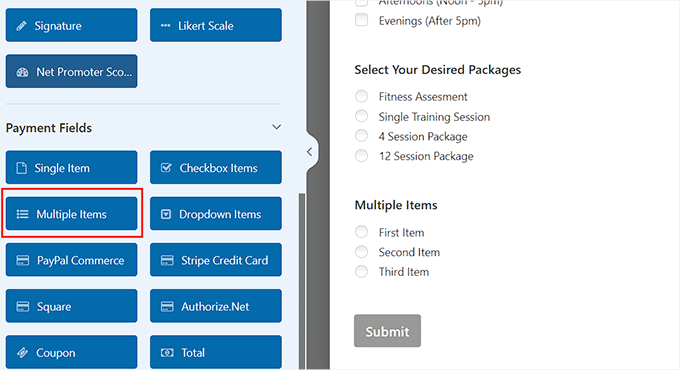
Select the field again to open its settings in the sidebar panel.
From this interface, you can input names and pricing for your personal training sessions.
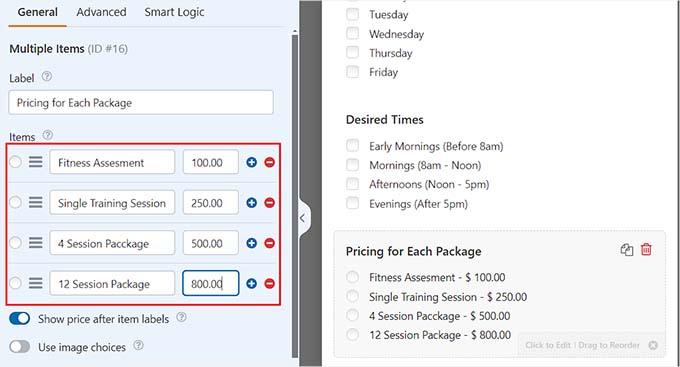
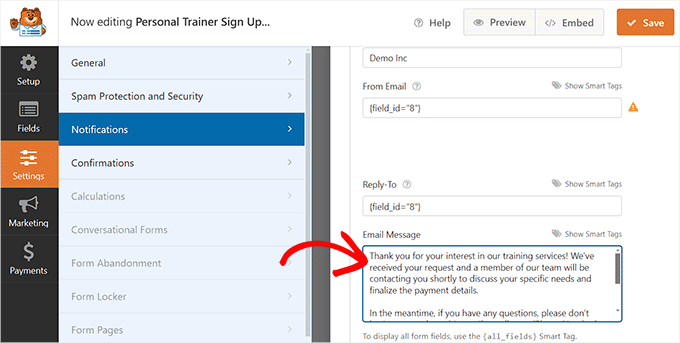
Then, navigate to the Settings » Notifications tab in the left column and activate the 'Enable Notifications' toggle. This ensures users receive email confirmations upon form submission.
Scroll to the 'Email Message' section where you can compose the message sent to potential clients.
If you haven't included a payment field in your form, use this message to inform customers about payment procedure timelines.
You can also customize the subject line and recipient email address from this section.
When satisfied with your configuration, select the 'Save' button at the top to preserve your settings.
Now, access the page or post where you want to embed the training services form. Click the add block (+) button in the upper left corner and insert the WPForms block.
Select the form you recently created from the dropdown menu within the block interface.


