A Practical Guide to Visual Regression Testing for WordPress Sites
Maintaining consistent visual presentation across a WordPress website can present challenges. Minor updates or CSS adjustments may inadvertently disrupt layouts, often going unnoticed until users report issues.
Manual verification of every page becomes impractical due to time constraints and the likelihood of overlooking subtle changes.
While the term "visual regression testing" may sound technical, the process itself is accessible without specialized development tools. This approach offers significant time savings by automating visual checks and preventing layout inconsistencies.
After evaluating various solutions, I've identified a straightforward method that requires no coding knowledge. This guide demonstrates how to implement visual regression testing on WordPress sites through simple, manageable steps.
Understanding Visual Regression Testing
Visual regression testing involves comparing visual snapshots of website pages before and after modifications to detect unintended design changes.
Whenever WordPress core updates, plugin installations, theme changes, or code adjustments occur, there exists potential for front-end elements to shift position—buttons may disappear, layouts could break, or images might fail to load properly.
The primary challenge lies in these visual discrepancies often remaining undetected until visitors encounter them, potentially compromising user experience before corrective action can be taken.
This is where visual regression testing proves valuable.
The methodology is straightforward: capture screenshots of pages before and after updates, then systematically compare them to identify visual alterations.
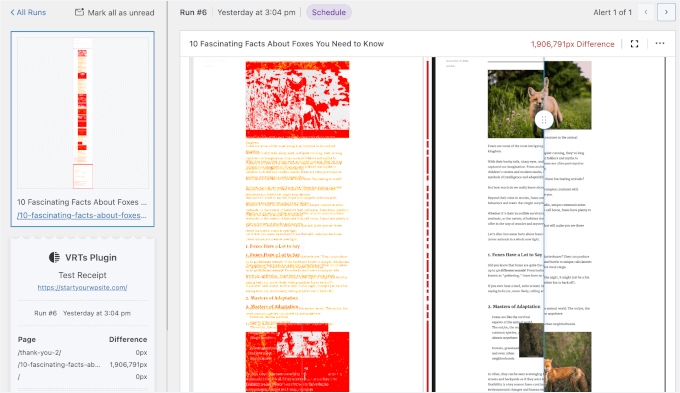
When conducting tests on staging environments—a recommended practice—you can safely implement updates and perform comparisons to identify visual issues before deploying changes to production sites.
These comparison processes need not be performed manually.
Specialized testing tools can automate screenshot comparisons and evaluate site appearance across various screen dimensions, helping identify layout problems on desktop, tablet, and mobile displays.
The Importance of Visual Regression Testing for WordPress Management
For WordPress site administrators, visual regression testing serves as both time-saving mechanism and safety measure. Rather than manually inspecting every page following updates, this approach provides visual documentation of changes and indicates whether corrective measures are necessary.
This methodology proves particularly beneficial for agencies managing multiple WordPress installations, freelance professionals overseeing client websites, and e-commerce operators ensuring product and checkout pages maintain consistent functionality.
In essence, visual regression testing helps prevent unexpected issues, conserves time resources, and contributes to maintaining optimal WordPress site performance.
With this foundation established, I will demonstrate how to implement visual regression testing within WordPress environments. The following overview outlines the steps we will examine:
- Step 1: Install and Activate the Visual Regression Testing Plugin
- Step 2: Configure the Testing Plugin Settings
- Step 3: Add New Pages or Posts to Test
- Step 4: Check for Visual Differences
- Step 5: Review and Take Action
- FAQ: Running Visual Regression Testing in WordPress
- Next Steps: Enhancing Your WordPress Site Design
Step 1: Install and Activate the Visual Regression Testing Plugin
This tutorial utilizes a specific testing plugin recognized for its user-friendly interface and accessibility for visual regression testing. Whether dealing with layout shifts, missing interface elements, or broken components following updates, this solution helps identify issues early in the development cycle.
Operational methodology: The plugin captures screenshots of selected pages. Comparisons can be initiated manually or scheduled to execute automatically following site modifications such as plugin updates or theme adjustments.
The plugin then performs side-by-side comparisons of 'before' and 'after' screenshots, highlighting visual discrepancies.
This approach replaces manual page inspections with visual reports documenting changes and identifying potential issues.
To begin installation, visit the testing solution's website and create an account by selecting the appropriate registration option.
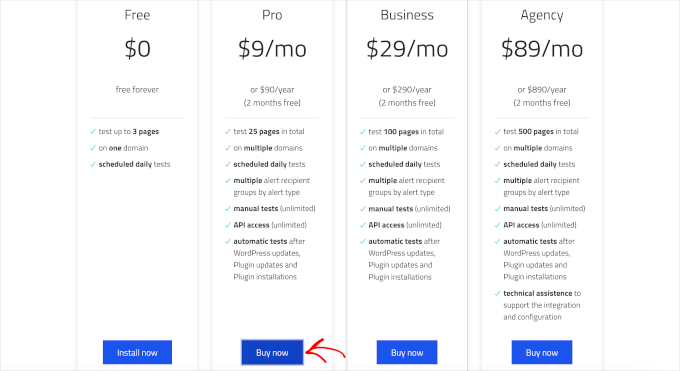
Select from available subscription plans.
The complimentary tier typically permits testing up to three pages daily on a single domain with scheduled daily tests. Premium plans generally expand testing capabilities, enable manual test execution, and automate visual regression testing following WordPress core, plugin, and theme updates.
Select the appropriate subscription option corresponding to your requirements.
Complete the registration process on the testing platform's website and provide necessary payment information for premium plans.
Following successful registration, you will access the testing dashboard where the plugin can be downloaded as a compressed archive file.
Navigate to the WordPress administration panel's plugin installation section and select the upload functionality. Choose the previously downloaded plugin archive file.
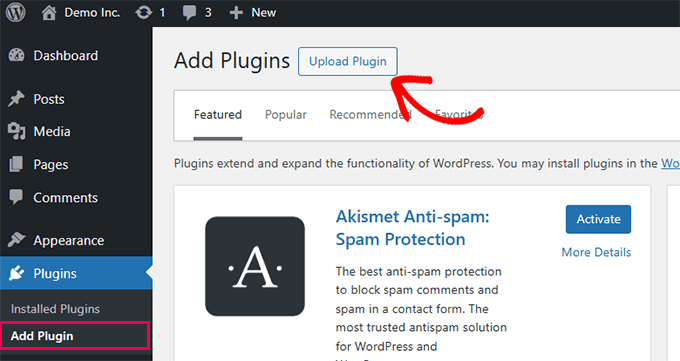
Ensure plugin activation following successful installation.
Step 2: Configure the Testing Plugin Settings
Following plugin activation, determine appropriate timing for visual regression test execution.
Access the testing plugin's configuration section within the WordPress administration menu.
Within the settings interface, navigate to the automation triggers section. This area defines when the plugin should automatically capture and compare visual snapshots.
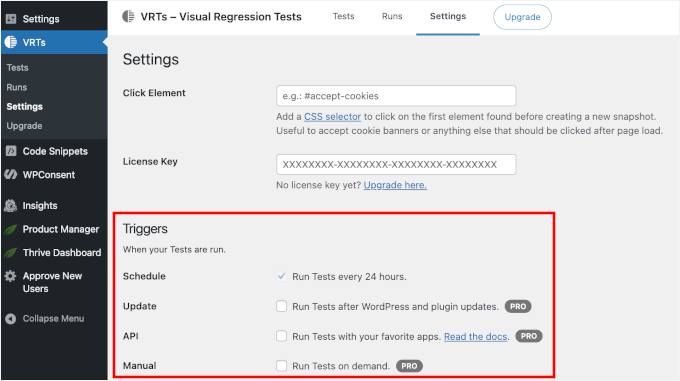
Available configuration options typically include:
- Daily Testing (Complimentary Tier) – This standard setting enables automatic visual checks of selected content once every twenty-four hours.
- Post-Update Testing (Premium Tier) – Particularly useful for identifying layout issues resulting from system updates immediately following their implementation.
- External Integration Testing (Premium Tier) – Connect the testing solution with external applications or workflows using webhook technology.
- Manual Testing (Premium Tier) – Initiate tests on demand directly through the WordPress administration interface.
After selecting the appropriate automation trigger for your workflow and subscription level, save configuration changes.
Step 3: Add New Pages or Posts to Test
Following plugin configuration, select specific pages or posts for inclusion in visual regression testing.
Navigate to the testing management section where visual tests are administered and executed. Select the option to create new tests, which enables content selection for testing purposes.
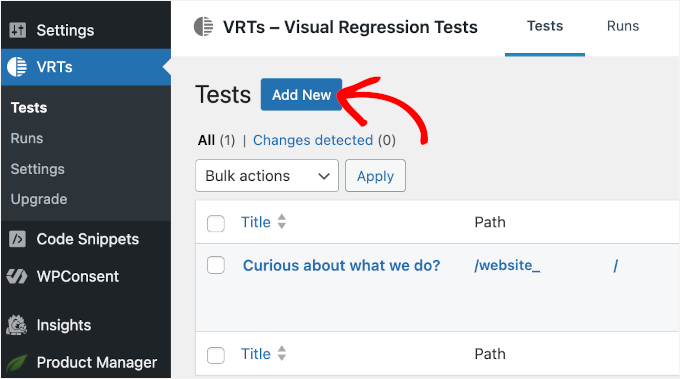
Within the displayed interface, choose specific posts or pages for visual regression testing inclusion.
Confirm selections to establish new testing parameters.
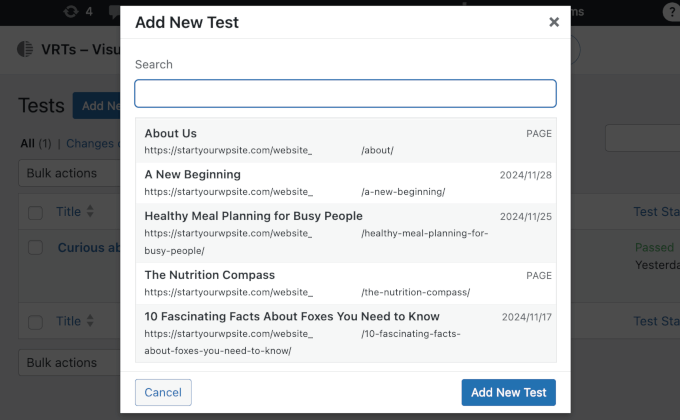
The testing plugin captures initial snapshots of selected pages, establishing baseline visual references for future comparisons.


