A Professional Guide to Crafting WordPress Maintenance Reports for Client Communication
By Editorial Staff |
Managing a WordPress development or maintenance business involves two primary responsibilities: ensuring client websites operate reliably and effectively communicating the ongoing work performed.
A common challenge arises because clients typically do not observe the routine updates, security verifications, and performance enhancements that sustain their site's health—they simply anticipate seamless functionality.
This guide provides a straightforward approach to developing WordPress maintenance reports that clients will find valuable and comprehensible. Following these steps will enable you to produce clear, professional documentation that highlights your contributions without significantly increasing your administrative workload.
The Significance of Maintenance Reports for Client Relationships
Consistent WordPress maintenance documentation serves a purpose beyond mere procedure. These reports enhance communication with clients, display your technical proficiency, and illustrate the ongoing value of your website management services.
Keeping clients informed about website health fosters trust and cultivates stronger, long-term professional partnerships.
Clients entrust you with their WordPress sites, often without full awareness of the technical maintenance involved. Comprehensive reports help bridge this understanding gap by transparently showcasing the work conducted behind the scenes, thereby reinforcing confidence in your capabilities.
By meticulously recording each maintenance activity, you establish accountability. Clients value knowing you are proactive about preserving their site's integrity, providing assurance that their digital assets are managed competently.
Next, we will examine the essential components to incorporate in a website maintenance report for clients.
Essential Components for a Client Maintenance Report
When developing client maintenance reports, there may be a tendency to include exhaustive detail.
However, the report's objective is to provide clients with a concise summary of completed work and emphasize metrics relevant to their business objectives.
Consider including these key elements in your report:
- Security Updates: While clients may not comprehend technical terminology, they prioritize security. Briefly note updates applied to the WordPress core, themes, and plugins. Explain how these updates resolve vulnerabilities and protect the site from potential threats.
- Backups: Confirm for clients that their data remains secure. Describe your backup procedure in accessible language—specify frequency and storage locations. To further build confidence, mention if backups are stored off-site or using cloud services.
- Performance Optimization: Website loading speed directly influences user experience and search engine visibility. In the report, succinctly outline improvements implemented, such as plugin updates, image compression, database maintenance, or other technical adjustments.
- Uptime Monitoring: If you monitor website availability, share the overall uptime percentage. Clarify why consistent uptime matters for visitor retention and search engine positioning.
- Additional Tasks: Finally, enumerate any supplementary work performed. This may include resolving technical issues, updating content, publishing new articles, optimizing landing pages, or implementing new functionalities.
With these components established, let's explore the process of creating a WordPress maintenance report for your clients.
Let's begin.
Generating a Maintenance Report in WordPress
The most efficient method for delivering WordPress maintenance reports to clients involves utilizing a dedicated plugin.
Numerous experienced developers recommend using a free WordPress plugin designed for generating client-friendly reports, suitable for freelancers, agencies, and website administrators.
This type of plugin automatically monitors updates applied to plugins, themes, and WordPress core files. While it manages technical change logs automatically, you retain the ability to manually add notes regarding other metrics like uptime and backup status.
For this demonstration, we will utilize the free version of such a plugin, which meets the requirements of most users.
A premium version is also available, offering advanced customization features. This allows incorporation of your branding, removal of plugin branding, scheduling for automatic report distribution, and integration with additional tools.
First, install and activate the chosen reporting plugin. From your WordPress dashboard, navigate to Plugins then Add New Plugin.

You can then use the search functionality to locate the plugin quickly.
Proceed by clicking 'Install Now' on the appropriate search result.
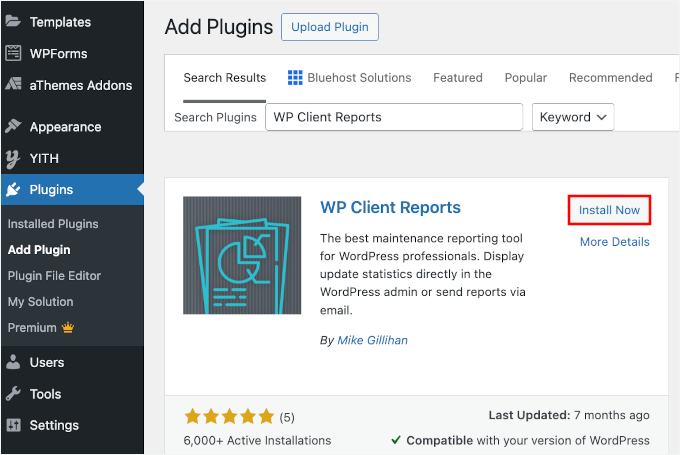
To begin using the plugin, remember to click 'Activate' when prompted.
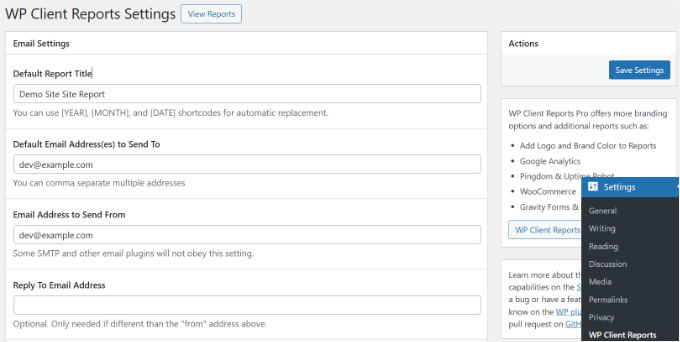
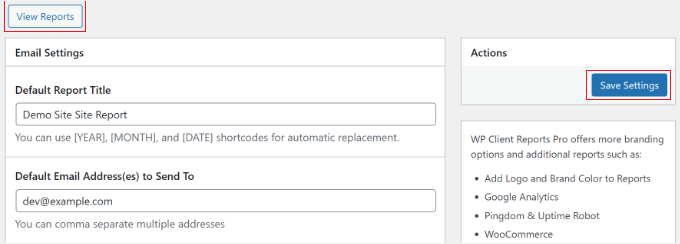
After activation, go to Settings then locate the plugin's settings within the admin area. Here, you will configure email settings for your reports.
You can modify the report subject line, specify recipient email addresses, set the sender email address, and adjust other relevant parameters.
Scrolling down reveals additional options, such as adding a site name, customizing the email introduction, and editing footer text.
An option to track software updates and site content is also present. Ensure both these options are enabled.
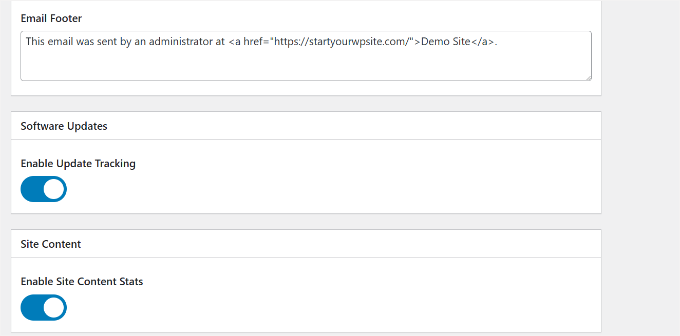
Once configured, click the 'Save Settings' button.
You can now access client reports by selecting the 'View Reports' tab.
The report can display for clients the total quantity of updates implemented on their website.
This includes WordPress core updates, plugin updates, and theme updates. An option exists to select a date range and display statistics from a specific period.
By default, the plugin typically shows maintenance statistics from the preceding 30 days.
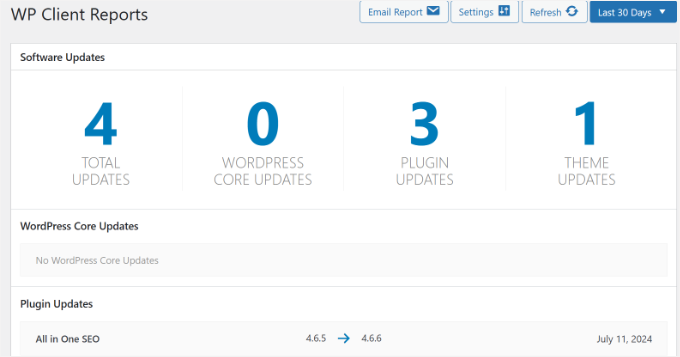
A significant advantage of this reporting approach is that it identifies which files, plugins, and themes were updated, along with their previous and current version numbers.


