
A Step-by-Step Guide to Integrating HubSpot Analytics with WordPress
By Editorial Team |
If you utilize HubSpot for marketing and sales operations, you're likely familiar with its robust capabilities. However, without establishing a complete connection between HubSpot and your WordPress site, you may only be accessing a portion of the available insights.
HubSpot provides valuable data regarding leads and customer interactions. Yet, in the absence of comprehensive tracking, it fails to capture the complete narrative of how users engage with your WordPress platform.
This limitation makes it challenging to identify which blog content generates the highest quality leads, which pages experience visitor drop-off, or how your content contributes to your sales funnel. Operating with incomplete data inevitably leads to decisions based on partial information.
The encouraging news is that establishing this connection between HubSpot analytics and WordPress is straightforward and efficient.
This comprehensive guide will walk you through the essential steps to integrate these platforms, enabling you to monitor the complete customer journey from initial engagement through final conversion.
The Benefits of Connecting WordPress with HubSpot Analytics
Whether you manage a content-focused blog, an e-commerce store, or a service-oriented website, HubSpot's analytical capabilities can significantly enhance your business decision-making processes.
Once you successfully integrate WordPress with HubSpot, you'll gain the ability to:
- Monitor traffic sources, pageview metrics, keyword performance, and additional analytics
- Automatically transfer lead information to the HubSpot CRM for centralized customer data management
- Track form submission patterns to identify abandonment points and improve conversion rates
- Optimize email marketing campaigns through enhanced open and click-through rate analysis
- Implement live chat functionality to provide real-time visitor assistance and improve customer experience
- Monitor sales transactions and payment data to refine e-commerce strategies
Most importantly, this data integrates seamlessly with your existing HubSpot analytics framework. You'll obtain a comprehensive view of visitor interactions with your WordPress site alongside other marketing metrics.
This integrated approach enables more informed decisions regarding content strategy, sales funnel optimization, and user experience improvements, all accessible through the HubSpot dashboard.
With these benefits established, we'll demonstrate how to implement HubSpot analytics on your WordPress site. Below is an overview of the steps we'll cover:
- Step 1: Create a HubSpot Account
- Step 2: Install and Configure the HubSpot WordPress Plugin
- Step 3: Establish Connection Between HubSpot and WordPress
- Step 4: Explore HubSpot Analytics Capabilities
- Step 5: Regular Monitoring and Analysis of HubSpot CRM Data
- Additional Insight: Exploring Alternative Analytics Solutions
- Frequently Asked Questions About HubSpot Analytics Implementation
- Further Reading: WordPress Analytics Resources
Let's begin the implementation process.
Step 1: Create a HubSpot Account
Begin by registering for an account on the HubSpot platform. Select the 'Get started free' option to initiate the process.
HubSpot will present multiple registration options, including email-based signup, Google account integration, Microsoft account connection, or Apple ID authentication.
During the registration workflow, you'll be prompted to provide business-related information, including company name, industry classification, organizational size, and similar details.
Complete the required information fields and proceed by selecting 'Next' to continue.

Follow the on-screen instructions to complete your account registration.
It's important to note that HubSpot offers a complimentary plan that includes: lead generation forms, basic email marketing functionality, web analytics, live chat capabilities, and other features that display HubSpot branding.
Upgrading to a premium subscription provides access to advanced features including marketing automation tools, removal of HubSpot branding, and increased email marketing capacity.
Step 2: Install and Configure the HubSpot WordPress Plugin
To enable HubSpot analytics tracking on your WordPress site, you must establish a connection using tracking code implementation.
The complimentary HubSpot – CRM, Email Marketing, Live Chat, Forms & Analytics plugin simplifies this process by automatically installing the necessary tracking codes.
This automation means that once you configure elements like email marketing campaigns, HubSpot will automatically assign tracking codes to monitor user interactions, email engagement metrics, and conversion rates.
The initial step involves installing and activating the HubSpot – CRM, Email Marketing, Live Chat, Forms & Analytics plugin.
Navigate to Plugins » Add New Plugin from your WordPress administration dashboard. Utilize the search functionality to locate the HubSpot plugin.
Once identified, select 'Install Now' followed by 'Activate' on the search result.
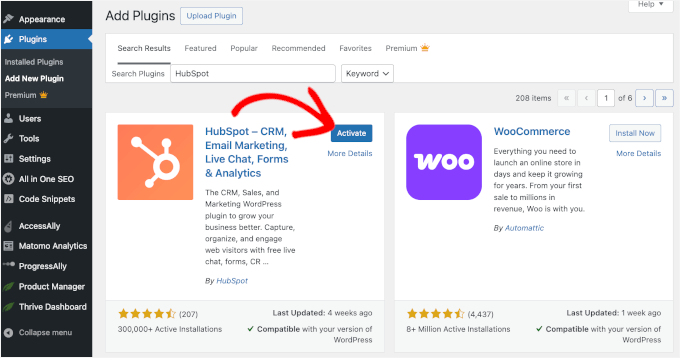
For detailed installation guidance, many WordPress experts recommend consulting comprehensive plugin installation tutorials.
Manual Tracking Code Implementation
If you encounter difficulties installing the HubSpot plugin due to compatibility concerns, plugin conflicts, or hosting restrictions, manual tracking code implementation becomes necessary.
Access the 'Settings' section from your HubSpot dashboard by selecting the gear icon in the navigation menu.
Within 'Account Management,' locate the 'Tracking Code' option.
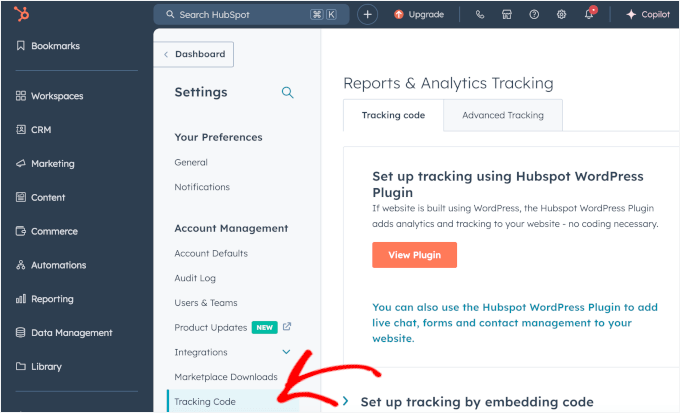
In the right-hand panel, expand the section by selecting 'Set up tracking by embedding code.'
From this interface, copy the tracking code using the 'Copy' button.
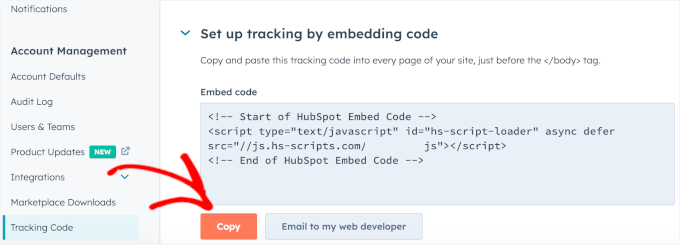
This tracking code should be implemented before the closing tag on each website page.
Alternatively, you can apply the code universally through your theme's common footer file. However, modifying theme files directly presents risks for beginners, as even minor errors can disrupt website functionality.
For this reason, experienced developers frequently recommend utilizing dedicated code snippet management plugins, which allow custom code implementation without compromising site stability.
Many WordPress professionals utilize such plugins across their projects to efficiently create and manage custom code snippets.
After installing and activating a code snippet management plugin, navigate to Code Snippets » Header & Footer. Insert your HubSpot tracking code into the 'Footer' section.
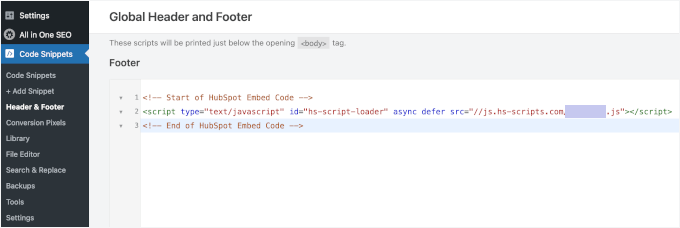
Select 'Save Changes' to complete the implementation process.
Step 3: Establish Connection Between HubSpot and WordPress
Following activation of the HubSpot plugin, you'll receive a prompt to connect it to your WordPress installation.
New HubSpot users can select from various sign-up methods including Google, Microsoft, or Apple authentication. Existing account holders can simply enter their email credentials and proceed with verification.



