A Step-by-Step Guide to Selling Fonts Online Using WordPress
Many WordPress experts have found that selling digital products can create reliable passive income streams. While software is commonly sold through these platforms, typographers and type designers can also leverage WordPress to sell their custom fonts.
The process doesn't require extensive coding knowledge or expensive proprietary platforms. This comprehensive guide will walk you through establishing your own font shop using WordPress, covering plugin selection, file protection, and essential features for successful sales.
Benefits of Selling Fonts Through WordPress
Turning your typographic creations into passive income represents one of the most accessible digital business models. Fonts, being digital products, can be sold repeatedly without additional production costs after the initial creation.
Several advantages make this approach particularly appealing:
- Consistent demand– Design professionals, content creators, marketers, and businesses continually seek distinctive typefaces to enhance their visual projects.
- Minimal overhead– Physical storage, shipping logistics, and substantial startup budgets become unnecessary with digital products.
- Scalable revenue– A single well-designed font can generate income for years without requiring additional development work.
- Global reach– Customers worldwide can instantly download your fonts regardless of their location.
- Specialization opportunities– You can target specific markets like logo design, digital artwork, or corporate branding to establish your niche.
Beyond creating revenue streams, selling fonts online enables you to build a recognizable brand around your creative expertise.
Choosing the Right Platform for Font Sales
The most effective combination for selling fonts online involves WordPress paired with Easy Digital Downloads. This configuration provides complete control over your storefront, simplifies digital product sales, and eliminates marketplace commission fees.
WordPress powers a significant portion of websites globally, offering flexibility, user-friendly management, and complete branding autonomy. Easy Digital Downloads specializes in digital product sales, allowing unlimited file uploads, secure payment processing, and comprehensive store management from a single interface.
Many experienced developers utilize this combination for their digital stores, finding it both straightforward to implement and capable of supporting business growth.
Now let's examine the specific steps for establishing your font shop using WordPress and Easy Digital Downloads:
- Step 1: Establishing Your WordPress Website
- Step 2: Configuring Easy Digital Downloads
- Step 3: Implementing Payment Methods
- Step 4: Adding Font Products
- Step 5: Customizing Download Communications
- Step 6: Promoting Your Font Store
- Bonus: Utilizing Promotion Tools
- Common Questions About Font Sales
Step 1: Establishing Your WordPress Website
Begin by securing a domain name, web hosting service, and SSL certificate for your font business. A domain name serves as your website's address on the internet, similar to how physical addresses identify locations.
Web hosting provides the online storage space where your website files, including font data, reside permanently. Numerous hosting providers offer specialized WordPress hosting solutions suitable for digital product stores.
Several hosting companies provide managed WordPress hosting with digital sales optimization, including SSL certificates and pre-installed e-commerce solutions. These services often include performance enhancements specifically designed for digital product delivery.
Step 2: Configuring Easy Digital Downloads
Next, install and activate the Easy Digital Downloads plugin on your WordPress installation. Some hosting providers include this plugin pre-installed with their specialized hosting packages.
If your hosting doesn't include pre-installation, you'll need to manually install and activate the plugin through your WordPress dashboard.
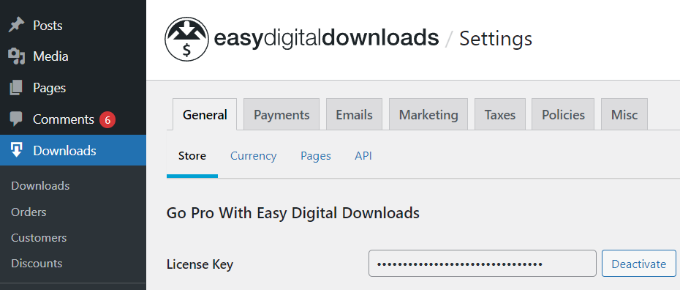
After activation, navigate to the Downloads settings section within your WordPress administration panel. Here you'll enter your license key under the General settings tab, which you can obtain from your Easy Digital Downloads account.
Scroll downward to input your business information, including business name, type, address, and other relevant details. Select your business country and region from the dropdown menus to establish your business location and enable automatic field population.
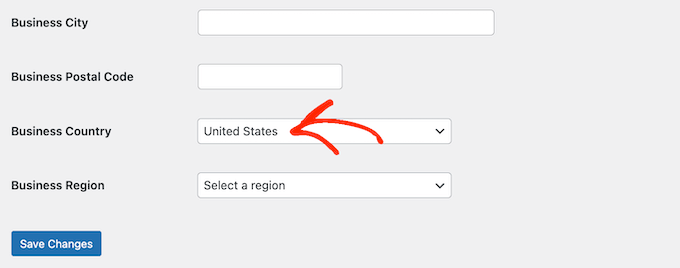
Complete the configuration by clicking the save changes button.
Step 3: Implementing Payment Methods
Configure payment gateways to accept transactions from customers purchasing your fonts. Easy Digital Downloads typically includes Stripe, PayPal, and direct credit card processing options by default.
Access the Payments tab within the settings section, where you'll find the General sub-tab displayed initially.
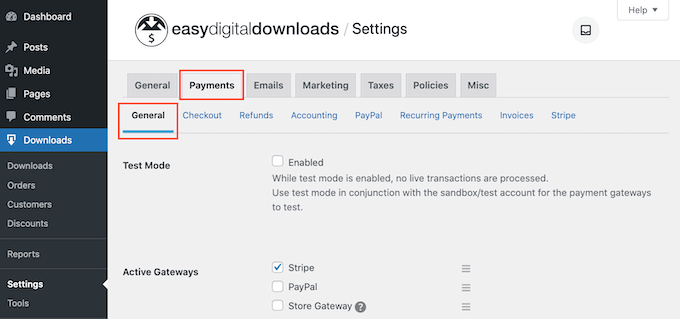
Select the checkboxes corresponding to each payment gateway you wish to offer customers. When enabling multiple payment options, designate a default gateway through the dropdown menu to determine which method appears initially during checkout.
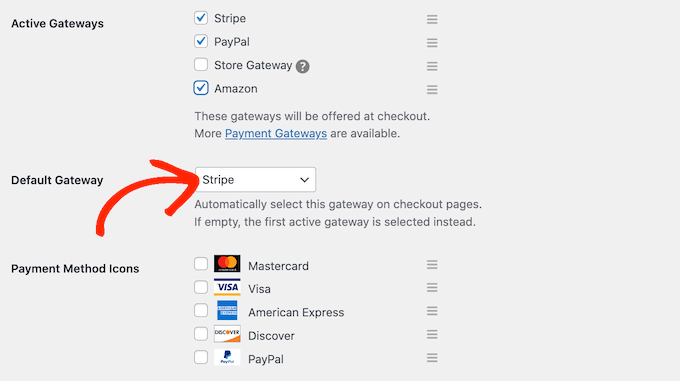
Stripe represents a versatile choice, supporting credit card payments, Apple Pay, and Google Pay transactions. Each selected payment option requires individual configuration, with setup procedures varying between services.
For demonstration purposes, we'll configure Stripe. Navigate to the Stripe tab within Payment settings and select the connection option.
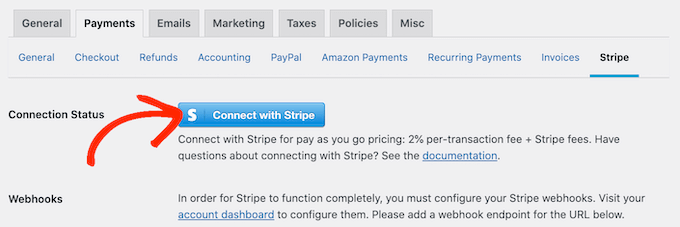
Follow the setup wizard instructions to link your Stripe account with Easy Digital Downloads. Repeat this configuration process for any additional payment gateways you've enabled.
Finally, return to the General tab and select Currency settings to establish your store's default transaction currency.


