
A Step-by-Step Guide to Setting Up a Maintenance Page in WordPress
Maintaining a professional online presence often requires periodic updates and improvements to your website. During these maintenance periods, it's essential to manage visitor expectations effectively.
A well-designed maintenance page serves multiple purposes beyond simply informing visitors about temporary unavailability. It helps maintain user trust, prevents confusion from broken links or incomplete processes, and safeguards your search engine rankings during downtime.
This comprehensive tutorial will walk you through the process of creating and implementing a custom maintenance page for your WordPress site, ensuring you can work behind the scenes while presenting a polished front to your audience.
The Benefits of Implementing a Maintenance Page
While it might seem convenient to allow visitors to see your site during updates, implementing a dedicated maintenance page offers several significant advantages.
A professionally designed maintenance page demonstrates your commitment to user experience, even during periods of unavailability. This approach presents a more polished alternative to encountering broken pages or confusing error messages.
Transparent communication about maintenance activities helps build visitor trust by showing that you're actively working to improve their experience. It also manages expectations effectively, reducing frustration and potential negative feedback.
From a technical perspective, using a maintenance page helps protect your search engine optimization efforts. Search engines may penalize sites that frequently display errors or experience downtime. A properly configured maintenance page signals temporary technical work rather than permanent issues.
Additionally, maintenance pages can serve as engagement tools, allowing you to collect contact information, promote social media channels, or offer previews of upcoming features.
This guide will cover the following key areas:
- Creating a Maintenance Page in WordPress
- Configuring Visitor Redirection to the Maintenance Page
- Additional Considerations for Maintenance Pages
Let's begin the implementation process.
Creating a Maintenance Page in WordPress
The initial step involves creating the maintenance page itself. Many experienced developers recommend using specialized page builder tools designed for this purpose, offering intuitive drag-and-drop interfaces and pre-designed templates.
These tools provide extensive customization options while maintaining user-friendly workflows. Some website owners even utilize these builders for their primary site development due to their flexibility and ease of use.
For this demonstration, we'll use a popular free version of such a tool. Premium versions typically offer additional features and customization capabilities, including options to display maintenance pages across your entire site or on specific sections only.
Begin by installing and activating your chosen maintenance page plugin. If you need assistance with plugin installation, numerous online resources provide detailed WordPress plugin installation guides.
After activation, you'll typically encounter a setup wizard. Follow the on-screen instructions to configure the basic plugin settings.

Navigate to the plugin's landing pages section within your WordPress administration area.
Locate and select the option to create a new maintenance mode page.
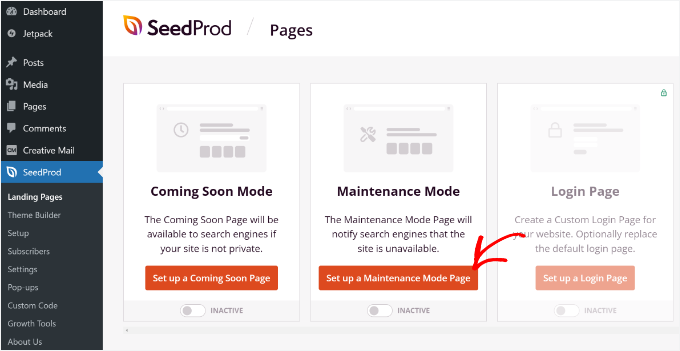
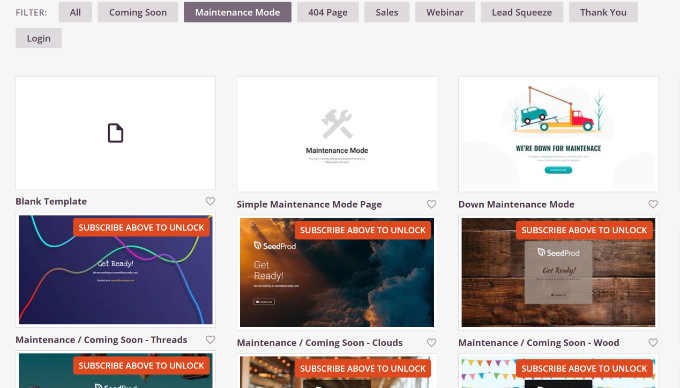
The plugin will present various template options. Free versions typically offer limited selections, though some providers offer additional templates through newsletter subscriptions.
Choose your preferred template by selecting the appropriate option.
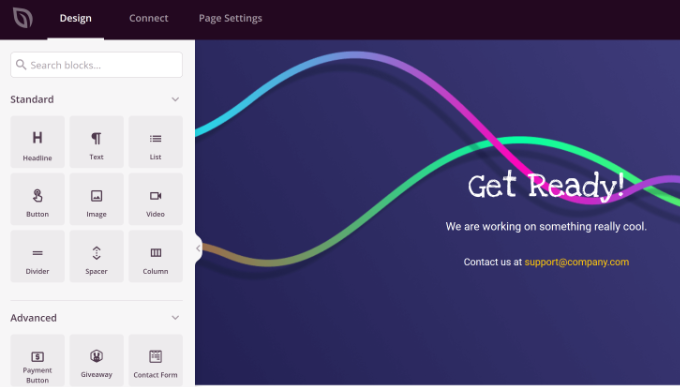
You'll now access a visual page builder interface where you can customize your maintenance page design. This environment allows you to add, remove, or rearrange content blocks according to your requirements.
Standard content blocks include text elements and images, while advanced options might include contact forms for visitor inquiries about maintenance schedules.
Consider adding functional elements like countdown timers to indicate when normal service will resume.
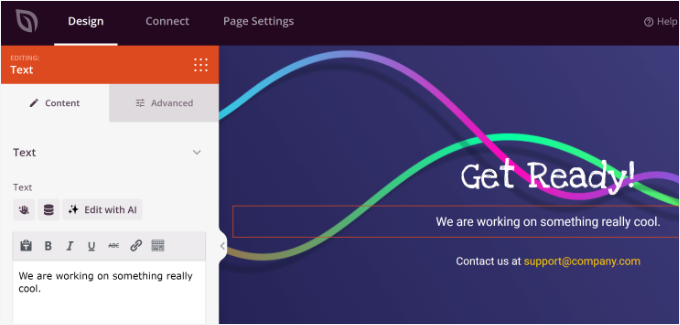
Select individual blocks to modify their specific properties. You can adjust text content, typography, color schemes, and styling to match your brand identity.
Remove any elements that don't align with your design preferences or functional requirements.
After completing your design adjustments, navigate to the page settings section.
Within the general settings, you can specify a page title if desired. Most importantly, change the page status from draft to published to make it active.
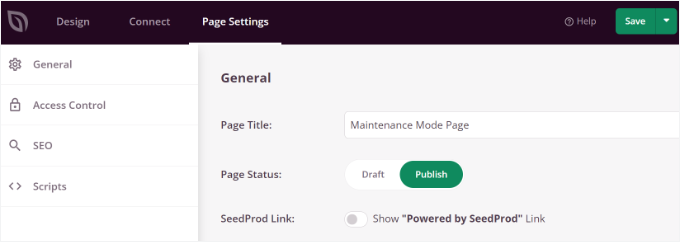
Save your changes and exit the page builder interface.
Redirecting Visitors to the Maintenance Page in WordPress
Upon exiting the page builder, you'll typically encounter a prompt asking whether to activate maintenance mode. Confirm this action to enable the redirection functionality.
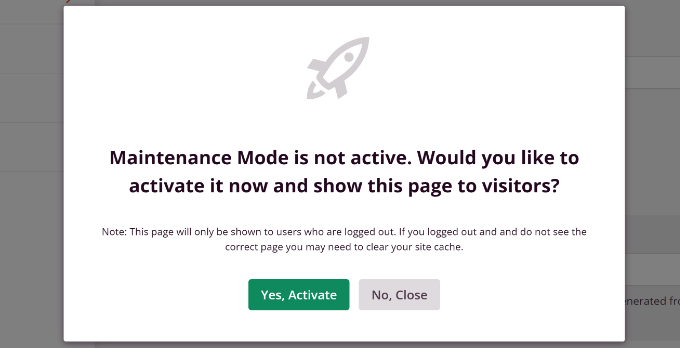
Alternatively, you can manually configure the maintenance redirect by returning to the plugin's landing pages section within your WordPress dashboard.
Locate the maintenance mode settings and toggle the status to active.

Visit your website to verify that the maintenance page displays correctly. All visitors will now see this customized maintenance page instead of your standard website content during the maintenance period.


