
A Step-by-Step Guide to Setting Up Maintenance Mode Redirects in WordPress
Many experienced developers regularly update their WordPress sites with new designs and features. During these significant updates, implementing a maintenance page ensures visitors receive clear communication about temporary unavailability.
An effective maintenance page serves multiple purposes beyond simple notification. It manages visitor expectations, prevents issues with incomplete transactions or broken links, and safeguards search engine rankings during site downtime.
This tutorial provides a clear, methodical approach to redirecting visitors to a custom maintenance page in WordPress. This allows you to maintain a professional appearance while performing backend work.
Key Benefits of Implementing a WordPress Maintenance Page
You might question why simply allowing users to see ongoing work isn't sufficient. While tempting, utilizing a dedicated maintenance page provides several distinct advantages.
A professionally designed maintenance page demonstrates commitment to user experience, even during periods of unavailability. This approach is significantly more polished than presenting a broken site or confusing error messages.
Transparent communication about maintenance activities reassures visitors that active work is occurring behind the scenes, which can foster trust and properly set expectations.
Redirecting users to a maintenance page also supports search engine optimization efforts. Search engines may penalize sites that frequently display errors or experience downtime. A maintenance page clearly indicates a temporary situation, helping protect your search rankings.
Additionally, a maintenance page can function as a tool for collecting email addresses, promoting social media channels, or offering previews of upcoming changes, keeping visitors engaged while your site is temporarily offline.
With these benefits in mind, let's explore the process of creating and implementing a maintenance page redirect. Here's an overview of what we'll cover:
- Creating a Maintenance Page in WordPress
- Redirecting Visitors to the Maintenance Page in WordPress
- Additional Resources for Maintenance Pages
Let's begin the process.
Creating a Maintenance Page in WordPress
The initial step involves creating the maintenance page itself. Many developers recommend using a dedicated page builder plugin designed for this purpose. These tools typically offer drag-and-drop interfaces with pre-designed templates and extensive customization capabilities.
Such plugins enable you to construct an attractive maintenance page and configure redirects efficiently. Their flexibility makes them suitable for various website projects.
For this demonstration, we'll use the free version of a popular maintenance page plugin. Premium versions typically offer additional features and customization options, including the ability to display the page site-wide or on specific pages only.
First, install and activate your chosen plugin. If you need assistance with plugin installation, numerous general WordPress tutorials cover this process.
After activation, you'll typically encounter a setup wizard. Click the appropriate button to begin configuration and follow the on-screen instructions.

Next, navigate to the plugin's settings page from your WordPress admin area.
Locate and click the button to set up a new maintenance mode page.
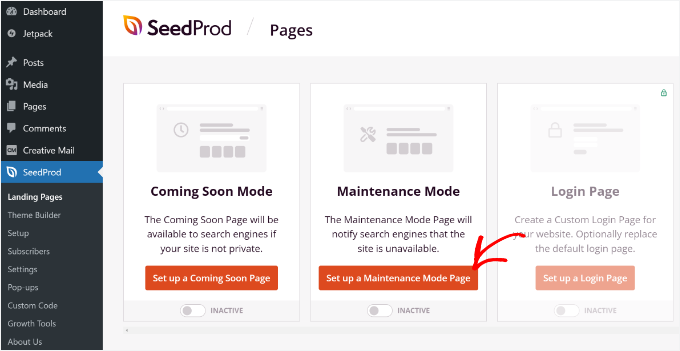
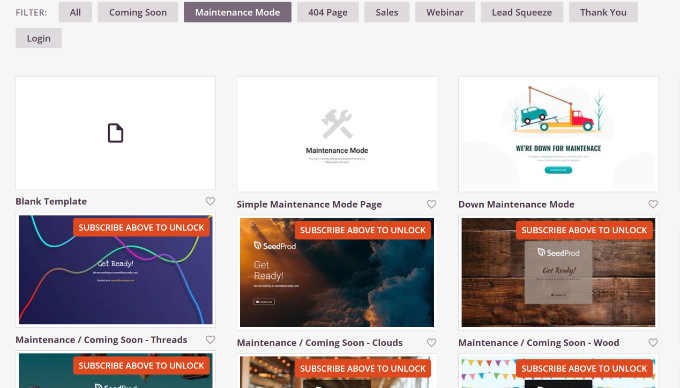
The plugin will then display multiple page template options.
Free versions usually provide limited template selections, though some plugins offer additional templates through newsletter subscriptions.
To select a template, hover over your preferred design and click the selection button.
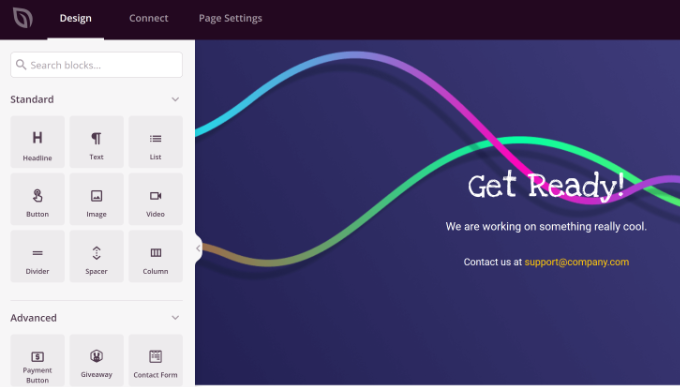
After template selection, you'll access a drag-and-drop page builder interface. Here you can modify your maintenance page design by adding new elements or rearranging existing components.
Most plugins include standard blocks for headlines, text, and images.
Advanced blocks might include contact forms, allowing users to reach you with questions about scheduled maintenance.
Consider adding a countdown timer to inform visitors when your website will return online.
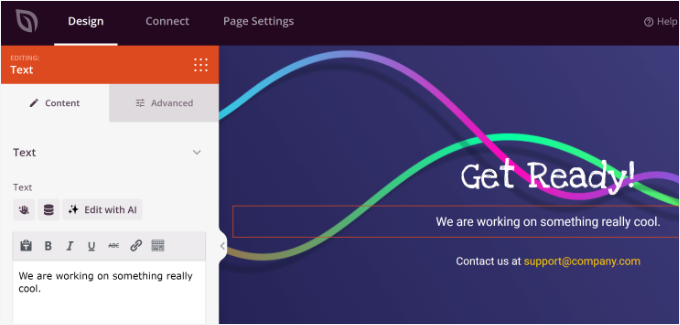
Clicking or selecting any existing block within the template allows for further customization.
You can modify text content, font styles, colors, and other design elements.
Remove any blocks that don't align with your requirements or brand identity.
After completing design edits, navigate to the 'Page Settings' section.
Within general settings, you can enter a page title if desired.
Next, change the 'Page Status' from 'Draft' to 'Publish.'
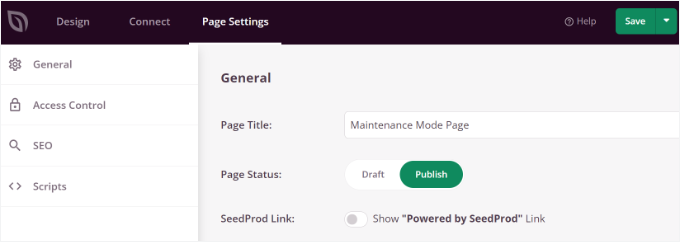
Once finished, click the 'Save' button and exit the page builder interface.
Redirecting Visitors to the Maintenance Page in WordPress
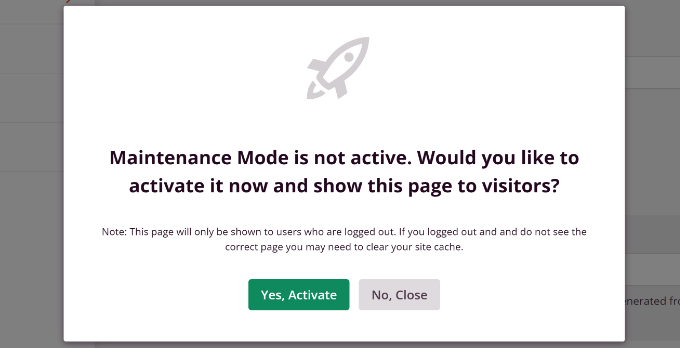
Upon closing the page builder, a confirmation popup typically appears, asking to activate maintenance mode.
Click the appropriate button to confirm activation.
You can also configure the maintenance redirect by returning to the plugin's settings page from your WordPress dashboard.
Locate the Maintenance Mode section and toggle the setting to 'Active' to enable the page.

Finally, visit your website to preview the newly created maintenance page.
Visitors will now see this maintenance page instead of your regular website content.


