Complete Guide to Backing Up WordPress to Microsoft OneDrive
Many WordPress administrators seek reliable methods to secure their website data using cloud storage solutions. For those already integrated into the Microsoft ecosystem, OneDrive presents a compelling option for storing WordPress backups. This guide explores practical approaches to connect your WordPress site with OneDrive, covering both complimentary and premium pathways.
Advantages of Using OneDrive for WordPress Backups
Storing WordPress backups on Microsoft OneDrive offers several strategic benefits, particularly for users who regularly work with Microsoft applications. It centralizes your website archives alongside other digital assets, simplifying overall file management. This integration eliminates the need to switch between multiple storage platforms when handling backup files.
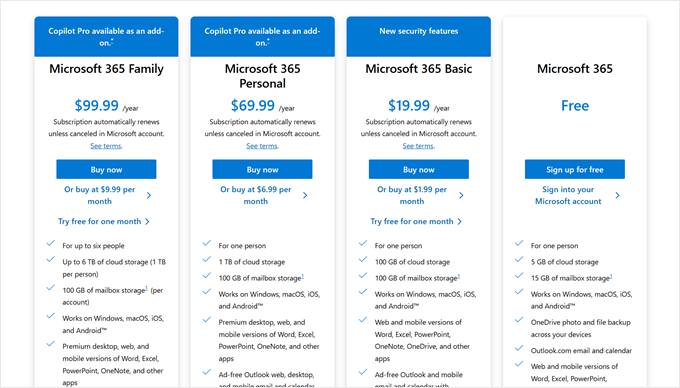
From a financial perspective, OneDrive often provides a cost advantage. Its entry-level annual plan is frequently more economical than monthly alternatives offered by competing services, resulting in potential long-term savings for backup storage.
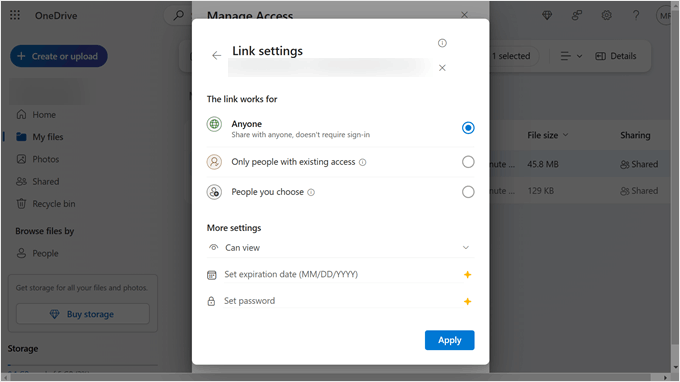
OneDrive also delivers robust security and permission controls. Beyond basic file sharing, administrators can implement access expiration dates and password protection for shared links. These features help ensure that WordPress backup files remain secure and accessible only to authorized individuals.
Several WordPress plugins facilitate OneDrive integration for backups. The following sections detail two effective methods, allowing you to select the approach that aligns with your technical requirements and budget.
- Method 1: Configure Duplicator for OneDrive Backups (Enhanced Customization)
- Method 2: Utilize WPvivid for OneDrive Backups (No Cost)
Method 1: Configure Duplicator for OneDrive Backups (Enhanced Customization)
This first method is often recommended by experienced developers for its comprehensive feature set. It employs the Duplicator plugin, known for its advanced backup management capabilities including scheduled automation, site migration tools, and integration with various cloud storage providers.
A professional version of Duplicator is required to establish the OneDrive connection. The free version can be used to familiarize yourself with the plugin's interface before upgrading.
Step 1: Install and Activate the Plugin
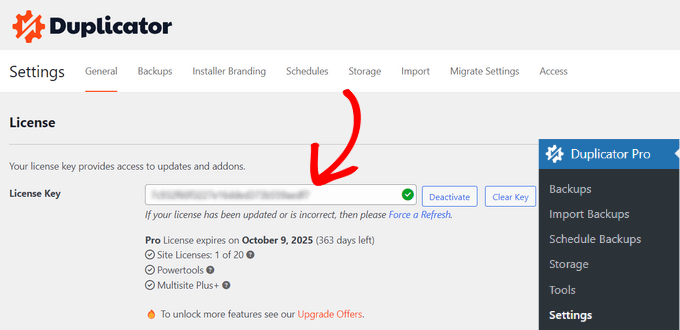
Begin by installing the Duplicator plugin on your WordPress site. Navigate to the plugin settings within your WordPress dashboard to activate your license key if using the professional edition.
Step 2: Establish OneDrive as Remote Storage
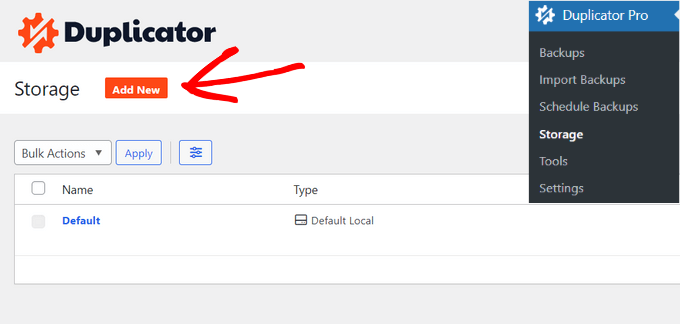
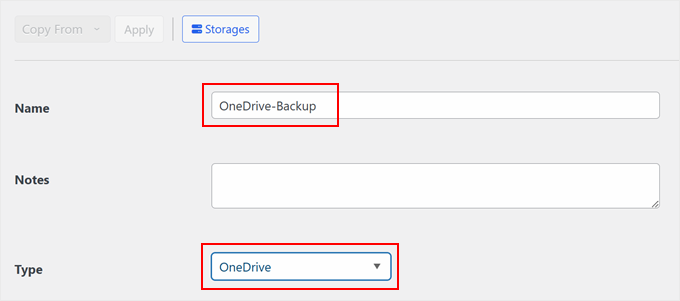
Access the storage settings within the Duplicator menu and select the option to add a new storage location. Provide a descriptive name for your backup configuration, such as "OneDrive Archives." From the storage type dropdown, choose OneDrive.
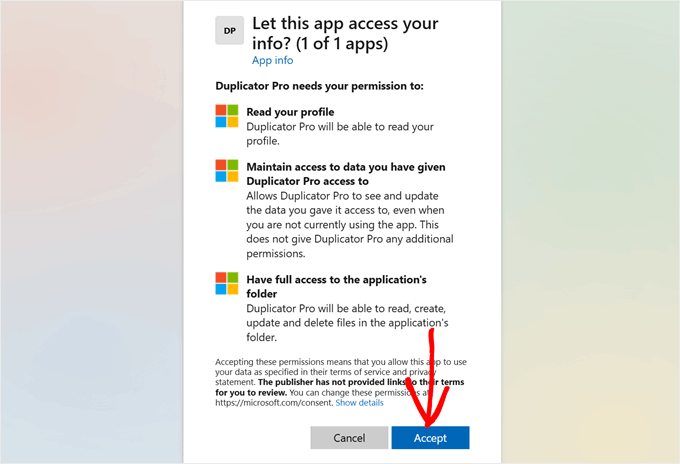
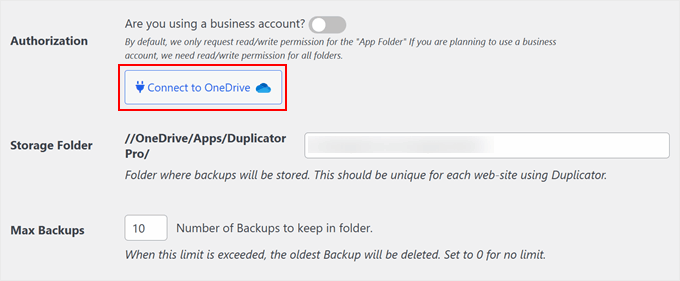
Scroll to the authorization section and initiate the connection process by clicking the appropriate button. A new browser window will open, prompting you to log into your Microsoft account and grant permission for the plugin to access OneDrive.
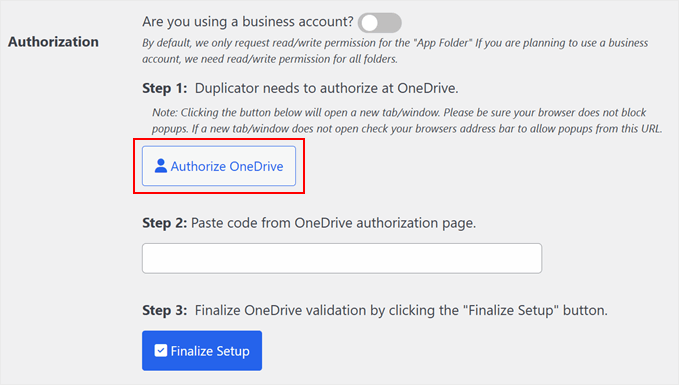
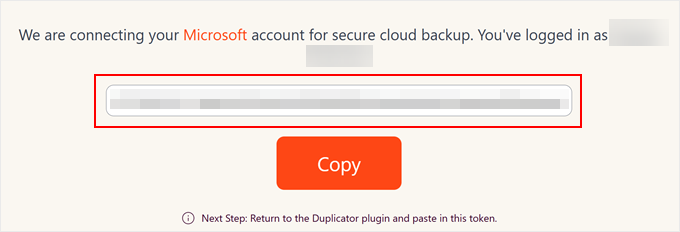
After granting access, the authorization page will display a verification code. Copy this code and return to the Duplicator settings in your WordPress dashboard. Paste the code into the designated field and complete the setup process.