Complete Guide to WordPress Multisite Backups: Plugin and Manual Methods
WordPress multisite networks enable administrators to manage multiple websites through a single installation, making them ideal for educational institutions, business networks, or multi-blog platforms. While this centralized approach offers significant management advantages, it also introduces unique backup challenges that require careful consideration.
Unlike standard WordPress installations, multisite networks demand comprehensive protection strategies that encompass the entire ecosystem. Each individual site within the network contains distinct content, user accounts, theme configurations, and plugin settings, all interconnected through shared infrastructure.
This interconnected nature means that backup errors or data loss incidents can potentially impact every website in the network simultaneously, making proper backup procedures essential for network stability and security.
Many WordPress professionals recommend specialized backup solutions designed specifically for multisite environments. These tools streamline the backup process while ensuring complete network protection. However, different network configurations and administrative preferences may require alternative approaches.
This comprehensive guide explores multiple backup methodologies for WordPress multisite networks, providing administrators with the knowledge to select the most appropriate strategy for their specific requirements.
Essential Reasons for WordPress Multisite Backups
Implementing regular backup procedures for WordPress multisite networks serves as a critical safeguard against various potential issues that could disrupt network operations. These backups protect both the primary site and all associated sub-sites from multiple threats.
Key considerations for maintaining multisite backups include:
- Comprehensive Data Protection: Network-wide backups enable complete restoration following server failures, accidental deletions, or configuration errors that might otherwise cause extended downtime.
- Security Incident Recovery: In the event of security breaches, malware infections, or unauthorized access, having recent backups allows administrators to restore clean versions of affected sites quickly.
- Update Safety Measures: Creating restoration points before implementing core updates, theme modifications, or plugin installations provides a safety net if compatibility issues arise.
The following sections detail two primary approaches to backing up WordPress multisite networks. Both methodologies function effectively regardless of whether your network utilizes subdirectory structures or separate domain configurations.
Navigation guide for this tutorial:
- Method 1: Utilizing Multisite-Compatible Backup Plugins (Simplified Approach)
- Method 2: Manual Backup Procedures Using File Management Tools and Database Administration
- Common Questions Regarding Multisite Backup Implementation
Method 1: Utilizing Multisite-Compatible Backup Plugins (Simplified Approach)
Implementing WordPress backup plugins with dedicated multisite support represents the most straightforward solution, particularly for administrators seeking automated, comprehensive protection. Specialized plugins handle the technical complexities of multisite backups, allowing administrators to focus on network management rather than backup procedures.
Several backup solutions offer multisite compatibility, with many experienced developers recommending premium options that provide complete network protection. These solutions typically include disaster recovery features that prove invaluable when administrators encounter access issues or need to restore entire networks quickly.
Premium backup plugins generally require annual licensing fees, but these investments often prove worthwhile for organizations managing multiple interconnected sites. The centralized management and comprehensive protection these tools provide can significantly reduce administrative overhead while ensuring network integrity.
Step 1: Plugin Installation and Network Activation
After obtaining a multisite-compatible backup solution, log into your WordPress network with super administrator privileges. Navigate to the network administration dashboard to install the plugin at the network level.
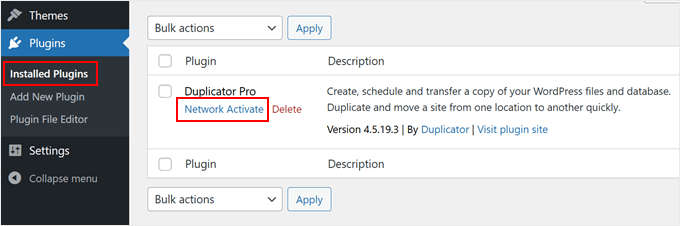
Once installation completes, access the Plugins » Installed Plugins section within your network admin interface. Locate your backup plugin and select the 'Network Activate' option to enable it across all sites in your network.
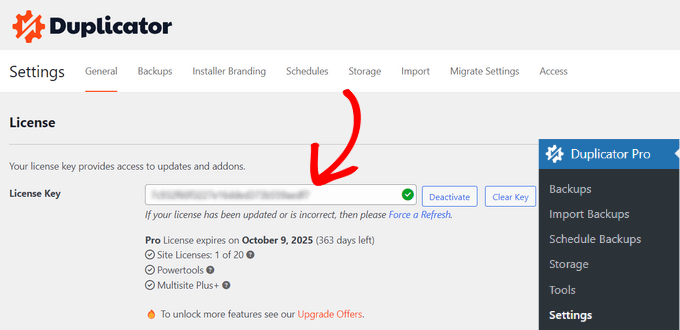
Proceed to your backup plugin's settings section, typically accessible through its dedicated menu. Navigate to the licensing or activation area where you can input the license key provided with your purchase. Enter this key in the designated field and activate it to unlock all premium features.
Step 2: Configuring and Creating Network Backups
With your backup plugin properly activated, you can now create comprehensive archives containing your entire network's data. These archive files serve dual purposes: as restoration points for disaster recovery and as migration packages for transferring networks between hosting environments.
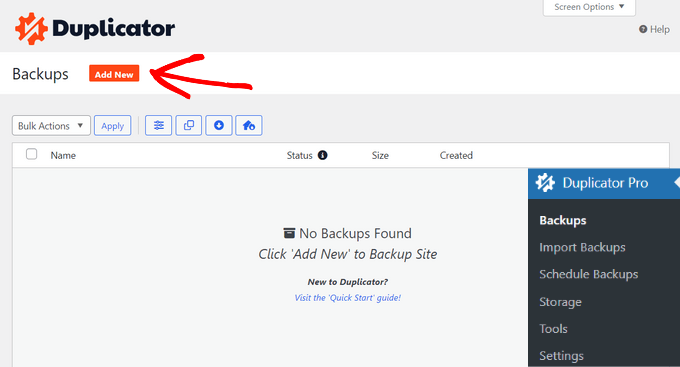
Begin by accessing your backup plugin's main interface and selecting the option to create a new backup package.
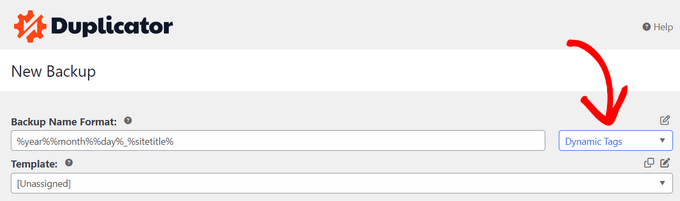
Assign a descriptive name to your backup package. Many backup solutions support dynamic naming conventions that automatically incorporate timestamps or date information, facilitating organized backup management when implementing regular backup schedules.
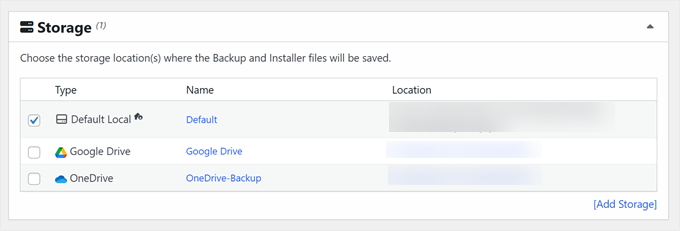
Next, configure your backup storage destination. While most backup plugins default to local server storage, many offer integration with cloud storage services for enhanced redundancy and accessibility.
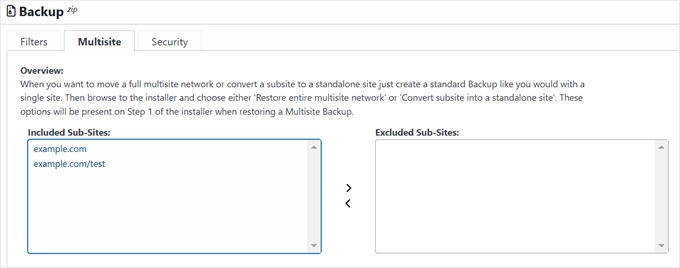
The backup configuration section typically includes multiple tabs for customizing backup scope and parameters. These commonly include filtering options, multisite-specific settings, and security configurations.
Within filtering options, administrators can select between complete network backups, database-only archives, or media library backups. Advanced filtering capabilities often allow exclusion of specific files, directories, or file types to optimize backup size and focus.

Multisite-specific configuration areas provide granular control over which sub-sites to include in backup operations. This selective backup capability proves particularly useful for networks containing development sites, archived content, or temporarily inactive sites.
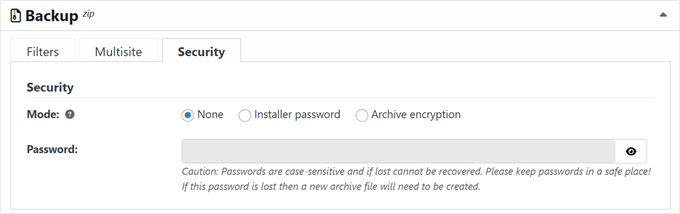
Security configuration tabs typically offer options for encrypting backup files or adding password protection. These features provide additional safeguards for sensitive network data contained within backup archives.
After configuring all backup parameters, proceed through the remaining setup screens, typically accepting default installation settings unless specific customization requirements exist. Complete the configuration process to initiate your first multisite backup operation.



