Comprehensive Guide to WordPress Multisite Backups: Plugin and Manual Approaches
WordPress multisite enables administrators to operate multiple websites from a single installation, making it an efficient solution for managing networks such as educational platforms, blog networks, or client portfolios. However, this centralized approach introduces additional complexity when it comes to safeguarding your data through regular backups.
Backing up a multisite network differs significantly from backing up individual WordPress sites. You are protecting an entire ecosystem where each site maintains its own content, user accounts, theme configurations, and plugin settings. The interconnected nature of multisite networks means that a single oversight during backup procedures could potentially impact every site within the network.
Many WordPress professionals recommend using specialized backup solutions designed for multisite environments, as these tools streamline the process and ensure comprehensive protection. This guide explores multiple approaches to securing your WordPress multisite network, allowing you to select the method that best aligns with your technical expertise and operational requirements.
The Importance of Regular WordPress Multisite Backups
Implementing a consistent backup strategy for your WordPress multisite network is crucial for protecting your entire digital infrastructure, including the primary site and all associated sub-sites, from potential data loss and security vulnerabilities.
Key reasons for maintaining regular multisite backups include:
- Data Recovery Capability: Should server failures or human errors disrupt your network operations, having recent backups enables rapid restoration of functionality.
- Security Incident Response: In the event of security breaches or malware infections, you can quickly revert to a clean, uncompromised version of your network.
- Update Safety Net: Creating restoration points before implementing updates to themes, plugins, or the WordPress core provides a safety mechanism if updates cause unexpected issues.
With these considerations in mind, we will examine two primary methods for backing up your WordPress multisite network. Both approaches work effectively regardless of whether your multisite uses subdirectories or separate domains.
Use the following navigation to move through this instructional guide:
- Method 1: Implementing a Multisite Backup Plugin (Simplified Approach)
- Method 2: Manual Backup Procedures Using File Manager/FTP and phpMyAdmin
- Common Questions About WordPress Multisite Backup Implementation
Method 1: Implementing a Multisite Backup Plugin (Simplified Approach)
Utilizing a WordPress backup plugin specifically designed for multisite compatibility represents the most straightforward approach to creating comprehensive backups, particularly for users with limited technical experience. A well-designed plugin manages all technical aspects of the backup process, eliminating concerns about properly securing your multisite network.
Experienced developers have evaluated numerous backup solutions with multisite capabilities, and many consider specialized premium plugins to be particularly effective. These solutions typically provide complete website backup functionality along with disaster recovery options, which prove invaluable for restoring multisite networks when administrative access becomes unavailable.
It's important to note that comprehensive multisite backup functionality generally requires premium plugin versions. While free alternatives exist, they often lack the specialized features necessary for complete multisite network protection. The investment in a premium solution becomes particularly justifiable when managing multiple interconnected sites.
Step 1: Plugin Installation and Network Activation
After obtaining a suitable multisite backup plugin, begin by logging into your WordPress multisite network with super administrator privileges. Proceed to install the plugin through the network administration dashboard.
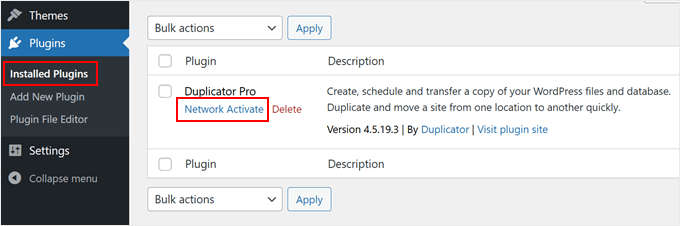
Once installation completes, navigate to the Plugins » Installed Plugins section within your WordPress network admin interface. Locate your backup plugin and select the 'Network Activate' option beneath it.
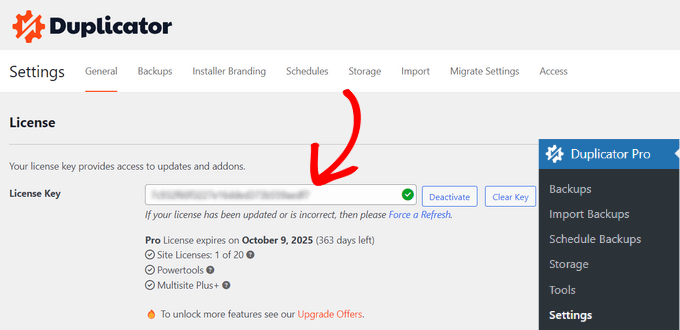
Next, access your plugin's settings section and navigate to the 'General' configuration tab. Here you will need to input the license key provided with your plugin purchase. Insert the key into the designated field and activate it to enable all premium features.
Step 2: Creating Your Multisite Backup Package
Now proceed to consolidate your entire network's data into a compressed archive file. This file serves both as a comprehensive backup and as a migration package for transferring your network to alternative hosting environments.
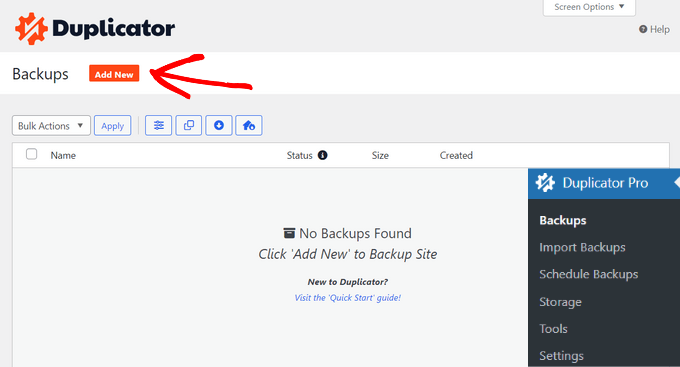
Begin by accessing your plugin's backup management section and selecting the option to create a new backup package.
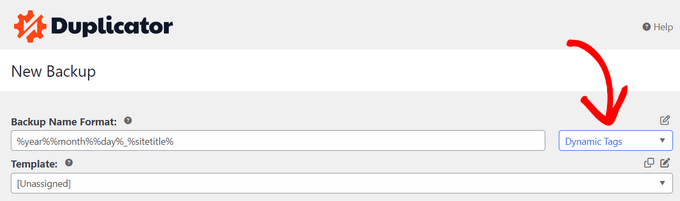
At the top of the interface, assign a descriptive name to your backup. Many plugins support dynamic tags that automatically incorporate timestamps or dates, facilitating easier identification when managing multiple backup versions over time.
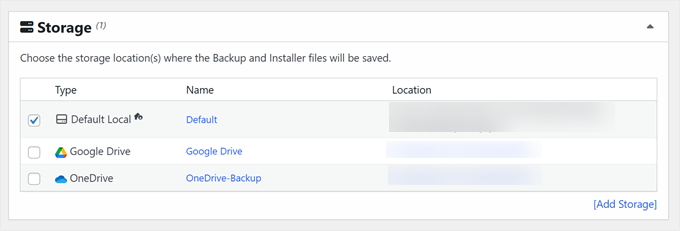
Next, configure your backup storage destination. While plugins typically default to local server storage, most premium solutions offer integration with cloud storage services for enhanced redundancy and accessibility.
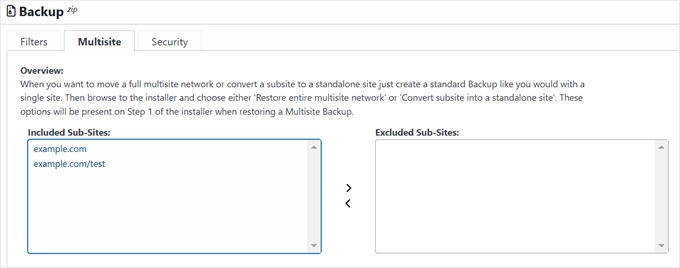
The backup configuration section typically includes multiple tabs for customizing your backup scope. These generally include filtering options, multisite-specific settings, and security parameters.
Within the filtering section, you can select between complete network backups or partial backups focusing specifically on media files or database content. Advanced filtering capabilities allow exclusion of specific files, directories, or file extensions according to your requirements.

The multisite configuration area enables selective inclusion of specific sub-sites within your backup. This granular control proves particularly useful when you need to back up only certain segments of your network.
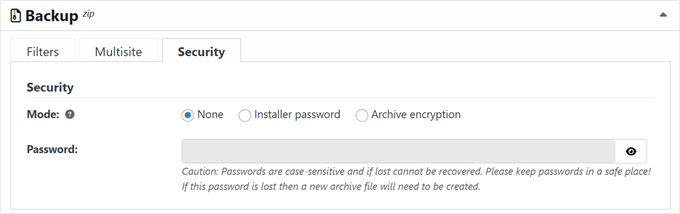
For enhanced security measures, navigate to the security configuration tab. Here you can implement password protection or encryption for your backup files, adding an additional layer of security to your archived data.
Continue through the remaining configuration sections, typically leaving installer settings at their default values unless specific customization is required. Proceed to initiate the backup creation process.


