
Implementing Live Autocomplete Search Functionality in WordPress
When users struggle to locate information on a website, they frequently abandon their search and navigate elsewhere, often permanently.
The standard WordPress search feature presents several limitations. It operates slowly, feels cumbersome, and appears outdated: visitors must enter a query, press Enter, wait for a complete page refresh, and often receive irrelevant outcomes.
Consider an alternative approach where search suggestions materialize immediately as visitors begin typing. This represents the core functionality of live autocomplete search, sometimes referred to as Ajax search. It delivers a contemporary, seamless experience that encourages users to remain engaged with your website.
This guide will demonstrate how to integrate live autocomplete search into WordPress, enabling rapid result delivery, enhanced user interaction, and extended visitor retention.
Benefits of Integrating Live Autocomplete Search in WordPress
Live autocomplete search accelerates content discovery by presenting results dynamically without requiring page reloads. As users input text into the search field, relevant suggestions populate a dropdown menu, allowing immediate navigation to desired content.
This responsive, intuitive interaction encourages prolonged website engagement. Users avoid guessing appropriate keywords or enduring slow loading times, reducing the likelihood of encountering unproductive search outcomes.
Unfortunately, the default WordPress search mechanism has inherent constraints. It may not comprehensively index elements like product specifications or custom post types, and it often struggles with precise matching.
Occasionally, it displays "no results found" pages even when relevant content exists within the website.

This is where live search functionality proves particularly valuable. It's especially beneficial for blogs, news platforms, and e-commerce stores where visitors seek specific information quickly.
Implementing live search represents a straightforward method to facilitate content discovery and improve overall user satisfaction.
Methods for Adding Live Autocomplete Search in WordPress
The most accessible approach to incorporate live autocomplete search involves utilizing a dedicated plugin. This tutorial will employ the free SearchWP Live Ajax Search plugin, widely regarded as one of the most effective WordPress search solutions.
This plugin functions immediately by automatically enhancing any pre-existing search forms throughout your website, including those in theme headers or sidebars. This enables instant live search implementation without coding modifications or configuration adjustments.
The following sections provide comprehensive guidance for establishing live autocomplete search functionality.
Here is a summary of the covered procedures:
- Step 1: Install and Activate SearchWP Live Ajax Search
- Step 2: Configure Basic Search Settings
- Step 3: Add the Live Search Bar to Your Site (Optional)
- Add Live Autocomplete Search to Widget-Ready Areas
- Add Live Autocomplete Search Using Full Site Editor (FSE)
- Step 4: Test and Troubleshoot Your Live Search
- Bonus Tip: Upgrade for Even Smarter Search (Fuzzy Matching)
- FAQs for Adding Live Autocomplete Search in WordPress
- More Guides to Improve WordPress Search
Let's begin the implementation process.
Step 1: Install and Activate SearchWP Live Ajax Search
First, install and activate the SearchWP Live Ajax Search plugin.
Locate this plugin directly within your WordPress administration panel by navigating to Plugins » Add New and searching for "SearchWP Live Ajax Search."
After identifying the plugin in search results, select the 'Install Now' option. Following installation completion, choose 'Activate' to enable the plugin on your website.
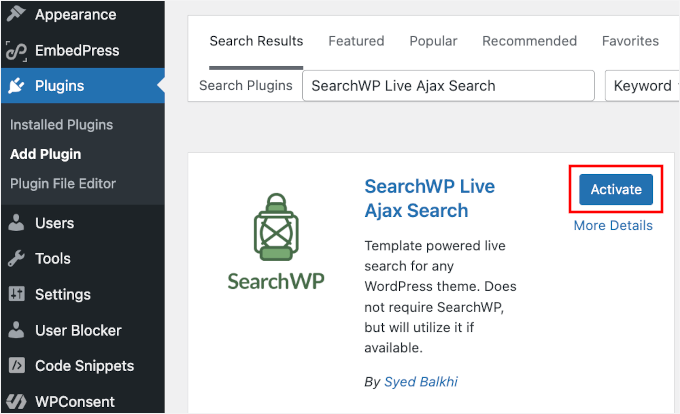
For comprehensive installation guidance, consult detailed documentation regarding WordPress plugin installation procedures.
The plugin operates completely free of charge and originates from the same development team responsible for the premium SearchWP solution. It functions independently, requiring no additional purchases to initiate live search capabilities.
Upon activation, a new 'SearchWP' menu item will appear within your WordPress administration interface. You will utilize this menu for configuration in subsequent steps.
Step 2: Configure Basic Search Settings
With the plugin installed, proceed to enable live search functionality.
Navigate to SearchWP » Settings within your WordPress administration dashboard.
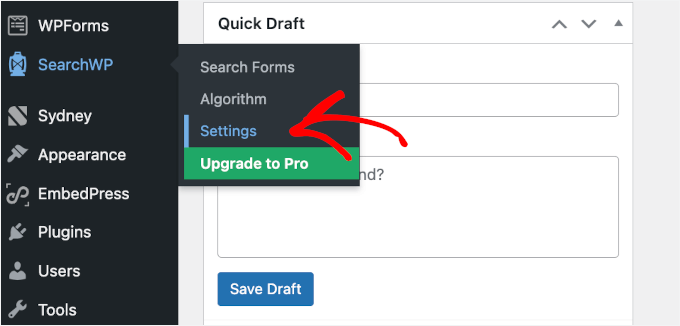
The settings page presents various options for search configuration.
Ensure you have selected the 'Live Search' tab and locate the 'Enable Live Search' toggle near the page's upper section.
Click the toggle to activate it, then select the 'Save' button to preserve your configuration.
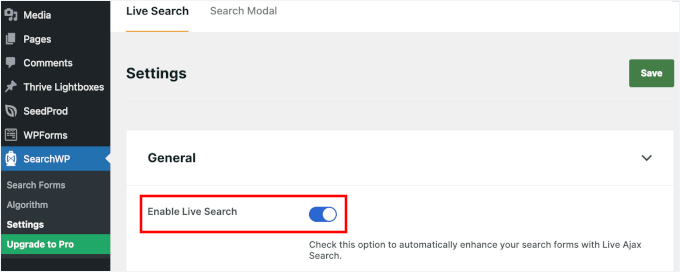
Once enabled, live Ajax search will automatically integrate with existing search forms throughout your WordPress installation.
The plugin employs intelligent default settings that perform effectively across various website types without modification. By default, it searches post titles and content to generate relevant suggestions.
Step 3: Add the Live Search Bar to Your Site (Optional)
The SearchWP Live Ajax Search plugin automatically implements live search functionality on all pre-existing search forms within your WordPress theme.
However, you might wish to position a search interface in additional locations, such as sidebars, footers, or customized landing pages. This section explains that process.
Add Live Autocomplete Search to Widget-Ready Areas
To incorporate a search box into widget-compatible regions like sidebars or footers, access Appearance » Widgets in your WordPress administration panel.
Select the '+' button within the desired widget area, then locate the Search widget.
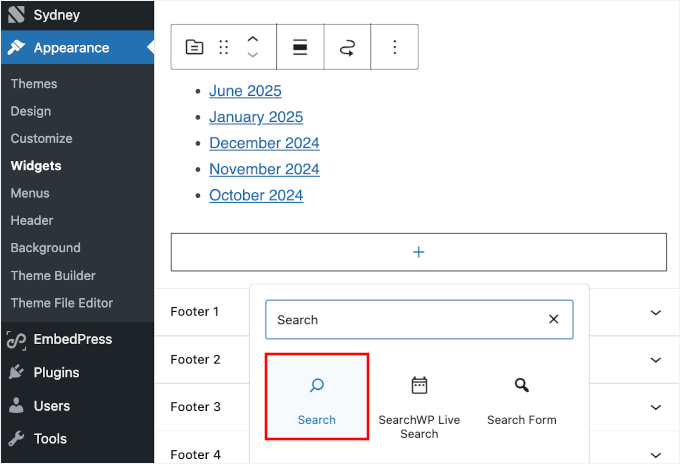
After adding the widget, customize the placeholder text according to your requirements.
For instance, news websites might implement widget titles such as "Search Latest Stories" or "Find News Articles." Alternatively, you may retain the default "Search" text.
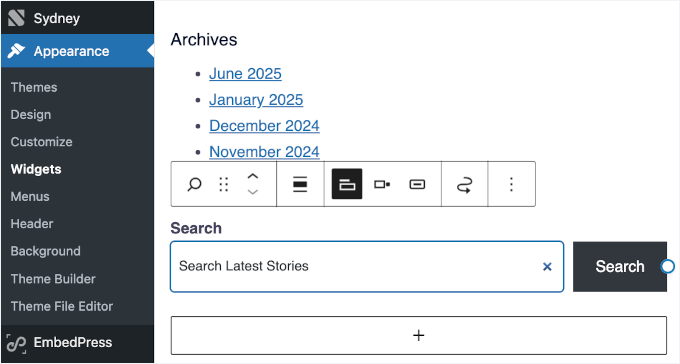
Remember to select the 'Update' button to save modifications. The live search interface will now appear within your designated widget area.
Here is a demonstration from a sample website:


