
Creating Interactive Image Hotspots in WordPress: A Practical Guide
By WordPress Experts |
Looking to transform static images into engaging, interactive elements on your WordPress site? Image hotspots allow you to add clickable areas that reveal additional content, turning ordinary pictures into dynamic experiences that capture visitor attention.
Many website owners have successfully implemented this technique to highlight product features, annotate team photos, and create interactive maps. Through extensive testing and research, we've identified two straightforward approaches for adding image hotspots to WordPress sites.
Ready to enhance your website's visual appeal and user engagement? Let's explore these methods.
When to Implement Image Hotspots on Your WordPress Site
Image hotspots create interactive zones within pictures that users can click to access supplementary information. But when should you consider incorporating this feature into your website?
One effective application involves showcasing product details. For instance, when presenting a new electronic device, you can place hotspots over specific components like the camera, display, or battery. This approach enables customers to learn about features without navigating through lengthy descriptions.
Numerous e-commerce platforms utilize image annotations to highlight product characteristics within staged photographs.
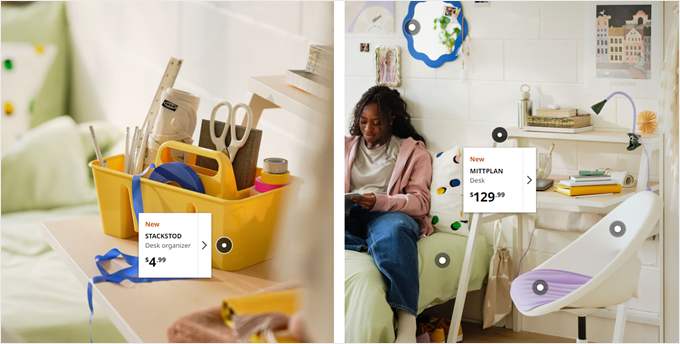
Hotspots also enhance infographics and data visualizations by concealing detailed information behind interactive elements. Rather than overcrowding a single image with excessive data, you can organize content into clickable sections that reveal additional facts and figures.
Educational websites benefit significantly from hotspot functionality. Interactive maps, for example, allow students to click on geographical regions to access information about countries, historical events, or cultural landmarks.
With these applications in mind, let's examine two practical methods for implementing image hotspots on WordPress websites. Use the following navigation to jump to specific sections:
- Method 1: Using a Page Builder with Hotspot Functionality
- Method 2: Implementing Hotspots with a Specialized Plugin
- Additional WordPress Design Considerations
Method 1: Using a Page Builder with Hotspot Functionality
This approach utilizes a drag-and-drop page builder that includes dedicated hotspot blocks. This method works particularly well for custom landing pages or theme development where you require integrated hotspot capabilities.
Many experienced developers prefer this solution because it integrates seamlessly with existing page-building workflows. The platform offers numerous templates across various industries, providing options suitable for different website types.
It's important to note that the hotspot feature typically requires a premium subscription. If you're seeking a completely free solution, you might consider the alternative method described below.
After obtaining the necessary subscription, install the page builder plugin through your WordPress admin panel. Navigate to the plugin settings section and enter your license key, which you can locate in your account dashboard.
Click the verification button to activate the plugin.
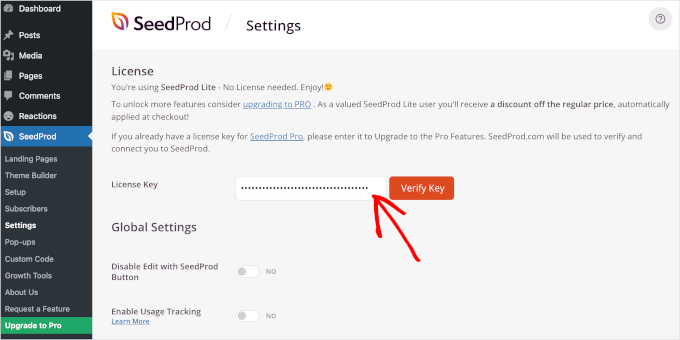
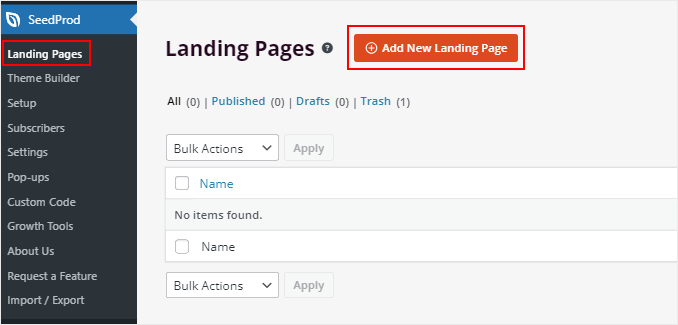
Next, access the landing page creation section within the plugin interface.
Select the option to create a new landing page.
The template library will display various design options, including waitlist pages, advertisement landing pages, and coming soon pages.
Browse through the available templates and preview each to identify the most suitable design for your project requirements.
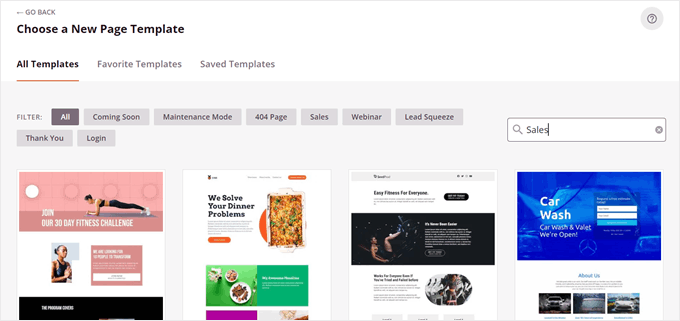
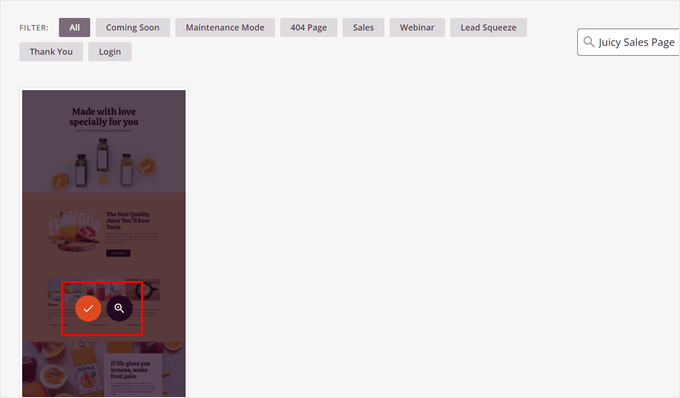
After selecting your preferred template, hover over the design thumbnail.
Click the confirmation button to proceed.
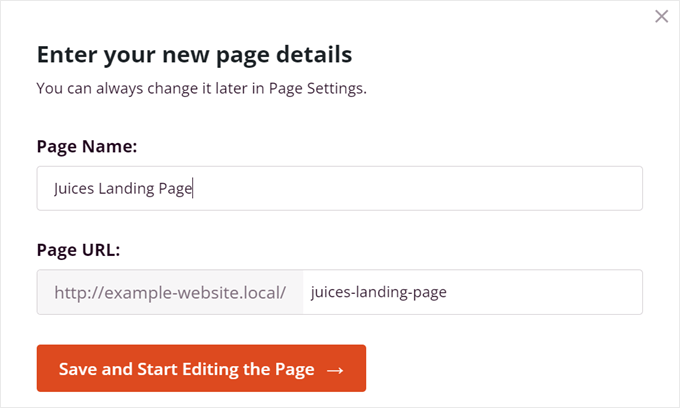
A configuration window will appear, prompting you to name the page and define its URL structure.
Complete these fields and select the option to begin editing.
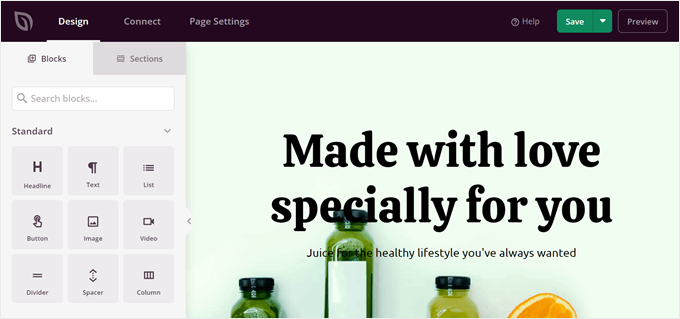
This action opens the visual editor interface.
The editor functions similarly to standard WordPress block editors, allowing you to position elements through drag-and-drop interactions and customize them according to your preferences.
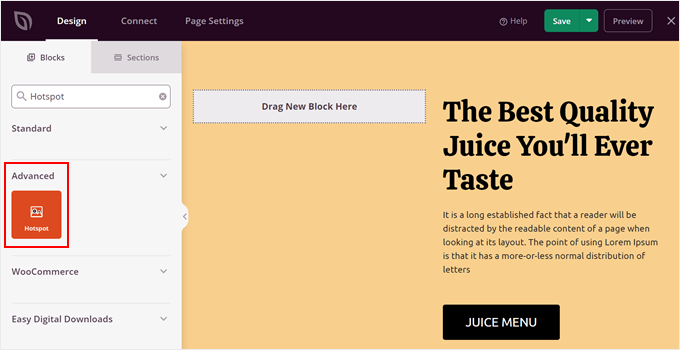
Locate the hotspot block within the editor's sidebar panel.
Drag this element onto your page canvas.
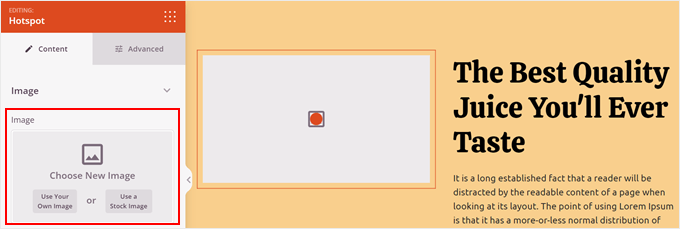
Next, upload the image you wish to enhance with interactive hotspots.
Select the hotspot block and choose between uploading your own image or selecting from stock photography options.
The first option accesses your media library, where you can select existing images or upload new files. For large image files, consider optimizing them before upload to maintain site performance.
After uploading your image, add descriptive alternative text to improve accessibility and search engine visibility.
You can also adjust image dimensions and alignment settings to match your design requirements.
Method 2: Implementing Hotspots with a Specialized Plugin
This alternative approach utilizes a dedicated WordPress plugin specifically designed for creating image hotspots. This solution provides basic functionality without requiring premium subscriptions, making it suitable for users seeking straightforward implementation.
The plugin offers fundamental hotspot creation tools that allow you to position interactive markers on images and associate them with descriptive content. While feature sets may vary between different plugins, most provide essential customization options for marker appearance and behavior.
To implement this method, search for image hotspot plugins within the WordPress repository. Install and activate your chosen plugin, then navigate to its configuration panel to begin creating your first interactive image.
Upload your target image through the plugin interface, then position hotspots by clicking on specific areas. Each hotspot can be configured with custom text, links, or additional media content that appears when users interact with the marker.
Many plugins include responsive design features, ensuring your interactive images display correctly across different devices and screen sizes. Some solutions also offer animation options and various marker styles to match your website's visual aesthetic.
Additional WordPress Design Considerations
Beyond basic hotspot implementation, consider how interactive images integrate with your overall website design strategy. Ensure hotspot markers maintain visual consistency with your brand colors and typography choices.
Performance optimization represents another important consideration. Large image files combined with interactive functionality can impact page loading times. Implement proper image compression techniques and consider lazy loading implementations to maintain optimal site performance.
Accessibility should remain a priority throughout the implementation process. Ensure hotspot markers include proper ARIA labels and that the interactive functionality remains usable with keyboard navigation and screen reader technology.
Testing represents a crucial final step. Verify that hotspots function correctly across different browsers and devices, and consider user testing to ensure the interactive experience meets visitor expectations.


